A city guide, a wellness hub or a busy venue tends to grow the same way. It starts as a list of places. Then visitors want to book a class, buy a ticket for Friday's gig or order lunch for pickup, and the site ends up held together by five unrelated plugins, three payment set-ups and a spreadsheet.
This guide shows how to plan a local marketplace on WordPress with the DEV3 AI Directory, Booking & Events Plugins Bundle: which of its eight plugins to install for which job, how the pieces fit on one site, and where the AI helps without taking decisions away from you. Each plugin has its own step-by-step post, linked below; this one covers the whole site.
What is in the bundle
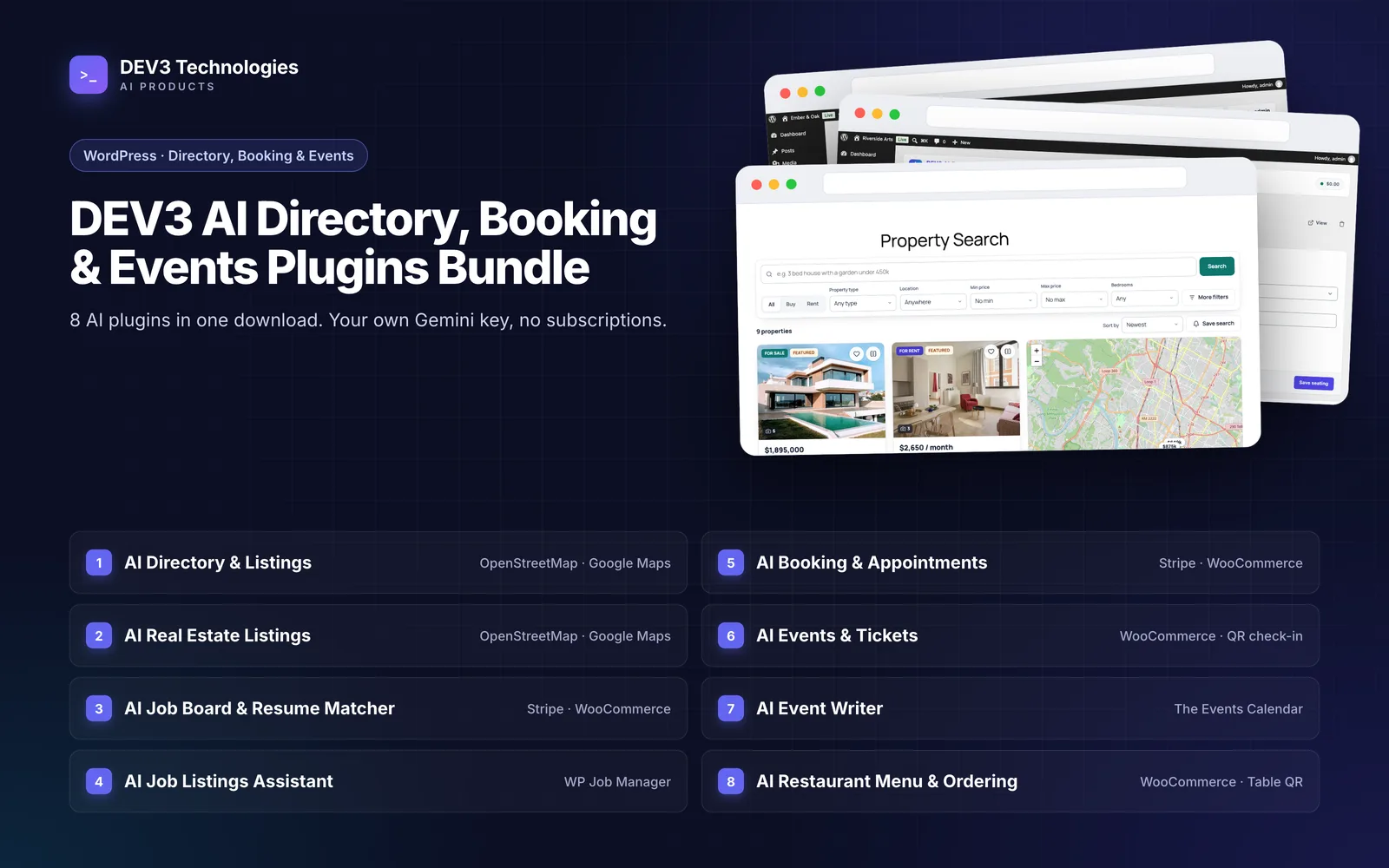
The bundle contains eight separate WordPress plugins. Each installs and works on its own, and they don't share listing data. They do share a common DEV3 core for the AI client, settings, background jobs and usage logs, so their AI controls behave alike.
| Plugin | What it does | Works with |
|---|---|---|
| DEV3 AI Directory & Listings for WordPress | Custom listing types and fields, maps, front-end submission, paid plans, claims, reviews, messages and alerts | OpenStreetMap or Google Maps; Stripe, WooCommerce or offline payment |
| DEV3 AI Real Estate Listings for WordPress | Properties for sale or rent, map search, saved searches with email alerts, agents, agencies, a lead inbox and a mortgage calculator | OpenStreetMap or Google Maps |
| DEV3 AI Job Board & Resume Matcher for WordPress | Job listings, company profiles, paid job packages, private resumes, a kanban hiring pipeline and job alerts | Stripe, WooCommerce or offline payment |
| DEV3 AI Job Listings Assistant for WP Job Manager | An add-on that scores listing quality, structures salaries and completes JobPosting markup | WP Job Manager |
| DEV3 AI Booking & Appointments for WordPress | Services, staff, schedules, payments, reminders and an admin calendar | Stripe or WooCommerce, or pay later |
| DEV3 AI Events & Tickets for WordPress | Venues, recurring dates, ticket types, seat maps, PDF and QR tickets and a phone check-in screen | WooCommerce or free RSVP |
| DEV3 AI Event Writer for The Events Calendar | An add-on that drafts event copy and turns a flyer into a draft event | The Events Calendar |
| DEV3 AI Restaurant Menu & Online Ordering for WordPress | Menus with modifiers and allergens, pickup, delivery and table-QR ordering and a kitchen board | WooCommerce or pay at the counter |
Two of the eight are add-ons: if you already run WP Job Manager or The Events Calendar, keep it and add the DEV3 add-on.
Step 1: Decide what your marketplace sells
Write down what visitors browse and what they do next. A short map prevents overlap later.
| Site type | Browse | Act |
|---|---|---|
| City guide | Cafés, shops, services, events | Read reviews, save favourites, buy tickets, order food |
| Wellness hub | Studios, practitioners, classes | Book an appointment, buy a workshop ticket |
| Venue or food hall | Vendors, menus, upcoming nights | Order for pickup or at the table, buy tickets |
| Local property and jobs portal | Homes, agencies, vacancies | Save a search, send a lead, apply for a job |
Every row starts with the directory. The other plugins cover actions that need their own engine: availability, tickets, orders.
Step 2: Choose the right plugin for each job
The directory ships with five listing types (Businesses, Properties, Jobs, Events and People), and you can build your own fields for each. For each content type, ask whether a directory listing is enough or it needs a dedicated plugin.
| You need... | Use |
|---|---|
| A profile page for a business, with hours, map, reviews and a claim button | Directory & Listings |
| Property search with price, beds and area filters, saved searches and agent leads | Real Estate Listings |
| A simple "what's on" listing that links out to someone else's ticket page | A Directory Events type |
| Tickets, capacity, seats, QR codes and door check-in | Events & Tickets |
| Better copy and flyer import for an existing The Events Calendar site | Event Writer for The Events Calendar |
| A full job board with employer and candidate dashboards | Job Board & Resume Matcher |
| Cleaner listings and Google for Jobs markup on an existing WP Job Manager site | Job Listings Assistant |
| Bookable time slots per staff member, with reminders | Booking & Appointments |
| A menu people can order from, with a kitchen screen | Restaurant Menu & Online Ordering |
Pick one plugin per job. Running Events & Tickets alongside The Events Calendar, or the Job Board alongside WP Job Manager, gives you two competing sets of event or job pages.
Step 3: Build the directory spine
Set up the directory first. The paid local business directory guide covers this in detail. In short:
- Shape the Businesses type with the fields your visitors filter on: opening hours, address and map pin, price range, categories and locations.
- Create hierarchical Locations (city, then neighbourhood) and Categories, so archive pages and filters make sense.
- Set up Plans & payments if owners pay to list or to be featured.
- Place the directory, search and map with the plugin's blocks or the
[dev3dl_directory],[dev3dl_search]and[dev3dl_map]shortcodes.
Owners can paste their website address and let autofill propose the listing: structured data on the page is read first, the AI only fills gaps, and the owner checks the draft before anything is saved.
Step 4: Add bookings to the places that take appointments
For a wellness hub or salon directory, set up services and staff in Booking & Appointments, then put the booking widget on the matching listing or landing page:
[dev3bk_booking service="12" staff="3"]
The service, staff and category attributes let you show one practitioner, one service or one group of services. Add [dev3bk_my_bookings] to an account page so logged-in customers can see their bookings; guests manage a booking through the link in their email.
Availability comes from one engine that handles breaks, time off, buffers, notice periods and daylight-saving changes, and two people can't take the same slot. The AI part is narrow on purpose: a visitor can type "Tuesday after 5 with Anna", the AI turns that into search constraints, and the engine returns only slots that are really free. The bookings with Stripe deposits guide covers payments and reminders.
Step 5: Sell tickets for what's on
For a venue or city guide with its own events, Events & Tickets handles dates, capacity and the door:
[dev3ev_events]shows events with list, calendar and map views, filterable bycategory.[dev3ev_tickets event="45"]puts the ticket form for one event on any page, such as a venue's own landing page.[dev3ev_my_tickets]lists a customer's tickets on their account page.
Paid tickets go through WooCommerce, free events confirm as RSVPs, and each ticket gets a QR code. Door staff can be given an "Event check-in staff" role that opens the phone scanner and nothing else. See selling event tickets with QR check-in for the full walkthrough.
If the site already runs The Events Calendar, keep it and add Event Writer instead. It drafts descriptions, social posts, emails, FAQs and SEO meta from each event's real details, and can turn a photographed flyer into a draft event matched to your existing venues and organisers. The events promotion guide shows that workflow.
Step 6: Let food vendors take orders
Restaurant Menu & Online Ordering gives a café, food hall or venue bar a menu people can order from: pickup, delivery by postcode zone, or dine-in by scanning a QR code on the table. Place a menu with [dev3ro_menu] and the kitchen works from a live board with New, Preparing and Ready columns. A "Kitchen staff" role can open that board and nothing else.
Prices are worked out on the server, so a tampered browser request can't change what a customer pays. A menu can be imported from up to five photos or a PDF as a draft you review. The online food ordering guide covers zones, slots and table QR codes.
Step 7: Add property and job sections if your area needs them
Local portals often carry homes and vacancies alongside businesses. Use Real Estate Listings when you need proper property search, saved searches and an agent lead inbox (real estate agency guide). Use the Job Board when employers will post and pay for vacancies themselves (niche job board guide).
Both are careful with people: property neighbourhood summaries are grounded in nearby places from OpenStreetMap and may not make claims about school quality or crime, and resume matching removes protected attributes such as name, age and gender first. A match score never moves, hides or rejects a candidate.
How the AI behaves across the bundle
The same rules apply in every plugin, which makes the site easier to explain to listing owners.
| Principle | What it means in practice |
|---|---|
| Drafts, not decisions | Listing autofill, descriptions, event copy, menu imports and reminder copy all come back as drafts for a person to accept |
| Facts come from your data | Bookable slots come from the availability engine, food prices from the pricing rules, ticket capacity from the event's own records |
| Useful with AI off | Directory autofill still maps structured data, booking and property searches fall back to rule-based parsers, and job match scores have a transparent rule score |
| Limited roles for staff | Door staff and kitchen staff get roles that open one screen only |
You can launch with AI off and switch it on plugin by plugin.
Practical tips for launch
- One payment route where you can. Several plugins can use WooCommerce checkout, which keeps orders, tickets and bookings in one order list. Booking, the directory and the job board can also use Stripe Checkout directly.
- Real cron for reminders and expiry. Booking reminders run on a five-minute schedule and the directory runs a daily task for listing expiry and alerts, both through WP-Cron. On low-traffic sites, call
wp-cron.phpfrom a real server cron job. - Same maps everywhere. The directory, real estate and events maps use Leaflet and OpenStreetMap by default. If you switch the directory to Google Maps, switch the others too so the site looks consistent.
- Start small. Launch the directory plus one action, such as bookings, then add events or ordering once owners are using it.
Getting started
The DEV3 AI Directory, Booking & Events Plugins Bundle gives you all eight plugins as installable zips with full source code, so you can build the directory first and add bookings, tickets, ordering, property or job sections as your local marketplace grows. To see how the directory's structured-data autofill and draft-only AI were designed, read the case study.