All case studies

DEV3 Technologies · own product

DEV3 AI Directory & Listings: a WordPress directory plugin that fills listings from a business website

Our own WordPress directory plugin for businesses, properties, jobs, events and people. It reads a business website's structured data first, lets the Google Gemini API fill only the gaps, and returns a draft the owner checks before anything is saved.

Industry
Directories & Local Business (WordPress)

Live project preview

Client systems are private — screenshots shown where permitted.

DEV3 Technologies · own product — screenshots
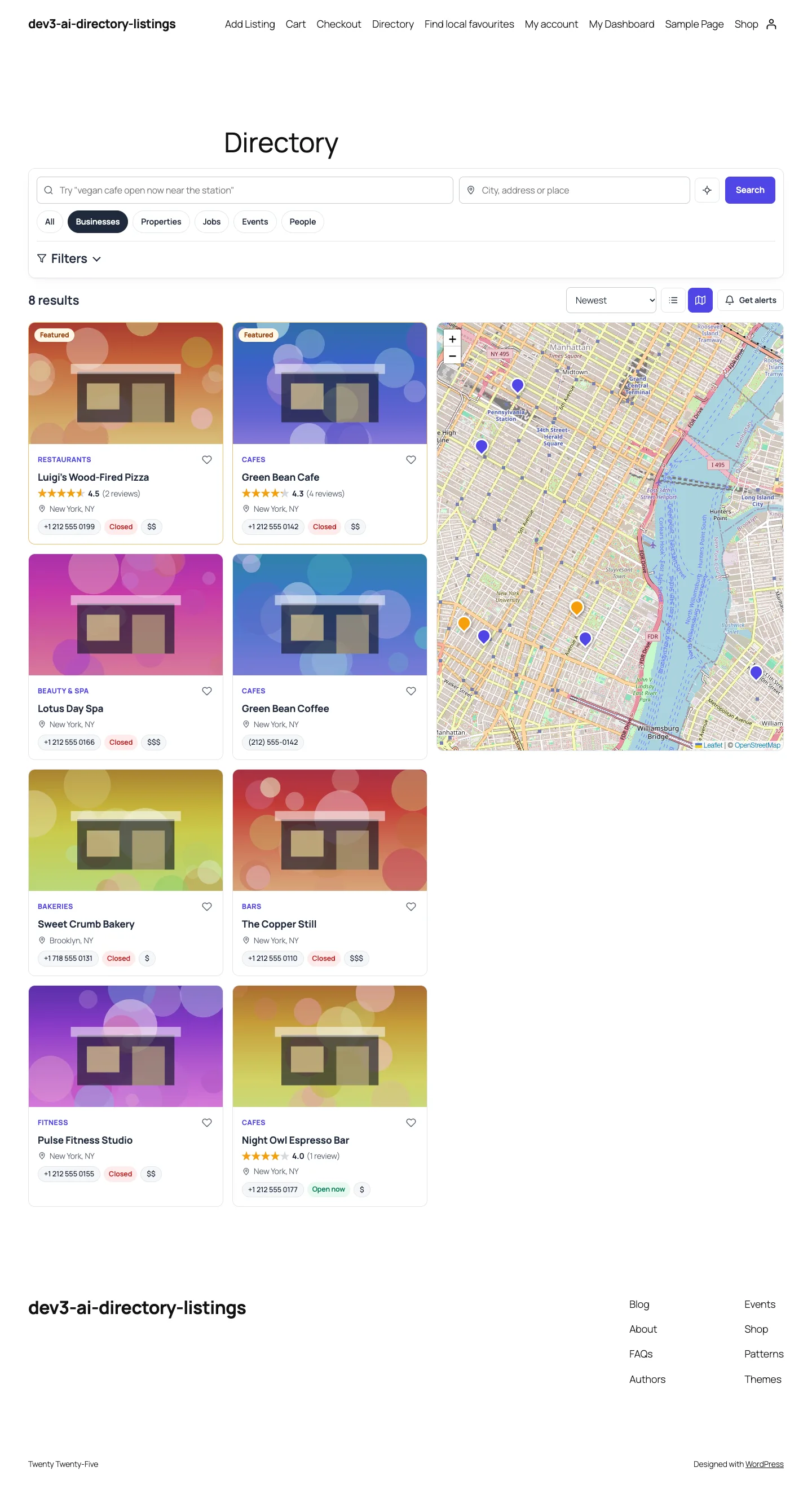
The front-end directory: plain-language search, type tabs, cards with ratings and "open now" badges, and an OpenStreetMap view.

The front-end directory: plain-language search, type tabs, cards with ratings and "open now" badges, and an OpenStreetMap view.

The challenge

Directory sites live or die on listing quality, and most listings are typed in by hand by busy owners who skip half the fields. Directory plugins ask for a phone number, an address, opening hours, a price range and social links that already exist on the business's own website, often as schema.org JSON-LD. Pasting a URL into a language model and trusting the answer is risky: models invent phone numbers and hours, pick categories the site does not have, and return values that do not fit the field types. We needed autofill that reuses what the page already states precisely, uses AI only for what is missing, fits every directory type's own custom fields, and never saves anything the owner has not seen.

Our solution

We built DEV3 AI Directory & Listings as a WordPress plugin in PHP with a React admin and a light storefront script. It covers the parity features of the leading directory plugins (custom types and fields, maps, front-end submission, paid plans, claims, reviews, bookmarks, messages, alerts and schema.org markup) and adds AI where it saves owners and admins real typing.

Key design decisions

  • Structured data before AI. Page_Extractor reads JSON-LD (including @graph), Open Graph and meta tags, tel: and mailto: links and social profile links. It ranks entity nodes such as CafeOrCoffeeShop above WebPage and breadcrumbs, and converts both openingHoursSpecification and the short Mo-Fr 08:00-18:00 form into the plugin's hours format.
  • A response schema per directory type. Each directory type has its own fields (18 field types). Autofill::schema() builds the Google Gemini API response schema from them at request time: objects for address, hours and social links, a yes/no/unknown enum for checkboxes, and a maxLength on every string.
  • Rules win, AI fills gaps. A value found in structured data is never overwritten by the model. Select options and categories must match the site's own labels, and every AI value goes through the same field sanitiser as a human edit.
  • Drafts only. Autofill, descriptions, review summaries and duplicate checks all return drafts. Nothing is written until an owner or admin accepts it.
  • Works without AI. With no API key, URL autofill still maps structured data, review moderation uses rules (links, spam words, abuse, copied text, self-reviews, bursts from one device), and a built-in parser handles searches such as "open now near the station".
  • Safe fetching. Pages are fetched with wp_safe_remote_get after wp_http_validate_url, with a 15-second timeout, at most 4 redirects and a 2 MB response cap. Uploaded documents are limited to PDF, JPG, PNG, WebP or TXT under 8 MB.

Architecture

Listings are a custom post type with field values in post meta. A dev3dl_index table holds geo, rating, featured, price, event start and hours for fast filtering and "open now" checks. Search narrows candidates with WP_Query and finishes distance, rating and hours filtering in PHP. Maps use Leaflet and OpenStreetMap by default, or Google Maps with a key. Plans can be paid through Stripe Checkout, WooCommerce (HPOS and block checkout) or offline. The API client, encryption, rate limiting, background jobs and usage logs come from a shared core used across DEV3's plugins.
Results

The plugin is complete. It ships in the DEV3 AI Directory, Booking & Events Plugins Bundle on the DEV3 marketplace, alongside 7 other directory, booking and events plugins, and is being prepared for CodeCanyon. What was built and verified:

  • 76 PHPUnit tests in wp-env, covering autofill, field sanitising, overnight opening hours, distance search, plans and expiry, reviews, claims, alerts, duplicates, REST permissions and schema markup
  • 34 Jest tests for the admin app, the storefront script and the shared UI kit
  • Autofill fixture test: a cafe page with JSON-LD fills at least 80% of the business type's fields; the structured phone number beats a different one from the model, unknown options and categories are dropped, and no listing is saved
  • AI paths were tested with mocked Google Gemini API responses; a live-key run on real business websites is the next step before launch
  • Stripe Checkout was tested with signature checks against a stub of its documented API; WooCommerce plan purchases were tested for real in wp-env
  • JSON-LD for LocalBusiness, RealEstateListing, JobPosting, Event and Person is unit-tested for Google's required properties; a manual Rich Results Test on the demo site is still to run

Setup guide

No licence key or activation is needed: install the zip and every feature works.

Requirements

  • WordPress 6.0 or newer and PHP 7.4 or newer
  • Works with block and classic themes
  • Optional: WooCommerce (HPOS and block checkout supported) or a Stripe account, if you sell paid listing plans
  • Optional: a Google Gemini API key. Without one, URL autofill still uses the page's structured data, and reviews and search use the built-in rules

1. Install the plugin

  1. The plugin ships inside the bundle download at dev3-ai-directory-booking-events-plugins-bundle/dev3-ai-directory-listings/dev3-ai-directory-listings.zip.
  2. In WordPress, go to Plugins → Add New → Upload Plugin, choose that zip and click Install Now.
  3. Click Activate. The menu DEV3 AI Directory appears in the admin sidebar, and three pages are created: Directory, Add Listing and My Dashboard.

2. Connect Google Gemini (optional)

  1. Create a free API key in Google AI Studio (sign in with a Google account, then Create API key).
  2. Go to DEV3 AI Directory → API Config, paste the key and click Validate & save. The key is stored encrypted (AES-256-GCM) and never sent to the browser.
  3. Optional: pick the models. gemini-2.5-flash is the fast default; gemini-2.5-pro for the highest quality.

Prefer config files? Add define( 'DEV3DL_GEMINI_API_KEY', 'your-key' ); to wp-config.php instead.

3. Set it up

  1. Open Types & fields. Five directory types are ready (Businesses, Properties, Jobs, Events, People). Turn reviews, claims, the map and messages on or off per type, and add or reorder fields with Add field.
  2. In Categories, add the categories and locations for each type.
  3. In Plans & payments, create free or paid plans (price, duration, photo limit, featured placement, approval) and choose the payment method: Stripe Checkout, WooCommerce or offline.
  4. In Settings, choose the map provider (OpenStreetMap needs no key; Google Maps needs a browser key), moderation for new listings and reviews, and email notifications.
  5. Optional: in Smart search, try a visitor query and decide whether natural-language search with DEV3 AI is on for visitors.
  6. Add the directory anywhere with the blocks or shortcodes, for example [dev3dl_directory view="map"] or [dev3dl_submit].

Updating

Download the new bundle version, then upload the plugin zip in Plugins → Add New → Upload Plugin and choose Replace current with uploaded. Settings and listings are kept.

Uninstalling

Deactivate and delete the plugin from Plugins. Listings, reviews and settings are kept in the database, so reinstalling picks up where you left off.

How to use

Fill a listing from a business website

  1. Go to DEV3 AI Directory → Listings and add a listing, or open an existing one.
  2. In the Autofill with DEV3 AI panel, paste the business website address and click Fill from website. For a menu, flyer or brochure, click Upload PDF / image instead.
  3. The form fills in. Values taken from the page's structured data (name, phone, address, map pin, hours, price range, social links) are kept as they are; DEV3 AI adds the description, categories and anything else it can find.
  4. Check every field, fix anything that is wrong, then click Save changes. Nothing is saved before that.

Write a local-SEO description

  1. In the listing editor, open Write with DEV3 AI.
  2. Choose the tone and length, and optionally add target keywords such as "vegan cafe in Brooklyn".
  3. Click Generate with DEV3 AI. You get a description, short summary, SEO title and meta description as a draft; accept, edit or discard it.

Moderate reviews and publish a summary

  1. Open Reviews. The To moderate tab shows each review with its signals, for example "Abusive words" or "Many reviews from one device".
  2. Click Approve or Spam. With an API key, every review also gets a DEV3 AI verdict; auto-approval of clean reviews above a confidence threshold is an opt-in setting.
  3. In a listing, use Review summary → Regenerate summary to draft a "What customers say" box with pros and cons, and accept it to publish it on the listing page.

Let owners submit and pay for listings

  1. Owners open the Add Listing page, choose a plan, and can use Fill from website on the front end too.
  2. Paid plans go to Stripe Checkout or the WooCommerce checkout; offline payments wait until you mark them paid.
  3. Owners manage listings, messages, reviews, saved listings, alerts and payments from My Dashboard, including Upgrade and Pay now.

Clean up duplicates and claims

  1. Open Duplicates and click Scan all listings. Pairs are matched by phone, website, email, or a similar name at the same spot on the map.
  2. For each pair choose Merge or Not a duplicate. You can also run Check for duplicates from a single listing.
  3. In Claims, check the proof an owner sent and approve or reject the claim; an approved claimant takes over the listing and gets the verified badge.

Related case studies