All case studies

DEV3 Technologies · own product

DEV3 AI Booking: DST-safe appointment scheduling where AI reads "Tuesday after 5" yet offers only real slots

Our own WordPress appointment plugin: services, staff, schedules, Stripe and WooCommerce payments, reminders and an admin calendar, plus AI that turns "Tuesday after 5 with Anna" into search constraints and never invents a free slot.

Industry
Services & Appointments (WordPress)

Live project preview

Client systems are private — screenshots shown where permitted.

DEV3 Technologies · own product — screenshots
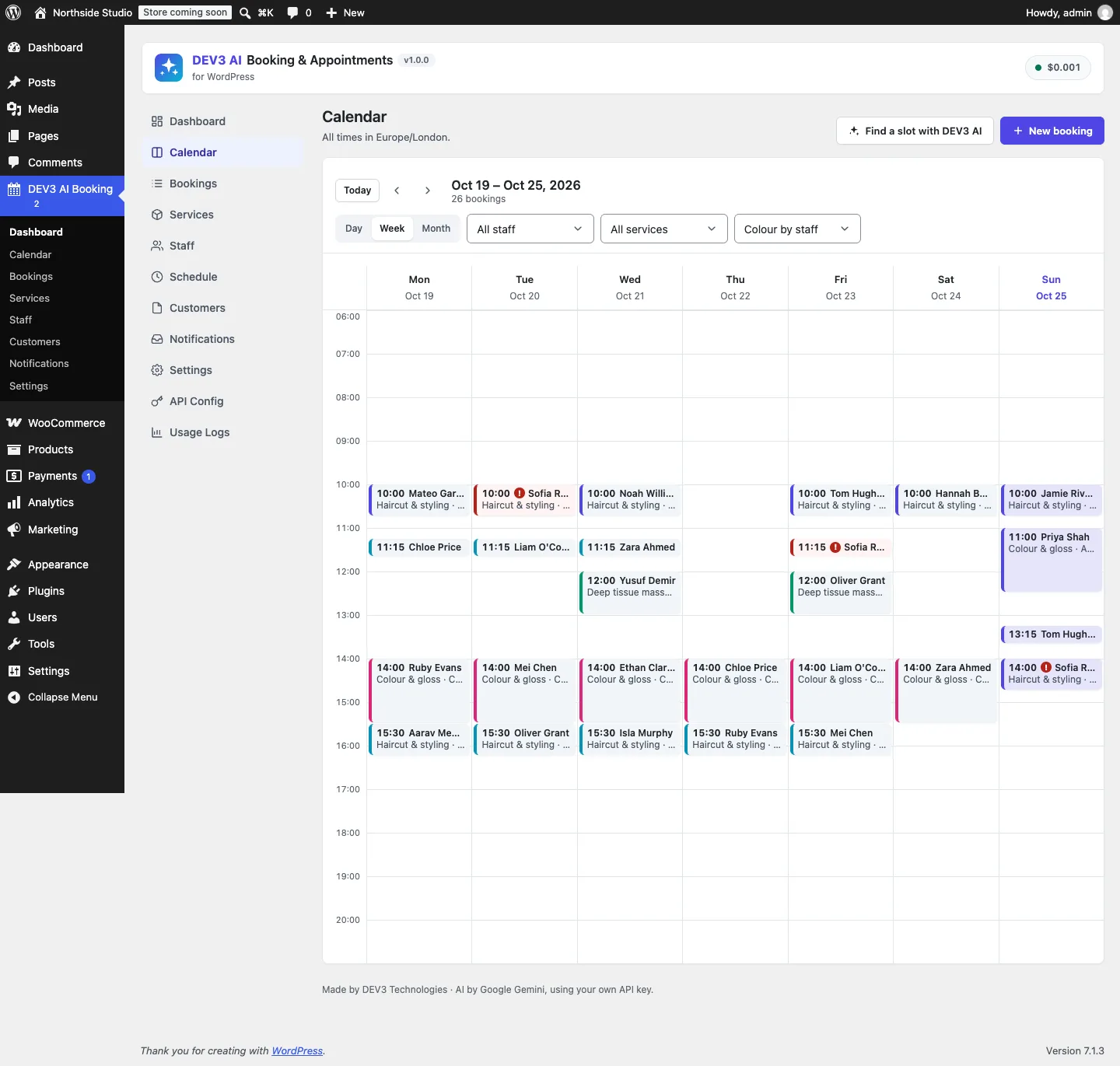
The admin calendar's week view, coloured by staff, with no-show risk flags and a "Find a slot with DEV3 AI" button.

The admin calendar's week view, coloured by staff, with no-show risk flags and a "Find a slot with DEV3 AI" button.

The challenge

Appointment plugins for salons, clinics and studios have to get time exactly right. Staff work in their own timezones, customers book from others, opening hours are wall-clock times that move against UTC twice a year, and buffers, breaks, time off and group capacity all change which slots are really free. Most existing tools also sell basics as paid add-ons and offer nothing to customers who would rather type "any evening next week" than click through a calendar. We wanted a self-contained booking system that is correct across DST changes and timezones, safe when two people grab the last slot at once, pleasant on a phone, and that uses AI only where it cannot double-book anyone or move money.

Our solution

We built DEV3 AI Booking & Appointments as a WordPress plugin in PHP with a React admin and a light, dependency-free booking widget. Availability is computed by a pure PHP engine that never writes, and every write goes through one booking manager.

Key design decisions

  • Wall-clock slots, elapsed-time durations. Opening hours are stored as local times per staff member and converted to UTC per date. Slots line up with the staff member's clock, while durations and buffers are real minutes. Times skipped by a spring-forward change are never offered, and the repeated hour on fall-back day is offered once.
  • One engine, every rule. Weekly hours with several intervals, breaks, special hours, time off and business closures (all-day or partial), buffers before and after, minimum notice, maximum advance, group capacity and unpaid holds that expire all live in Availability\Engine, covered by 20 PHPUnit fixtures.
  • No double bookings. Creating or rescheduling takes a MySQL named lock per staff member, re-runs the engine for that exact start and only then inserts. A second request for the same slot gets dev3bk_slot_taken (HTTP 409).
  • Customer timezone at the edge. The API returns UTC ISO starts with local labels grouped by the customer's own date, so a Tokyo customer booking a London stylist sees Tokyo days and times.
  • AI returns constraints, not slots. Natural-language requests become a structured {service, staff, dates, weekdays, time window} object. The server ignores unknown IDs, clamps dates to the booking window and runs the engine, so only real free slots come back. A rules parser answers the same phrases when AI is off.
  • AI that suggests, never acts. Reminder copy is a draft you review in a diff and approve before it becomes a template. The no-show score is a deterministic rule model; AI only adds a plain-language hint from anonymised facts and changes nothing.

Architecture

Seven custom tables hold services, staff, staff-service links, schedule exceptions, customers, bookings and an event timeline. The widget is a Gutenberg block and shortcode with a mobile-first step flow, a timezone switcher and Add to Google Calendar and .ics downloads. Payments run as pay later, Stripe Checkout with signed webhooks and policy-based refunds, or WooCommerce checkout through a hidden virtual product (HPOS and block checkout). Guests manage bookings through a keyed link with cancel and reschedule cutoffs; staff get a private iCal feed. Reminders run on a 5-minute cron with a per-booking sent flag. The API client, settings and usage logs come from a shared core used across DEV3's plugins.
Results

The plugin is complete. It ships in the DEV3 AI Directory, Booking & Events Plugins Bundle on the DEV3 marketplace, alongside 9 other plugins, and is being prepared for CodeCanyon. What was built and verified:

  • 89 PHPUnit tests, including 20 availability fixtures for breaks, closures, buffers, capacity, holds, spring-forward and fall-back in New York, the London clock change and customers in Tokyo
  • 29 Jest tests for the admin screens, the booking widget and the shared UI kit
  • Concurrency test: a second booking for the same start, an overlapping start and a time that was never offered are all refused
  • Stripe Checkout tested with real signature checks against mocked Stripe APIs; the WooCommerce order flow (hidden product, paid order confirms the booking) tested against real WooCommerce in PHPUnit
  • AI paths (natural-language booking, reminder drafts, no-show hint) tested with mocked API responses; a run with a live key is still to come
  • All release gates passed: build, Jest, PHP_CodeSniffer at 0 errors and 0 warnings, PHPUnit in wp-env, translation template and packaging

Two-way Google Calendar sync, SMS reminders, PayPal and recurring appointments are planned for v1.1.

Setup guide

No licence key or activation is needed: install the zip and every feature works.

Requirements

  • WordPress 6.0 or newer and PHP 7.4 or newer
  • Optional: WooCommerce 8.0 or newer, only if you want customers to pay through the WooCommerce checkout (classic and block checkout, HPOS)
  • Optional: a Stripe account for Stripe Checkout payments and refunds
  • Optional: a Google Gemini API key. Without one, natural-language booking uses the built-in rules parser and everything else works as normal

1. Install the plugin

  1. The plugin ships inside the DEV3 AI Directory, Booking & Events Plugins Bundle. Unzip the bundle download and find dev3-ai-directory-booking-events-plugins-bundle/dev3-ai-booking-appointments/dev3-ai-booking-appointments.zip.
  2. In WordPress, go to Plugins → Add New → Upload Plugin, choose that zip and click Install Now.
  3. Click Activate. DEV3 AI Booking & Appointments for WordPress appears in the plugin list and its menu, DEV3 AI Booking, appears in the admin sidebar. The Book an appointment and My bookings pages are created for you.

2. Connect Google Gemini (optional)

  1. Create a free API key in Google AI Studio (sign in with a Google account, then Create API key).
  2. Go to DEV3 AI Booking → API Config, paste the key and click Validate & save. The key is stored encrypted (AES-256-GCM) and never sent to the browser.
  3. Optional: pick the model (gemini-2.5-flash is the fast default; gemini-2.5-pro for the highest quality).

Prefer config files? Add define( 'DEV3BK_GEMINI_API_KEY', 'your-key' ); to wp-config.php instead.

3. Set it up

  1. Go to Settings first: business name and email, timezone, 12 or 24-hour time, default slot interval, minimum notice, maximum advance, whether new bookings are confirmed or wait for approval, and your cancel, reschedule and refund policies.
  2. In Schedule, set the business hours and add closures and yearly holidays.
  3. In Services, add each service with its duration, price, optional deposit, capacity (1 for private appointments, more for group classes), buffers and payment mode.
  4. In Staff, add your team, tick the services each person performs, and set their timezone, weekly hours, breaks, time off and special days. Each staff member gets a private iCal feed to subscribe to in Google, Apple or Outlook calendars.
  5. For online payments, open Settings → Payments and add your Stripe keys and webhook secret, or turn on WooCommerce checkout.
  6. In Notifications, review the email templates and reminder timings. Write with DEV3 AI drafts new copy that you approve before it is used.
  7. Add the Booking form block or the [dev3bk_booking] shortcode to any page, and the My bookings block or [dev3bk_my_bookings] for customers. Manage everything from Dashboard, Calendar, Bookings and Customers.

Updating

Download the new version of the bundle, then upload the plugin zip in Plugins → Add New → Upload Plugin and choose Replace current with uploaded. Settings and data are kept.

Uninstalling

Deactivate and delete the plugin from Plugins. Your services, staff, bookings and customers are kept unless you ticked Delete all booking data when the plugin is uninstalled in Settings → DEV3 AI & data.

How to use

Take a booking for a customer on the phone

  1. Open DEV3 AI Booking → Calendar and click New booking.
  2. Choose the service and staff member, then a date. Only real free slots are listed; tick the option to force a time if you need to override the rules.
  3. Search for the customer or create a new one, add notes, set the payment status and save. The customer gets the confirmation email with an .ics file.

Find a slot from a sentence

  1. In Calendar, click Find a slot with DEV3 AI.
  2. Type what the customer asked for, for example "a haircut Tuesday after 5 with Anna".
  3. The plugin turns the request into a service, staff member, dates and time window, then lists matching free slots. Pick one to open the booking form. Customers get the same box in the widget under Tell us when suits you. Without an API key, the built-in rules parser answers instead.

Work through the day

  1. Start on Dashboard: today's agenda, bookings waiting for approval and the No-show watch list.
  2. Click any booking to open its drawer. From there you can confirm, complete, mark a no-show, cancel, reschedule, mark it paid, refund, resend the confirmation or send a reminder now.
  3. Use Bookings for status tabs, filters, search, bulk confirm or cancel, and CSV export.

Act on a no-show risk

  1. Open a booking with a High risk badge. The score from 0 to 100 lists its reasons, such as earlier no-shows or nothing paid yet.
  2. Click Explain with DEV3 AI for a short hint and a suggested action, such as a personal reminder or asking for a deposit next time.
  3. Decide yourself. The hint never changes the booking or contacts the customer.

Rewrite a reminder email

  1. Go to Notifications and open a template, for example Reminder 1.
  2. Click Write with DEV3 AI, choose a tone, length and language, add optional instructions and generate.
  3. Review the draft in the diff view, edit it if needed, then approve and save. Only approved text is ever sent, and placeholders such as {manage_url} are checked before saving.

Let customers manage their own bookings

  1. Every confirmation email contains a secure manage link; logged-in customers also see their bookings on the My bookings page (and in WooCommerce My Account under Appointments).
  2. Customers can reschedule to another free slot or cancel with a reason, inside the cutoffs you set in Settings → Policies. Stripe payments are refunded automatically inside your refund window when that option is on.

Related case studies