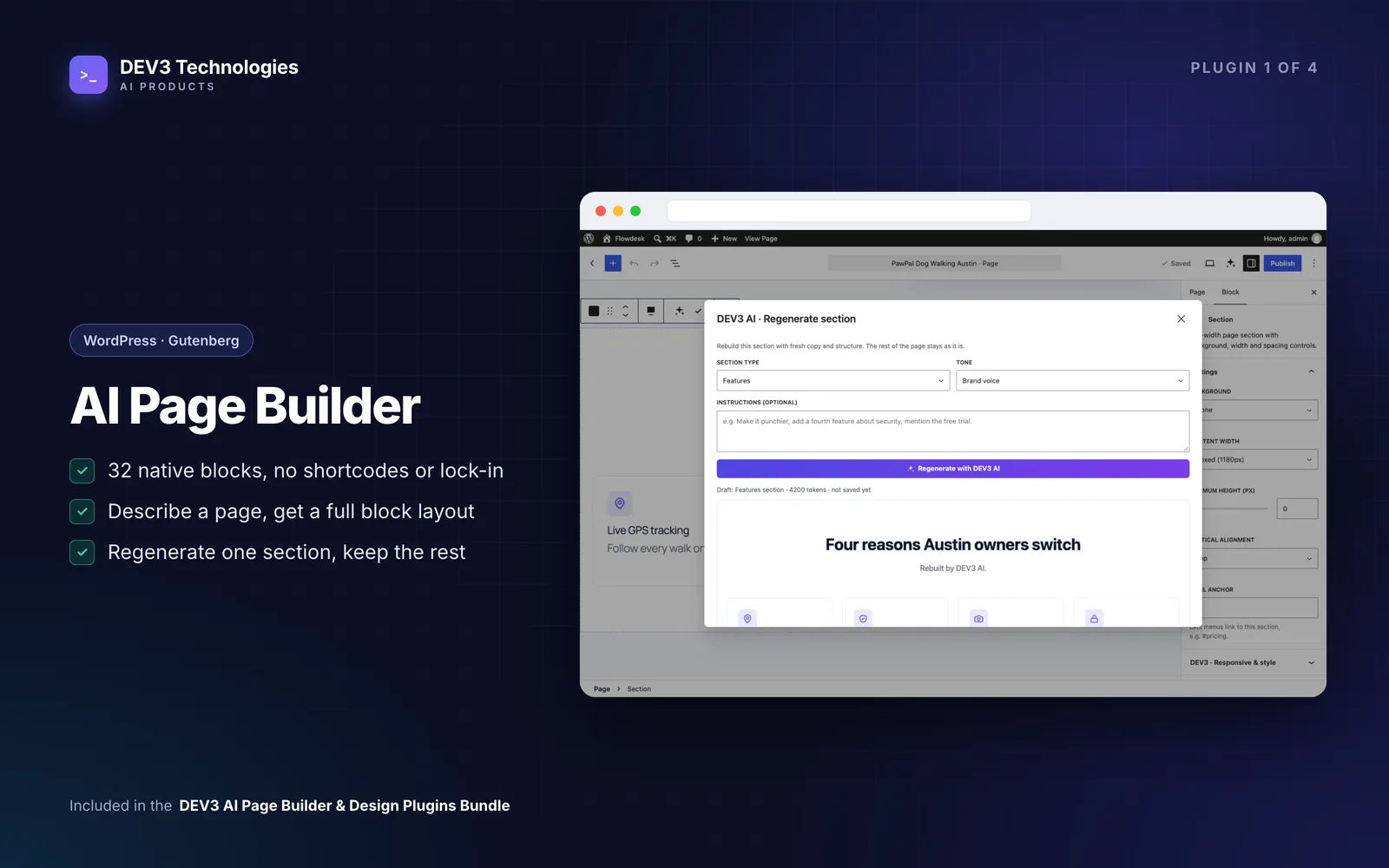
You need a landing page: a hero, a few features, how it works, pricing with a monthly and yearly switch, testimonials, an FAQ and a call to action. In Elementor or WPBakery that usually means installing two or three add-on packs to get the missing widgets, fighting their different styling panels, and ending up with a page that loads jQuery, an icon font and a stylesheet per add-on. Then a client asks for the same section on their other site, which runs a different builder.
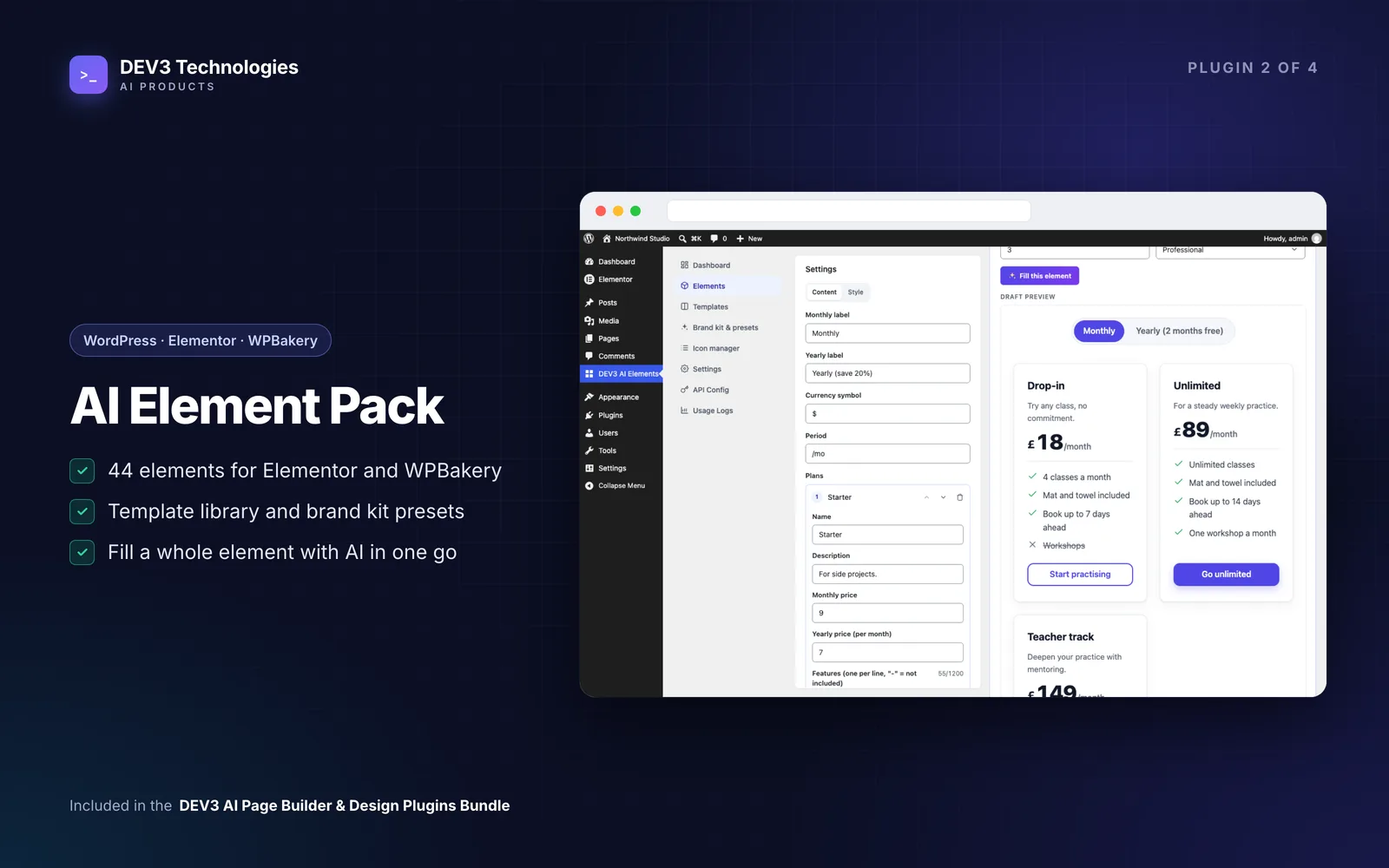
This guide shows how to build that page with DEV3 AI Element Pack: 44 elements that work in Elementor, WPBakery and the block editor, styled from one brand kit, with AI that drafts the content of a whole element from one sentence.
What a good landing page build looks like
- Every section you need from one toolkit, so styling is consistent.
- Brand colours and fonts set once, not per widget.
- Real content quickly, without lorem ipsum that ships by accident.
- Accessible and fast: keyboard-friendly tabs and accordions, no layout jank, light assets.
- Search-friendly extras, like FAQ schema.
- Portable: the same section can go to an Elementor, WPBakery or block site.
Step-by-step
1. Install and set the brand kit first
- Upload
dev3-ai-element-pack.zipin Plugins → Add New → Upload Plugin and activate it. A DEV3 AI Elements menu appears. Elementor 3.x/4.x and WPBakery 7+ are optional; without them you use the DEV3 Element block or shortcodes. - Open DEV3 AI Elements → Brand kit & presets and click Detect from my theme. It reads theme.json palettes and fonts, Customizer colours and the active Elementor kit, and suggests tokens without AI. Adjust and save.
The brand kit holds accent and second accent, heading, body and muted text, surfaces, borders, corner radius, shadow and fonts (empty means your theme's font). Every element uses these tokens, so one change restyles the whole page. The screen warns you about text colours that fail WCAG AA contrast, which is worth fixing before you build.
With a Gemini key in API Config, Generate brand kit with DEV3 AI proposes a full token set plus three presets with a short rationale. You review the values before applying anything.
2. Trim the element list
In Elements, switch off anything you'll never use. It disappears from all three builders, which keeps the widget panel tidy for editors. Each element also has a playground with a desktop, tablet and mobile preview.
3. Start from a template section
Open Templates. There are 12 built-in sections: SaaS hero, Feature grid, Pricing plans, Testimonials + logos, FAQ, How it works, Stats band, Team, Contact + map, Launch countdown, Our story and Call to action. Click Create page, choose Elementor, WPBakery or the block editor, and you get a draft.
Inside the builders you can also insert templates directly: in Elementor via the gradient template icon in the canvas's "add section" bar; in WPBakery under Templates → Default templates.
4. Assemble the sections
Elements are in the DEV3 AI Elements category of Elementor's widget panel (search "dev3") or the DEV3 AI Elements tab of WPBakery's Add Element. A typical landing page:
| Section | Elements |
|---|---|
| Hero | Advanced Heading, Dual Button, Star Rating |
| Features | Feature Grid or Info Box |
| How it works | Process Steps or Timeline |
| Proof | Stats Row, Counter, Logo Grid, Testimonials (grid or carousel) |
| Pricing | Pricing Plans (monthly / yearly switch) or Comparison Table |
| FAQ | FAQ (adds FAQPage schema) |
| Close | Call to Action, Countdown for a launch |
For the hero, row extras add a gradient (linear, radial or slowly animated), a shape divider (wave, curve, tilt, triangle, zigzag or mountains), parallax, a video background or a sticky row. In Elementor: select the container, then Advanced → DEV3 Row Extras. In WPBakery: the row's DEV3 Row Extras tab. In the block editor, the DEV3 Section block brings the same options.
5. Fill the content with AI
Every element has Write with DEV3 AI and Fill this element at the top of its settings.
- Fill this element: describe the business ("a yoga studio with drop-in classes and monthly passes") or leave it empty to use your site title and tagline, choose the number of items and a tone. DEV3 AI writes every text field at once (for example three pricing plans with features, six FAQs or four stats) and picks matching icons. Images, links and style options are kept. Review the draft, edit it, then Apply to element. In Elementor this goes into the undo history; in WPBakery click Save changes as usual.
- Write with DEV3 AI: pick one field (including repeater items), an action such as rewrite, shorten, expand or fix grammar, and a tone. The draft is shown next to the current text with changes highlighted.
Set a brand voice under Settings → Writing defaults so every request follows it.
6. Images and alt text
In the assistant's Images tab you can describe an image and generate one; it's only added to the media library when you click Accept & use. For existing media, Write alt text with DEV3 AI proposes an accessible description and saves it when you accept.
Tips and pitfalls
- Prices are yours to check. AI-drafted pricing plans are placeholders for structure and tone. Put your real prices in before publishing.
- Row effects don't show in the Elementor canvas. Parallax, video, dividers and sticky apply on the front end; use Elementor's Preview.
- Placing elements in headers or footers built outside a page? Set Load front-end assets to every page. By default they load only where elements are used.
- Per-section variety without breaking the brand: pick a preset (Soft, Bold, Dark, Outline or your own) in an element's Style group, or override CSS custom properties like
--dev3ep-accent. - Icons without an icon font. Built-in DEV3 Line (137 icons) and DEV3 Social (17 icons) print as inline SVG. You can upload SVGs or import a Fontello or IcoMoon zip.
- Maps and privacy. Set Google Map to click-to-load so nothing is shared with Google until the visitor agrees.
- Budget the AI. Set a monthly cap in API Config; when it's reached the AI buttons pause and every element keeps working.
On performance: one stylesheet (about 10 KB gzipped) and one deferred script (about 5 KB gzipped) load only on pages with elements, with no jQuery and no AI calls on page load. Elements use container queries, so they adapt to the column they sit in, not just the screen.
Who it's for
Agencies with clients on Elementor, WPBakery and the block editor, freelancers who want one toolkit, and site owners who write their own copy but want a professional starting point. Need a custom element or a full site build? Developers can register new elements with the dev3ep_elements filter, or our web development team can do it for you. The engineering behind identical output in every builder is in the case study.
Get started
DEV3 AI Element Pack is included in the DEV3 AI Page Builder & Design Plugins Bundle, alongside the Gutenberg Page Builder, Mega Menu and Content & Layout Builder. Detect your brand kit, create a page from a template and fill it with real content.