You want a proper website for your business (a home page, services or a menu, pricing, an FAQ, a contact form), and you want to build it yourself in WordPress. The default block editor feels too bare: no pricing tables, no tabs, no counters, no testimonials carousel. A page builder fills those gaps but brings its own editor, its own learning curve, and pages that turn into a mess of shortcodes if you ever switch away.
This guide shows a middle path with DEV3 AI Page Builder for Gutenberg: stay in the native block editor, add the blocks a business site actually needs, start from a template kit or a short description, and keep pages made of real blocks.
What a good DIY business website looks like
- Your brand everywhere: colours, fonts and corner radius set once, and a consistent voice in the copy.
- The sections customers expect: hero, services, pricing, testimonials, FAQ, contact.
- A fast start, then real editing, not a locked template.
- Works on phones, with control over what shows on each device.
- Basic SEO done right: one H1, sensible headings, alt text, a meta description.
- No lock-in. If you remove the plugin, your text and images stay.
Step-by-step
1. Install the plugin
- Upload
dev3-ai-page-builder.zipin Plugins → Add New → Upload Plugin and activate it. A DEV3 AI Page Builder menu appears. WordPress 6.3+ is recommended for the native Details block used by accordions. - Optional: add a Google Gemini key under API Config and click Test connection. Blocks, kits, the library, the brand kit, forms and the rule-based SEO checks all work without one. The key only powers the AI tools.
It works with block themes like Twenty Twenty-Five and classic themes such as Twenty Twenty-One, Astra, GeneratePress and Kadence.
2. Fill in your brand kit
Open the Brand kit. There are two parts:
- Identity & voice: name, tagline, audience, voice, words to use or avoid, and image style. Every AI prompt uses these.
- Colours, fonts, radius: these become CSS variables used by every block, with a live preview and a WCAG contrast check.
Turn on the editor palette sync so your brand colours appear in every colour picker. Already happy with your theme's colours? Import from theme.json reads its palette and fonts.
3. Start from a kit or a description
Template kits are the quickest route if one fits. There are five: Launch Landing, SaaS Product (home + pricing), Creative Agency (home + about), Online Shop and Restaurant (home + menu). Import a kit as draft pages, optionally applying its colours to your brand kit. Kit pages are assigned your theme's full-width template when it has one.
Describe the page suits everything else. In the editor, click the sparkle icon at the top right to open the DEV3 AI Page Builder sidebar. On the Describe tab, write who the page is for, what you offer and the main action, for example:
A family-run plumbing business in Leeds. Emergency call-outs, boiler servicing and bathroom fitting. Main action: book a visit.
Optionally pick a page type, tone, language and the sections you want, in order. You get an outline and a rendered preview. Remove or reorder sections, regenerate any single one, then insert it. The AI also writes the SEO title and meta description. A page usually takes 20–45 seconds, and nothing is saved until you save the page.
4. Make it yours
Everything on the page is editable blocks. The plugin adds 32 of them under the DEV3 AI Page Builder inserter category, including Section, Grid, Hero, Call to Action, Icon Box, Pricing Table with a monthly/yearly toggle, Testimonials (grid or swipe carousel), Tabs, Accordion with FAQ schema, Counters, Timeline, Team Member, Logo Strip, Gallery, Price List / Menu, Countdown and Form. Text lives in core blocks: headings, paragraphs, lists, buttons, images.
Useful tools while editing:
- Rewrite with DEV3 AI in a text block's toolbar: Rewrite, Improve, Expand, Shorten, Simplify, Fix spelling & grammar, Change tone or Translate. You see a word-by-word diff and accept, edit or reject it.
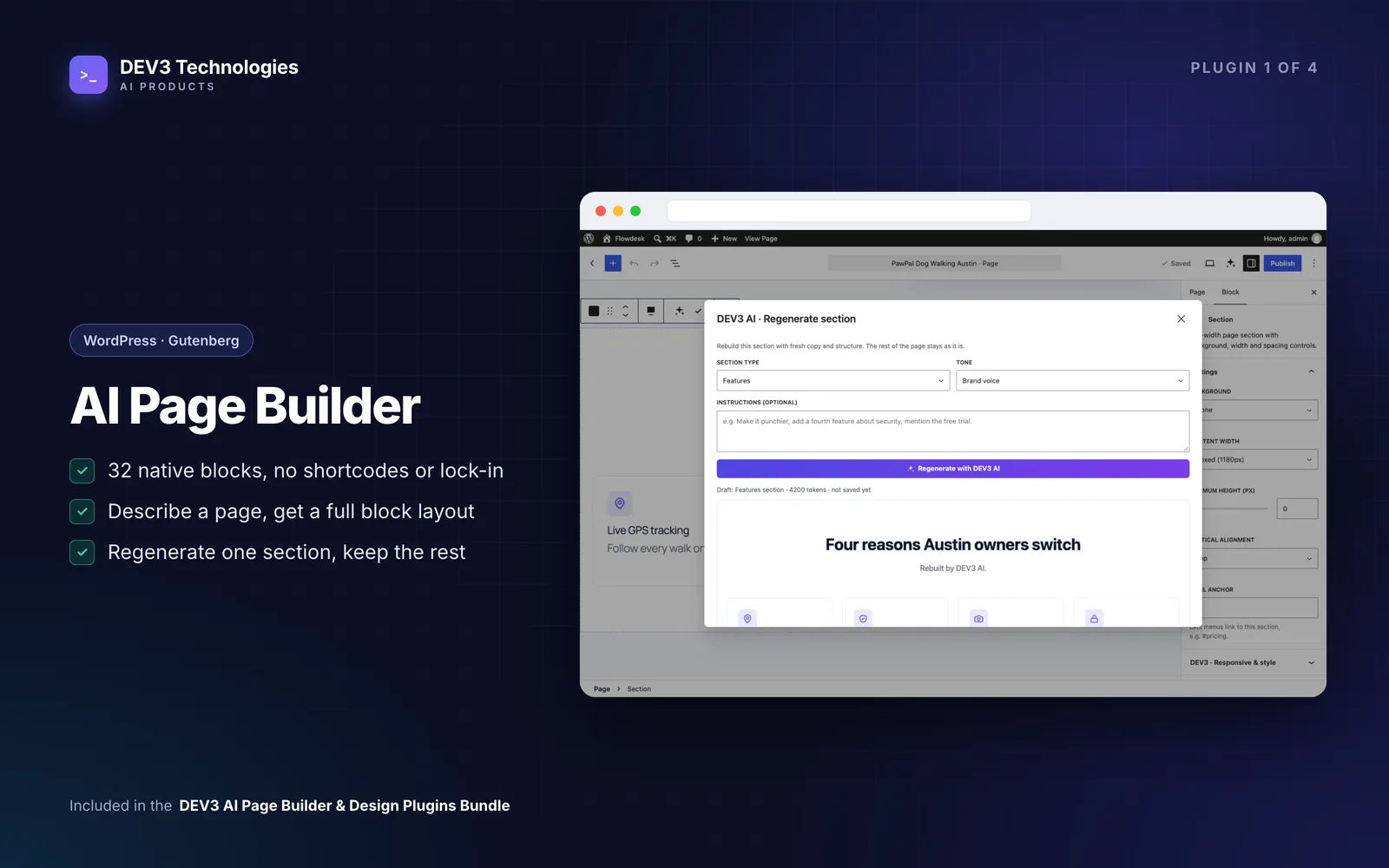
- Regenerate section with DEV3 AI on a Section, Hero or CTA block: add an instruction such as "add a fourth service about landlord safety certificates", preview, then replace it or insert it below. The rest of the page isn't touched.
- Generate image with DEV3 AI on an Image block, using your brand kit's image style. It's only saved to the media library when you click Use this image. Real photos of your team and work are usually better, though.
5. Check it on every device
Every block has a DEV3 · Responsive & style panel with padding, margin, gap, alignment and "hide on device" for desktop, tablet (≤1024px) and mobile (≤640px). Tablet inherits desktop and mobile inherits tablet unless you set a value, and grids have columns per device. Use the editor's device preview to check each size.
6. Add a contact form
Drop in the Form block. Choose the built-in contact form (your own fields, stored under Form entries and emailed to the address in Settings), or pick a form from Contact Form 7, WPForms, Gravity Forms, Fluent Forms or DEV3 AI Form Builder. Built-in forms use a honeypot, a timing check and a per-IP rate limit, and work with page caching and without JavaScript.
7. Run the SEO pass before publishing
Open the sidebar's SEO tab. Rule checks (no AI) cover H1 count, skipped heading levels, empty headings, missing alt text, title and description length, word count and internal links, with a score. With a key you also get suggested meta titles and descriptions, heading rewrites, alt text per image and internal links chosen from your published pages, each applied individually. Meta is printed in the page head if no SEO plugin is active, and written to Yoast SEO or Rank Math when they are.
Tips and pitfalls
- Save sections you like. Select a Section, Hero or CTA block and choose Save section to DEV3 library. It appears under DEV3 AI · My sections for other pages.
- Edit the facts. Generated copy is a draft. Check service areas, prices, opening hours and claims before publishing.
- Sections not full width? Your theme may not support wide or full alignment; use a full-width page template.
- Timeouts on shared hosting? Ask for fewer sections per request.
- Keep the inserter tidy: turn off blocks you don't need under Settings → Blocks. Existing content keeps working.
- Set a budget. Under API Config, a monthly budget pauses AI when reached; the site itself is unaffected.
Who it's for
Small businesses and freelancers building their own site, agencies setting up client sites on plain Gutenberg, and anyone who has felt boxed in by the core blocks but doesn't want a page builder. If you use Elementor or WPBakery instead, look at the Element Pack and Content & Layout Builder in the same bundle. If you'd rather have it built for you, talk to our web development team, or read how generated pages stay valid in the case study.
Get started
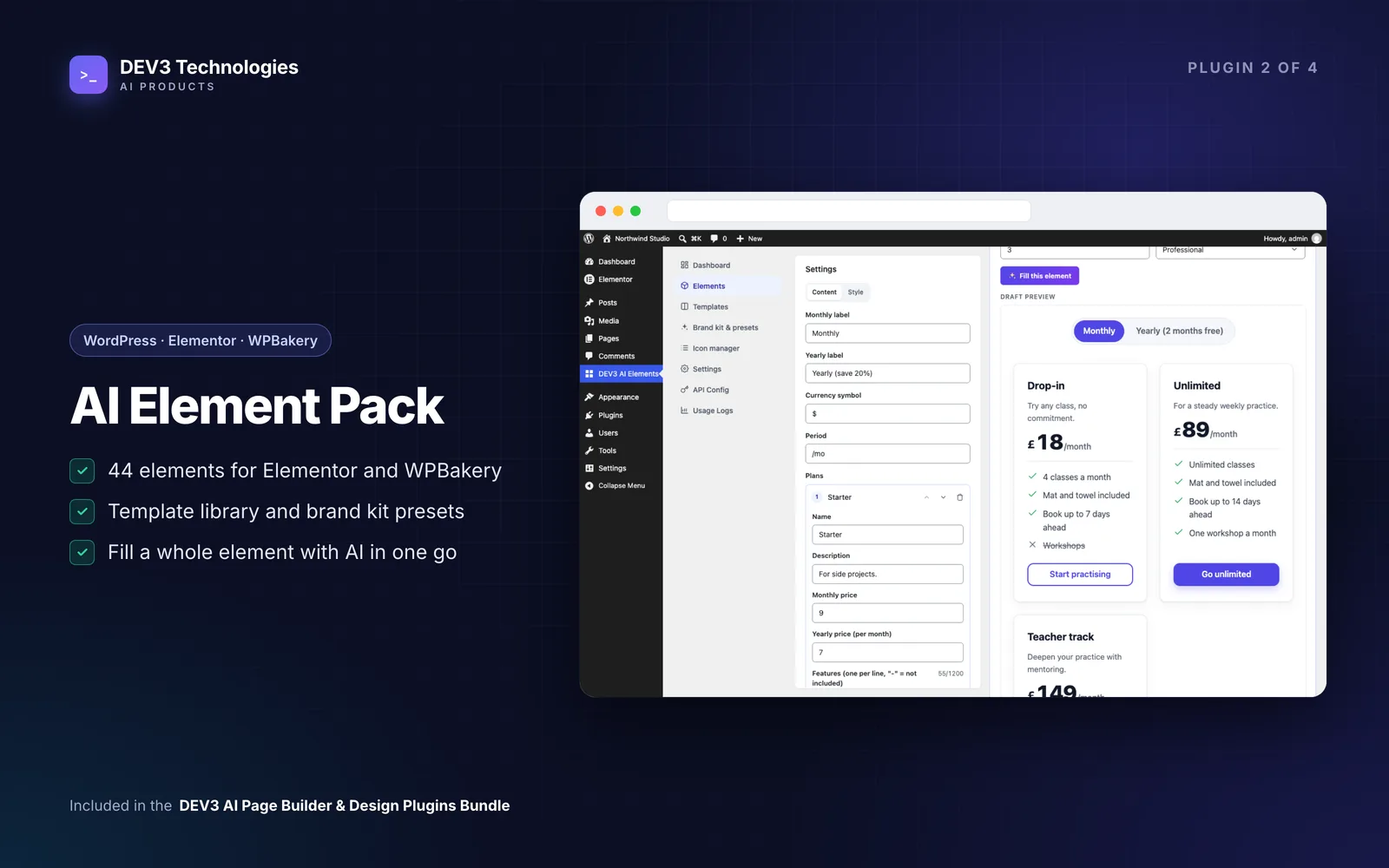
DEV3 AI Page Builder for Gutenberg is part of the DEV3 AI Page Builder & Design Plugins Bundle, together with the Element Pack, Mega Menu and Content & Layout Builder. Fill in your brand kit, import a kit or describe your first page, and edit from there.