All case studies

DEV3 Technologies · own product

DEV3 AI Element Pack: 44 elements defined once, rendered identically in Elementor, WPBakery and blocks

Our own WordPress plugin: 44 accessible elements, row extras, an icon manager, templates and a brand kit, built on one builder-neutral field schema so Elementor, WPBakery, the block editor and shortcodes all print the same markup, with DEV3 AI on every element.

Industry
Web design & page builders (WordPress)

Live project preview

Client systems are private — screenshots shown where permitted.

DEV3 Technologies · own product — screenshots
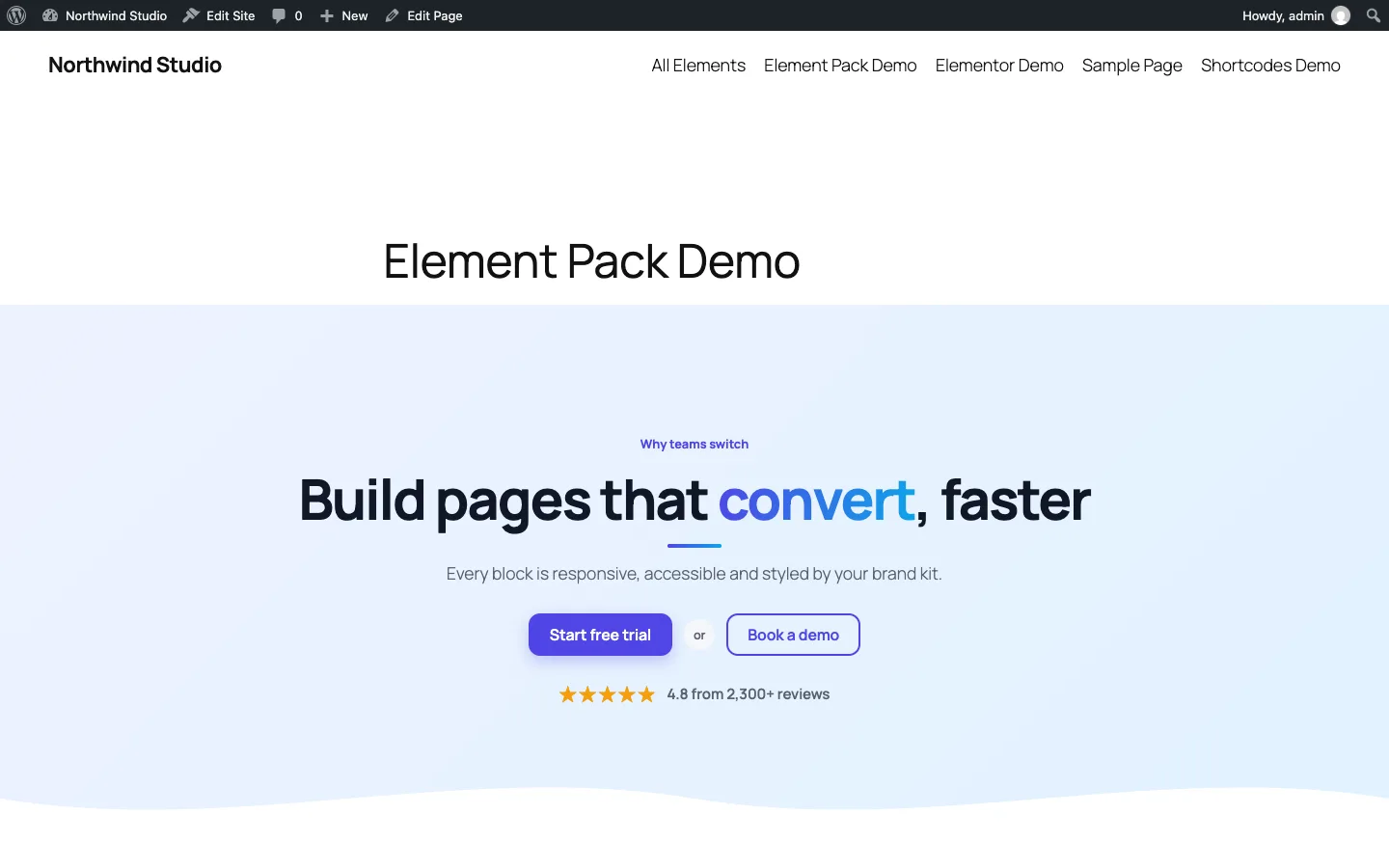
A hero built from Element Pack elements on a block theme: Advanced Heading, Dual Button and Star Rating on a gradient row with a wave divider, styled by the brand kit.

A hero built from Element Pack elements on a block theme: Advanced Heading, Dual Button and Star Rating on a gradient row with a wave divider, styled by the brand kit.

The challenge

Agencies that build on WordPress rarely use one page builder. One client site runs Elementor, the next is a long-lived WPBakery install, and new work goes into the block editor. Element add-on packs are usually written per builder, so the same pricing table exists as two or three separate implementations that drift apart in markup, styling, accessibility and bugs. Each builder also stores settings in its own shape: Elementor saves arrays and "yes" switches, WPBakery saves shortcode attribute strings with its own link and repeater encodings, and blocks save JSON attributes. We wanted one set of 44 elements that looks and behaves the same in all three, an AI assistant that works the same way in each editor without ever changing a page until the user accepts, and front-end output that stays small and fast.

Our solution

We built DEV3 AI Element Pack for WPBakery & Elementor as a WordPress plugin in PHP with a React admin, thin editor adapters for Elementor, WPBakery and the block editor, and a dependency-free front-end script. The design rests on one rule: every element is described once, as data, and everything else is derived from that description.

Key design decisions

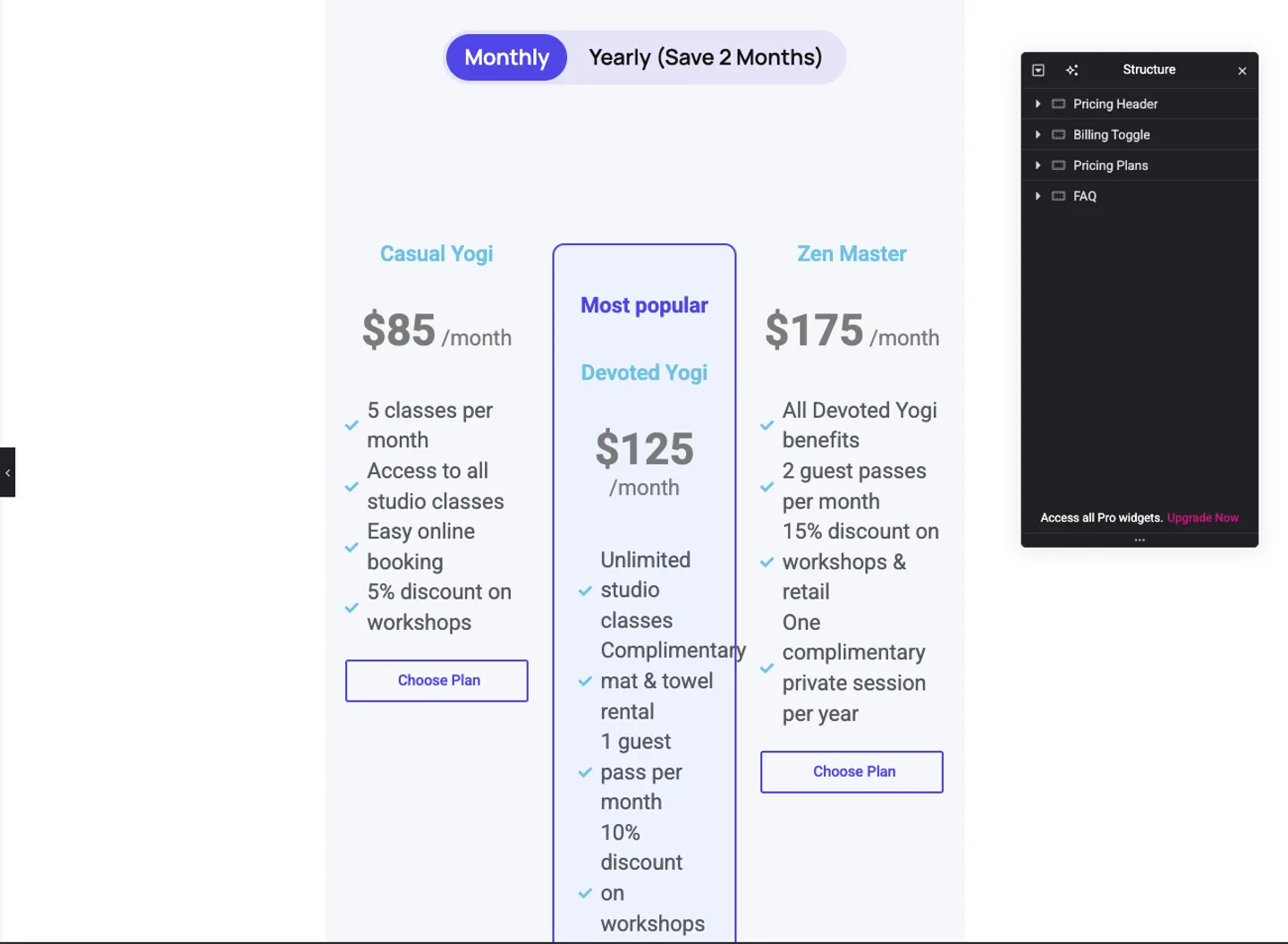
  • A builder-neutral field schema. Each element is a list of fields from 12 types (text, textarea, rich text, number, select, toggle, colour, image, icon, link, date and repeater) with limits, groups and AI hints. The Elementor adapter turns those fields into controls, the WPBakery adapter into vc_map() params, and the block stores them as one settings object.
  • One canonical value shape. Normalizer accepts every builder's native shape and returns one canonical value: a WPBakery vc_link string and an Elementor {url, is_external, nofollow} array both become {url, external, nofollow}; an attachment id and an Elementor media array both become {id, url, alt}; a url-encoded param_group and an Elementor repeater both become a list of normalised items.
  • One renderer. The Elementor widget, the WPBakery shortcode, the DEV3 Element block and the admin playground all call Renderer::render(), which escapes every value and wraps the output in the same classes and CSS custom properties.
  • Converters for the other direction. Converter turns canonical settings back into each builder's saved shape. Templates, "Create page" and the AI write-back use it, so one template exports to Elementor data, WPBakery shortcodes or block markup.
  • AI drafts that follow the schema. The Fill this element response schema is generated from the same fields: types, maxLength, item counts and an icon enum. Links, images and style fields are never sent to the model to invent. The draft goes through the normaliser and is shown as a diff; nothing is written until the user accepts.
  • Design tokens instead of per-element styling. The brand kit (colours, radius, shadow, fonts) is printed as CSS custom properties that every element reads. Named presets restyle any element, and colours that fail WCAG AA contrast trigger a warning.

Architecture

Elements are registered from four packs (Content, Interactive, Media, Marketing) into a registry that can switch single elements off. On the front end, styles and the deferred script are enqueued in the head only when the queried post contains a DEV3 shortcode, block or Elementor widget, and late renders fall back to a footer enqueue. Row extras (parallax, video backgrounds, gradients, shape dividers and sticky rows) hook into Elementor sections and containers, WPBakery rows and a DEV3 Section block. Built-in icons are inline SVG; uploaded SVG sets are sanitised and Fontello or IcoMoon fonts load only where one of their icons is used. The API client, encrypted key storage, usage log and monthly budget cap come from a shared core used across DEV3's plugins.
Results

The plugin is complete and passes every build gate. It ships in the DEV3 AI Page Builder & Design Plugins Bundle on the DEV3 marketplace, alongside our AI Page Builder for Gutenberg, AI Mega Menu and AI Content & Layout Builder, and it is being prepared for CodeCanyon. What was built and verified:

  • 44 elements, 12 template sections, 137 line icons and 17 social icons
  • 66 PHPUnit tests, including a parity test that renders every element through a real Elementor widget instance and through a WPBakery shortcode, with defaults and with a varied value for every field, and asserts the HTML is byte-for-byte identical
  • 45 Jest tests for the shared converters, the Elementor and WPBakery write-back, the front-end behaviours (tabs, accordion, pricing switch, countdown, before/after) and the admin UI
  • Front-end assets measured from the build: 10,981 bytes of CSS and 5,082 bytes of JavaScript gzipped, loaded only on pages that use an element
  • Lighthouse mobile runs on the demo pages: performance 99, accessibility 100 and layout shift 0 on the block-theme page; performance 91 and accessibility 100 on the Elementor page
  • Elementor and the block editor were tested for real; the WPBakery adapter was tested against stubs of WPBakery's documented API, and a run on a licensed WPBakery install is next. The AI paths were tested with mocked API responses; a run with a live key is still to come
  • Known gap: row effects show in Elementor's Preview and on the front end, not on the editing canvas

Setup guide

No licence key or activation is needed: install the zip and every feature works.

Requirements

  • WordPress 6.0 or newer and PHP 7.4 or newer
  • Optional: Elementor 3.x or 4.x and/or WPBakery Page Builder 7 or newer. Without either, the elements work as the DEV3 Element block and as shortcodes
  • Optional: a Google Gemini API key. Without one, all 44 elements, row extras, templates, the icon manager and presets work; only the DEV3 AI buttons need it

1. Install the plugin

  1. The plugin ships inside the bundle download. Unzip the bundle and find dev3-ai-page-builder-design-plugins-bundle/dev3-ai-element-pack/dev3-ai-element-pack.zip.
  2. In WordPress, go to Plugins → Add New → Upload Plugin, choose that zip and click Install Now.
  3. Click Activate. DEV3 AI Element Pack for WPBakery & Elementor appears in the plugin list and its menu, DEV3 AI Elements, appears in the admin sidebar.

2. Connect Google Gemini (optional)

  1. Create a free API key in Google AI Studio (sign in with a Google account, then Create API key).
  2. Go to DEV3 AI Elements → API Config, paste the key and click Validate & save. The key is stored encrypted (AES-256-GCM) and never sent to the browser.
  3. Optional: pick the models (gemini-2.5-flash is the fast default, gemini-2.5-pro for heavier work, gemini-2.5-flash-image for images) and set a monthly budget.

Prefer config files? Add define( 'DEV3EP_GEMINI_API_KEY', 'your-key' ); to wp-config.php instead.

3. Set it up

  1. Open Brand kit & presets and click Detect from my theme to read colours and fonts from theme.json, the Customizer or your Elementor kit, or set the tokens by hand. Click Save brand kit. Fix any colour marked Low contrast.
  2. In Elements, switch off the elements you will never use. They disappear from the Elementor panel, the WPBakery element list and the block.
  3. In Settings, keep Load front-end assets on Only where elements are used, unless you place elements in headers, footers or widgets. Choose which DEV3 AI features are on and set your writing defaults (tone and language).
  4. In Icon manager, upload your own SVG icons or import a Fontello or IcoMoon font (.zip) if you need more than the built-in DEV3 Line and DEV3 Social sets.
  5. Find the elements in the DEV3 AI Elements category of Elementor's widget panel, the DEV3 AI Elements tab of WPBakery's Add Element dialog, or the DEV3 Element block.

Updating

Download the new version of the bundle, then upload the plugin zip in Plugins → Add New → Upload Plugin and choose Replace current with uploaded. Settings, templates and icon sets are kept.

Uninstalling

Deactivate and delete the plugin from Plugins. Pages keep their content, but DEV3 widgets, shortcodes and blocks stop rendering until the plugin is installed again.

How to use

Start a page from a template

  1. Go to DEV3 AI Elements → Templates and filter by Hero, Features, Pricing, Social proof, Marketing, About or Contact.
  2. On a section such as SaaS hero, click Create page.
  3. Enter a Page title, choose Build with (Elementor, WPBakery or Block editor) and click Create draft. Nothing is published until you publish it.
  4. Click Edit page to open the draft in the builder you picked. In WPBakery you can also click Copy shortcodes and paste them in Classic mode.

Fill an element with DEV3 AI

  1. Add an element, for example Pricing Plans, from the DEV3 AI Elements category in Elementor or WPBakery, or as a DEV3 Element block.
  2. At the top of its settings, click Fill this element.
  3. Under What is this for?, describe the business or page (leave it empty to use your site title and tagline), set the Number of items and the Tone, then click Fill this element.
  4. Review the draft under Changes or Side by side. Click Edit to adjust it, Regenerate for another version or Reject.
  5. Click Apply to element. In Elementor the change goes into the undo history; in WPBakery click Save changes as usual. Images, links and style settings are never changed by the AI.

Rewrite one field

  1. Click Write with DEV3 AI at the top of an element's settings.
  2. Pick the field, including a single repeater item such as one FAQ answer, and choose write, rewrite, shorten, expand or proofread.
  3. Compare the draft with the current text and accept it, or close the dialog to keep what you had.

Apply your brand to every element

  1. Open Brand kit & presets. Optionally add Notes for DEV3 AI, such as "premium and calm, rounded corners", and click Generate brand kit with DEV3 AI.
  2. Check the proposed colours in the preview, which can show pricing plans, a feature grid, testimonials, an FAQ or a call to action. Low-contrast colours are flagged.
  3. Click Apply tokens & presets, then Save brand kit. Every element on every page updates at once.
  4. To restyle a single element, pick a preset (Soft, Bold, Dark, Outline or your own) in its Style preset option.

Add row effects

  1. In Elementor, select a section or container and open Advanced → DEV3 Row Extras. In WPBakery, edit a row or section and open the DEV3 Row Extras tab. In the block editor, wrap your content in a DEV3 Section block.
  2. Turn on a parallax image, a YouTube or MP4 video background, a linear, radial or animated gradient, top and bottom shape dividers, or a sticky row.
  3. Check the result in Preview or on the front end. Parallax is switched off for visitors who prefer reduced motion.

Reuse an element anywhere

  1. In Elements, click Open on any element to load its playground with a desktop, tablet and mobile preview.
  2. Configure it, then click Copy under Use it anywhere to paste the shortcode into WPBakery Classic mode, the classic editor or a widget.
  3. Or click Save as template to add it to your template library. Use Download JSON and Import template to move templates between sites.

Related case studies