All case studies

DEV3 Technologies · own product

DEV3 AI Mega Menu: accessible mega menus where AI drafts the structure but can only link to real content

Our own WordPress plugin: mega panels, tabs and flyouts for block and classic themes, plus five DEV3 AI tools that build, label, audit and decorate menus. The AI picks from an allowlist of real pages, so a draft cannot add a broken link.

Industry
WordPress (navigation & site design)

Live project preview

Client systems are private — screenshots shown where permitted.

DEV3 Technologies · own product — screenshots
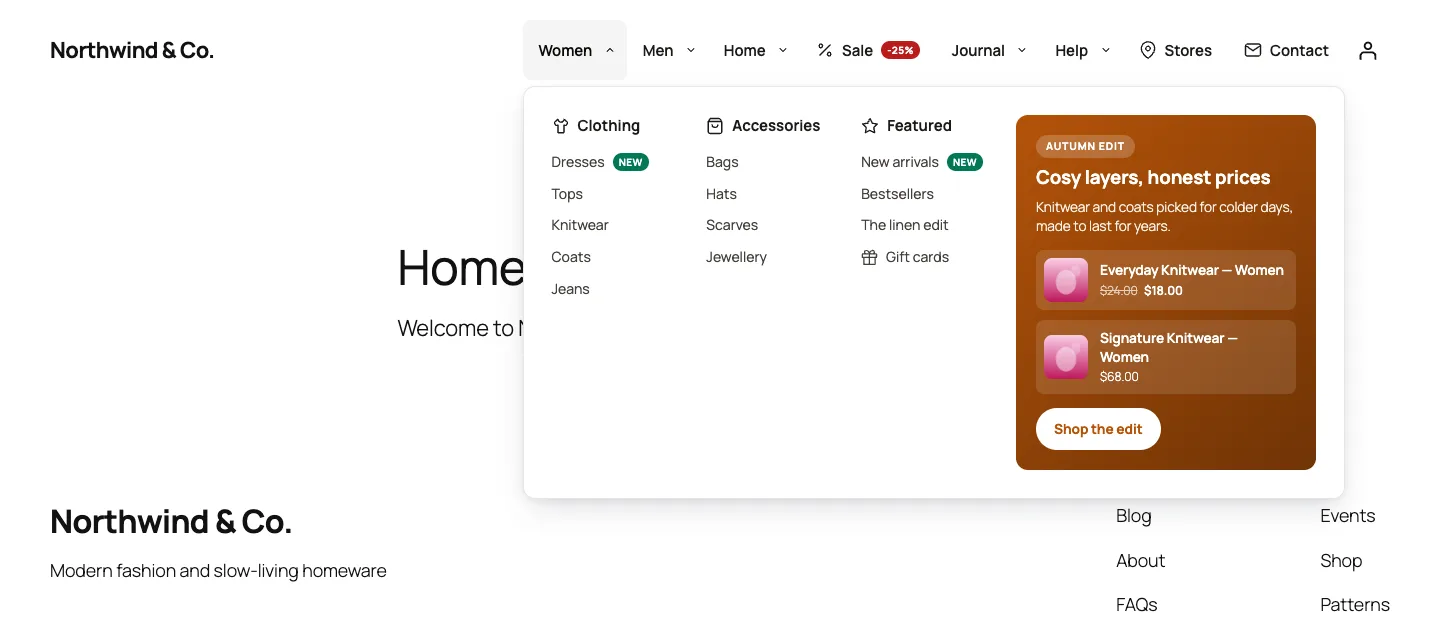
A mega panel on a block theme: automatic columns with icons and badges, plus a promo block with real products in the side column.

A mega panel on a block theme: automatic columns with icons and badges, plus a promo block with real products in the side column.

The challenge

Navigation is the most-linked block of HTML on any site, so mistakes in it are expensive: a broken link appears on every page, a link that only exists after JavaScript runs may be missed by crawlers, and a hover-only menu shuts out keyboard and touch users. Asking a language model to design a menu adds a new risk, because a model will happily invent a plausible /pricing URL that the site never had. We needed a mega menu that ships plain, crawlable and accessible markup with a small front-end footprint, and AI tools that can restructure a 200-page site without ever adding a link to a page that doesn't exist or changing anything before the owner accepts it.

Our solution

We built DEV3 AI Mega Menu as a WordPress plugin in PHP with a React admin and a dependency-free front-end script. It works with the menus WordPress already has (the same ones as Appearance → Menus) and stores its own settings in post meta on each menu item.

Key design decisions

  • Refs, not URLs. Build my menu sends the model an inventory of the site's published pages, post categories, product categories and best-selling products, each with a ref such as page:42 or product_cat:19. The model must answer with those refs. Menu_Builder::from_ai() drops any node whose ref isn't in the allowlist, and resolve() turns the rest into real menu items with an object id, so WordPress generates the permalink.
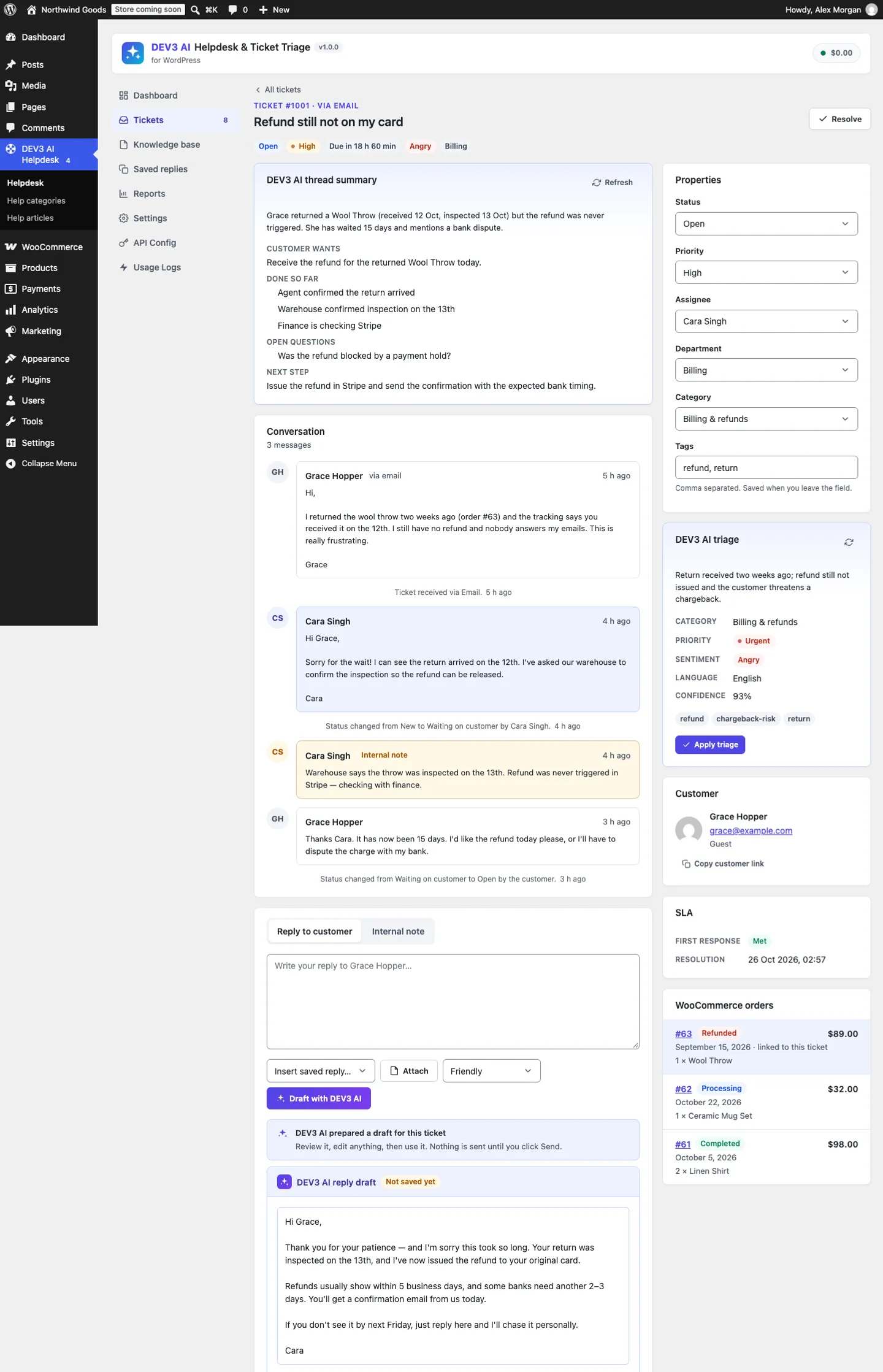
  • Every AI result is a draft. The build, labels, audit, promo and icon routes return drafts and save nothing. The admin reviews, edits or removes rows, then accepts. Label drafts that name an item id outside the menu are thrown away.
  • A rules audit that runs without AI. The Quick audit checks depth, top-level count, crowded groups, vague and long labels, duplicates, links to deleted or unpublished content, dead-end items and missing Home, Contact and Shop links, and scores the menu from 0 to 100. The AI review adds label and grouping advice on top, and its suggested links pass the same allowlist.
  • Server-rendered, crawlable markup. The menu is plain HTML from PHP: every item with a destination is a real <a href> in the page source, panels are in the DOM before any script runs, and the front end makes no AI or remote calls, so full-page caching works.
  • The WAI disclosure pattern. Links stay links; each submenu gets a separate <button> with aria-expanded and aria-controls. Items without a URL become a single button. Tabbed panels follow the ARIA tabs pattern, and the off-canvas drawer traps focus and closes on Escape.
  • One renderer, many placements. Classic theme locations, a block, automatic replacement of the Navigation block in block themes, a shortcode, an Elementor widget and a WPBakery element all call the same Renderer.

Architecture

A Tree class reads and saves nested menus, flags items whose target was deleted or unpublished, and caps a menu at 600 items. The Renderer builds the nav markup, mega panels with automatic columns or custom 12-column rows, and widgets for recent posts, WooCommerce products, search, images, promos, HTML, shortcodes and synced patterns. Styles are CSS custom properties, so five presets and any custom style share one cacheable stylesheet. The AI tools use structured JSON output with versioned, filterable prompt templates, a monthly budget, a request cache and usage logs. The API client and the settings screens come from a shared core used across DEV3's plugins.
Results

The plugin is complete. It ships in the DEV3 AI Page Builder & Design Plugins Bundle on the DEV3 marketplace, alongside three other page-builder and design plugins, and is being prepared for CodeCanyon. What was built and verified:

  • 64 PHPUnit tests (run in wp-env) covering the tree, rendering and accessibility markup, locations, REST permissions, the AI tools and the shared core
  • 45 Jest tests for the front-end script (keyboard, ARIA, hover, mobile drawer), the builder tree and the admin UI kit
  • A test feeds the builder invented refs (page:999999, page:888888), an empty container, a blank label and an unknown icon: all of them are dropped or repaired before the draft is shown
  • A 200-page, 50-category site fits in a prompt under 60,000 characters, and inventory plus validation stay well under the test's 10-second bound (the AI call is mocked)
  • Built front end: 2,817 bytes of JavaScript and 8,564 bytes of CSS, gzipped, with no jQuery
  • Checked on Twenty Twenty-Five (block) and a classic theme, desktop and mobile. The Elementor widget and WPBakery element adapters were tested against stubs only
  • All AI paths were tested with mocked Google Gemini API responses; a run with a live key is still to come
  • Known limitation: items are reordered with arrow buttons in the builder, not drag and drop

Setup guide

No licence key or activation is needed: install the zip and every feature works.

Requirements

  • WordPress 6.0 or newer and PHP 7.4 or newer (tested up to PHP 8.3)
  • Any classic or block theme (Twenty Twenty-Five and other block themes are supported through a block or automatic Navigation-block replacement)
  • Optional: WooCommerce 8 or newer for the product widgets and promo products
  • Optional: a Google Gemini API key. Without one, menus, panels, widgets, styles, locations, the automatic builder, the quick audit, keyword icon matching and promo templates all work; only the DEV3 AI buttons need it

1. Install the plugin

  1. The plugin ships inside the bundle download. Unzip the bundle and find dev3-ai-page-builder-design-plugins-bundle/dev3-ai-mega-menu/dev3-ai-mega-menu.zip.
  2. In WordPress, go to Plugins → Add New → Upload Plugin, choose that zip and click Install Now.
  3. Click Activate. DEV3 AI Mega Menu for WordPress appears in the plugin list and its menu, DEV3 AI Mega Menu, appears in the admin sidebar.

2. Connect Google Gemini (optional)

  1. Create a free API key in Google AI Studio (sign in with a Google account, then Create API key).
  2. Go to DEV3 AI Mega Menu → API Config, paste the key and click Validate & save. The key is stored encrypted (AES-256-GCM) and never sent to the browser.
  3. Optional: pick the model (gemini-2.5-flash is the fast default; gemini-2.5-pro for the highest quality), set a monthly budget in USD, or turn AI off entirely.

Prefer config files? Add define( 'DEV3MM_GEMINI_API_KEY', 'your-key' ); to wp-config.php instead.

3. Set it up

  1. Get a menu. Use an existing WordPress menu, create one in Menu Builder → New menu, or open AI Studio → Build my menu and click Auto-build without AI (or Build with DEV3 AI once a key is set).
  2. Classic themes: go to Locations, pick the menu for your header location and turn on Use the DEV3 AI Mega Menu here, then click Save locations.
  3. Block themes: either add the DEV3 AI Mega Menu block to your Header template in Appearance → Editor, or go to Locations → Blocks, shortcodes & builders and set Replace the Navigation block (block themes) to First Navigation block on each page (usually the header) and choose the Menu to show instead. No template editing is needed for the second option.
  4. Page builders: use the [dev3mm_menu menu="main-menu"] shortcode, the DEV3 AI Mega Menu Elementor widget, or the WPBakery element in the DEV3 AI category.
  5. In Styles, pick a preset (Light, Midnight, Indigo, Minimal, Boutique) or click Duplicate to make your own, then select it per location.
  6. In Locations, set how submenus open (hover or click), the mobile breakpoint, accordion or Off-canvas drawer, sticky bar and the accessible name of the navigation.

Updating

Download the new version of the bundle, then upload the plugin zip in Plugins → Add New → Upload Plugin and choose Replace current with uploaded. Menus, item settings, locations and styles are kept.

Uninstalling

Deactivate and delete the plugin from Plugins. Your WordPress menus always stay, because they are core menus. Plugin settings, styles and item settings are kept too, unless you turned on Delete all plugin data when uninstalling in Settings first.

How to use

Build a menu with DEV3 AI

  1. Go to DEV3 AI Mega Menu → AI Studio → Build my menu.
  2. Set Top-level items (max), tick what to Read from (Pages, Post categories, Products & product categories) and, if you like, add Notes for DEV3 AI (optional), such as "Put Sale first".
  3. Click Build with DEV3 AI, or Auto-build without AI for an instant draft from your page hierarchy and categories.
  4. Review the draft: edit any label, click Remove from draft on items you don't want, and check the desktop and mobile Preview.
  5. Under Save to, choose Create a new menu, Replace the items of a menu or Add to the end of a menu, then click Accept and save menu. Nothing is saved before this click.

Turn an item into a mega panel

  1. Open Menu Builder, choose the menu and select a top-level item in Structure.
  2. On the Panel tab, set Submenu type to Mega panel (columns) or Mega panel with tabs, and choose the number of Columns. Child items become columns automatically.
  3. Optional: click Add a custom row to place columns on a 12-column grid, then Add widget for recent posts, products, a search box, an image, a promo block, HTML, a shortcode or a synced pattern. Use the Side column for promos.
  4. Use the Display tab for icons, images, badges (New, Sale, Hot, Info or a custom colour) and descriptions. Reorder and nest items with the arrow buttons.
  5. Check the live preview, then click Save menu.

Audit a menu and apply fixes

  1. Go to AI Studio → UX audit and choose a menu.
  2. Click Quick audit (rules only, no key needed) or Audit with DEV3 AI for an extra review of labels and grouping.
  3. Read the 0–100 score and the issues, sorted High, Medium and Low.
  4. Apply one-click fixes where offered: Apply label renames an item, and Add "Contact" (or Home, Shop, or a page the AI suggested) adds a missing link. Other issues have an Open builder button.

Rewrite labels and descriptions

  1. Go to AI Studio → Labels & descriptions, choose a menu and click Write labels with DEV3 AI.
  2. Each row shows the Current label next to the Suggested label and Suggested description. Edit any of them and untick rows you want to keep as they are.
  3. Optional: tick Show descriptions under sub-items in the menu, then click Apply N selected. Only the selected rows change.

Add a seasonal promo to a panel

  1. Go to AI Studio → Promo panel and choose the item under Show it in the panel of.
  2. Enter an Occasion (or leave it empty for the current season), a Real offer (optional) and a Tone, and choose where to Pick products from: on sale, featured, best sellers, newest or a category.
  3. Click Generate with DEV3 AI, or Use a template without AI. DEV3 AI never invents discounts: it only mentions the offer you typed.
  4. Edit the badge, headline, text and button label, then click Accept and add to panel. The promo lands in that item's side column.

Add icons to every item

  1. Go to AI Studio → Icons & images and click Suggest with DEV3 AI, or Match by keywords to use the built-in keyword matching.
  2. Pick an icon from the 60 built-in line icons and, optionally, an image for each row.
  3. Click Apply N selected.

Related case studies