All case studies

DEV3 Technologies · own product

DEV3 AI Helpdesk & Ticket Triage: a self-hosted WordPress helpdesk with email piping and reviewable AI

Our own WordPress helpdesk: tickets from a portal, forms and email, an agent inbox with SLAs, a help centre, WooCommerce order context, and AI that summarises, suggests triage and drafts replies grounded in help articles for agents to review.

Industry
Customer Support (WordPress & WooCommerce)

Live project preview

Client systems are private — screenshots shown where permitted.

DEV3 Technologies · own product — screenshots
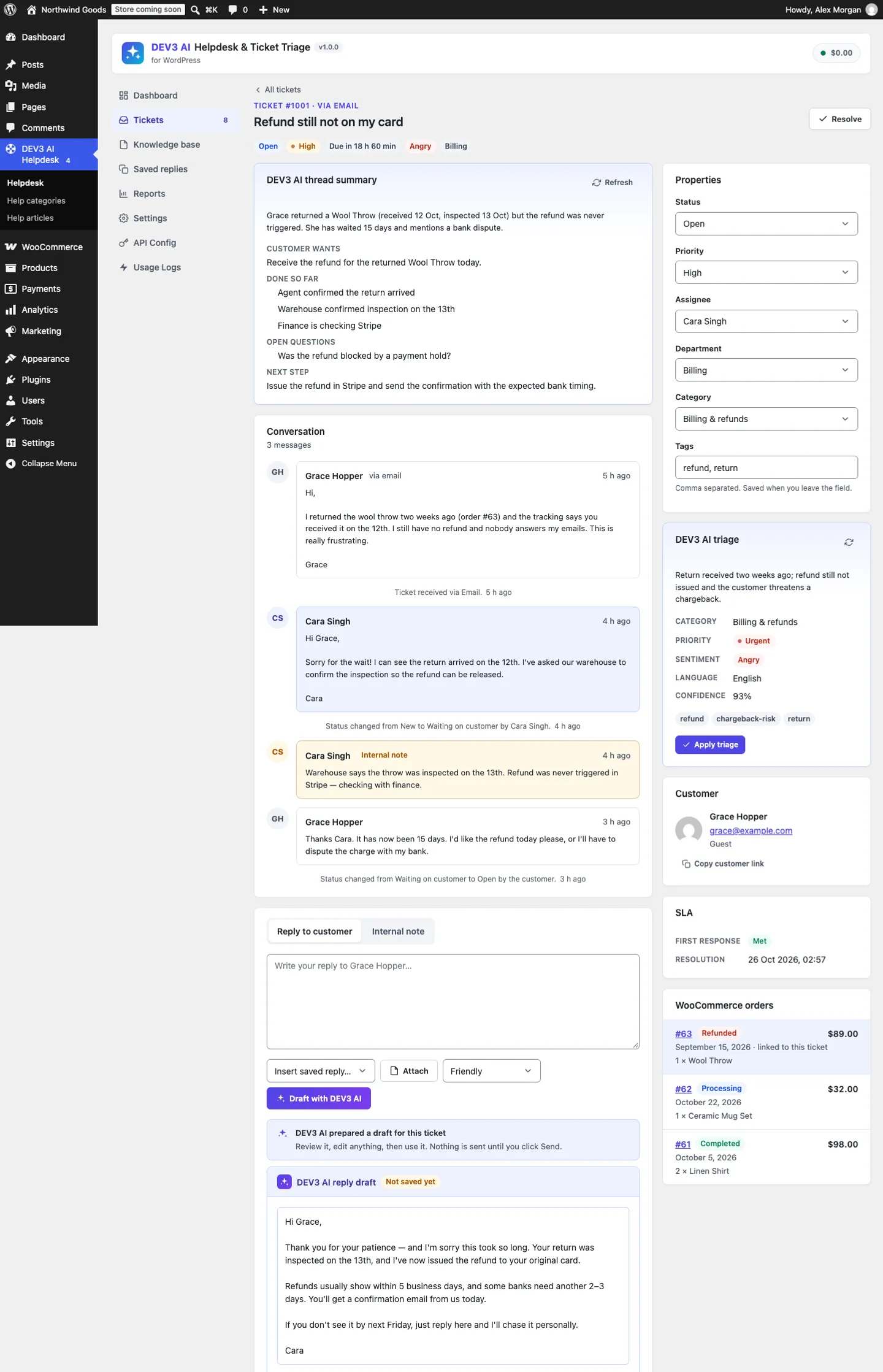
A ticket that arrived by email: DEV3 AI thread summary, triage suggestions to apply with one click, linked WooCommerce orders, SLA status and a reply draft grounded in a help article.

A ticket that arrived by email: DEV3 AI thread summary, triage suggestions to apply with one click, linked WooCommerce orders, SLA status and a reply draft grounded in a help article.

The challenge

Small shops and agencies on WordPress usually run support from a shared mailbox, or pay per agent for a hosted helpdesk that knows nothing about their WooCommerce orders. A self-hosted helpdesk has to do the unglamorous parts well: read a real mailbox without the PHP imap extension (removed from PHP core in 8.4), thread replies onto the right ticket, ignore auto-replies so two systems don't email each other forever, and keep guest tickets private. AI on top has to save agents time without speaking to customers on its own unless the owner explicitly allows it.

Our solution

We built DEV3 AI Helpdesk & Ticket Triage as a WordPress plugin in PHP with a React admin and a dependency-free customer portal. The AI runs on the Google Gemini API with the site owner's own key.

Key design decisions

  • Own IMAP client. A small IMAP4rev1 client over a socket (SSL, STARTTLS or plain) runs UID SEARCH UNSEEN, fetches with BODY.PEEK[] and marks messages seen only after processing, in background jobs. An inbound webhook also accepts Mailgun, SendGrid Inbound Parse, Postmark, generic JSON and raw MIME.
  • Threading in two steps. A [#number] subject token first, then In-Reply-To and References matched against stored Message-IDs of every message the helpdesk sent. A stranger quoting someone else's ticket number opens a new ticket instead.
  • Loop and abuse protection. Auto-Submitted, Precedence and auto-reply headers, system senders, our own address, duplicate Message-IDs, a block list and a per-sender limit of 10 new tickets an hour.
  • Quote stripping. Only the new text is kept: cut at the reply marker, "On … wrote:" lines in several languages, Outlook headers and signatures.
  • AI that drafts. Thread summaries, triage suggestions (category, priority, sentiment, language), reply drafts grounded in help articles via embeddings with cited sources, rewrites, and help articles from solved tickets. Applying triage automatically and auto-sending replies are opt-in switches, off by default; auto-send also needs a cited article, a confidence threshold and no agent reply yet.
  • SLAs that are fair. First-response and resolution targets per priority, optional business hours, and a clock that pauses while waiting on the customer.

Architecture

Tickets, replies, events and saved replies live in custom tables, attachments in a private folder behind signed, expiring links. Agents get their own role and capability. Guests reach their ticket through a private link, and WooCommerce customers through My Account. The API client, jobs, encryption, embeddings store and settings screens come from a shared core used across DEV3's plugins.
Results

The plugin is complete. It ships in the DEV3 AI Membership, Learning & Support Plugins Bundle on the DEV3 marketplace, alongside our AI Membership & Paywall and AI Course Builder plugins, and is being prepared for CodeCanyon. What was built and verified:

  • 71 PHPUnit tests, including MIME parsing, quote stripping, threading by token and Message-ID, loop protection, the IMAP client against a scripted server, the poll job, webhooks, SLAs and permissions
  • 45 Jest tests for the admin app, the customer portal and the UI kit
  • The IMAP client and webhook providers tested against a scripted IMAP server and the providers' documented payloads; a run against a real mailbox is still to do
  • WooCommerce order panel tested in WooCommerce with HPOS
  • All AI paths tested with mocked Google Gemini API responses; a run with a live key is the next step
  • Build, Jest, PHP_CodeSniffer at 0 errors and 0 warnings, PHPUnit in wp-env, translation template and packaging all pass

Setup guide

No licence key or activation is needed: install the zip and every feature works.

Requirements

  • WordPress 6.0 or newer and PHP 7.4 or newer. The PHP imap extension is not needed
  • Optional: WooCommerce 8.0 or newer for the orders panel, the order number field and the My Account → Support tab (HPOS supported)
  • Optional: a support mailbox with IMAP access, or an email service that can forward inbound mail (Mailgun, SendGrid Inbound Parse, Postmark or any service that posts JSON or raw MIME)
  • Optional: a Google Gemini API key for the DEV3 AI features. Without one, every helpdesk feature still works

1. Install the plugin

  1. Download the DEV3 AI Membership, Learning & Support Plugins Bundle and unzip it. The plugin is at dev3-ai-membership-learning-support-plugins-bundle/dev3-ai-helpdesk/dev3-ai-helpdesk.zip.
  2. In WordPress, go to Plugins → Add New → Upload Plugin, choose that zip and click Install Now.
  3. Click Activate. The menu DEV3 AI Helpdesk appears in the admin sidebar, and the Support and Help centre pages are created for you.

2. Connect Google Gemini (optional)

  1. Create an API key in Google AI Studio (sign in with a Google account, then Create API key).
  2. Go to DEV3 AI Helpdesk → API Config, paste the key and click Validate. The key is stored encrypted and never sent to the browser.
  3. Optional: set a monthly budget and turn on PII masking.

Prefer config files? Add define( 'DEV3HD_GEMINI_API_KEY', 'your-key' ); to wp-config.php instead.

3. First-time setup

  1. In Settings → General, choose who can open tickets (guests or logged-in users), attachments, auto-assign and blocked senders.
  2. In Settings → Departments and Agents, add departments and give team members the helpdesk agent role.
  3. In Settings → SLA, set first-response and resolution targets per priority and, optionally, business hours.
  4. In Settings → Email piping, either fill in the IMAP mailbox (host, port, security, user name, an app password, folder), click Test connection and turn on Poll this mailbox, or turn on the Inbound webhook and paste its secret URL into your email service.
  5. In Settings → DEV3 AI, choose what runs on new tickets. Triage suggestions and reply drafts wait for an agent; Apply triage automatically and Send confident drafts automatically are off by default.
  6. Add a few help articles under Knowledge base; they power the help centre, form suggestions and AI reply drafts.

Updating

Download the new bundle version, then upload the plugin zip in Plugins → Add New → Upload Plugin and choose Replace current with uploaded. Tickets and settings are kept.

Uninstalling

Deactivate and delete the plugin from Plugins.

How to use

Work the inbox

  1. Open Tickets. Use the views (Open, Mine, Unassigned, Overdue, Waiting, Resolved, Closed) and the department, category, priority and agent filters. SLA badges show what is due or overdue.
  2. Select several tickets to assign, change status or priority in bulk, or click Export CSV.
  3. Open a ticket to see the conversation, the customer, their WooCommerce orders and the SLA.

Answer a ticket with a DEV3 AI draft

  1. Read the DEV3 AI thread summary at the top: what the customer wants, what was done, open questions and the next step.
  2. Check the DEV3 AI triage card (category, priority, sentiment, language, confidence) and click Apply triage if it is right.
  3. Pick a tone and click Draft with DEV3 AI. The draft lists the help articles it is grounded in.
  4. Click Use this draft, edit it, choose the status to set, and click Send reply. Nothing is sent until you click it. You can also insert a saved reply, attach files or add an internal note.

Handle support by email

  1. Customers email your support address. New mail opens a ticket; replies with the [#number] in the subject, or replies to a helpdesk email, join the existing ticket.
  2. Agents can reply by email too: their answer is added to the ticket and sent to the customer.
  3. Use Check mail now in Settings → Email piping to poll right away and see what was created, threaded or ignored.

Grow the knowledge base

  1. In Knowledge base, write articles and click Rebuild index so customers and DEV3 AI can find them by meaning.
  2. On a solved ticket, use Create help article with DEV3 AI to draft an article from the conversation, then edit and publish it.
  3. Click Find gaps with DEV3 AI to list questions customers keep asking that no article answers yet.

Opt in to automation (optional)

  1. In Settings → DEV3 AI, turn on Apply triage automatically if you want category, priority and department set on arrival (each change is logged).
  2. Turn on Send confident drafts automatically only for simple questions. It sends only when the draft cites a help article, its confidence is above your Minimum confidence, it doesn't ask for a human, and no agent has replied yet.

Related case studies