Most estate agency websites are brochures. The properties live on the big portals, the site lists a phone number, and every enquiry arrives as an email to whoever is on reception. Buyers can't save a search, can't compare the three flats they liked, and never hear about the new listing that would have suited them until it's under offer.
If you want your own site to do real work, generating and keeping leads rather than just describing the agency, this guide walks through setting it up on WordPress with DEV3 AI Real Estate Listings.
What an agency site should do
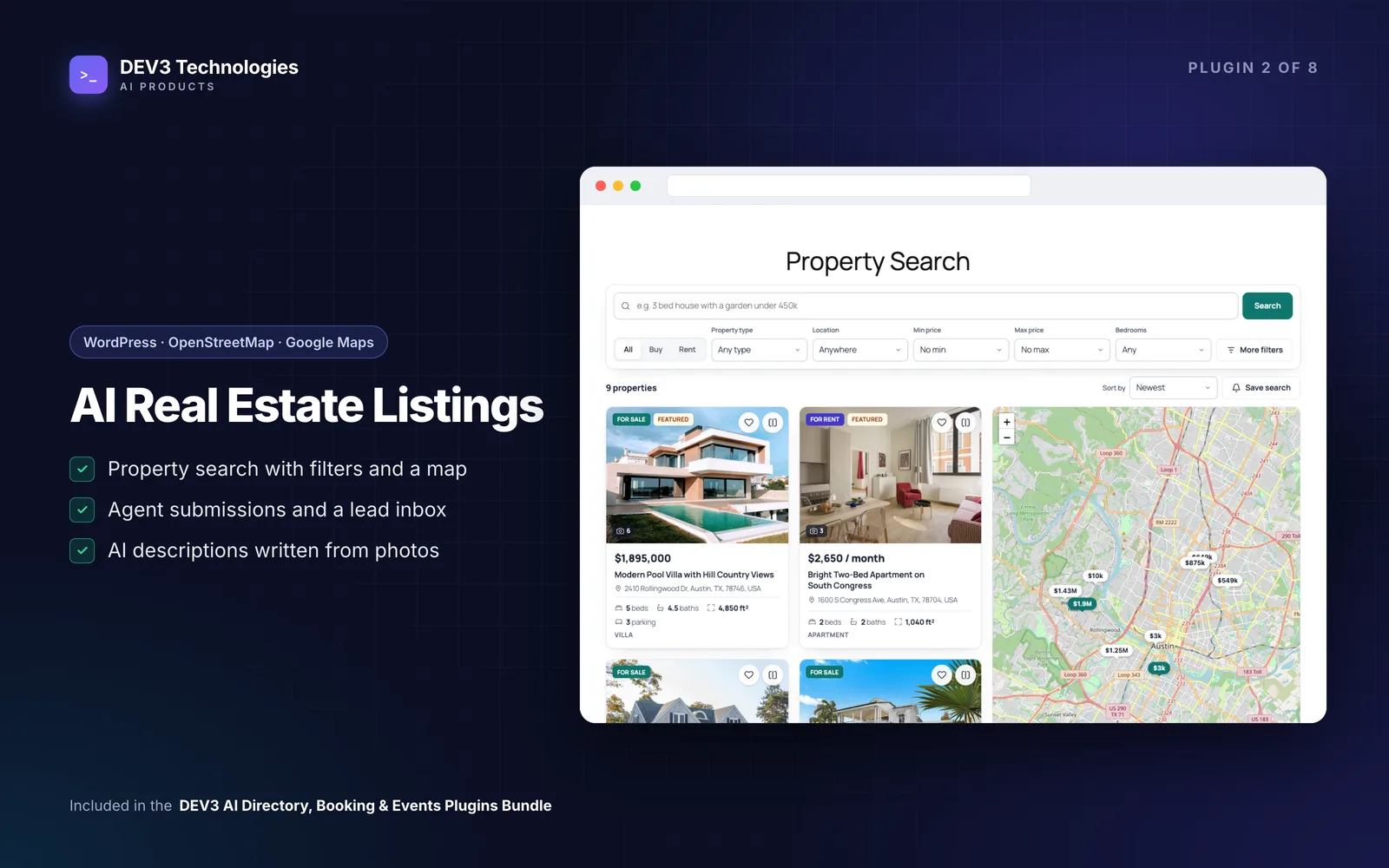
- Search like a portal: buy or rent, type, location, price, bedrooms and a map.
- Bring buyers back: saved searches with email alerts, favourites and a compare view.
- Capture every enquiry in one inbox, routed to the right agent.
- Let agents list properties themselves without wp-admin training.
- Make listings quick to write and keep them accurate.
- Help search engines with proper RealEstateListing structured data.
Step by step: setting up the site
1. Install and create the pages
Upload the zip under Plugins → Add New → Upload Plugin and activate. Then go to DEV3 AI Real Estate → Settings → Pages → Create missing pages. This creates Property Search, Submit Property, Agent Dashboard, Saved Properties and Compare Properties, each with its block already placed.
2. Set prices, units and maps
- Settings → Prices and units: currency code and symbol, separators, and m² or ft².
- Settings → Maps: OpenStreetMap works without a key. For Google Maps, paste a browser key with the Maps JavaScript and Geocoding APIs enabled, and set the default map centre.
3. Define your vocabulary
In Settings → Vocabulary, set up property types, features (pool, garden, lift, parking) and locations. A city typed on a property automatically becomes a search location, so you don't have to set up every area in advance.
4. Add your agents
Under Agents, add each agent with photo, job title, phone, WhatsApp, email, licence, languages and agency. Link each one to a WordPress user. Linked users get the Real estate agent role, which gives them the front-end Submit Property form and the Agent Dashboard. Agent and agency pages list their active properties and include a contact form.
5. Add your first property
Go to Properties → Add property and fill in:
- Sale or rent (with rent period), price or "price on request".
- Beds, baths, parking, living area, lot size, year built, floor and energy class.
- Address and map pin, with an option to hide the exact address.
- Gallery, floor plans, a virtual tour link and a video link.
- Highlights, features, neighbourhood text and the agent.
- Availability: Available, Under offer, Sold or Rented.
Sold and rented listings can stay online with a label while being hidden from search, which is useful as social proof.
Writing listings faster
Writing a good description for every property is where most agents fall behind. In the property editor, and on the agent's Submit Property form, add photos and any private notes, then click Write from photos with DEV3 AI. It looks at up to 8 photos plus the facts and drafts a title, a card summary, a 3 to 5 paragraph description and highlights, and suggests features from your own feature list. You see a word-level diff and can edit, accept or reject. Nothing is saved until you accept and save. If you'd rather not use AI, Start from the facts (no AI) gives you a template draft.
For the area, the plugin can look up schools, public transport, parks, shops, healthcare, restaurants and gyms within about 1 km from OpenStreetMap. DEV3 AI then writes a short factual summary based only on those places, labelled "AI-generated summary" until you check it and switch the label off. List nearby places (no AI) gives a plain list instead. The case study explains how those summaries stay grounded.
What buyers get
Search and map
The search page combines buy/rent, type, location, price, bedrooms and More filters (bathrooms, area, year built, keyword, features). Results update without reloading and the URL stays shareable. On wide screens a sticky map shows price tags; ticking Search as I move the map searches the visible area.
Visitors can also type plain requests such as "4 bed house for sale under 1.5m with a pool". DEV3 AI turns that into filters that must match your own types, locations and features. Without AI, a built-in parser still handles prices like "500k" or "between 200k and 350k", beds, baths, areas, types, features and locations.
Reasons to come back
- Save search with alerts daily, weekly or "as soon as listed". Guests confirm by email.
- Favourites with the heart button, merged into the account after login.
- Compare up to 4 properties side by side, including price per area.
- A mortgage calculator on every property for sale, pre-filled with its price.
Handling leads
Enquiry and viewing requests land in Leads. Each one is emailed to the property's agent (reply-to goes to the visitor), optionally copied to the admin and confirmed to the visitor with an auto-reply. Forms have a consent checkbox, a honeypot and per-IP rate limits. In Leads, filter by status and agent, add private notes, reply and export CSV. Developers can push new leads into a CRM with the dev3re_lead_created action.
Agents see their own properties with views and leads in the Agent Dashboard, where they can change availability, edit listings and answer enquiries.
Tips and pitfalls
- Decide on review. In Settings → Front-end submission, choose whether agent submissions wait for review or go live immediately.
- Alerts need cron. Saved-search alerts run hourly on WP-Cron. If your host disables it, add a real cron job, or use Send alerts now.
- Importing stock? There's no MLS/IDX feed in 1.0, but properties are a normal post type, so a post importer works. Run Settings → Maintenance → Rebuild search index afterwards.
- Hide addresses where needed. Hidden addresses also leave the street and coordinates out of the schema.
- Virtual tours load on click from hosts such as Matterport, Kuula, YouTube and Vimeo.
- AI is optional. Every feature works without a Google Gemini key. If you add one, set a monthly budget in API Config. Lead contact details are never sent to the AI.
Who this is for
Independent estate agencies, letting agents, property developers selling a single scheme, and web agencies building property sites for clients.
Get started
DEV3 AI Real Estate Listings ships in the DEV3 AI Directory, Booking & Events bundle. If you need a custom property site, feed imports or CRM integration, our web development team can help.