Many restaurants have a website that shows a PDF menu from two seasons ago and a link to a delivery app. Guests who want to order directly have to phone, and on a busy Friday the phone is the last thing anyone has time for. Meanwhile, the menu on the site and the menu in the kitchen drift further apart every month.
This guide shows how to take pickup, delivery and dine-in orders on your own WordPress site, with a menu you can update in minutes and a kitchen screen that replaces the order pad, using DEV3 AI Restaurant Menu & Online Ordering.
What good online ordering looks like
- A live menu, not a PDF: searchable, with dietary filters, allergens and sold-out items that update instantly.
- Options handled properly: sizes, extras and sauces, with prices calculated for you.
- Realistic times: ASAP or a time slot that respects opening hours and kitchen capacity.
- Delivery only where you deliver, with fees and minimums per area.
- Dine-in ordering from the table by scanning a QR code.
- One screen in the kitchen showing every new order, with timers.
Step by step: from install to first order
1. Install
Upload the zip under Plugins → Add New → Upload Plugin and activate. No licence key is needed. Activation creates an Order online page with the Restaurant menu block and a Kitchen staff role. WooCommerce is optional and only needed for online payment.
2. Set up ordering in Settings
Open DEV3 AI Restaurant → Settings and work through the tabs:
- General: restaurant name, who gets new-order emails, currency.
- Ordering & hours: turn pickup, delivery and dine-in on or off, set minimum orders, preparation time, weekly hours (several intervals per day), closed dates and slots (slot length, days ahead and orders per slot).
- Delivery zones: name, postcodes, fee, minimum order, free-delivery threshold and delivery time. Postcodes can match exactly, by prefix (
SW1*), by number range (1000-1099) or everywhere (*). - Payments & tips: pay at the counter, WooCommerce, and tip presets.
- Emails: the restaurant's new-order email, the guest confirmation and the "ready / on its way" email.
The Dashboard checklist shows what's left to do.
3. Build the menu
Under Menus, create one menu per service, for example Breakfast, Lunch & Dinner and Drinks. Each can have an availability window (weekdays plus from/to times). Outside its window, a menu is shown with its hours but can't be ordered from. Sections such as Starters and Mains can have their own windows too, which is handy for lunch specials.
For each item, add name, description, price, photo, dietary tags (vegetarian, vegan, gluten-free, dairy-free, halal, kosher, nut-free), the 14 EU allergens, spice level, calories and status. Then create reusable modifier groups: Size (exactly one), Extras (any number), Sauce (up to one), each with price changes and defaults.
4. Or import the menu you already have
Typing a full menu is the slowest part. Menus → Import with DEV3 AI accepts up to 5 photos (JPG, PNG, WebP) or one PDF, up to 15 MB in total, plus notes such as "prices are in euros, skip the wine list". DEV3 AI reads the menu in the background, usually in 30 to 90 seconds.
You then review the draft: untick what you don't want and fix names, prices and descriptions. Items without a price and items already on a menu are flagged, and sizes become a shared modifier group. Nothing is created until you click Import, and new menus start as drafts. Check allergens with your kitchen before publishing.
5. Add tables and print QR codes
Under Tables & QR, add your tables (for example Table 1 to 12). Each gets its own QR code that opens your order page as dine-in for that table. Print QR sheet prints six cards per A4 page. If a card goes missing, generate a new code and the old print stops working.
6. Decide how guests pay
- Pay at the counter, on delivery or at the table: the order goes straight to the kitchen as unpaid and is marked paid when completed.
- WooCommerce checkout: the whole order goes into the cart as one "Food order" line with delivery and tip as fees, and works with any WooCommerce payment method. Orders reach the kitchen once paid.
7. Place the menu
The Order online page is ready to use. To put the menu elsewhere, use the block or the shortcode:
[dev3ro_menu menu="all" ordering="yes" layout="grid" images="yes"]
Use ordering="no" for a display-only menu, for example on your homepage.
What the guest sees
Guests tap Add. Items with options open a sheet for modifiers, quantity and special instructions. A sticky View order bar opens the order, where they can change quantities and add suggestions. At checkout they choose pickup, delivery or dine-in, ASAP or a time slot, and add a tip. The confirmation shows the order number and a live status (Received → Preparing → Ready → Completed), and they get a confirmation email plus a "ready / on its way" email.
Running the kitchen
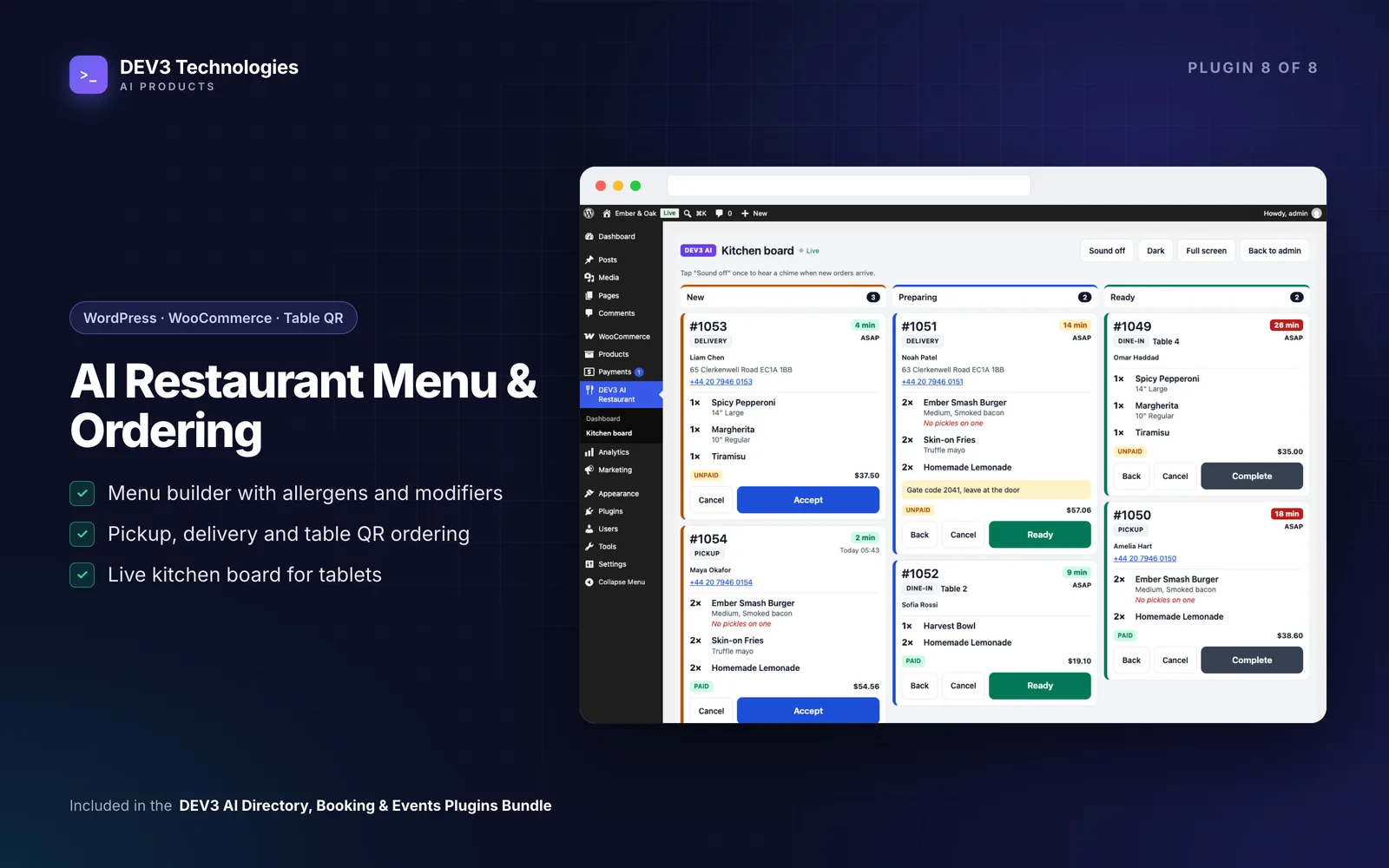
Open DEV3 AI Restaurant → Kitchen board on a tablet, logged in as a Kitchen staff user. Orders flow through New, Preparing and Ready columns with big touch buttons. Each card has a timer that turns amber after 10 minutes and red after 20, notes and modifiers in bold, and the payment state. Tap Sound once to allow the new-order chime, and use Full screen.
Orders holds every order with filters and CSV export. The Dashboard shows today's orders and revenue, average order, the order-type split and top items.
Let the menu help sell
- Write with DEV3 AI drafts item descriptions in a tone and length you choose, shown as a diff. Write missing descriptions runs a background job for every item without one, and you review each under Review drafts.
- Suggest with DEV3 AI proposes "Goes well with" pairings from your real menu.
- The "Add something?" box in the order drawer suggests up to 3 add-ons for the current order, only from real, available items. With AI off, it uses your own pairings and popular items.
Guest details are never sent to the AI, and every ordering feature works without a Google Gemini key.
Tips and pitfalls
- Use Pause orders on a night when the kitchen is overwhelmed.
- Mark sold-out items in one click from the item list rather than hiding them.
- Postcode refused? Add it to a zone, or add a zone with
*to deliver everywhere. - Duplicate menus for seasons instead of editing the live one.
- Prices are always recalculated on the server, so the total the guest pays matches your menu. The case study explains how.
Who this is for
Independent restaurants, cafés, takeaways, food trucks with pre-orders, and bars that want table ordering without a separate app.
Get started
DEV3 AI Restaurant Menu & Online Ordering is part of the DEV3 AI Directory, Booking & Events bundle. Running several branches or need POS integration? Tell us what you need.