All case studies

DEV3 Technologies · own product

DEV3 AI Restaurant Menu & Online Ordering: server-priced orders, table QR and a kitchen board for WordPress

Our own WordPress plugin for restaurants and cafés: menus with modifiers and allergens, pickup, delivery and table-QR ordering priced on the server, WooCommerce or pay-at-counter checkout, a live kitchen board, and AI that imports a menu from a photo.

Industry
Restaurants & Hospitality (WordPress)

Live project preview

Client systems are private — screenshots shown where permitted.

DEV3 Technologies · own product — screenshots
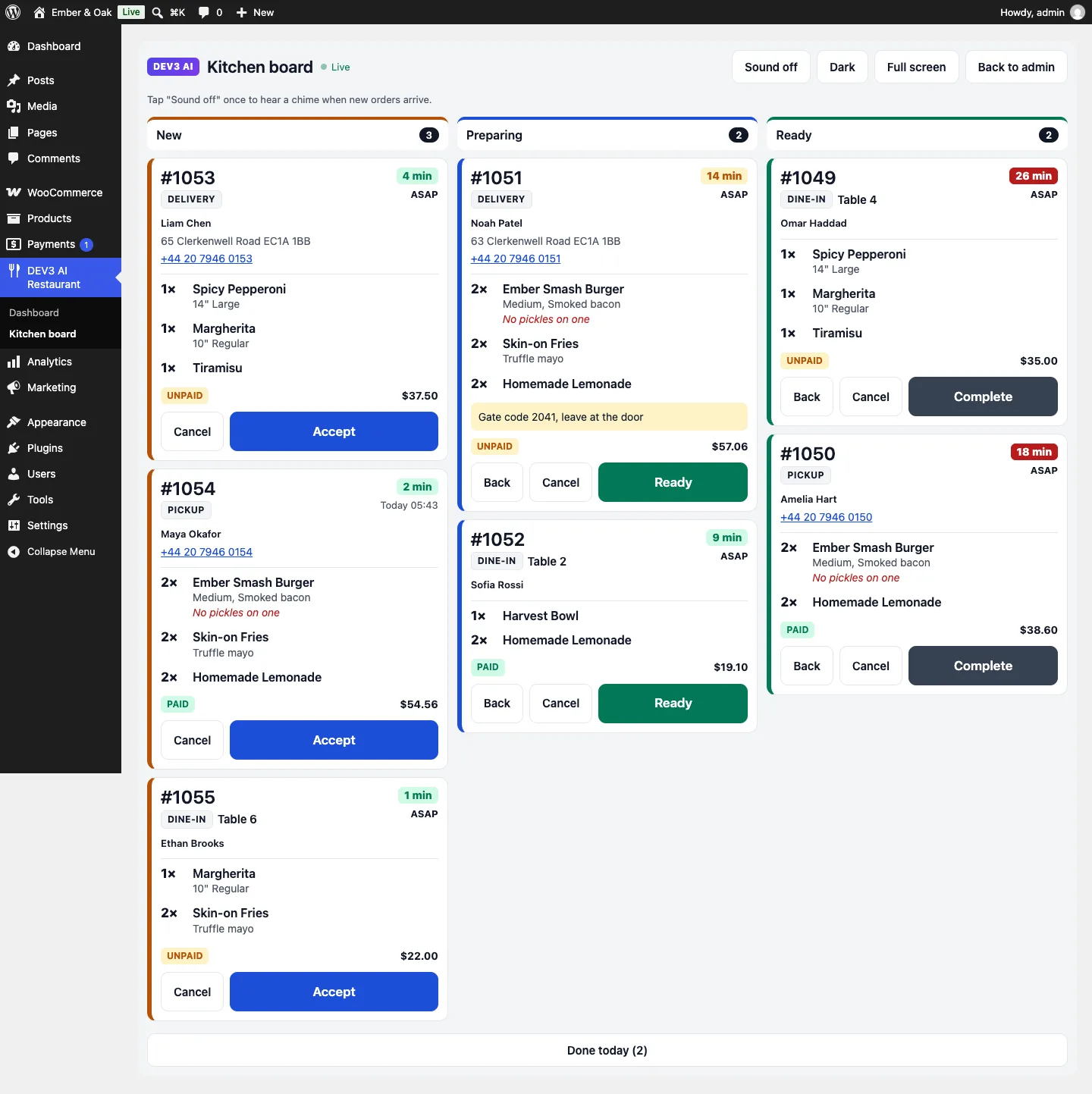
The kitchen board: New, Preparing and Ready columns with elapsed timers, order types, tables, modifiers, kitchen notes and paid or unpaid badges.

The kitchen board: New, Preparing and Ready columns with elapsed timers, order types, tables, modifiers, kitchen notes and paid or unpaid badges.

The challenge

Restaurant ordering on WordPress usually means turning every dish into a WooCommerce product, buying add-ons for options, delivery zones and time slots, and watching orders in an admin list that nobody in a kitchen will read. Prices built from sizes, extras and delivery fees are easy to get wrong in the browser and easy to tamper with. Getting a menu online at all means retyping it from a printed card. We wanted a self-hosted toolkit where dishes stay dishes, every order is priced and checked on the server, online payment can use WooCommerce without a product per dish, only payable orders reach a board the kitchen can actually use, and AI saves the typing without changing the menu or any order on its own.

Our solution

We built DEV3 AI Restaurant Menu & Online Ordering as a WordPress plugin in PHP with a React admin, a mobile-first ordering front end and a standalone kitchen board. Menus, sections, items, modifier groups, tables, orders and imports live in their own tables.

Key design decisions

  • One quote function decides the price. The browser sends item IDs, quantities and option IDs only. Pricing::quote() checks that each item exists, isn't sold out and is available at the order time (menu and section windows), enforces each modifier group's minimum and maximum, caps quantities at 50, then adds the delivery fee for the matched postcode zone, the free-delivery threshold, the minimum order and the tip.
  • Postcode zones without a map API. Zones match exact postcodes, prefixes like SW1*, numeric ranges like 1000-1099 or a catch-all *, in order, so a central zone can sit in front of an outer one.
  • One hidden WooCommerce product per order, not per dish. Online payment adds a single virtual "Food order" line priced at the server subtotal, with delivery and tip as cart fees and the quantity locked. Payment, on-hold, failure, cancellation and refund are mapped back onto the restaurant order, through HPOS-safe order APIs.
  • The kitchen only sees payable orders. Pay-at-counter orders go straight to the board; online orders wait as pending_payment and expire after 60 minutes if unpaid. A named lock re-checks slot capacity so two guests can't take the last place in a time slot.
  • A board built for a kitchen. New, Preparing and Ready columns, elapsed timers that turn amber at 10 minutes and red at 20, a WebAudio chime, full-screen and dark modes, refresh every 10 seconds, and a Kitchen staff role that can open the board and nothing else.
  • AI that drafts, never publishes. Menu import from up to 5 photos or a PDF produces a reviewed draft with warnings for missing prices and dishes already on a menu. Descriptions, pairings and cart suggestions are drafts or offers only, and cart suggestions fall back to rules when AI is off.

Architecture

The menu is server-rendered HTML with Menu JSON-LD, sticky section chips, dietary filters and the 14 EU allergens. Ordering opens in sheets for item options, the order drawer and a one-page checkout for pickup, delivery or dine-in, with ASAP or a time slot computed from opening hours, closed dates, lead time and capacity. Table QR codes carry a rotating token, so reprinting invalidates old cards. Customers follow their order on a status page that refreshes every 15 seconds. The API client, settings, jobs and usage logs come from a shared core used across DEV3's plugins.
Results

The plugin is complete. It ships in the DEV3 AI Directory, Booking & Events Plugins Bundle on the DEV3 marketplace, alongside 9 other plugins, and is being prepared for CodeCanyon. What was built and verified:

  • 68 PHPUnit tests, including 8 pricing tests (server-priced options, modifier rules, availability windows at the order time, postcode patterns, fees, free-delivery thresholds, minimums and tips) and 5 WooCommerce tests run against real WooCommerce
  • 37 Jest tests for the ordering front end, the admin screens and the shared UI kit
  • WooCommerce flow verified in tests: one cart line at the server subtotal, delivery and tip as fees, locked quantity, no kitchen email before payment, then exactly one after payment; on-hold, failed, cancelled and refunded orders mapped back
  • Slot capacity, split shifts, closed dates and lead time covered by slot tests
  • AI paths (menu import, descriptions, pairings, cart suggestions) tested with mocked API responses; a run with a live key is still to come
  • All release gates passed: build, Jest, PHP_CodeSniffer at 0 errors and 0 warnings, PHPUnit in wp-env, translation template and packaging

Known limit: browsers block sound until the page has been tapped once, so the kitchen chime needs one tap after the board opens.

Setup guide

No licence key or activation is needed: install the zip and every feature works.

Requirements

  • WordPress 6.0 or newer and PHP 7.4 or newer
  • Optional: WooCommerce 8.0 or newer for online payment (classic and block checkout, HPOS). Pay at the counter or on delivery works without it
  • Optional: a Google Gemini API key for menu import, descriptions and pairing suggestions. Without one, every ordering feature works and cart suggestions use your own pairings

1. Install the plugin

  1. The plugin ships inside the DEV3 AI Directory, Booking & Events Plugins Bundle. Unzip the bundle download and find dev3-ai-directory-booking-events-plugins-bundle/dev3-ai-restaurant-menu/dev3-ai-restaurant-menu.zip.
  2. In WordPress, go to Plugins → Add New → Upload Plugin, choose that zip and click Install Now.
  3. Click Activate. DEV3 AI Restaurant Menu & Online Ordering for WordPress appears in the plugin list and its menu, DEV3 AI Restaurant, appears in the admin sidebar with a Kitchen board link. An Order online page is created for you.

2. Connect Google Gemini (optional)

  1. Create a free API key in Google AI Studio (sign in with a Google account, then Create API key).
  2. Go to DEV3 AI Restaurant → API Config, paste the key and click Validate & save. The key is stored encrypted (AES-256-GCM) and never sent to the browser.
  3. Optional: pick the models (gemini-2.5-flash is the fast default; gemini-2.5-pro reads menu photos best).

Prefer config files? Add define( 'DEV3RO_GEMINI_API_KEY', 'your-key' ); to wp-config.php instead.

3. Set it up

  1. Open Settings → General: restaurant name, notification emails and currency (WooCommerce's currency is used when it is active).
  2. In Settings → Ordering & hours, turn pickup, delivery and dine-in on or off, set opening hours (several intervals per day), closed dates, lead time, time slots, capacity and minimum orders.
  3. In Settings → Delivery zones, add zones with postcode patterns (exact, SW1* prefixes, 1000-1099 ranges or * for everywhere), fee, minimum order, free-delivery threshold and ETA. The first matching zone wins.
  4. In Settings → Payments & tips, choose pay at the counter, online payment through WooCommerce, or both, and the tip presets.
  5. Build your menu in Menus (or Import with DEV3 AI from a photo), and add reusable option groups such as sizes and extras in Modifiers.
  6. For dine-in, add tables in Tables & QR and click Print QR sheet. Give kitchen staff the Kitchen staff role so they can open the board and nothing else.

Updating

Download the new version of the bundle, then upload the plugin zip in Plugins → Add New → Upload Plugin and choose Replace current with uploaded. Settings and data are kept.

Uninstalling

Deactivate and delete the plugin from Plugins. Menus, orders and settings are kept unless you ticked Delete all menus, orders and settings when the plugin is deleted under Data in Settings.

How to use

Import your menu from a photo

  1. Go to DEV3 AI Restaurant → Menus and click Import with DEV3 AI.
  2. Drop up to 5 straight, well-lit photos or one PDF (15 MB in total) and click Read my menu with DEV3 AI. Reading usually takes 30 to 90 seconds; you can leave the page and come back to the draft under Recent imports.
  3. Choose a new or existing menu and its status, untick anything you don't want, fix names and prices (look for No price found and Already on a menu), check allergens with your kitchen, then click the import button, which counts your selection (for example Import 4 items). Nothing is saved before that.

Run service from the kitchen board

  1. Open Kitchen board on a tablet or screen in the kitchen and tap Sound off once to turn the chime on (browsers need one tap before they play sound). Use Full screen and Dark as needed.
  2. New orders appear in New. Tap Accept to move an order to Preparing, Ready when it's done, then Complete. Back undoes a step; Cancel asks for a reason.
  3. Timers turn amber after 10 minutes and red after 20. Cards show the order type, table or customer, options, kitchen notes and whether the order is paid.

Take orders at the table

  1. In Tables & QR, add your tables and click Print QR sheet; put each card on its table.
  2. Guests scan the code, order from their phone and the order arrives on the board with the table number.
  3. If a card goes missing, click New code for that table. The old printed code stops working.

Mark dishes sold out and fill in descriptions

  1. In Menus, click Sold out next to a dish when the kitchen runs out, and Back in stock when it returns. Guests can't order it in between.
  2. Click Write missing descriptions to draft descriptions for every dish without one, then Review drafts to accept, edit or reject each one.
  3. In a dish's editor, Write with DEV3 AI drafts one description, and Suggest with DEV3 AI proposes pairings from your real menu for the "goes well with" suggestions.

Follow up on orders

  1. In Orders, filter by status, type and date, search by number, name, phone or email, and open an order for its timeline.
  2. Export the list to CSV for accounting, and watch today's totals, top items and open orders on Dashboard.

Related case studies