All case studies

DEV3 Technologies · own product

DEV3 AI Events & Tickets: seat maps, QR tickets and phone check-in in one plugin, with AI-drafted event pages

Our own WordPress events plugin: venues, recurring dates, ticket types, WooCommerce or free RSVP, seat maps, PDF and QR tickets from a built-in encoder, a phone check-in screen, and AI drafts of event pages, FAQs, social posts and recaps.

Industry
Events & Ticketing (WordPress)

Live project preview

Client systems are private — screenshots shown where permitted.

DEV3 Technologies · own product — screenshots
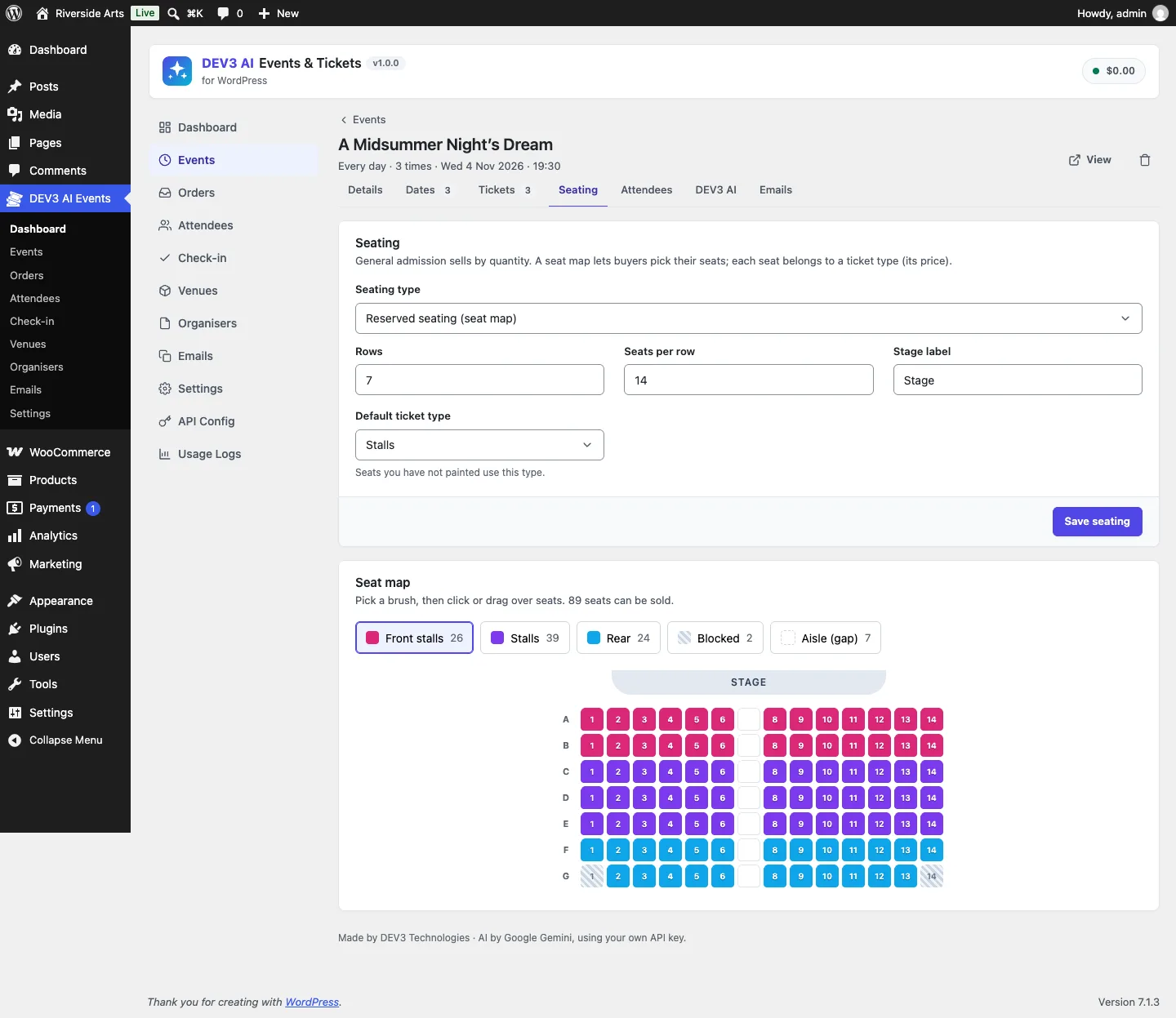
The seat map editor: paint rows of seats with a ticket type, block seats or mark aisles, and see how many seats can be sold.

The seat map editor: paint rows of seats with a ticket type, block seats or mark aisles, and see how many seats can be sold.

The challenge

Event organisers on WordPress usually stitch together a calendar plugin, a ticketing add-on, a seating add-on, a PDF ticket add-on and a separate check-in app, each with its own licence and its own idea of what a ticket is. We wanted one plugin that covers the whole night: publishing recurring events in the right timezone, selling general admission or reserved seats without ever selling a seat twice, sending tickets that scan reliably on any phone, and letting door staff admit people from a browser. It had to run on ordinary shared hosting with no external services or PHP extensions beyond the usual, and use AI only to draft words, never to touch tickets, money or email.

Our solution

We built DEV3 AI Events & Tickets as a WordPress plugin in PHP with a React admin and small, server-rendered front-end views. Events, venues and organisers are custom post types; occurrences, tickets, orders, attendees and check-ins live in their own tables.

Key design decisions

  • No ticketing libraries. QR codes come from a built-in encoder (byte mode, error correction level M, versions 1 to 10) that renders SVG on screen and vector rectangles in the PDF. PDF tickets come from a small PDF 1.4 writer with the core Helvetica fonts, one ticket per page.
  • Seats that can't be sold twice. Reserving takes a MySQL named lock per date and re-checks capacity inside it. A unique index on date and seat is the last line of defence against a concurrent insert.
  • Check-in as one conditional update. A scan admits a ticket only if checked_in_at IS NULL and the ticket is valid, so two phones scanning the same QR at the same moment can't both say "welcome". Every attempt is logged, and undo is one tap.
  • Scanner in the browser. The check-in screen uses the native BarcodeDetector where it exists and loads a jsQR fallback chunk only when it doesn't, with manual code entry for anything a camera can't read.
  • Recurring dates in the event timezone. Daily, weekly, monthly (by date or nth weekday) and yearly rules are generated in the event's own timezone so start times survive DST, and dates that already have attendees are never silently deleted when a rule changes.
  • AI drafts only. The event page writer, FAQ, social posts and recap email are reviewed in a diff and saved only when accepted. AI never runs on the storefront, never sends email and never changes tickets.

Architecture

Paid tickets go through WooCommerce with one hidden virtual product (classic and block checkout, HPOS), free tickets confirm at once as RSVPs, and pay-at-the-door and box-office orders are optional. Unpaid holds expire after 15 minutes by default. Calendar, list and map views are blocks and shortcodes, the map uses Leaflet and OpenStreetMap, and every event page gets JSON-LD Event schema with offers and an FAQPage when there is an FAQ. Door staff get an "Event check-in staff" role that can open the scanner and nothing else. The API client, settings and usage logs come from a shared core used across DEV3's plugins.
Results

The plugin is complete. It ships in the DEV3 AI Directory, Booking & Events Plugins Bundle on the DEV3 marketplace, alongside 9 other plugins, and is being prepared for CodeCanyon. What was built and verified:

  • 69 PHPUnit tests covering recurrence (12), orders, capacity and seat maps, WooCommerce order flows, check-in, QR, PDF, ICS, Event schema, REST permissions and the AI drafts
  • 40 Jest tests for the admin screens, front-end views and the shared UI kit
  • QR encoder checked against the jsQR decoder: payloads of every length from 1 to 213 bytes decoded correctly, across all versions 1 to 10
  • Check-in scanner bundle: 4.5 KB gzipped, plus a 46 KB jsQR chunk loaded only on browsers without BarcodeDetector
  • WooCommerce paid, failed, cancelled and refunded orders tested against real WooCommerce; AI paths tested with mocked API responses, with a live-key run still to come
  • All release gates passed: build, Jest, PHP_CodeSniffer at 0 errors and 0 warnings, PHPUnit in wp-env, translation template and packaging

Known limits: camera scanning has not yet been tested on a real phone (manual entry and the scan logic are tested), and recurring rules are capped at 366 dates.

Setup guide

No licence key or activation is needed: install the zip and every feature works.

Requirements

  • WordPress 6.0 or newer and PHP 7.4 or newer
  • Optional: WooCommerce 8.0 or newer for paid tickets (classic and block checkout, HPOS). Free RSVP tickets and pay at the door work without it
  • HTTPS on the site, so phones can open the camera on the check-in screen (typed codes work either way)
  • Optional: a Google Gemini API key for the DEV3 AI drafts. Without one, every other feature works

1. Install the plugin

  1. The plugin ships inside the DEV3 AI Directory, Booking & Events Plugins Bundle. Unzip the bundle download and find dev3-ai-directory-booking-events-plugins-bundle/dev3-ai-events-tickets/dev3-ai-events-tickets.zip.
  2. In WordPress, go to Plugins → Add New → Upload Plugin, choose that zip and click Install Now.
  3. Click Activate. DEV3 AI Events & Tickets for WordPress appears in the plugin list and its menu, DEV3 AI Events, appears in the admin sidebar. An Events page (list, calendar and map) and a My tickets page are created for you.

2. Connect Google Gemini (optional)

  1. Create a free API key in Google AI Studio (sign in with a Google account, then Create API key).
  2. Go to DEV3 AI Events → API Config, paste the key and click Validate & save. The key is stored encrypted (AES-256-GCM) and never sent to the browser.
  3. Optional: pick the models (gemini-2.5-flash is the fast default; gemini-2.5-pro is used for the longer event page drafts).

Prefer config files? Add define( 'DEV3EV_GEMINI_API_KEY', 'your-key' ); to wp-config.php instead.

3. Set it up

  1. Open Settings: choose the currency and time format, the checkout mode under Checkout (automatic: free tickets as RSVP, paid through WooCommerce), the hold time and whether you ask for attendee names, and your front-end options.
  2. Add your places in Venues (use Find coordinates from the address for the map) and your hosts in Organisers.
  3. In Events, click New event and fill in Details: dates, time zone, venue, organisers and capacity. For a series, set the repeat rule under Dates.
  4. Under Tickets, click Add ticket type for each price, with capacity per date, order limits and a sales window. For reserved seating, switch Seating to a seat map and paint the rows.
  5. Review the confirmation, reminder and update templates in Emails.
  6. Give door staff the Event check-in staff role in Users. They can open the scanner and nothing else.

Updating

Download the new version of the bundle, then upload the plugin zip in Plugins → Add New → Upload Plugin and choose Replace current with uploaded. Settings and data are kept.

Uninstalling

Deactivate and delete the plugin from Plugins. Events, orders and tickets are kept unless you ticked Delete all events, orders and tickets when the plugin is deleted under Settings → Data.

How to use

Publish an event with reserved seats

  1. In DEV3 AI Events → Events, open the event and go to Tickets. Add one ticket type per seat category, such as Front stalls, Stalls and Rear.
  2. Open Seating, choose Reserved seating (seat map), set the rows, seats per row and stage label, then pick a brush and click or drag over seats to paint them. Use Blocked and Aisle (gap) for seats that can't be sold.
  3. Click Save seating. Buyers now pick their seats on the event page, and taken seats are shown greyed out.

Write the event page with DEV3 AI

  1. Open the event's DEV3 AI tab. Under Event page writer, choose the tone, language, length and audience, add optional notes and click Generate with DEV3 AI.
  2. Review the summary and page content in the diff view, edit if needed, then click Use on the event page. Nothing is saved until you do.
  3. On the same tab, click Draft FAQ with DEV3 AI for questions and answers (they also become FAQ schema), or Write posts with DEV3 AI for social posts with character counters. Posts are drafts to copy; nothing is posted for you.

Check people in at the door

  1. Open Check-in in the admin and scan the QR code shown there with a phone, or go to /dev3ev-checkin/ and log in as check-in staff.
  2. Choose the event date, tap Start camera and point it at a ticket. A green card means welcome; amber means already checked in (with the time); red means wrong date, cancelled or not found.
  3. If a code won't scan, type the 12-character code from the ticket and tap Check in. Tap Undo check-in to reverse a mistake. The counter shows checked in out of total.

Handle orders and attendees

  1. In Orders, open an order to Mark as paid, Resend tickets, cancel or Refund it (refunds go through the WooCommerce order and cancel the tickets). Use New manual order for box-office or complimentary tickets.
  2. In Attendees, search by name, email, code or order, check people in by hand, and click Export CSV for badges or door lists.

Tell attendees about a change, then thank them

  1. In the event's Emails tab, choose Event update, pick the date and write the message (new time, parking, what to bring). One email goes to each order, sent in the background.
  2. After the event, draft a recap on the DEV3 AI tab with Draft recap with DEV3 AI (it sees attendance counts only, never names), accept it, then send it from Emails as Recap / thank you.

Related case studies