If you run workshops, gigs, talks or a yearly festival, you have probably sent buyers off to a third-party ticketing site and then exported a spreadsheet of names for the door. It works, but your event pages live in one place, your buyers in another, and on the night someone is running a finger down a printed list while the queue grows.
The alternative is to sell tickets on your own WordPress site and scan them at the door with a phone. This guide shows how to do that with DEV3 AI Events & Tickets, from the first event to the last person through the door.
What a smooth ticketing setup looks like
- Event pages on your own site, with a list, a calendar and a map.
- Ticket types with their own prices, capacity, order limits and sale windows.
- Checkout through the payment gateways you already use, or free RSVP.
- PDF tickets with QR codes, plus calendar links, sent automatically.
- Fast check-in on a phone, safe for volunteers, with no ticket admitted twice.
- Clean follow-up: updates, reminders and recaps to the right people.
Step by step: your first ticketed event
1. Install
Upload the zip under Plugins → Add New → Upload Plugin and activate. The plugin creates an Events page (list, calendar and map), a My tickets page and the Event check-in staff role. If event URLs return a 404, open Settings → Permalinks and press Save. WooCommerce is optional and only needed for paid online tickets.
2. Add a venue
Under DEV3 AI Events → Venues, add the venue's address and use Find coordinates so it appears on the map. Organisers (email, phone, website) are added the same way and show on event pages.
3. Create the event
Go to Events → New event and set the title, start and end, time zone and venue. You can also set the status (scheduled, postponed, cancelled, rescheduled, moved online) and the attendance mode, including an online link only ticket holders see. Saving creates a free "General admission" ticket type automatically.
4. Set up ticket types
On the Tickets tab, set for each type:
- Price (0 means free RSVP).
- Capacity per date.
- Min / max per order, enforced in the widget and on the server.
- Sales start / end, in the event's time zone. An empty end means sales close when the date starts.
5. Choose how people pay
- Free RSVP is confirmed instantly and tickets are emailed.
- WooCommerce: tickets travel through the cart and checkout as a hidden "Event ticket" product, so any gateway works. Paid or processing orders make tickets valid; refunds cancel them.
- Pay at the door (in Settings) confirms orders as unpaid when you don't use WooCommerce; mark them paid later.
Unpaid WooCommerce holds count against capacity for the hold time (15 minutes by default) and are then released. Reservations re-check capacity under a lock per date, so the last seat can't be sold twice.
6. Publish
Set Visibility to Published. The event appears on the Events page, calendar and map. To place things yourself, use blocks or shortcodes such as:
[dev3ev_events view="list" views="list,calendar,map"]
[dev3ev_tickets event="123"]
Recurring events and reserved seating
For a weekly class or a monthly quiz, open the Dates tab and choose daily, weekly (several weekdays), monthly (same date, or same weekday such as the 2nd Tuesday) or yearly. Skip single dates or add one-offs, and click Preview dates before saving. Each date has its own capacity, sales and check-in, and you can cancel one date and optionally email its ticket holders.
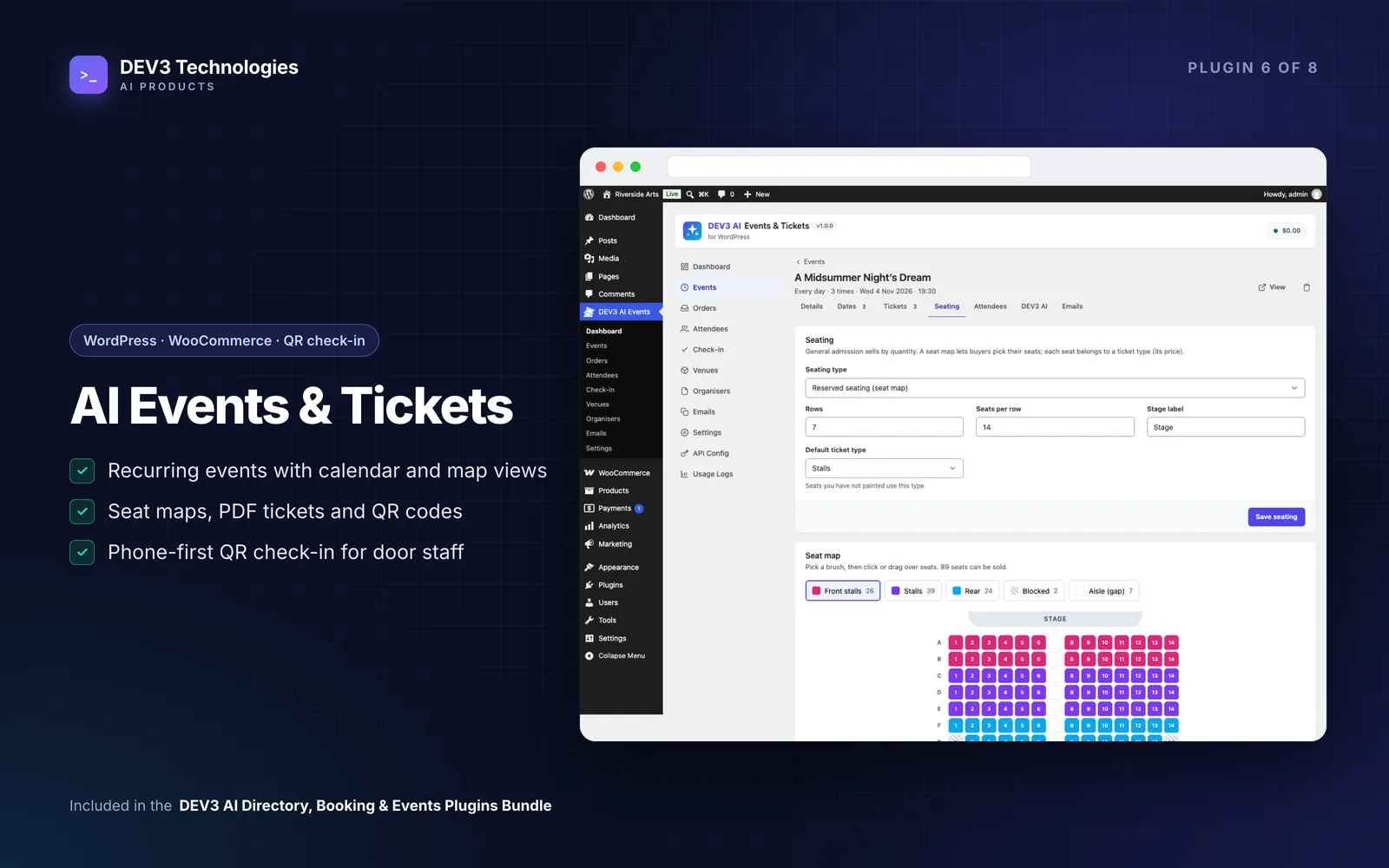
For theatres and seated dinners, switch the Seating tab to "Reserved seating", set rows (up to 30) and seats per row (up to 40), then paint seats with a ticket type, "Blocked" or "Aisle". Buyers pick seats on the event page, on desktop or phone.
What buyers receive
Every attendee gets a 12-character code and a QR code. Buyers receive a PDF with one ticket per page and a link to a printable ticket page with Download PDF, an .ics file and a Google Calendar link. A reminder goes out a set number of hours before the start, once per order.
Check-in on the night
- Give door volunteers the Event check-in staff role. They can use the scanner but not the admin.
- On a phone, open
/dev3ev-checkin/(or scan the QR on the Check-in screen) and log in. - Choose the date, press Start camera and point it at tickets.
- Read the result: green for valid, amber for "already checked in at HH:MM", red for wrong date, other event, cancelled, unpaid or not found.
Undo is one tap, every attempt is logged and the counter updates live. If the camera won't start, the browser needs https and camera permission; volunteers can type the code instead. For walk-ups, Orders → New order works as a box office for door sales, guest lists or complimentary tickets, and capacity still applies.
After the event
Attendees lets you filter by event, date, status and check-in, resend or cancel tickets and export CSV. The event's Emails tab sends an update or recap to everyone, only checked-in attendees, or only no-shows.
On the event's DEV3 AI tab, you can draft the event page, an FAQ, social posts for X, Facebook, Instagram and LinkedIn, and a recap email. The AI only receives event details and attendance counts, never buyer data, and nothing is posted or sent without your confirmation. Everything else works without a Google Gemini key.
Tips and pitfalls
- Check time zones. If times look wrong, check the event time zone on the Details tab; the site time zone is the default.
- "Cannot be sold online right now" means paid tickets have no checkout. Activate WooCommerce, enable Pay at the door, or use free tickets.
- Set up a real cron job. Reminders use hourly WP-Cron, and quiet sites may not trigger it on time.
- Use an SMTP plugin so confirmation PDFs reach inboxes.
- Test the scanner before doors open, on the actual phones and network you'll use.
Who this is for
Venues, clubs, schools, conference organisers, community groups and businesses running classes or tastings who want tickets, buyers and check-in on their own WordPress site. For the engineering behind the QR tickets and check-in, see the case study.
Get started
DEV3 AI Events & Tickets comes in the DEV3 AI Directory, Booking & Events bundle, alongside our Event Writer, booking and directory plugins. Need ticketing tied into a larger site or membership system? Get in touch.