Putting an event into The Events Calendar takes a few minutes. Promoting it properly takes an afternoon. You need a description that sells it, a post for each social network (all with different character limits), a promo email, a reminder the day before, a recap afterwards, some FAQs so people stop emailing you about parking, and an SEO title and meta description so the event page shows up in search. Multiply that by every event in the season and most of it never gets done.
This guide shows a repeatable workflow for promoting every event on a WordPress site that runs The Events Calendar, using DEV3 AI Event Writer.
What "properly promoted" looks like
For each event, aim for:
- A clear description with an excerpt, a few sections and a call to action.
- One social post per network, fitted to that network's limit.
- A promo email for your newsletter, an automatic reminder and a recap.
- 3 to 10 FAQs shown on the event page with FAQ structured data.
- An SEO title of roughly 30 to 60 characters and a meta description of 110 to 155.
And for the whole calendar: a way to fill the gaps on events that are missing content, without opening each one.
Before you start
You need The Events Calendar (free) installed. Event Tickets (free) is optional; it adds attendance numbers to recaps and lets you email attendees. Upload the plugin zip under Plugins > Add New > Upload Plugin, activate it, and open DEV3 AI Events in the admin menu (it is also linked under Events > DEV3 AI Writer).
To use the AI buttons, create a key in Google AI Studio and paste it into DEV3 AI Events > API Config, then click Validate. Set a monthly budget while you are there. Without a key, templates, manual editing, emails, FAQ output, SEO meta and manual flyer entry still work.
Then visit Settings once and set your default tone and language, brand hashtags, default social networks, the email from name and reply-to address, and whether the automatic reminder should go out, and how many hours before the event.
Step by step: promoting one event
1. Get the facts right and save
The writer only uses the event's own facts: date, time zone, venue, organizers, cost, categories and ticket types, plus any notes you add. It reads the last saved version, so save the event after changing any of those details.
2. Open the writer panel
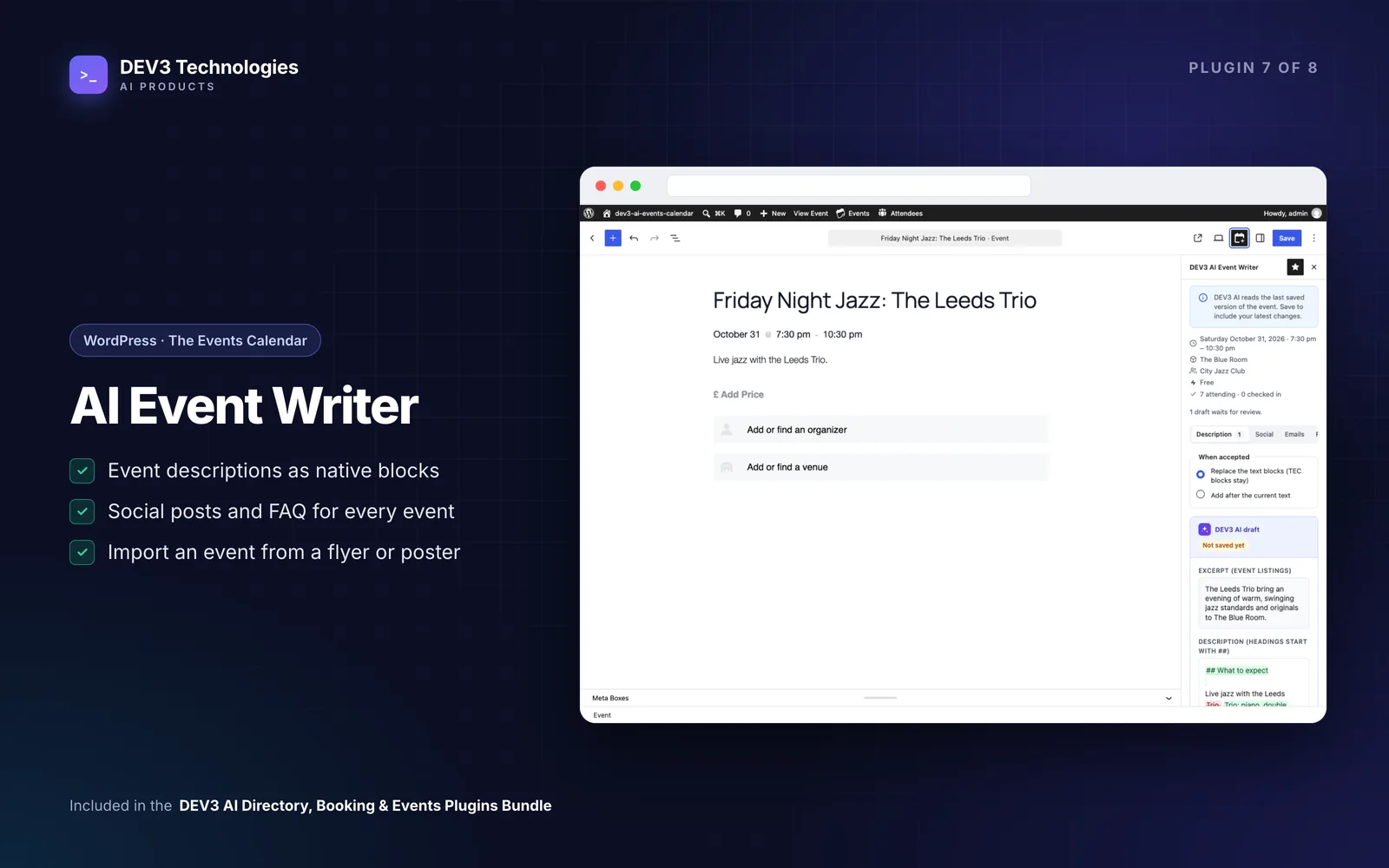
In the block editor, click the DEV3 AI Event Writer icon in the top bar. In the classic editor, the box sits below the editor. Both show the same tabs: Description, Social, Emails, FAQ and SEO.
3. Write the description
On Description, add notes (for example "family friendly, bring a picnic"), choose tone, length and audience, then click Generate with DEV3 AI, or Use template if you prefer a non-AI starting point. You get a draft, not a change: Changes shows a word diff against the current text, and you can Edit, Regenerate, Reject or Accept.
In the block editor, accepting inserts normal heading, paragraph and list blocks. Replace removes the old text blocks but keeps The Events Calendar's own blocks, images and embeds; Add after keeps the old text. Click Update to save.
4. Create the social posts
On Social, pick the networks. Each post is fitted to its network: 280 characters on X (every link counts as 23), 300 on Bluesky, 500 on Threads and Mastodon, 2,200 on Instagram (where links aren't clickable, so it says "link in bio"), 3,000 on LinkedIn. Saved posts can be edited, copied or opened in the network's share dialog. Nothing is posted automatically.
5. Prepare the emails
On Emails, generate a promo, a reminder and a recap. Each has a subject, preheader and body, with merge tags such as {attendee_name}, {event_title}, {event_date}, {venue} and {event_url}.
- Send me a test sends the current email to your own address. The promo is meant for your newsletter tool, so copy it or forward the test.
- With Event Tickets, Send to attendees sends one email per unique attendee in the background and logs it.
- If the automatic reminder is on in Settings, the saved reminder goes out once per event at the time you chose.
- After the event, the recap can use Event Tickets counts: registered, checked in and per ticket. Only counts are sent to the AI, never names or emails.
6. Add FAQs
On FAQ, choose how many questions you want (3 to 10). Answers come from the event's facts; where the facts don't cover a question, the answer points people to the organiser. Saved FAQs appear below the description, in the Event FAQ block or through the shortcode, with FAQPage JSON-LD:
[dev3ec_faq id="123" heading="Questions"]
7. Set the SEO title and description
On SEO, add a focus phrase and generate. A search preview shows how it will look. If Yoast SEO or Rank Math is active, the values are written into their fields and kept in sync. Without an SEO plugin, the title, meta description and Open Graph tags are printed for you, and you can switch that off.
Doing the whole season at once
Open DEV3 AI Events > Events. Filter by upcoming, past, category or missing content, select the events, click Generate, and pick the outputs, tone, language and notes. Tick the option to fill only what is missing if some events already have copy. It runs in the background with progress, cancel and retry. You can also start it from The Events Calendar's own list with the Write with DEV3 AI row link or the Generate with DEV3 AI bulk action.
Every result lands in Review. Open a draft to see the diff, edit, accept or reject, or select several and accept them together. If an event changed after its draft was written, you are asked before the draft is applied.
Got a flyer instead of details?
Import flyer takes a JPG, PNG, WebP or PDF (up to 15 MB). DEV3 AI reads it in the background, marks fields it was unsure about, matches the venue and organiser to existing ones and creates a draft event. We cover how that works in the case study.
Tips and pitfalls
- Save before generating. Unsaved changes to date, venue or cost won't be in the draft.
- Add context in notes. Something like "the year is 2027" helps on flyer imports; "free parking behind the hall" makes the FAQ more useful.
- Fix email delivery first. If emails don't arrive, use Send me a test and install an SMTP plugin.
- Recurring events. With Events Calendar Pro, recurring instances share one event post, so you write once.
- Nothing changes on its own. Drafts sit until you accept them, and imports create draft events only.
Who this is for
Venues, community centres, festivals, churches, meetups, theatres and anyone whose event calendar runs on The Events Calendar and whose marketing is done by one or two busy people.
Get started
DEV3 AI Event Writer is included in the DEV3 AI Directory, Booking & Events bundle, together with our ticketing, booking and directory plugins. Want a wider AI content workflow for your organisation? See our AI implementation services.