All case studies

DEV3 Technologies · own product

DEV3 AI Event Writer for The Events Calendar: TEC-aware drafts and flyer-to-event import with venue matching

Our own add-on for The Events Calendar: it drafts descriptions, social posts, emails, FAQs and SEO meta from each event's real details, and turns a printed flyer into a reviewed draft event matched to existing venues and organizers.

Industry
Events & Publishing (WordPress)

Live project preview

Client systems are private — screenshots shown where permitted.

DEV3 Technologies · own product — screenshots
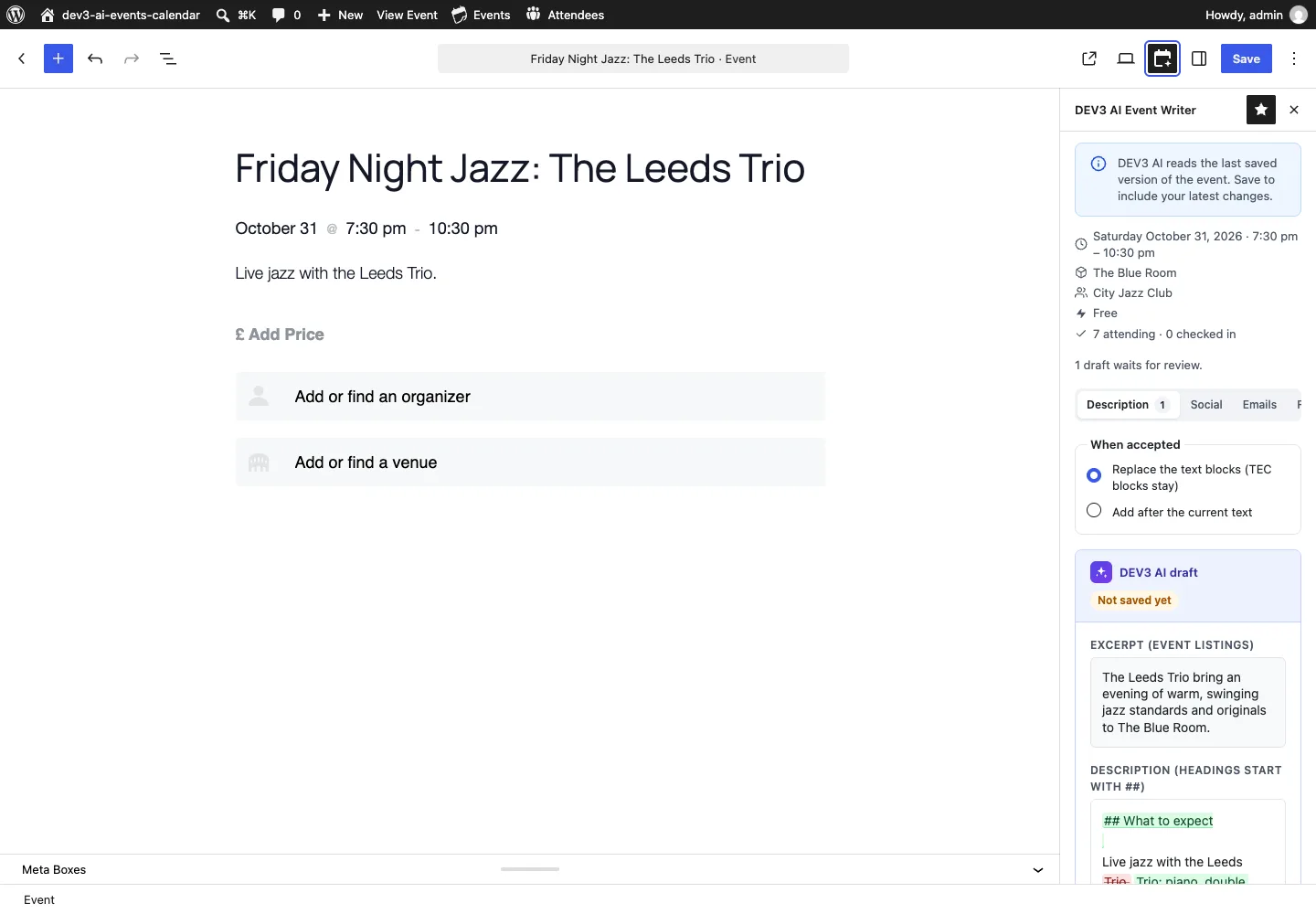
The DEV3 AI Event Writer sidebar in The Events Calendar's block editor: event facts at the top and a description draft waiting for review.

The DEV3 AI Event Writer sidebar in The Events Calendar's block editor: event facts at the top and a description draft waiting for review.

The challenge

Sites running The Events Calendar publish many events, and each one needs more words than the event form holds: a description, posts for several networks, a promo email, a reminder, a recap, an FAQ and SEO meta. Generic AI writers know nothing about the event, write straight into the post and can overwrite TEC's own blocks. Many events also start life as a printed flyer that someone retypes by hand, often creating a duplicate venue or organizer along the way. We wanted an add-on that reads the event through TEC's own API, drafts every piece of content for review without touching the post until it is accepted, works across the block editor, the classic editor and bulk runs, and turns a flyer into a draft event without polluting the venue and organizer lists.

Our solution

We built DEV3 AI Event Writer as a WordPress plugin in PHP with React panels that appear in three places: a sidebar in TEC's block editor, a metabox in the classic editor, and an admin app for bulk work. Every output is stored as a pending draft in its own table and shown as a diff against the current value.

Key design decisions

  • TEC-aware facts. One adapter reads title, dates with timezone, cost, venue, organizers, categories and, with Event Tickets, ticket types and attendee counts. Prompts receive those facts, so nothing is retyped and the model is told never to invent prices, dates or speakers.
  • Drafts that keep TEC's blocks. Accepted descriptions become native core blocks that replace only the text blocks; TEC's date, price, venue, organizer and ticket blocks stay where they are. Classic events get HTML. If the event changed after a draft was written, accepting asks for confirmation first.
  • Flyer import with review. A JPG, PNG, WebP or PDF flyer goes to the vision model in a background job. The structured answer is re-validated on the server (real dates, 24-hour times, valid timezone, valid email), and fields the model marked as missing or uncertain are flagged in the form.
  • Venue and organizer matching. Before anything is created, the draft's venue and organizer are scored against existing records by normalised name, city, address, email and website domain. A match of 80 or more is suggested as "use existing"; the admin can switch to "create new" or "none". The event is created as a draft through TEC's own ORM.
  • Channel rules on the server. Social posts are trimmed to each network's limit, with X links counted as 23 characters. Recaps receive attendance counts only, never names or emails, and this is unit-tested.
  • Useful with AI off. Template drafts, manual editing and manual flyer entry with the same matching all work without a key.

Architecture

Drafts and imports live in two custom tables; accepted social posts, emails, FAQs and SEO meta are post meta on the event. Bulk runs and flyer reads use the shared background job runner with progress, cancel and retry. Emails can be test-sent, sent once per unique Event Tickets attendee, or sent automatically as a reminder before the event. The FAQ renders on the event page with FAQPage schema, and SEO meta goes into Yoast SEO or Rank Math when active, or is printed by the plugin otherwise. The API client, settings, jobs and usage logs come from a shared core used across DEV3's plugins.
Results

The plugin is complete. It ships in the DEV3 AI Directory, Booking & Events Plugins Bundle on the DEV3 marketplace, alongside 9 other plugins, and is being prepared for CodeCanyon. What was built and verified:

  • 60 PHPUnit tests, run with The Events Calendar and Event Tickets loaded, covering TEC event creation, block replacement, social limits, matching, flyer import, the review queue, stale drafts, bulk jobs, emails and SEO output
  • 44 Jest tests for the writer panels, the block and classic editor bridges and the shared UI kit
  • Flyer import tests feed deliberately bad model output (a 7:30 time, an invalid timezone, a malformed email, an unknown field name) and check that each one is corrected or dropped before the review form
  • Tested in real WordPress installs with The Events Calendar and Event Tickets, in both the block and classic editors
  • AI paths tested with mocked API responses; a run with a live key is still to come
  • All release gates passed: build, Jest, PHP_CodeSniffer at 0 errors and 0 warnings, PHPUnit in wp-env, translation template and packaging

Known limits: Tickets Commerce attendees are not yet tested, and current releases of The Events Calendar need WordPress 6.9.

Setup guide

No licence key or activation is needed: install the zip and every feature works.

Requirements

  • WordPress 6.0 or newer and PHP 7.4 or newer (current releases of The Events Calendar themselves need WordPress 6.9)
  • The Events Calendar 6.x (free), active. The plugin shows a notice and does nothing else without it
  • Optional: Event Tickets 5.x (free) for attendance numbers in recaps and for emailing attendees
  • Optional: Yoast SEO or Rank Math. SEO titles and descriptions go into their fields when one is active
  • Optional: a Google Gemini API key. Without one, template drafts, manual editing and manual flyer entry still work

1. Install the plugin

  1. The plugin ships inside the DEV3 AI Directory, Booking & Events Plugins Bundle. Unzip the bundle download and find dev3-ai-directory-booking-events-plugins-bundle/dev3-ai-events-calendar/dev3-ai-events-calendar.zip.
  2. In WordPress, go to Plugins → Add New → Upload Plugin, choose that zip and click Install Now.
  3. Click Activate. DEV3 AI Event Writer for The Events Calendar appears in the plugin list, its menu DEV3 AI Events appears in the admin sidebar, and a DEV3 AI Writer shortcut is added under The Events Calendar's Events menu.

2. Connect Google Gemini (optional)

  1. Create a free API key in Google AI Studio (sign in with a Google account, then Create API key).
  2. Go to DEV3 AI Events → API Config, paste the key and click Validate & save. The key is stored encrypted (AES-256-GCM) and never sent to the browser.
  3. Optional: pick the models (gemini-2.5-flash is the fast default for social posts, emails, FAQs and SEO; gemini-2.5-pro is used for descriptions and flyer reading).

Prefer config files? Add define( 'DEV3EC_GEMINI_API_KEY', 'your-key' ); to wp-config.php instead.

3. Set it up

  1. Open DEV3 AI Events → Settings. Under Writing defaults, choose the default tone, language, brand hashtags and social networks.
  2. Under Event pages, choose where the FAQ shows and whether the plugin prints SEO meta tags when no SEO plugin is active.
  3. Under Emails, set the from name and reply-to address, and turn on Send the saved reminder email automatically if you want reminders sent to Event Tickets attendees before each event.
  4. Under Flyer imports, choose whether imported events are saved as drafts or pending review, and whether the flyer becomes the featured image. Click Save settings.

Updating

Download the new version of the bundle, then upload the plugin zip in Plugins → Add New → Upload Plugin and choose Replace current with uploaded. Settings and data are kept.

Uninstalling

Deactivate and delete the plugin from Plugins. Drafts, imports and saved content are kept unless you turned on Delete DEV3 data when the plugin is deleted under Settings → Uninstall. Your events always stay.

How to use

Write an event description in the editor

  1. Open an event in The Events Calendar and click the DEV3 AI Event Writer icon in the top bar of the block editor (in the classic editor, scroll to the DEV3 AI Event Writer box). Save the event first: the writer reads the last saved version.
  2. On the Description tab, choose the tone, length, audience and language, add notes if you like, and generate. Without a key, click Use template.
  3. Under When accepted, choose Replace the text blocks (TEC blocks stay) or Add after the current text. Review the diff, edit if needed, then accept and update the event.

Turn a flyer into a draft event

  1. Go to DEV3 AI Events → Import flyer and drop a JPG, PNG, WebP or PDF (up to 15 MB). Add notes such as "the year is 2027" if the flyer leaves things out.
  2. Click Read with DEV3 AI, or Fill in by hand without a key. The flyer appears beside the extracted fields; fields marked Not on the flyer or DEV3 AI is not sure need a look.
  3. For the venue and organizer, keep Use existing when the best match is right, or pick Create new or None. Tick the categories, then click Create draft event and open it to publish from The Events Calendar.

Fill the gaps across many events

  1. Open DEV3 AI Events → Events. Filter by upcoming or past, category, or missing content (no description, no social posts, no FAQ, no SEO).
  2. Select events, click Select events to generate, choose the outputs, tone and language, and run Generate with DEV3 AI (or Templates (no AI)). The job runs in the background.
  3. Open Review to compare each draft with the current text, edit it, and accept or reject drafts one by one or in bulk. From the Events list in The Events Calendar you can also use the Write with DEV3 AI row link or the Generate with DEV3 AI bulk action.

Promote and follow up

  1. On the Social tab, generate one post per network with a live character counter, then copy each post into your social tools. Nothing is posted for you.
  2. On the Emails tab, draft the Promo, Reminder and Recap emails, click Save email, then Send me a test. With Event Tickets, Send now emails each attendee once.
  3. On the FAQ and SEO tabs, generate and accept questions for the event page and an SEO title and meta description with length checks.

Related case studies