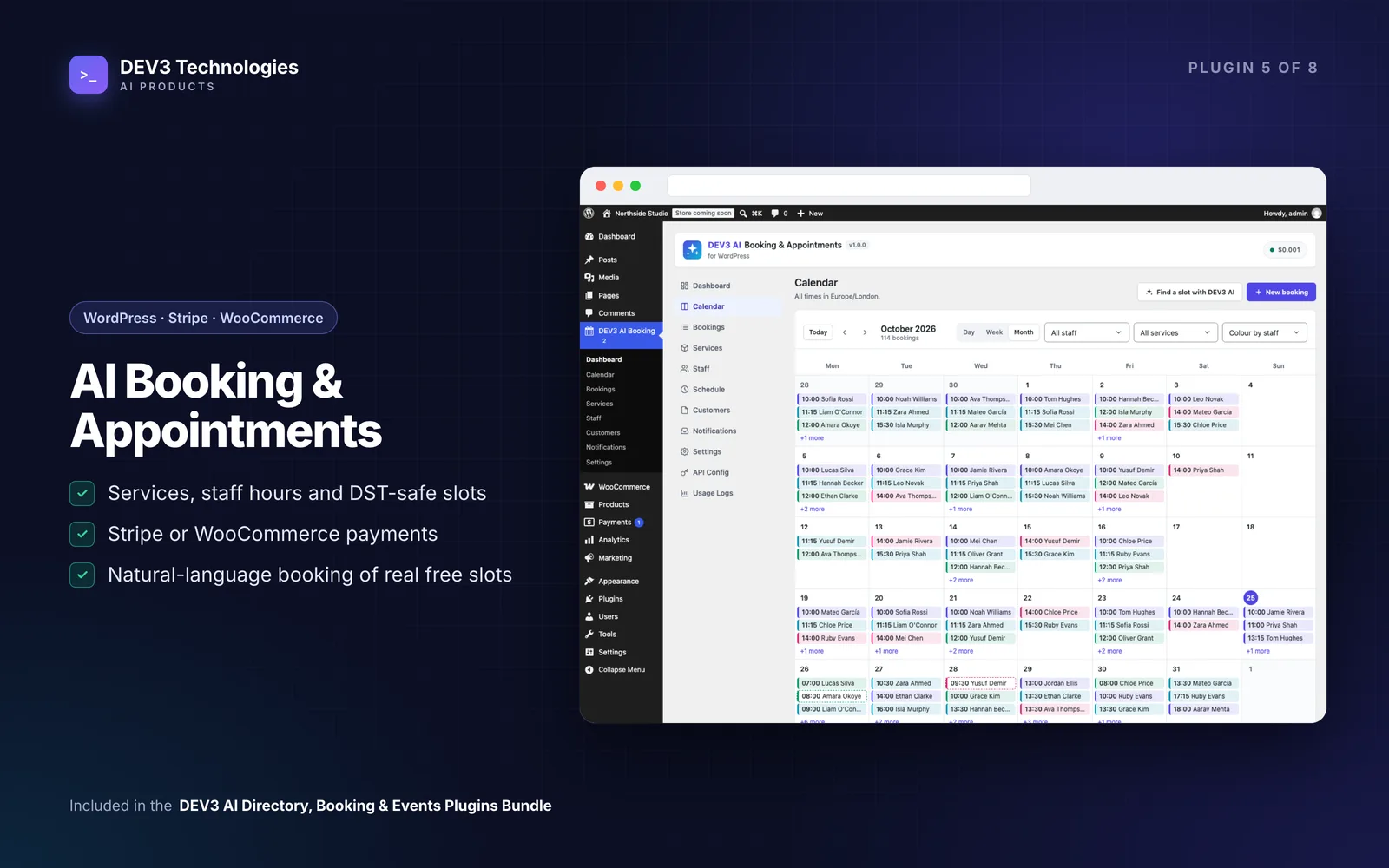
If you run a salon, a clinic, a studio or a consultancy, you probably know the routine. Customers message you on three channels asking "do you have anything Thursday after work?", you check a paper diary or a shared calendar, offer two times, wait, and by the time they reply one of them is gone. Then some of the people who do book never turn up, because a free booking costs them nothing to forget.
What most small businesses want is simple to describe: a booking page that works on a phone, shows only times that are really free, takes a deposit so people commit, sends reminders, and lets customers move their own appointment within your rules. This guide walks through setting that up on a WordPress site with DEV3 AI Booking & Appointments.
What a good booking setup looks like
Before touching settings, it helps to agree on the goal:
- Real availability only. A customer should never see a time that clashes with another booking, a break or a holiday.
- Commitment up front. A deposit, or full payment, taken at the moment of booking.
- Self-service changes. Customers reschedule or cancel from a link in their email, inside cut-offs you choose.
- Reminders that go out on their own. Not a job for whoever is on the front desk.
- One place to run the day. A calendar where you can see every staff member, take a walk-in and mark no-shows.
The plugin covers each of these. Here is the order to set it up in.
Step by step: from install to first paid booking
1. Install and check the pages
Upload the plugin zip under Plugins › Add New › Upload Plugin and activate it. Activation creates two pages: Book an appointment (with the Booking form block) and My bookings. Add the first to your site menu. The "Manage booking" links in emails open the second, so leave it published.
2. Set your schedule
Open DEV3 AI Booking › Schedule and enter business hours, breaks, closures and holidays. These apply to everyone unless a staff member has their own hours.
3. Create services with deposits
Under Services, add each thing customers book. The fields that matter most:
- Duration in real minutes.
- Price and Deposit (%). A deposit takes that percentage online and leaves the rest due at the appointment. A price of 0 means no payment step at all.
- Online payment: Optional (customer chooses online or pay later), Required (online only) or Off.
- Buffer before / after for cleaning or travel time.
- Slot step, which sets how often start times are offered, for example every 15 minutes.
- Minimum notice and book up to, so nobody books ten minutes from now or eight months ahead.
- Capacity. Leave it at 1 for private appointments; set it higher and the service becomes a group class where customers share seats at the same start time.
4. Add staff
Under Staff, add each person, tick the services they perform, and either use business hours or give them their own weekly hours (several ranges per day are allowed). Add time off as whole days or a time window. Each staff member also gets a private iCal feed they can subscribe to in Google, Apple or Outlook calendar.
5. Connect Stripe
In Settings › Payments, turn on Stripe and paste your publishable and secret keys (they are stored encrypted). Then, in your Stripe dashboard, add a webhook to the URL shown in Settings with the events checkout.session.completed, checkout.session.expired and charge.refunded, and paste the signing secret back into the plugin. Customers pay on Stripe Checkout and the booking is confirmed when the payment succeeds.
If you already use WooCommerce, you can turn on WooCommerce checkout instead. The appointment goes into the cart as a hidden "Appointment" product, so your existing gateways, taxes and emails apply.
6. Set your policies
Settings › Policies holds the cancel and reschedule cut-offs, the maximum number of reschedules, the refund window and optional policy text. Customer cancellations inside the refund window are refunded automatically through Stripe, so choose this window carefully.
7. Book a test appointment on your phone
Open the booking page on your phone and go through it: Service → Staff ("Any available" or a person) → Date & time → Your details → Payment & review → Confirmation. Steps with only one choice are skipped. The confirmation shows Add to Google Calendar, an .ics download and the manage link.
Let customers say when suits them
The date step includes a "Tell us when suits you" box next to the normal date strip. A customer can type something like "Thursday after 5" or "Tuesday after 5 with Anna", and DEV3 AI turns it into a date range, weekdays, a time window, a service and a staff member. The important part: the AI never invents times. The server checks the result against the availability engine and returns only real free slots. Without a Google Gemini API key, a built-in rule parser answers instead, so the box still works.
You get the same tool in the admin calendar as Find a slot with DEV3 AI, which is handy when someone phones in.
Reminders and no-shows
Notifications lists every email: confirmation, pending approval, rescheduled, cancelled, two reminders, a follow-up and the admin/staff alerts. Each one supports placeholders such as {customer_name}, {date}, {time}, {amount_due} and {manage_url}, and customer emails attach an .ics file. If you would rather not write the copy yourself, Write with DEV3 AI drafts it in the tone, length and language you choose; you see a diff and approve, edit or reject it, and only saved text is ever sent.
Every booking also carries a no-show risk score built from rules: earlier no-shows, late cancellations, first visit, unpaid, long lead time and reschedules. DEV3 AI can add a plain explanation and a suggested nudge. It is a hint for you only and nothing changes automatically. Only anonymised facts are sent, never names or emails.
Tips and pitfalls
- Use a real cron job. Reminders run on WP-Cron every 5 minutes. On a quiet site, set up a server cron that calls
wp-cron.phpevery 5 minutes, and make sure your site can actually send email. - Mind the payment hold. Unpaid online bookings hold their time for the hold period in Settings › Booking rules (at least 35 minutes for Stripe and 60 for WooCommerce), then expire and free the slot.
- Don't delete services with history. Services that have bookings are archived rather than deleted, so your records stay intact.
- Daylight saving is handled. Slots stay on the wall clock in the staff member's time zone, and customers see times in their own time zone.
- Broken manage link? Use Settings › Widget & pages › Create missing pages.
- AI is optional. Everything works without a key. If you add one, set a monthly budget in API Config.
Who this is for
Single-chair barbers, multi-staff salons, physiotherapists, tutors, photographers, consultants and fitness studios running small group classes. If customers book a person's time and you lose money when they don't show, this setup fits. For the design decisions behind the slot engine, read the case study.
Get started
DEV3 AI Booking & Appointments ships in the DEV3 AI Directory, Booking & Events bundle, alongside our directory, events, jobs, real estate and restaurant plugins. If you want it wired into an existing site or a custom workflow, talk to us.