Agencies building WordPress sites for clients rarely get to choose the page builder. One client is on Elementor, another inherited WPBakery from a previous developer, and the newest wants a block theme with no page builder at all. Each one means a different toolkit, a different way of setting brand colours and a different set of habits, and the time saved by AI copy tools disappears into reformatting output that doesn't fit the builder.
This guide sets out a repeatable agency workflow using the four plugins in the DEV3 AI Page Builder & Design Plugins Bundle: DEV3 AI Page Builder for Gutenberg, DEV3 AI Element Pack for WPBakery & Elementor, DEV3 AI Mega Menu for WordPress, and DEV3 AI Content & Layout Builder for Elementor, WPBakery & Gutenberg. It covers which plugin to reach for on which kind of project, how to carry one brand across them, and where a person should check the AI's work before a client sees it. Detailed how-tos for each plugin are linked rather than repeated.
The four plugins and the builders they cover
| Plugin | Gutenberg (block editor) | Elementor | WPBakery | Main job |
|---|---|---|---|---|
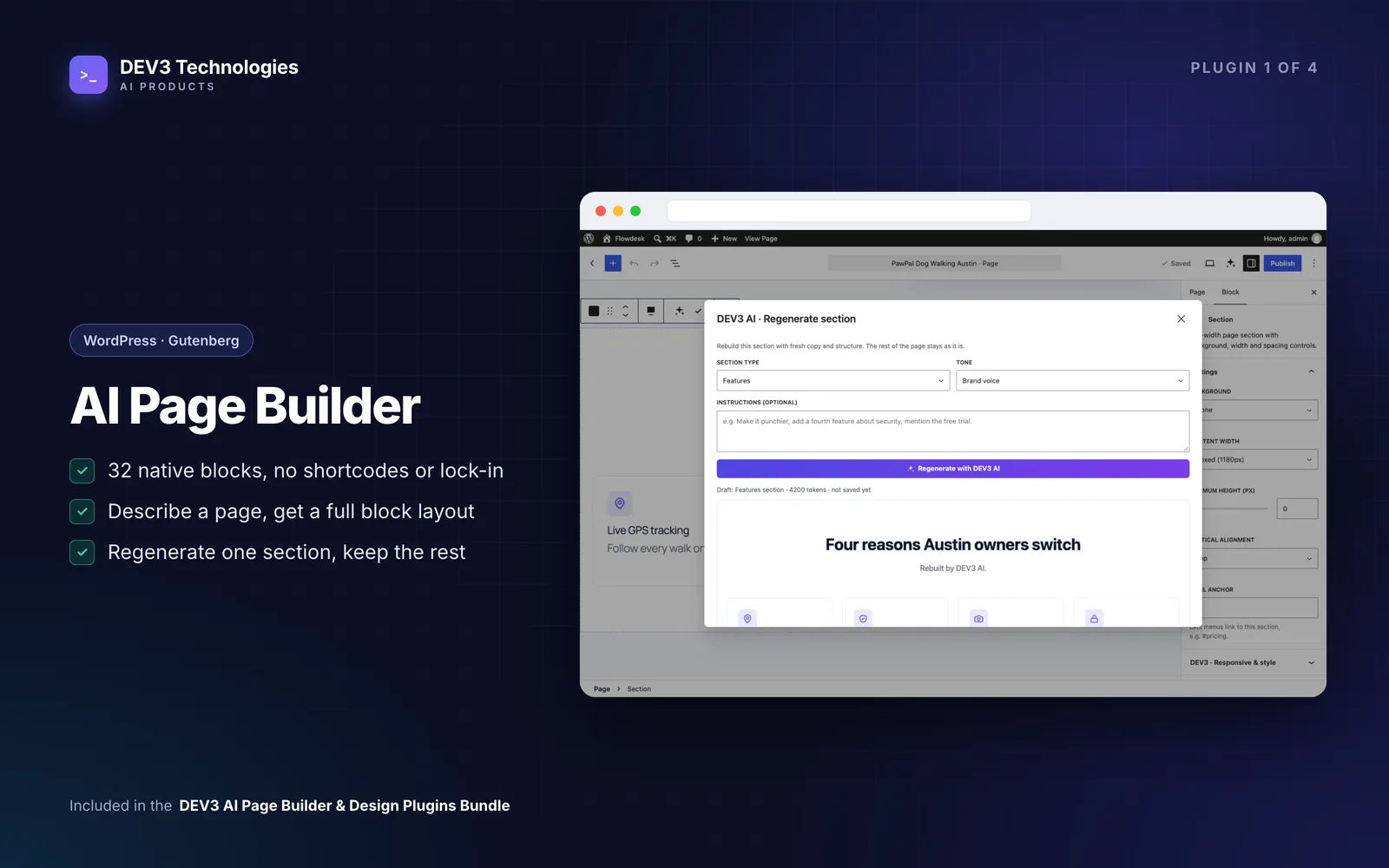
| AI Page Builder for Gutenberg | Yes | No | No | 32 blocks, template kits, a brand kit and "describe the page" generation as native blocks |
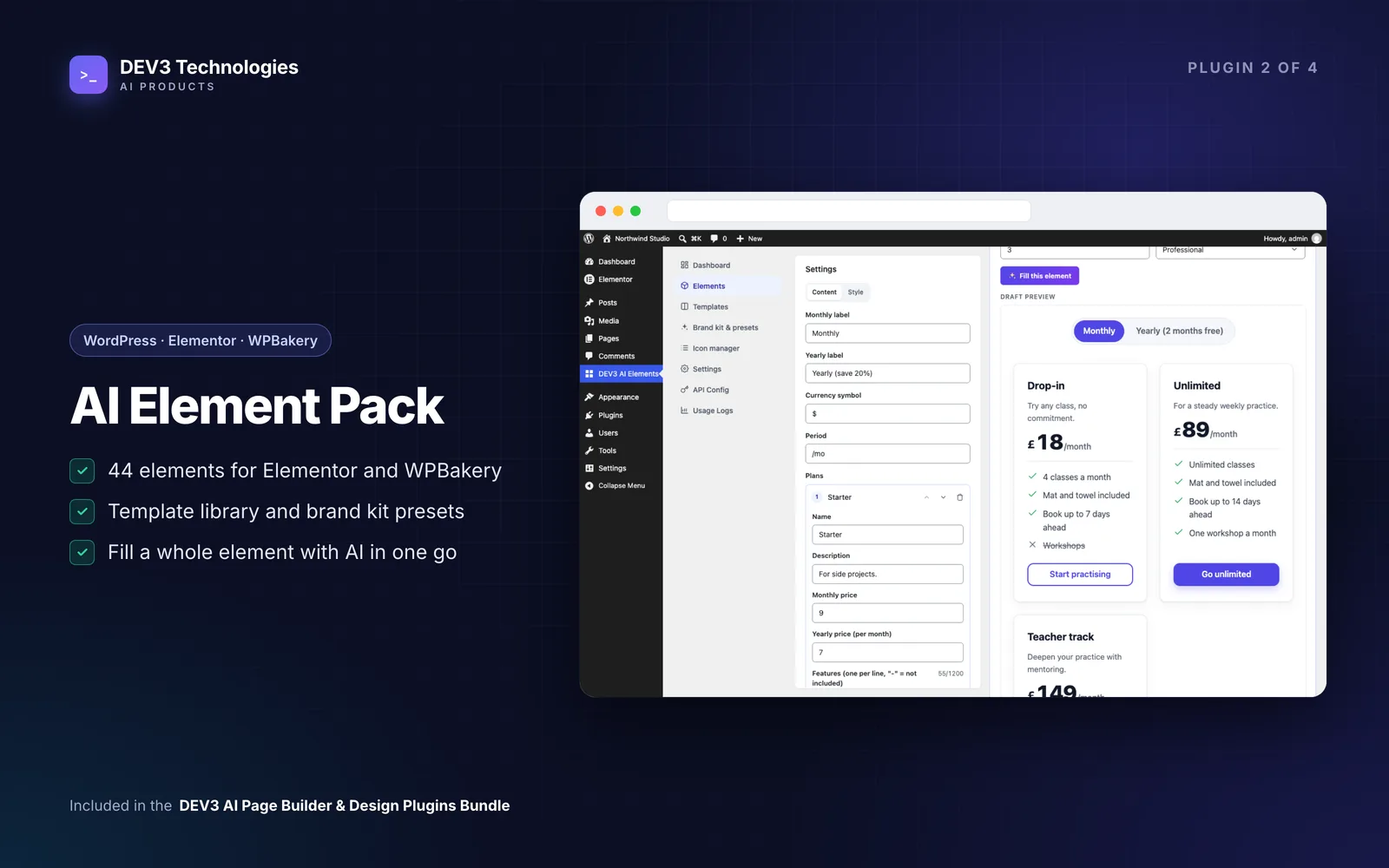
| AI Element Pack | Yes (DEV3 Element block) | Yes | Yes | 44 elements rendered by one engine, row extras, icon manager, templates |
| AI Mega Menu | Yes (block, or replaces the Navigation block) | Yes (widget) | Yes (element) | Mega panels, tabs and flyouts in block and classic themes, AI menu building and audit |
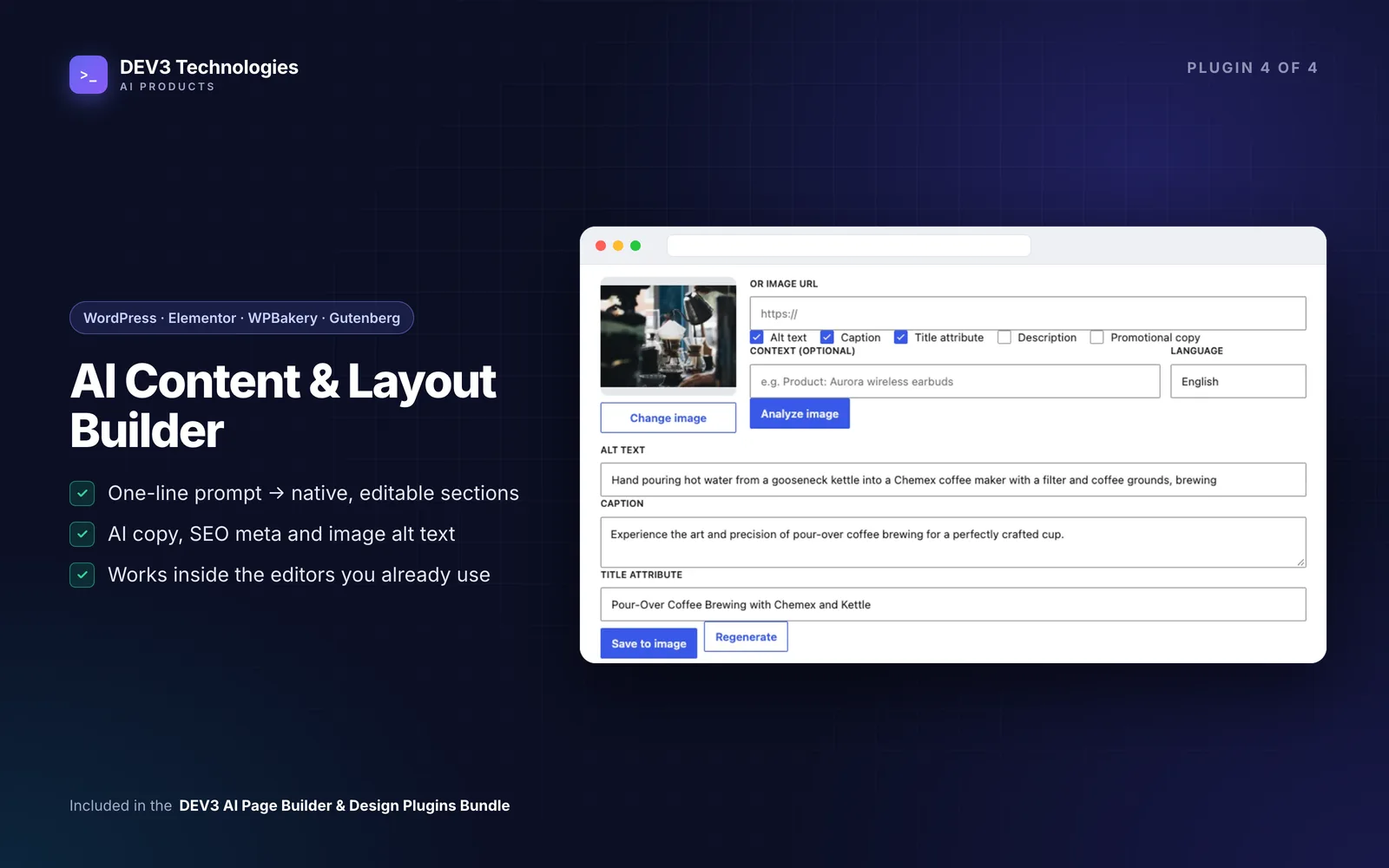
| AI Content & Layout Builder | Copy, SEO meta and alt text | Copy and layout generation | Copy and layout generation | Writing inside the editor, and prompt-to-section layouts |
All four need WordPress 6.0 or newer and PHP 7.4 or newer. The Element Pack and the layout features of the Content & Layout Builder need Elementor or WPBakery; the Gutenberg plugins need nothing else.
One detail worth knowing before you plan: the Content & Layout Builder's layout generator produces Elementor containers or WPBakery rows. In the block editor it offers copywriting, translation and SEO meta, not whole layouts. For generated block-editor pages, use the Page Builder's "Describe the page" instead.
Step 1: Pick the path for each project
Decide at kick-off, based on what the client already runs.
New build on a block theme. Page Builder for Gutenberg does the page work, Mega Menu handles navigation, and the Content & Layout Builder's block-editor toolbar and sidebar handle copy, SEO meta and image alt text. See how to build a small business website in the block editor without a page builder.
Existing Elementor or WPBakery site. Element Pack adds the elements the client is missing (pricing switches, comparison tables, before/after sliders, FAQ with schema and more), and the Content & Layout Builder generates whole sections from a prompt as native containers or rows. Mega Menu drops in as an Elementor widget or WPBakery element. See how to build a landing page in Elementor or WPBakery with pricing, FAQ and testimonials.
Mixed estate, or a site moving between builders. Element Pack is the one constant. Every element is defined once and rendered by the same engine in Elementor, WPBakery, the block editor and shortcodes, so the same pricing table looks the same on all three. The design behind that is in one field schema, three page builders: rendering 44 elements identically.
Step 2: Set the brand once, then carry it across
Brand consistency is where multi-tool sites usually fall apart. Here is how the brand settings connect:
- Start in the Page Builder's brand kit: colours, fonts, corner radius and a voice description. It can import the active theme's palette and fonts from theme.json, and it adds the brand colours to the editor palette so they appear in every colour picker.
- Push it to the Element Pack. The Page Builder's brand tab can write its colours, radius and fonts into the Element Pack's design tokens, or import them from the Element Pack if you started there. One set of decisions then styles both plugins.
- On Elementor-only sites, the Element Pack's brand kit can read the theme's colours and fonts (theme.json, the Customizer or the Elementor kit) and propose tokens and presets for you to accept.
- Mega Menu has its own style presets and a visual style editor. Match it by hand to the same colours; it doesn't read the brand kit.
- The Content & Layout Builder uses Elementor's and WPBakery's core widgets, so generated sections pick up the builder's global styles rather than a separate kit.
Both brand kits run a WCAG contrast check on the saved colours, which catches the pale-grey-on-white text clients tend to ask for before it reaches a live page.
The brand kit's voice also goes into the Page Builder's AI prompts, so generated copy starts closer to the client's tone.
Step 3: Draft pages quickly, review them properly
Block-editor pages
"Describe the page" turns a prompt into a whole page of native blocks, shown as a preview before anything is saved. The AI returns a structured section plan rather than markup; the plugin builds the blocks itself, so the result doesn't trigger "invalid content" warnings. If one section is wrong, regenerate that section alone and keep the rest. The five template kits (landing, SaaS, agency, shop, restaurant) give you a starting point when the client hasn't written a brief. The approach is explained in AI-generated Gutenberg pages without "invalid content" warnings.
Elementor and WPBakery pages
Describe a section in the Content & Layout Builder ("three-column pricing table with a monthly/yearly toggle") and it inserts editable containers or rows. In Element Pack, "Fill this element" generates a whole element's content in one go, such as three pricing plans or six FAQs. Element Pack never sends links, images or style fields to the AI, so those stay as you set them. See turning a text prompt into native, editable Elementor and WPBakery sections.
What a person checks before the client sees it
AI drafts are a starting point. Every AI result in these four plugins is a draft you accept, edit or reject, and nothing changes until you accept it. Before a page goes to the client:
- Prices, plan names and features match what the client actually sells
- Claims, numbers and testimonials are real (replace any placeholder text)
- Buttons link to real pages
- Headings read in order: one H1, then H2s
- Images have meaningful alt text (the Content & Layout Builder drafts alt text, captions and titles from the image; check them)
- The page reads well on a phone
Step 4: Build navigation from the finished site
Leave the menu until the pages exist. Mega Menu's "Build my menu" reads the site's published pages, post categories, product categories and best-selling products and proposes a complete mega menu. The AI can only pick from that list of real items, and anything it invents is dropped, so the draft can't add a broken link. You review, edit or remove rows, then accept. The reasoning is in AI mega menus that only link to real pages.
Then run the Quick audit, which needs no AI. It checks depth, top-level count, crowded groups, vague or long labels, duplicates, links to deleted or unpublished content and missing Home, Contact and Shop links, and gives the menu a score out of 100. The AI review adds label and grouping advice on top.
The menu renders as plain HTML links in the page source with the WAI disclosure pattern for submenus, so it stays keyboard and screen-reader accessible and works with full-page caching. Setup details are in how to add a mega menu to a WordPress block theme or WooCommerce store.
Step 5: Polish copy, SEO and alt text in place
The Content & Layout Builder works inside the editors the client will keep using after handover:
- Elementor: a wand on text, textarea, WYSIWYG and code controls, and "Generate items" for accordions, toggles and tabs.
- WPBakery: a wand on text params in the edit popup and a navbar button.
- Block editor: a toolbar wand on text and image blocks and an assistant sidebar with SEO meta.
- Media Library: alt text, caption and title from the image, plus a bulk action.
Tasks include rewriting, tone changes, translation into more than 20 languages, and SEO titles, meta descriptions and slugs with length counters. On block-editor sites, the Page Builder's SEO pass also reads headings, images and links back out of the blocks and syncs titles with Yoast SEO and Rank Math. More in how to write page copy, SEO meta and alt text with AI inside Elementor, WPBakery and Gutenberg.
Step 6: Reuse your work on the next client
The gains for an agency come from the second and third project, not the first.
- Element Pack templates import and export as JSON. Keep a library of your agency's hero, pricing, FAQ and contact sections and load it onto each new site.
- Page Builder saved sections sit alongside its library of ready-made sections.
- The brand kit transfer in Step 2 means a new client's colours and fonts are set in one place.
There is no central agency dashboard across client sites; each site runs its own copy of the plugins.
Handover checklist
- AI key entered in each plugin's settings with the client's own account, and a monthly budget cap set (each plugin keeps its own AI settings and usage log)
- AI features the client won't use switched off
- Brand kit and Element Pack tokens match; contrast warnings cleared
- Menu audited and score reviewed
- Unused Element Pack elements switched off in the registry
- Client shown where the AI wand lives in their own editor
With AI switched off, the blocks, elements, menus, templates and brand kits still work, so a client who doesn't want an AI key keeps a fully working site.
Closing thoughts
The value of this bundle for an agency isn't any single AI feature. It is having one set of tools that behaves the same whichever builder the client is on, with drafts you review before they go anywhere near a client.
All four plugins come as installable WordPress plugin zips with documentation in the DEV3 AI Page Builder & Design Plugins Bundle, and DEV3 can install and customise them. To see how the Element Pack keeps output identical across Elementor, WPBakery and blocks, read the case study.