A game on a booth screen does a job that a brochure can't. People stop to watch, queue to play and stay to see whether their score holds. A branded arcade game also works away from the booth: a campaign microsite, an in-store tablet, a conference app break-out or a leaderboard challenge in a newsletter.
This post is for marketing teams, event agencies and the developers who support them. It covers what you can realistically brand in MacMan, our free maze-chase arcade game built with Phaser 3 and TypeScript, how to run it on a kiosk or tablet, and which event features you would need to add. Every capability below was checked against the game's source code. Where something isn't built in, we say so.
What a branded arcade game needs at an event
A booth game is not the same as a game on a website. It has to:
- Attract people while nobody is playing. A static menu doesn't pull anyone in from the aisle.
- Be playable in seconds. No accounts, no tutorial, simple controls that a stranger understands.
- Carry the brand. Title, colours and, ideally, something that ties the gameplay to your product.
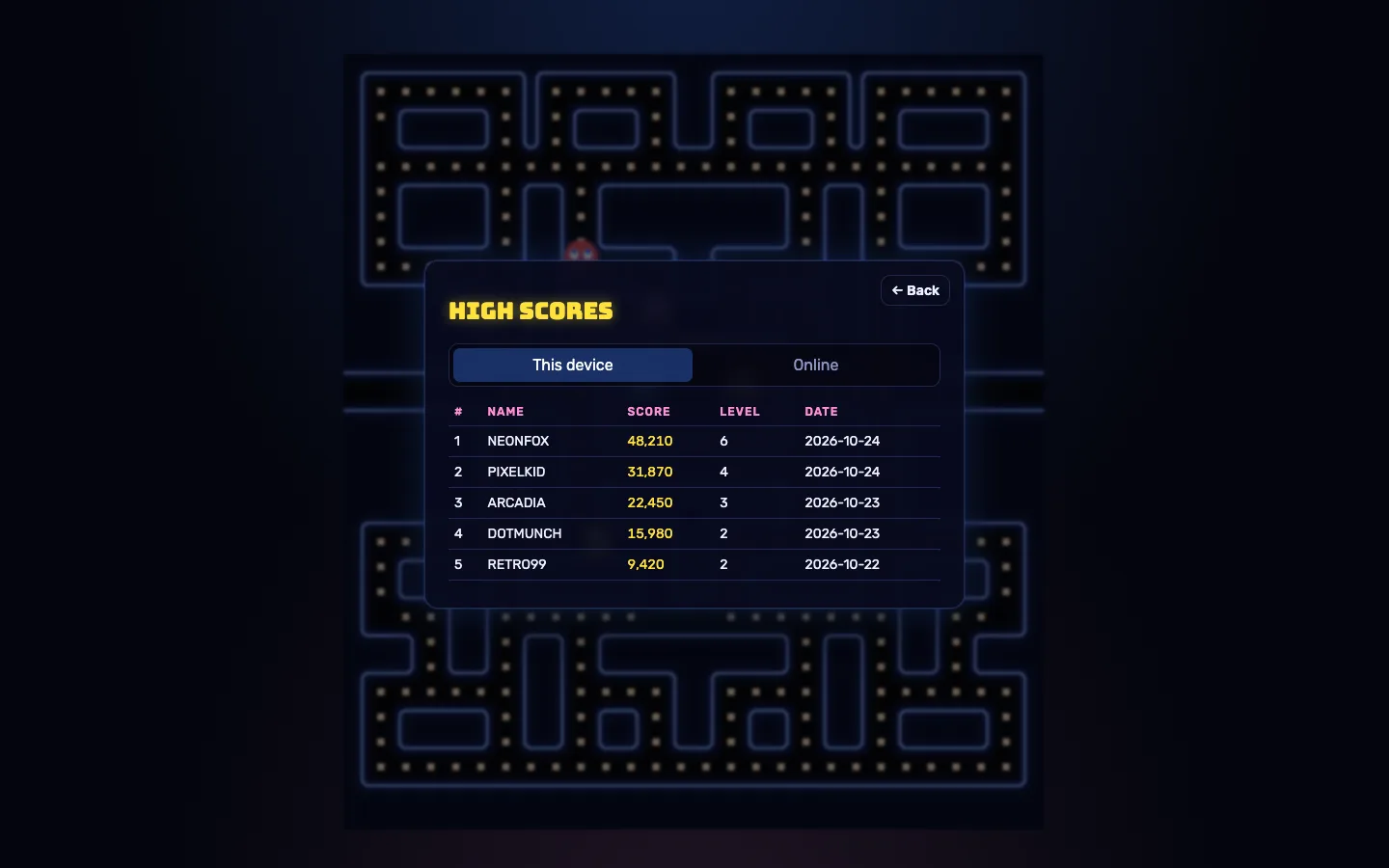
- Keep a scoreboard people care about. Names on the board are what make people come back.
- Survive a long day. It has to keep running with bad venue Wi-Fi, a tablet that dims and a steady stream of strangers.
- Reset cleanly between players and between days.
What MacMan already does
| Event need | What's in the game | Where |
|---|---|---|
| Attract mode | A computer-played demo runs in the maze behind the menu, steered by a BFS autopilot, and restarts itself when it ends | ui/App.ts, packages/shared/src/autopilot.ts |
| Quick to start | Play starts level 1 straight from the menu; on a gamepad, A starts a game | ui/App.ts, input/InputManager.ts |
| Many control types | Keyboard, gamepad (Gamepad API) and three touch styles: swipe, joystick or d-pad | input/ |
| Fair controls for beginners | A pressed direction is buffered for 0.6 s and turns are accepted close to a junction | packages/shared/src/config.ts |
| A scoreboard | A local top 10 on each device, plus an optional online board shared by several devices | storage.ts, leaderboard.ts, apps/server |
| Name entry | After a scoring game, players enter a name of up to 12 characters | ui/App.ts |
| Pauses itself | The game pauses when the page is hidden, for example when the screen locks | ui/App.ts |
| Small and asset-free | Every sprite, maze and sound is generated in code; the README puts the client at about 365 KB gzipped | README |
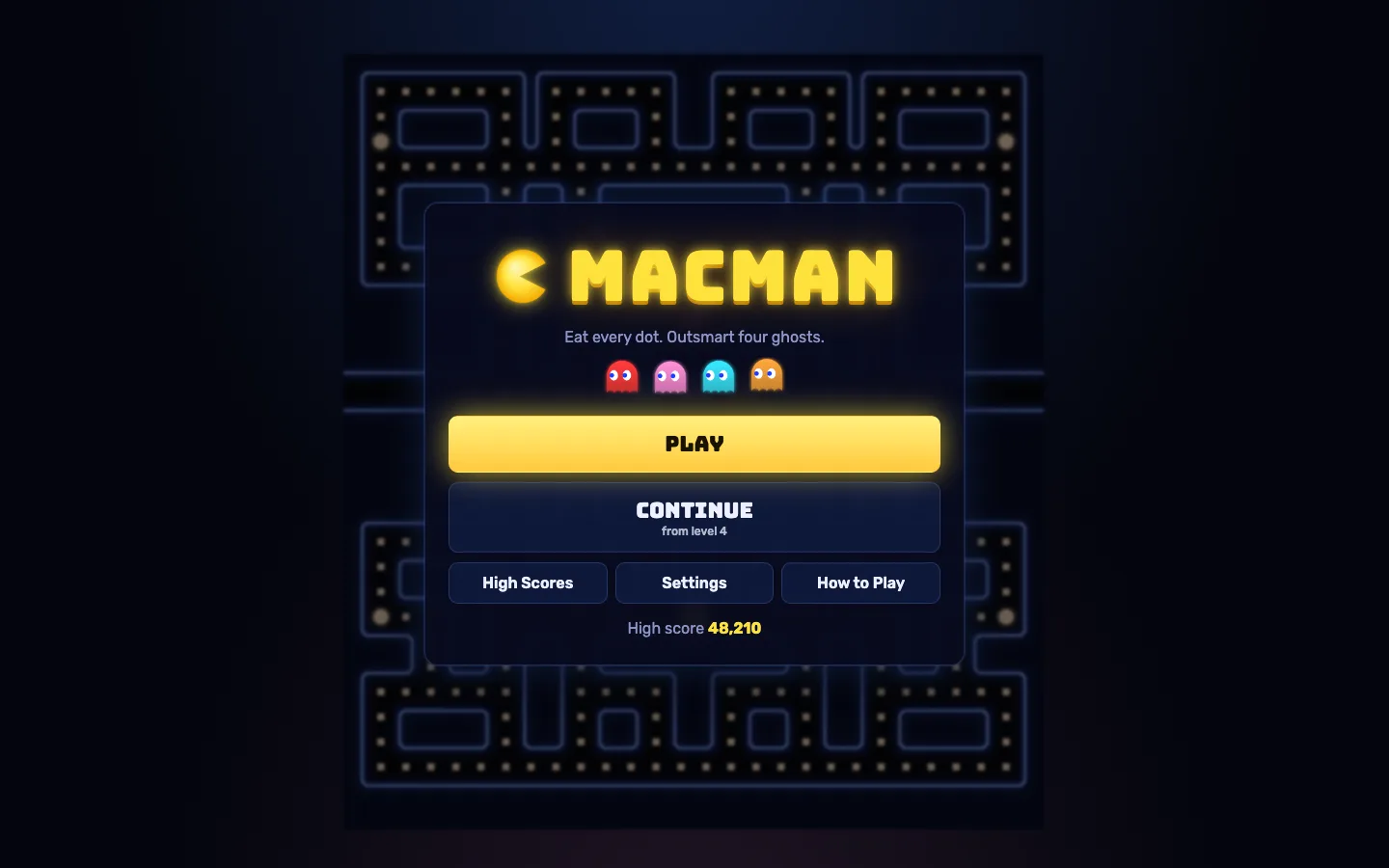
The attract mode deserves a special mention for booths. While the menu is on screen, a full game plays itself behind it with the ghosts chasing the autopilot. That moving maze is what catches the eye of people walking past.
What a brand can customise
Name, colours and characters
- Title:
GAME_TITLEinapps/client/src/ui/App.tsand the<title>inindex.html. - Colours: the player, pellets, ghost-house door and frightened ghosts are set in
COLORSinapps/client/src/palette.ts. Each maze has its own wall, glow and fill colours there too. - Ghost names and roles: the four names (Blaze, Pixie, Frost and Ember by default), their short descriptions and their colours are in
GHOSTSin the same file. These appear on the How to Play screen, so renaming them after your product line or your team is an easy win.
Mazes in your shape
Mazes are plain ASCII text in packages/shared/src/maze/mazes.ts, and parseMaze() rejects broken layouts with a clear message. That makes branded mazes practical: a layout built around your initials, a maze for each day of a conference, or one for each product. The game rotates through its mazes every three levels. (Our earlier guide to adding the game to a website covers the maze format in detail.)
Bonus items, sounds and difficulty
- Bonus items: the fruit that appears mid-level is named in
FRUIT_NAMESinpackages/shared/src/config.tsand drawn in code inrender/atlas.ts. Turning cherries into your product is a code change to that drawing, since there are no image files to swap. - Sounds: music and effects are synthesised in
audio/AudioManager.ts. - Difficulty: speeds, timings, scoring, starting lives and the extra-life threshold are all in
config.ts. For an event, an easier first level gives more people a good first game, and that keeps the queue moving.
What needs a developer to add
There is no logo slot. Because the game ships no image files, a sponsor logo or product shot means adding an <img> to the menu or the HUD markup in ui/App.ts. It is a small change, but a change all the same.
Running it on a kiosk or tablet
Pick a hosting set-up
- One tablet, local scores only. Build the static client with the online board turned off (
VITE_LEADERBOARD_URL=off, ornpm run build:demo) and host it anywhere. Each device keeps its own top 10. - Several devices, one board. Run the included Docker image, which serves the game and the leaderboard API from one origin and keeps scores in a
/datavolume. Every device then shows an Online tab next to This device. - A campaign that continues online. Use the same server for the booth and the public microsite, so visitors who played at the event can try to beat the board from home.
Each server holds a single board of up to 100 rows in a JSON file. For separate boards per event or per day, run a separate container or point DATA_FILE at a different file.
Set up the device
- Choose the controls. In Settings, pick Touch controls. Swipe is the default; for strangers on a tablet, the D-pad is the most obvious. In landscape on a phone-sized screen, the joystick or d-pad moves to the side of the maze.
- Consider a controller. A USB or Bluetooth gamepad works through the Gamepad API, and a cheap arcade-style controller makes a booth feel like an arcade. The last device used always takes over.
- Lock the device to the game. Use your operating system's kiosk tools, such as guided access or screen pinning, or a kiosk browser, so players can't leave the page.
- Keep the screen awake. The game doesn't request a screen wake lock, so set the device's auto-lock to never. If the screen does lock, the game pauses rather than losing the run.
- Plan for weak Wi-Fi. If the online board is unreachable, the game says "Online board unavailable" and still saves the score locally, so play doesn't stop. The page itself needs a connection to load, so open it before doors open, or serve it from a laptop on the booth's own network.
Between players and between days
- Clear the local board with Reset local scores in Settings.
- Clear the online board by stopping the server and replacing its scores file.
Gaps to close before a busy event
Some features you would want at a staffed booth are not in the game today. Each is a reasonable customisation:
- No idle reset. After Game Over, the score screen stays up until someone taps Play again or Menu. A timeout that returns to the attract mode after 30 to 60 seconds would help.
- The last name is pre-filled. The name field remembers the previous name on that device, which is handy at home but not at a booth. Clear it for each new game.
- Continue carries over. The menu offers Continue from level N based on the best level reached on that device. At an event you may want everyone to start at level 1.
- Settings are open to everyone, including the reset button. A hidden staff gesture or a PIN would protect them.
- No lead capture. There is no email or consent field. If you add one, keep it optional, get clear consent and follow the data protection rules that apply where you run the event.
- Not a prize-grade board. Scores are reported by the browser. The server validates them, limits each IP address to 10 submissions a minute and rejects scores that aren't plausible for the level reached, but the README is clear that the board is a casual one. For prizes, have staff witness winning games. Also note that devices behind the same venue router share one IP address, and with it the rate limit.
A booth-day checklist
- Title, colours, ghost names and at least one branded maze in place.
- Difficulty tested with people who have never played.
- Touch style (or a gamepad) chosen and tested on the actual device.
- Device locked to the game, auto-lock off, charger connected.
- Online board running and reachable, or turned off on purpose.
- Local and online boards cleared before doors open.
- Staff know how to reset the board, and how to restart the page.
- Idle reset and name clearing added if the booth will be busy.
Get started
You can get the full source of MacMan free from the DEV3 marketplace by signing in to any account, then brand it, design your mazes and set it up on your kiosk. The case study explains how the game and its ghost AI were built, and our team can add the event features above or build a branded version for your campaign.