Your store has grown to 40 product categories, or your service site to 60 pages, and the main menu has turned into a four-level dropdown that only works with a steady mouse hand. On phones it's worse. If you're on a block theme like Twenty Twenty-Five, there's an extra problem: the core Navigation block can't do mega panels, and block themes don't use classic menu locations.
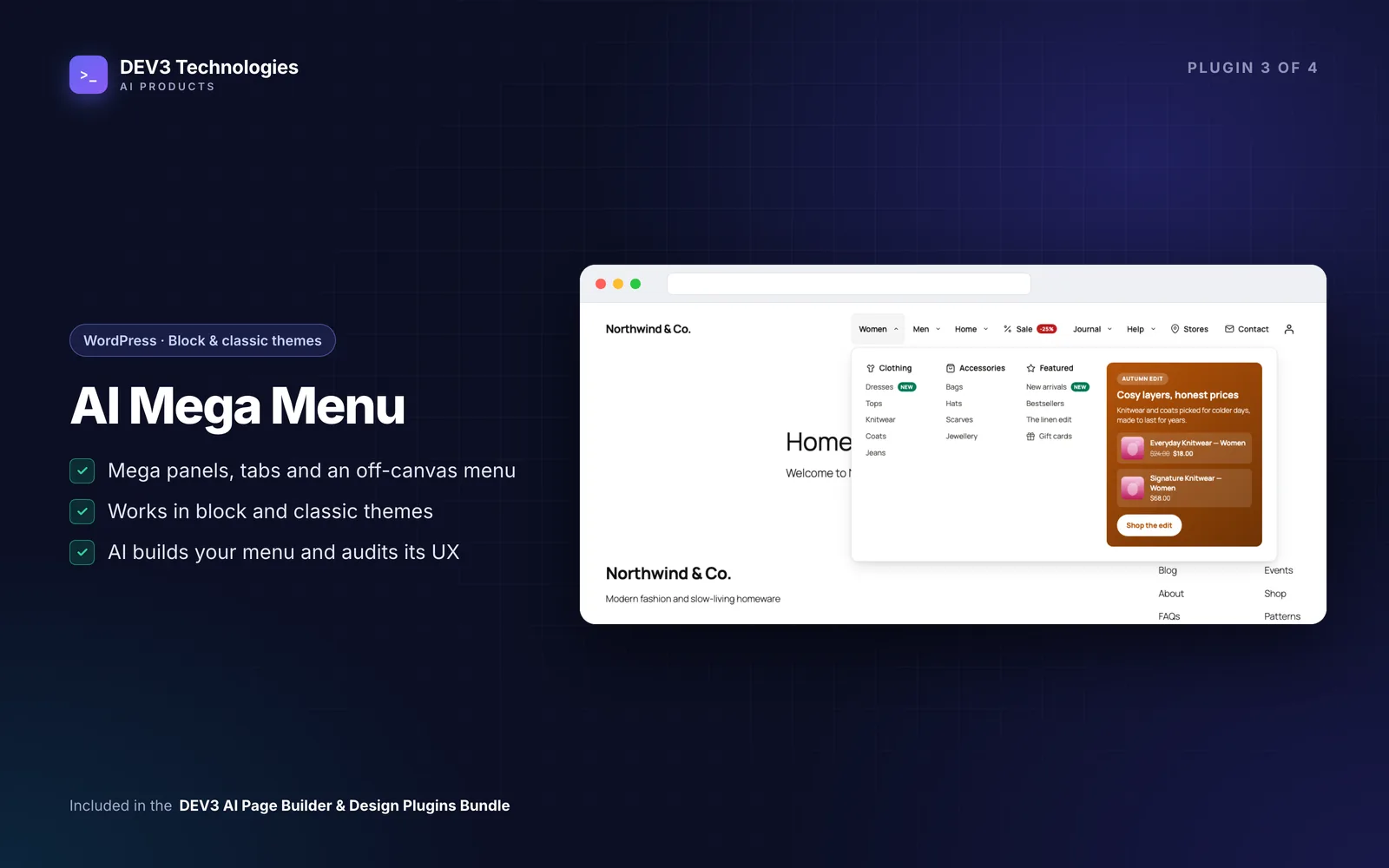
This guide shows how to add a proper mega menu to a WordPress site, block theme or classic, with DEV3 AI Mega Menu: category columns, a bestsellers widget, a seasonal promo, a usable mobile drawer, and a menu that only ever links to pages that exist.
What a good mega menu looks like
- Shallow structure. Top items you can count on one hand or two, with grouped columns underneath. Three levels at most.
- Clear labels that say where you'll land.
- Something to click besides links: featured products, latest posts, a search box, a promo.
- Works without a mouse. Keyboard, screen readers and touch all behave.
- A real mobile menu, not the desktop panel squeezed onto a phone.
- No broken links, now and after pages are deleted.
- Light and cacheable, so it doesn't slow every page.
Step-by-step
1. Install, and decide whether you want AI
- Upload
dev3-ai-mega-menu.zipin Plugins → Add New → Upload Plugin and activate it. Open DEV3 AI Mega Menu in the admin menu. WooCommerce 8+ is optional and adds product widgets. - Optional: add a Google Gemini key in API Config. You can set a monthly budget or turn AI off entirely.
Without a key you still get menus, panels, widgets, styles, locations, the automatic builder, the quick audit, keyword icon matching and promo templates. Only the DEV3 AI buttons need the key.
2. Get a sensible structure
You have three options:
- Keep your existing menu. The Menu Builder edits the same menus as Appearance → Menus.
- Auto-build without AI. In AI Studio → Build my menu, this builds a menu from your page hierarchy and categories instantly.
- Build with DEV3 AI. It reads published pages (up to 400 by default), post categories, product categories and best-selling products, and proposes top items, mega columns, groups, labels in your language and icons. Every link is checked against your real content, and invented links are dropped. For a site with 200 pages and 50 categories it typically takes 15–45 seconds.
Add notes like "Put Sale first", review the draft on the desktop and mobile preview, edit labels or remove items, then Accept and save menu as a new menu or into an existing one.
3. Turn top items into panels
In Menu Builder, select a top-level item and open the Panel tab. Submenu types:
- Mega panel: each child becomes a column heading with its children listed below. Choose 1–6 columns.
- Mega panel with tabs: each child is a tab; its children fill the tab panel, with an optional "View all" link. Good for big catalogues.
- Flyout: a classic dropdown; deeper levels fly out to the side and flip left near the screen edge.
- Automatic: a mega panel when children have their own children, otherwise a flyout.
Then add custom rows on a 12-column grid and fill them with widgets: Products (best sellers, newest, featured, on sale, a category or hand-picked, with price), Recent posts, Search box, Image, Promo block, HTML / Shortcode or a Synced pattern. Children you don't place still appear in automatic columns, so nothing gets lost. The side column on the right is the natural place for a promo.
Per item, the Display tab adds an icon (60 built-in line icons), an image, a badge (New, Sale, Hot, Info or custom) or a description. Nothing is saved until you click Save menu, and broken links (deleted or unpublished targets) are flagged in red.
4. Show it on the site
Block theme (Twenty Twenty-Five and others): block themes don't use menu locations, so choose one:
- Add the block: Appearance → Editor → your Header template, add DEV3 AI Mega Menu and choose the menu.
- Replace the Navigation block: in Locations → Blocks, shortcodes & builders, set Replace the Navigation block to the first Navigation block on each page (usually the header) or every one. No template editing needed.
Classic theme: in Locations, pick the menu for your header location and turn on Use the DEV3 AI Mega Menu here.
There's also an Elementor widget, a WPBakery element and a shortcode:
[dev3mm_menu menu="main-menu" theme="dark" trigger="click" mobile_mode="offcanvas"]
5. Set behaviour and mobile
For each location (or block), choose the style, whether submenus open on hover (with a delay; click and keyboard always work) or click only, the animation, panel width, and sticky-on-scroll. Under Mobile, set the breakpoint (600–1200 px or never) and choose an accordion under the bar or an off-canvas drawer (left or right). Panels collapse into accordion sections with touch targets of at least 44 px, and tabs become stacked sections. You can hide items on mobile or desktop.
6. Style it
Styles has five presets: Light, Midnight, Indigo, Minimal (inherits your theme) and Boutique. Duplicate one to edit colours, bar height, radius, fonts, spacing and shadow with a live preview.
Keep it healthy
Open AI Studio → UX audit. Quick audit (no AI) checks depth beyond three levels, more than eight top items, groups with more than 12 links, vague or long labels, duplicates, broken and dead-end links, and missing Home, Contact and Shop links. Audit with DEV3 AI adds a review of label clarity and grouping. You get a 0–100 score and one-click fixes.
Two more DEV3 AI tools help: Labels & descriptions suggests short labels and one-line descriptions you apply row by row, and Promo panel writes a badge, headline, text and button for an occasion and picks up to three products from the source you choose. It never invents discounts.
Tips and pitfalls
- Theme still shows its own mobile button? Hide it in the theme's settings or with a line of CSS, or use the block or shortcode in a custom header.
- Panels hidden behind content? Raise the header's z-index, or make the bar sticky.
- An optimisation plugin strips styles? Set Settings → Load front-end files → On every page.
- Page caching is fine. The menu is plain HTML with no per-visitor data and no front-end AI. The front end is about 3 KB of JavaScript and 8 KB of CSS gzipped, with no jQuery.
- Accessibility is built in: every submenu has a real button with
aria-expanded, Escape closes and returns focus, and the drawer has a focus trap.
Who it's for
WooCommerce stores with deep catalogues, magazines that want topics, latest posts and search in one panel, service businesses whose dropdowns have outgrown themselves, and anyone on a block theme who has hit the limits of the Navigation block. Planning a bigger information-architecture rework? Our web development team can help. How the AI is prevented from adding broken links is covered in the case study.
Get started
DEV3 AI Mega Menu is part of the DEV3 AI Page Builder & Design Plugins Bundle, with the Gutenberg Page Builder, Element Pack and Content & Layout Builder. Auto-build a draft from your content, turn your top items into panels and publish.