An education or coaching business on WordPress usually ends up with three separate tools: a membership plugin for payments and access, an LMS for courses, and a shared inbox for support. None of them knows what the others are doing, and the person running the business spends evenings copying information between them.
This guide shows how the three plugins in the DEV3 AI Membership, Learning & Support Plugins Bundle fit together on one site: DEV3 AI Membership & Paywall for WordPress, DEV3 AI Course Builder for LearnDash & Tutor LMS, and DEV3 AI Helpdesk & Ticket Triage for WordPress. It is written for course creators, coaches and small training companies, links to the step-by-step guide for each plugin, and is clear about where the plugins connect and where they don't.
What each plugin does in this setup
| Job | Plugin | What it handles |
|---|---|---|
| Get paid and control access | Membership & Paywall | Levels (free, one-time, recurring, trials), Stripe, PayPal or WooCommerce checkout, content rules, drip, teaser paywall, member account screens |
| Create the learning material | Course Builder | Turns a topic, outline or PDF/DOCX into a course tree you review, then builds it in Tutor LMS, LearnDash or plain WordPress pages |
| Answer people | Helpdesk & Ticket Triage | Tickets from a portal, a form or email, an agent inbox with SLAs, a help centre, and AI drafts that an agent reviews |
All three need WordPress 6.0 or newer and PHP 7.4 or newer. Course Builder needs LearnDash or Tutor LMS only if you want courses inside an LMS; without one it builds ordinary pages.
AI is optional throughout. Each plugin uses your own AI API key, and with AI switched off the core still works: memberships, payments and access rules, outline import and manual course editing, and the full ticket inbox and help centre.
Step 1: Decide your offer before you build anything
Write down what people buy and what each purchase unlocks. A typical training business has three or four levels:
- Free member: newsletter, a sample lesson and a few articles.
- Monthly or annual membership: the full library, released over time.
- One-off course: lifetime access to a single programme.
- Premium tier: everything above, plus priority support.
Membership & Paywall supports all of these: free levels, one-time purchases (lifetime or a set number of days) and recurring billing by day, week, month or year, with free or paid trials. Coupons, proration on plan changes and sequential invoices are built in.
If you have a back catalogue of content and aren't sure how to tier it, the tier designer reads your content and proposes levels and the categories each level unlocks. Treat it as a first draft: it is saved only if you accept it.
The full setup of plans, gateways and the paywall is covered in how to launch a paid membership site on WordPress with Stripe, PayPal and a paywall.
Step 2: Build the course content
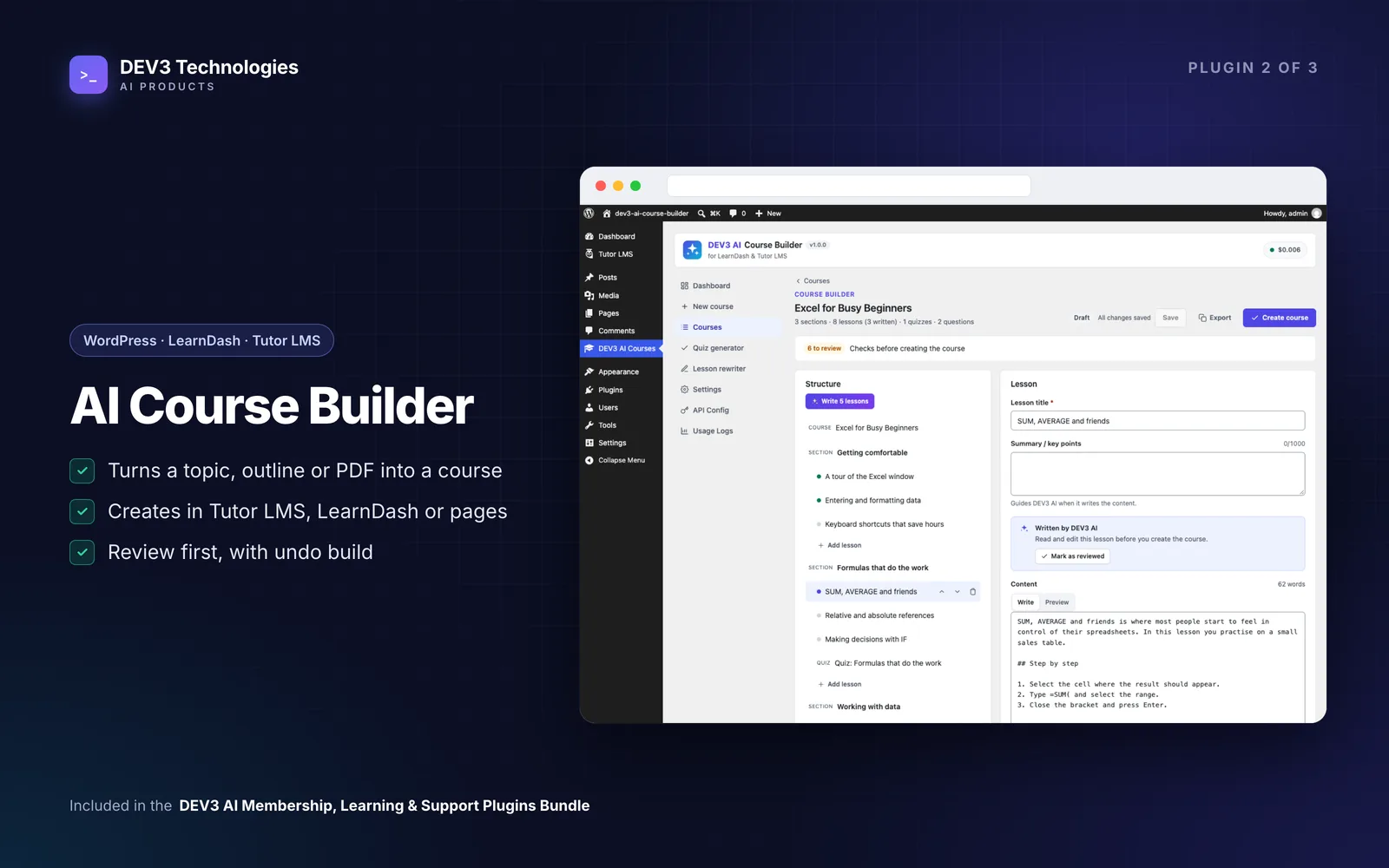
With the offer clear, build the programmes. Course Builder starts from one of three sources: a topic, a pasted outline (Markdown headings or numbered and bulleted lists), or an uploaded PDF, DOCX, TXT or Markdown file.
The flow is:
- Create the course tree. Sections, lessons, topics and quizzes appear in an editor. Nothing exists in your LMS yet.
- Review and edit. Rename, reorder, delete and rewrite. AI drafts lesson content and quiz questions on request, and each draft is accepted, edited or rejected. Quiz questions are repaired per type, so a single-choice question always ends up with exactly one correct answer.
- Create the course. A background job builds it in your chosen target and can retry a failed step without duplicating posts.
- Undo if needed. Undo build removes exactly the posts that build created.
For the detailed walk-through, see how to turn a PDF, Word document or outline into an online course.
Which target to choose
| Target | Best when | What gets created |
|---|---|---|
| No LMS (pages) | Memberships are the product and courses are part of the library | A parent course page, child lesson pages, self-check quiz pages and a certificate page |
| Tutor LMS | You want Tutor's learner dashboard and progress tracking | Native Tutor courses, topics, lessons and quizzes with questions in Tutor's own tables |
| LearnDash | You already run LearnDash | Courses, lessons, topics, ProQuiz quizzes, course steps and a certificate |
The choice matters for the next step, because it decides who controls access to the lessons.
Step 3: Connect courses to memberships
This is where the plugins meet, and it's worth being precise about how.
Membership & Paywall decides access with a single engine. A rule can target a post type, specific items you pick, or terms in a taxonomy (including child terms). That engine is applied to post content, feeds, REST responses, archives and search, blocks, menu items, protected files and WooCommerce products.
With the pages target, the connection is direct. Course Builder creates a course page with lesson pages as its children. Create a membership rule for the page post type, pick the course page, and the rule also covers its direct child pages. Topic and quiz pages sit one level deeper, under a lesson, so pick those lessons in the rule as well (or check access on a staging copy before launch).
To drip a course, add rules with a delay. Drip can be set as a number of days after joining or a fixed date, per rule or per post. Week 1 lessons open on day 0, week 2 on day 7, and so on. Members who haven't reached the date see the paywall or a redirect, whichever you chose.
With Tutor LMS or LearnDash, the LMS has its own enrolment and access system. Membership & Paywall does not enrol members into LMS courses when they buy a level, and the LMS doesn't know about membership levels. You have two workable options:
- Let the LMS handle access and sell those courses separately, keeping the membership for the content library.
- Ask for a customisation that enrols a member into chosen courses when a membership starts and removes them when it ends. The Membership plugin is sold as source code with a REST API and actions that fire when a membership is activated, renewed or changes status, so this is a contained piece of work rather than a rebuild.
Pick one gatekeeper per type of content. Two systems locking the same lesson is an easy way to generate "I paid but can't see it" tickets.
Locked lessons can show a teaser and the paywall instead of a blank screen. The smart teaser tool writes a preview per post, single or in bulk, and each one is reviewed before it is saved.
Step 4: Let members ask questions of the library
Membership & Paywall includes a member Q&A assistant over your content. You choose which post types it reads (posts and pages by default). Before the AI sees anything, it drops every passage from an article the person asking cannot open. A visitor is told how many members-only articles matched and is shown the plans; a member with access gets the answer.
This answers many "where did you cover X?" questions without a ticket. The access-filtering design is explained in one access engine for every exit: paywall, REST, feeds and an AI Q&A that can't leak.
Step 5: Set up support for everything else
Billing problems, access issues and coaching follow-ups still need a person. Helpdesk & Ticket Triage gives you:
- Three ways in: a support portal block, a ticket form block, and email piping from your support mailbox (IMAP, or an inbound webhook from Mailgun, SendGrid, Postmark or raw MIME).
- An inbox with SLAs: first-response and resolution targets per priority, optional business hours, and a clock that pauses while you wait on the customer.
- A help centre: help articles with categories, instant search and "Was this helpful?" votes.
- AI that drafts: triage suggestions (category, priority, sentiment, language), thread summaries, and reply drafts grounded in your help articles with cited sources. Agents review and send. Auto-applying triage and auto-sending replies are separate switches, both off by default.
The setup guide is how to set up a support ticket system on WordPress with email, SLAs and a help centre.
Where the helpdesk meets the other two
- If members pay through WooCommerce checkout, the helpdesk's customer orders panel shows their orders on every ticket, and customers can open tickets from My Account → Support. That gives an agent purchase context straight away.
- If members pay through Stripe or PayPal directly, the helpdesk doesn't show membership level or status on the ticket. The agent checks it in the Membership screens. Showing the level beside the ticket would be a customisation.
- Keep help articles public. Help articles are their own public post type, so a membership rule could technically lock them. Don't: the help centre and the AI reply drafts are meant to answer everyone, including people who can't log in.
- Turn solved tickets into articles. The article builder drafts help articles from solved tickets, and an article-gap report shows what people ask that your help centre doesn't cover.
Step 6: Keep members once they've joined
Membership & Paywall gives every membership a 0–100 churn score built from logins, reading drop-off, failed payments, cancellation and tenure, with each point named. The AI only drafts the win-back email; you decide whether to send it.
A member with a rising churn score and an unresolved ticket needs a different conversation from one who simply stopped logging in. The plugins don't merge those signals, so make it a weekly review:
- Check members with high churn scores in Membership reports
- Look for open or recently closed tickets from the same people
- Review and send (or discard) the win-back drafts
- Check the helpdesk's article-gap report and write the missing articles
A launch checklist
- Levels and trials set up; test purchases on each gateway
- Courses built, reviewed and created in the chosen target
- Membership rules cover course pages and lessons; drip delays tested with a test member
- One gatekeeper per content type (membership rules or the LMS, not both)
- Teasers reviewed on locked lessons
- Member Q&A pointed at the right post types
- Support mailbox connected; portal and ticket form placed; help articles written for billing and access
- AI budget caps set in each plugin that uses AI
Closing thoughts
The three plugins share a design rule: AI drafts, a person approves. Tiers, teasers, lesson content, quiz questions, win-back emails and ticket replies all wait for a click.
All three plugins come as installable WordPress plugin zips with documentation in the DEV3 AI Membership, Learning & Support Plugins Bundle, and DEV3 can install them or build the LMS enrolment bridge described above. For the design behind the access engine, read the Membership & Paywall case study.