"We want to charge for our best content, without moving off WordPress"
Publishers, coaches, associations and niche experts often reach the same point. The free articles bring in readers, and some of those readers would happily pay for more: in-depth guides, a members' library, downloadable resources, a community. The question is how to do it without moving everything to a new platform, and without the usual problems: content that leaks through RSS or the REST API, a payment that went through but did not unlock anything, or a paywall so blunt that nobody understands what they would be paying for.
This guide walks through launching a paid membership on an existing WordPress site with Stripe, PayPal or WooCommerce, using DEV3 AI Membership & Paywall.
What a good membership site looks like
- Clear levels that people can understand at a glance, for example a free tier, a monthly plan and an annual plan.
- Locked content that stays locked everywhere: on the page, in feeds, in excerpts and through the API.
- A paywall that sells, showing enough of the article to make the full version worth paying for.
- Payments that keep access in sync, including renewals, failed payments, refunds and cancellations.
- A way to spot members who are about to leave, before they cancel.
Step by step: launching your membership
Stripe and PayPal work on any site. WooCommerce is optional; WooCommerce Subscriptions is only needed if you want renewals through WooCommerce.
1. Create the member pages
Open DEV3 AI Membership & Paywall → Tools → Create missing pages. This creates Plans, Checkout, Account, Login, Join, Member directory and Ask the library. Each screen is also a block and a shortcode, so you can place them anywhere:
[dev3mb_levels]  [dev3mb_checkout]  [dev3mb_account]  [dev3mb_login]
[dev3mb_register level="free"]  [dev3mb_directory]  [dev3mb_ask]
2. Design your levels
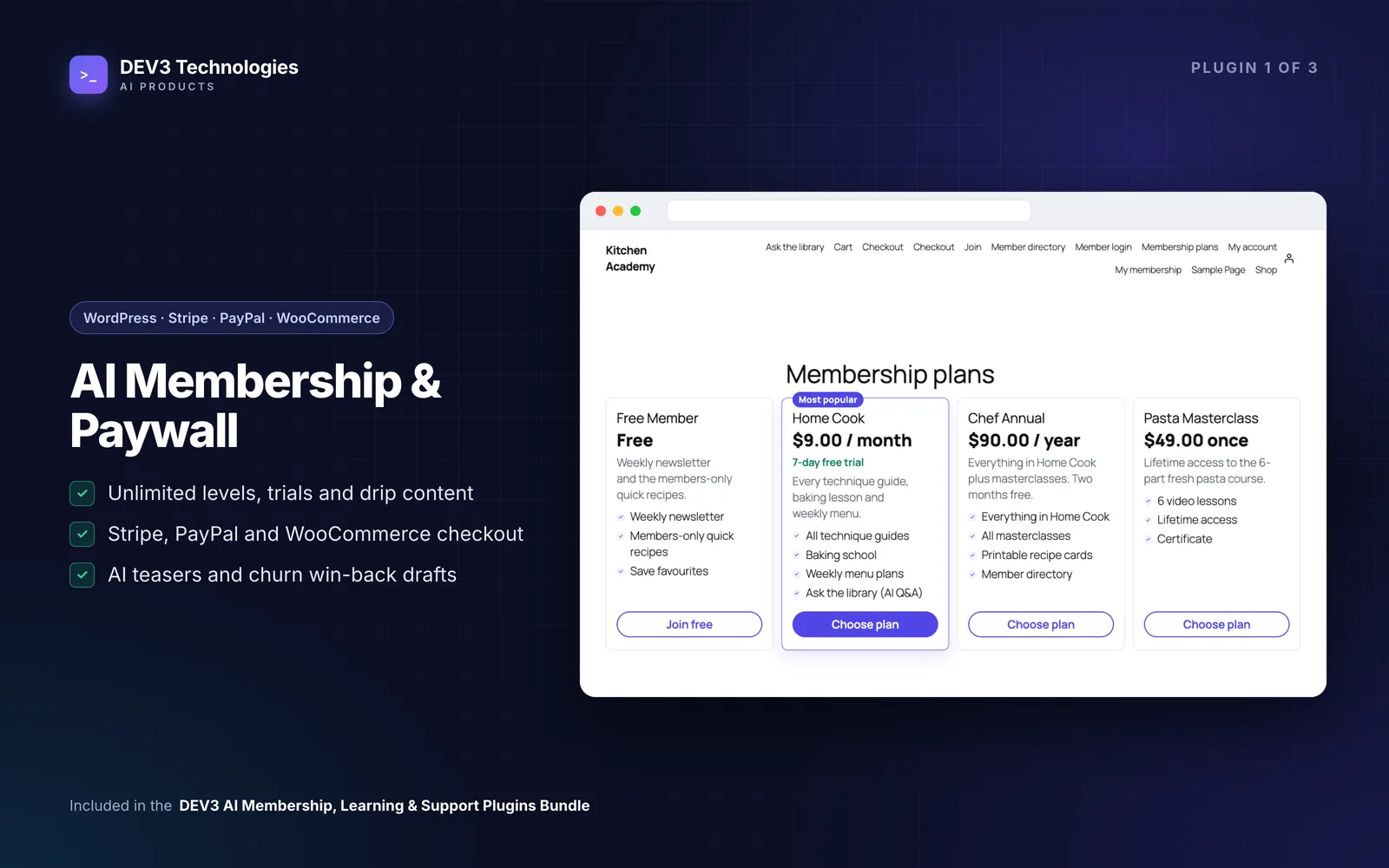
Open Levels. You can create them by hand, click Start from a template, or let the DEV3 AI tier designer propose two to four levels from your post counts and categories, including prices and the categories each level unlocks.
A level can be Free, One-time (lifetime or a set number of days) or Recurring (by day, week, month or year), with a free or paid trial. It can add a WordPress role while active, and it can be hidden, archived or marked "Most popular" on the plans page.
3. Decide what to lock
Open Access rules. Protect a whole post type, picked items, or terms such as categories and tags, for chosen levels, roles or any logged-in user. Add drip if content should open a set number of days after joining or on a date. You can also protect a single post from the DEV3 AI Membership box in the editor, and restrict individual blocks (sidebar → Membership visibility), menu items, media files and WooCommerce products.
For each rule, choose whether locked posts show a teaser with the paywall, or redirect.
Then use Access rules → Test access. Pick any user and any post and it shows what that user gets, and why. Do this before launch with a free account, a paid account and a logged-out visitor.
4. Connect payments
Open Settings → Payments.
Stripe: paste the secret key from the Stripe Dashboard. Under Developers → Webhooks, add an endpoint with the URL shown in the settings and these events, then paste the signing secret, turn Stripe on and click Test connection:
checkout.session.completed, invoice.paid, invoice.payment_failed,
customer.subscription.updated, customer.subscription.deleted, charge.refunded
PayPal: create an app at developer.paypal.com, copy the client ID and secret, add a webhook to the URL shown in the settings and copy the Webhook ID.
WooCommerce: turn on Offer WooCommerce checkout to use any WooCommerce gateway.
Test with Stripe test keys or the PayPal sandbox before going live.
5. Write teasers that sell
A locked article that shows two bare lines gives readers little reason to pay. Smart teasers writes a hook headline and preview for each locked post, from the editor or in bulk. Every teaser is a draft you approve before it is used.
6. Set up emails
Under Emails → Notifications you have welcome, receipt, payment failed, renewal reminder, cancelled, expired and admin notice emails. Emails → Welcome sequences sends a series of emails per level after someone joins. Generate with DEV3 AI drafts a sequence, and Rewrite with DEV3 AI improves any template.
After launch: keeping members
Watch the numbers
The Dashboard and Reports show active members, trials, MRR, revenue, sign-ups, cancellations and churn. Members lets you search and filter by level, status or churn risk, add members manually, edit dates and levels, and cancel now or at the end of the period. Coupons, proration on plan changes and invoices are built in, and refunds from Payments go through Stripe or PayPal.
Catch members before they leave
Churn & win-back gives each membership a daily 0-100 risk score from activity and payments. This works without AI. With a key, DEV3 AI drafts a personal win-back email for at-risk members, which you review before sending.
Let members ask the library
Member Q&A lets members ask questions across your members-only content. Click Build the index, then add the Ask the library page. It only answers from articles the person asking can access; locked passages are removed before anything is sent to the AI. Without a key, it falls back to keyword Q&A.
Tips and pitfalls
- Exclude checkout, account pages and logged-in users from page caching. A cached page can show a member the wrong version.
- Protect files on nginx. Add
location ~ /dev3mb-protected/ { deny all; }so members-only files cannot be downloaded directly. - A member paid but shows past due? A webhook was missed. They keep access for the grace period, and the next webhook or Stripe's retries restore it. Check that the webhook URL and signing secret match.
- Run a real cron job on quiet sites. Reminders and renewal checks run as an hourly scheduled task, which only fires on site visits.
- Locked means locked. Locked posts return only the teaser in the REST API, feeds, excerpts and the Q&A assistant, so you do not need extra feed plugins to hide them.
Who this is for
- Publishers and bloggers adding a paid tier to an existing audience.
- Coaches, trainers and associations selling access to a library of resources.
- WooCommerce stores that want member-only products or pricing alongside their shop.
The case study explains how the plugin was built. If your membership needs custom integrations or a bespoke member area, our web development team can build it.
Getting started
DEV3 AI Membership & Paywall is part of the DEV3 AI Membership, Learning & Support bundle, with the Course Builder for paid courses and the Helpdesk for member support. Create your pages, design two or three levels and run a test payment before you invite your first members.