"The knowledge is all there. Turning it into a course takes forever."
Trainers, coaches, schools and companies usually already have the material for an online course: a workshop handbook as a PDF, a training manual in Word, slide notes, or simply years of expertise. What they do not have is the patience to click through an LMS creating sections, lessons, topics and quizzes one screen at a time, then writing every lesson and quiz question from scratch.
That set-up work is why so many courses stay "planned". This guide shows how to go from a PDF, a document, an outline or just a topic to a reviewed course in Tutor LMS, LearnDash or plain WordPress pages, using DEV3 AI Course Builder.
What a good course build looks like
- Structure first. You agree the shape (sections, lessons, quizzes) before anyone writes a lesson.
- Your material is the source. The course comes from your document or outline, not from a generic template.
- Review before anything is created. Nothing appears in the LMS until you say so.
- Drafts, not live pages. New lessons are created as drafts so you can check them in the LMS.
- A way back. If the build is wrong, you can undo it in one step.
Step by step: from material to course
The plugin works with Tutor LMS (free) and LearnDash. It also works with no LMS at all: the course is then created as a parent course page with child lesson pages, self-check quiz pages and a certificate page. If you use an LMS, activate it before building your first course.
1. Pick a source
Open DEV3 AI Courses → New course and choose where the course comes from:
- Topic: describe the course and click Generate outline with DEV3 AI, or Start from a template without AI.
- Outline: paste headings or bullets. Use
#for the course,##for a section,###for a lesson and####for a topic. A heading called Quiz starts a quiz. Numbered or bulleted lists work too. - PDF / DOCX: upload a PDF, DOCX, TXT or Markdown file (up to 15 MB) and click Preview structure.
A pasted outline might look like this:
# Food Safety Basics for New Staff
## Before your shift
### Personal hygiene
### Checking the fridge temperatures
## During service
### Avoiding cross-contamination
### Allergens
## Quiz
2. Set the course shape
Choose the target LMS, audience, level, language, number of sections and lessons, and where quizzes go. Then Use this outline, Regenerate or Discard. The AI features need a Google Gemini key under API Config; outline import, templates and manual editing work without one.
3. Arrange the course in the builder
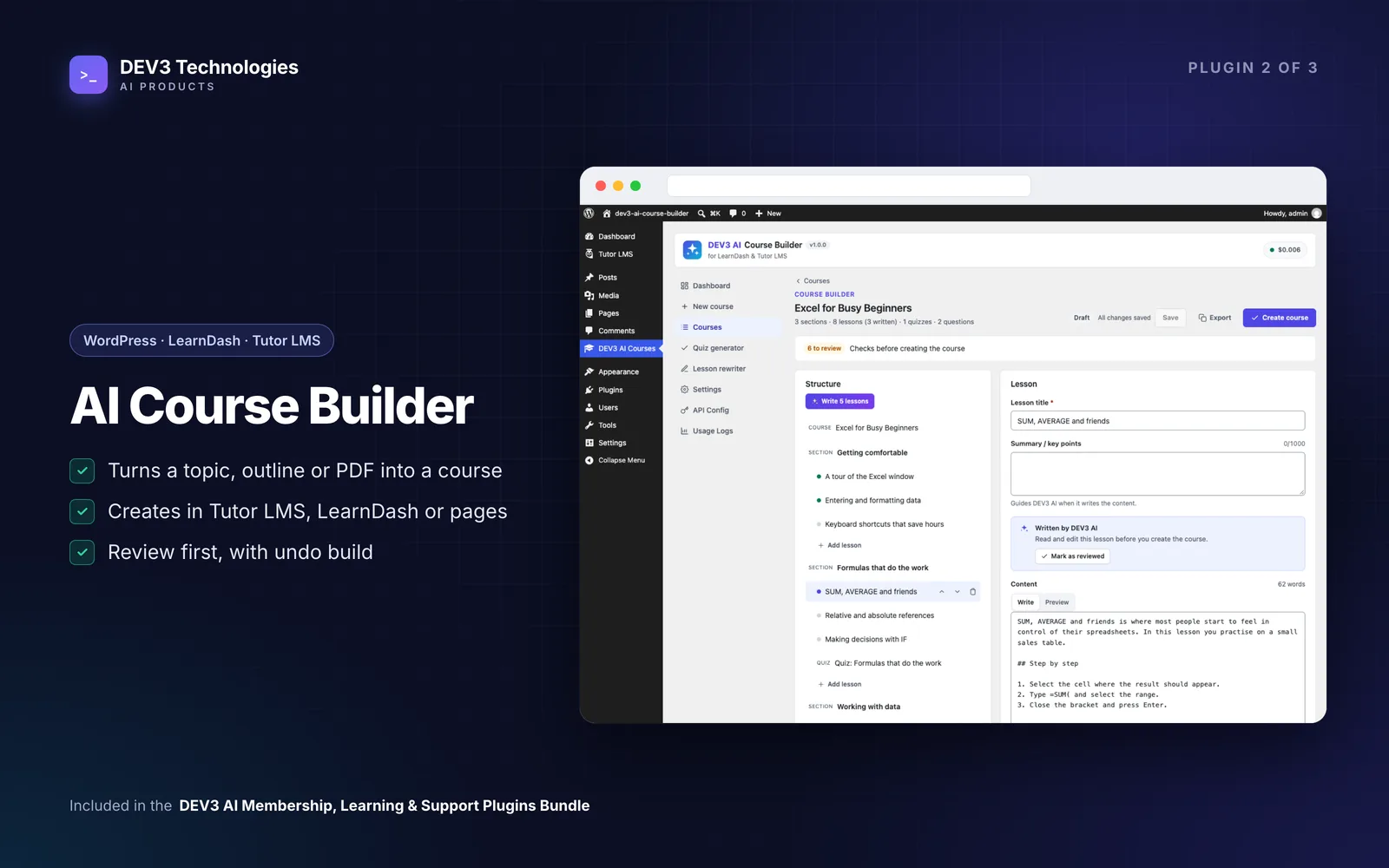
In the builder you can add, rename, reorder and delete sections, lessons, topics and quizzes. Fill in Course details. The Checks bar lists what still needs fixing, and changes autosave.
4. Write the lessons
On a lesson, click Write with DEV3 AI to draft its content, then accept, edit or reject the draft. To fill everything at once, Write N lessons drafts every empty lesson in the background. Those lessons stay flagged until you click Mark as reviewed, which makes it hard to publish a lesson nobody has read.
5. Add quizzes
Quizzes support eight question types. Generate questions with DEV3 AI, use Basic questions (a simple, rule-based option that works without AI), or write them by hand in the question editor.
6. Create the course
Click Create course. Pick the target and status. Draft is the default, and it is the right choice for a first build. Creation runs as a background job with progress and retry.
What gets created depends on the target:
- Tutor LMS: courses, topics, lessons and quizzes, with questions saved in Tutor's own tables.
- LearnDash: courses, lessons, topics, quizzes (ProQuiz questions), course builder steps, section headings and a certificate.
- No LMS: a course page, lesson pages, self-check quiz pages and a certificate page.
7. Check it in the LMS, then publish
Open the course in your LMS and go through it as a learner would. If the build is wrong, Undo build moves everything it created to the trash, or deletes it permanently. Your draft in the builder stays, so you can fix it and build again.
Improving courses you already have
You do not need to start from scratch to use the plugin:
- The Quiz generator creates questions for lessons that already exist.
- The Lesson rewriter can simplify, expand, add examples, shorten, improve clarity, change tone, adjust the reading level or translate a lesson. Every rewrite is kept in Rewrite history with Undo.
- JSON export and import let you keep a copy of a course structure or reuse it on another site.
- The Course Certificate block or
[dev3lm_certificate course="123"]shortcode shows a printable certificate to learners who completed the course.
Tips and pitfalls
- Clean up the source first. A PDF with clear headings gives a much better structure than a scanned handout. If Preview structure looks messy, paste an outline instead.
- Keep sections short. Three to five lessons per section is easier to review and easier for learners.
- Read every AI lesson. It is your name on the course. The "Mark as reviewed" flag exists for that reason.
- Know what is sent. Only the topic, outline or document text (capped in Settings) and the lesson text you ask DEV3 AI to work on go to Google. You pay Google for usage; Google offers a free tier, and a monthly budget cap is built in.
- Set defaults once. Target LMS, status of created items and quiz settings live in Settings.
Who this is for
- Coaches and trainers turning workshops and handbooks into self-paced courses.
- Companies building onboarding and compliance training from existing documents.
- Schools and course creators on Tutor LMS or LearnDash who want to publish more courses with less set-up work.
The case study explains how the plugin was built. If you need a learning platform tailored to your organisation, our AI implementation team can help.
Getting started
DEV3 AI Course Builder is part of the DEV3 AI Membership, Learning & Support bundle, together with the Membership & Paywall plugin for selling access and the Helpdesk for supporting learners. Take one document you already have, build a draft course and see how close it gets.