All case studies

DEV3 Technologies · own product

DEV3 AI Course Builder: one reviewed course tree, built into Tutor LMS, LearnDash or plain WordPress pages

Our own WordPress plugin that turns a topic, an outline or a PDF/DOCX into an editable course tree, drafts lessons and quizzes with AI, then builds it natively in Tutor LMS, LearnDash or plain pages, with retry-safe steps and undo.

Industry
E-learning (WordPress LMS)

Live project preview

Client systems are private — screenshots shown where permitted.

DEV3 Technologies · own product — screenshots
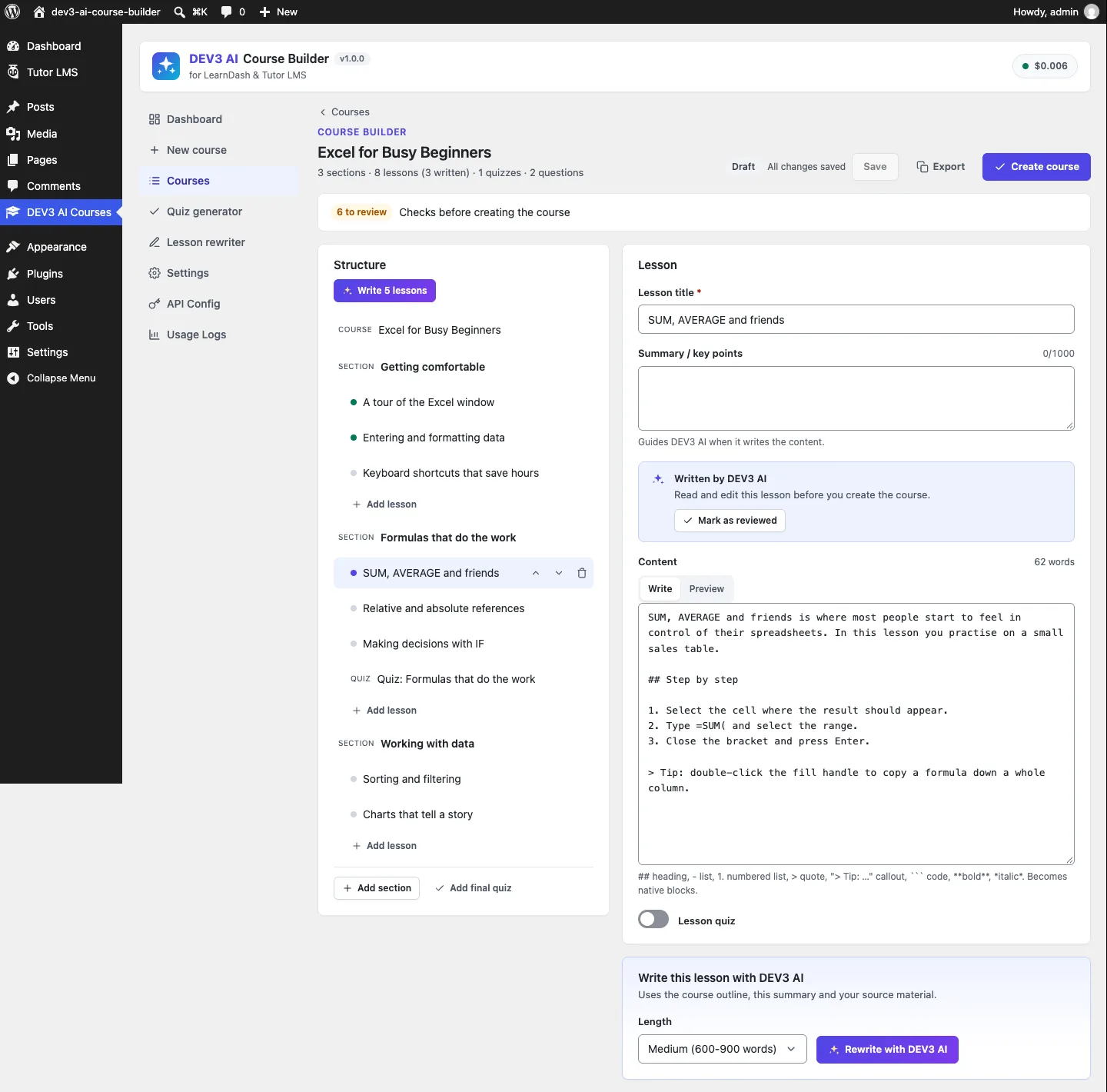
The course builder: an editable tree of sections, lessons and quizzes, with AI-written lessons marked for review before anything is created in the LMS.

The course builder: an editable tree of sections, lessons and quizzes, with AI-written lessons marked for review before anything is created in the LMS.

The challenge

AI course tools for WordPress are usually tied to one LMS and create posts the moment the model answers. Course creators get half-finished lessons in their LMS, quizzes with no correct answer, and no easy way back. Tutor LMS and LearnDash also store courses very differently: Tutor keeps questions in its own tables and has no sub-lessons, while LearnDash keeps the curriculum in a course-steps structure and questions in ProQuiz models. We wanted one place to plan and review a whole course, with AI only drafting, and a build step that writes each LMS's native objects, can be retried after a failure without duplicating anything, and can be undone completely. Everything also had to work with AI switched off.

Our solution

We built DEV3 AI Course Builder as a WordPress plugin in PHP with a React admin. The AI runs on the Google Gemini API with the site owner's own key; nothing it writes is saved without a click.

Key design decisions

  • Blueprint first. A course is a JSON tree (course details, sections, lessons, topics, quizzes, questions, certificate text) stored in its own table. Nothing exists in the LMS until Create course.
  • Normalise every input. AI outlines, pasted outlines, imported JSON and editor saves all pass through Tree::normalize(), which assigns ids, clamps lengths and repairs questions per type (exactly one correct answer for single choice, True/False rebuilt, blanks marked with one placeholder).
  • One adapter contract, three targets. Tutor LMS, LearnDash and a no-LMS pages adapter each implement create_course, create_section, create_lesson, create_topic, create_quiz, finalize and cleanup, and declare what they support.
  • Retry-safe build steps. The build is a background job of ordered steps. Each step records node id → post id in the blueprint before the next one runs, so a retried step finds its post and skips it.
  • Undo by tag. Every created post carries the blueprint id and node id in post meta. Undo build trashes (or deletes) exactly those posts and removes Tutor's question rows.
  • Works without AI. Outline parser for Markdown headings and lists, DOCX and PDF text extraction, templates, a manual tree editor and heuristic quiz questions.

Architecture

The admin app has a dashboard, a New course screen (topic, outline or PDF/DOCX source), the course builder, a courses list with JSON import and export, a quiz generator for existing lessons and a lesson rewriter with undo history. Lesson Markdown becomes native Gutenberg blocks. A Course Certificate block and shortcode print a certificate for learners who completed the course. The API client, background jobs, encryption and settings screens come from a shared core used across DEV3's plugins.
Results

The plugin is complete. It ships in the DEV3 AI Membership, Learning & Support Plugins Bundle on the DEV3 marketplace, alongside our AI Membership & Paywall and AI Helpdesk plugins, and is being prepared for CodeCanyon. What was built and verified:

  • 52 PHPUnit tests covering the tree model, question repair, Markdown to blocks, the outline parser, DOCX and PDF extraction, all three adapters, build and undo, REST permissions and AI drafts
  • 32 Jest tests for the course editor and the UI kit
  • Tutor LMS tested for real in wp-env: native curriculum, questions and answers in Tutor's tables, and permanent undo removing the question rows
  • LearnDash tested against stubs of its documented post types, settings API, course steps and ProQuiz models; a run on a licensed LearnDash install is still to do
  • All AI paths tested with mocked Google Gemini API responses; a run with a live key is the next step
  • Build, Jest, PHP_CodeSniffer at 0 errors and 0 warnings, PHPUnit in wp-env, translation template and packaging all pass

Setup guide

No licence key or activation is needed: install the zip and every feature works.

Requirements

  • WordPress 6.0 or newer and PHP 7.4 or newer
  • Optional: Tutor LMS (free) or LearnDash 4.x. Without an LMS, courses are created as WordPress pages
  • Optional: a Google Gemini API key for the DEV3 AI features. Without one, the outline parser, templates, manual editor and basic quiz questions all still work

1. Install the plugin

  1. Download the DEV3 AI Membership, Learning & Support Plugins Bundle and unzip it. The plugin is at dev3-ai-membership-learning-support-plugins-bundle/dev3-ai-course-builder/dev3-ai-course-builder.zip.
  2. In WordPress, go to Plugins → Add New → Upload Plugin, choose that zip and click Install Now.
  3. Click Activate. The menu DEV3 AI Courses appears in the admin sidebar.
  4. Optional: activate Tutor LMS or LearnDash. The Dashboard shows which targets are ready.

2. Connect Google Gemini (optional)

  1. Create an API key in Google AI Studio (sign in with a Google account, then Create API key).
  2. Go to DEV3 AI Courses → API Config, paste the key and click Validate. The key is stored encrypted and never sent to the browser.
  3. Optional: set a monthly budget. Course outlines can use gemini-2.5-pro; lessons and quizzes default to gemini-2.5-flash.

Prefer config files? Add define( 'DEV3LM_GEMINI_API_KEY', 'your-key' ); to wp-config.php instead.

3. First-time setup

  1. Open Settings and choose the default LMS, the status of created items (Draft by default), language, tone, default audience and level.
  2. Set the default course shape: sections, lessons per section, topics per lesson (LearnDash), quiz placement, questions per quiz, question types, lesson length and passing grade.
  3. Choose whether courses get a certificate, and the maximum number of source characters sent to DEV3 AI.
  4. For a certificate in Tutor LMS or on pages, add the Course Certificate block (or [dev3lm_certificate course="ID"]) to a page. LearnDash courses get a LearnDash certificate post.

Updating

Download the new bundle version, then upload the plugin zip in Plugins → Add New → Upload Plugin and choose Replace current with uploaded. Course drafts and created courses are kept.

Uninstalling

Deactivate and delete the plugin from Plugins. Courses already created in your LMS stay where they are.

How to use

Create a course from a topic with DEV3 AI

  1. Click New course. On the Topic tab, describe what the course is about and, optionally, the learning goals.
  2. Under Course shape, pick where to create it (Create in: Auto-detect, Tutor LMS, LearnDash or pages), the audience, level, language, tone, lesson length, sections, lessons per section, quizzes and question types.
  3. Click Generate outline with DEV3 AI. Review the outline draft, then click Use this outline, Regenerate or Discard.
  4. In the course builder, click Write N lessons (N is the number of empty lessons) to draft them all in a background job, or open one lesson and click Write with DEV3 AI. Each draft shows Use this lesson, Edit, Regenerate and Reject.

Build a course from your own outline or document

  1. Click New course and choose the Outline tab to paste Markdown headings, numbered or bulleted lists, or the PDF / DOCX tab to upload a file.
  2. The outline parser turns headings into sections, lessons and topics, and text under a heading becomes that lesson's draft. This works without AI.
  3. For a scanned PDF, generate the outline with DEV3 AI instead, which reads the pages.

Review and create the course

  1. In the course builder, add, rename, move and delete sections, lessons, topics and quizzes. Edit lesson content in the Markdown editor with Preview, and edit questions per type.
  2. Fix anything listed under Checks before creating the course, such as an empty lesson or a question without a correct answer.
  3. Click Create course and confirm. A background job creates everything in order with a progress bar. When it finishes, open the course in your LMS.
  4. Changed your mind? Click Undo build. Everything the build created is moved to the trash, and the course draft stays so you can create it again, even in another LMS.

Add a quiz to a lesson you already have

  1. Open Quiz generator and pick a lesson (also from the Quiz with DEV3 AI row action in your lesson list).
  2. Choose the number and types of questions, then click Generate quiz with DEV3 AI, or Basic questions (no AI).
  3. Check every answer, edit or delete questions, then click Create quiz in Tutor LMS (or your LMS). The quiz is placed right after the lesson.

Rewrite a lesson

  1. Open Lesson rewriter, pick a lesson and a mode: simplify, expand, add examples, shorten, fix grammar and clarity, change tone, reading level or translate.
  2. Click Rewrite with DEV3 AI, compare the changes, edit, then save. The lesson is saved as native blocks.
  3. Every saved rewrite appears in Rewrite history and can be undone.

Related case studies