"Support is a shared inbox and a lot of hoping"
For many small businesses, customer support starts as an email address. Then a second person starts answering. Then someone replies to a customer who was already helped, someone else misses an urgent message for three days, and nobody can say how long customers actually wait. The obvious next step is a hosted helpdesk, with a monthly fee per agent and your customer conversations living on someone else's platform.
If your business already runs on WordPress, there is another option: a self-hosted helpdesk inside the site you already have. This guide walks through setting one up with tickets, email piping, response targets and a help centre, using DEV3 AI Helpdesk & Ticket Triage.
What a working support desk looks like
- Every request becomes a ticket, whether it came from a form, the website or email.
- Each ticket has an owner and a status, so nothing is answered twice or not at all.
- Response targets are visible, and the clock pauses while you wait on the customer.
- Common questions are answered before they become tickets, by a help centre customers can search.
- Customers can rate the help they got, so you know whether it is working.
Step by step: building your helpdesk
1. Install and check the pages
Activating the plugin creates a Support page, a Help centre page and the Helpdesk agent role. The Support page holds the customer portal ([dev3hd_portal]). You can also place a ticket form anywhere with [dev3hd_ticket_form], or use the matching blocks. With WooCommerce, customers also get My Account → Support.
Guests receive an email with a private link to their ticket, and "Lost your link?" re-sends it. The forms include a honeypot, a fill-time check, rate limits and a block list to keep spam out.
2. Add departments and agents
Open DEV3 AI Helpdesk → Settings. Add departments (for example Sales, Billing, Technical), then add your agents under Settings → Agents. Agents get the Helpdesk agent role and see tickets in their departments, their own tickets and unassigned ones, unless you turn on "Agents see every ticket". Administrators act as managers and also see settings, saved replies and reports.
3. Connect your support mailbox
So customers can keep emailing support@ as they always have, set up email piping. Under Settings → Email piping, enter the IMAP host, port, security, user, password and folder, then click Test connection. You do not need the PHP imap extension; the plugin has its own IMAP client. For Gmail or Outlook, use an app password. The password can be kept in wp-config.php:
define( 'DEV3HD_IMAP_PASSWORD', 'YOUR_MAILBOX_APP_PASSWORD' );
If you use Mailgun, SendGrid Inbound Parse or Postmark, you can use the inbound webhook instead. Replies are threaded by the ticket number and Message-ID, quoted history is stripped, and auto-replies are blocked from creating loops.
4. Set response targets
Add first-response and resolution targets per priority, with your business hours. The clock pauses while a ticket is Waiting on customer, and breach alerts tell you when a target is missed.
5. Work the inbox
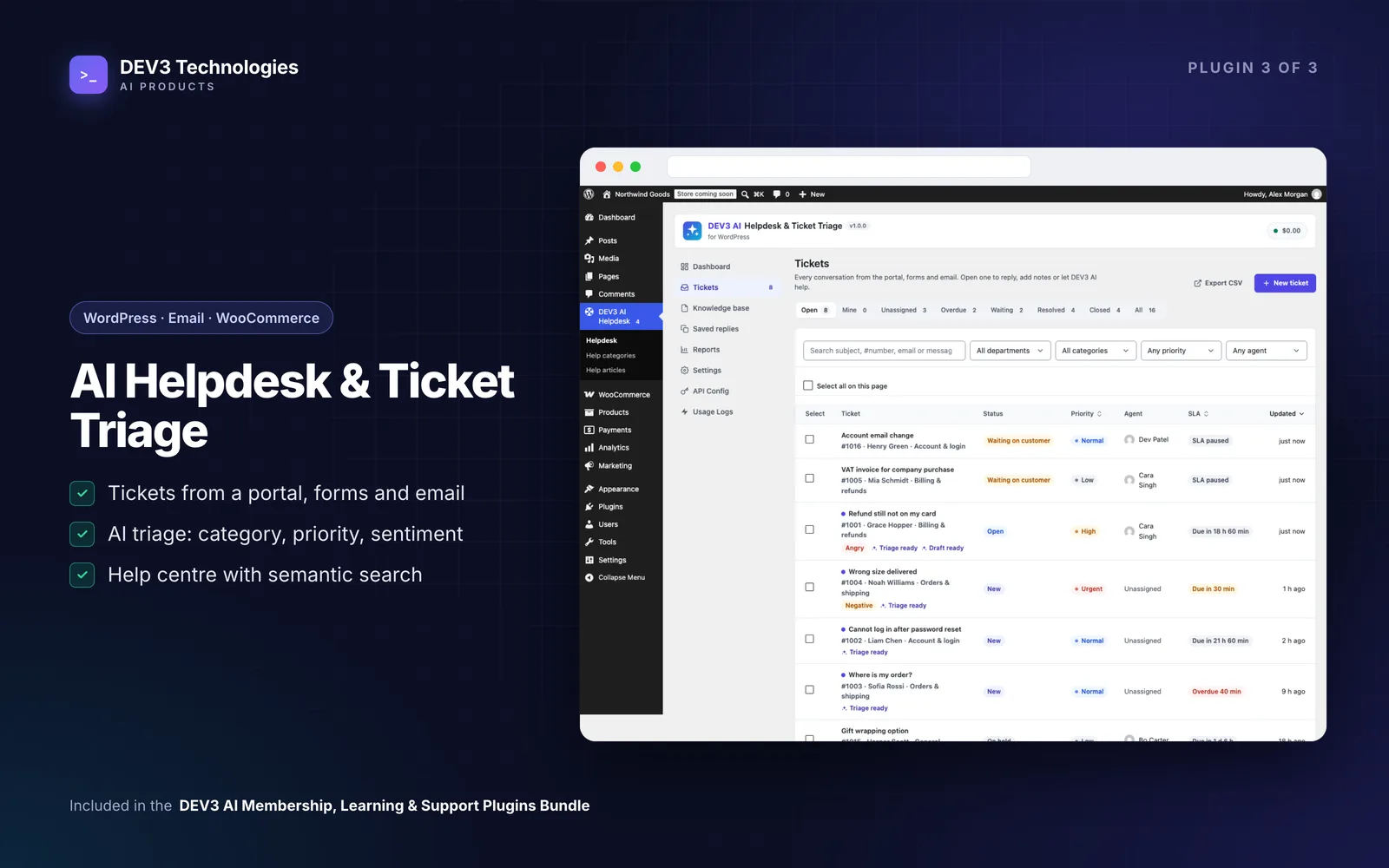
The Inbox has views for Open, Mine, Unassigned, Overdue, Waiting, Resolved, Closed and All, with filters, search across messages, bulk assign, status and priority changes, and CSV export.
On a ticket, choose Reply to customer or Internal note (never shown to the customer). Use saved replies with placeholders, attach files (they are private, with signed expiring links), and pick the status to set after sending. The side panel shows the ticket's properties, its SLA state, the customer's other tickets and, with WooCommerce, their orders. Customers can enter an order number on the form, and it is checked against their email.
The statuses are New, Open, Waiting on customer, On hold, Resolved and Closed. When a ticket is resolved, the customer can rate it.
6. Build the help centre
Write Help articles in the block editor, group them in Help categories and show them with [dev3hd_help_center]. Customers get instant search, topics, popular articles, "Was this helpful?" votes and related articles. The Knowledge base screen shows views and helpful votes, so you can see which articles work.
Adding AI where it helps
Everything above works without AI. Add a Google Gemini key in API Config and you also get:
- Triage: category, priority, sentiment, language, a summary and tags for each new ticket. Click Apply triage, or opt in to apply it automatically.
- Reply drafts based on your help articles, with the sources cited. An agent reviews and sends. Auto-send for confident answers exists, but it is off unless you turn it on.
- Rewrite a reply: grammar, friendlier, more formal, shorter or more empathetic.
- Thread summaries for long tickets, so a colleague can pick one up quickly.
- An article builder that turns solved tickets into help articles, and an article gaps report.
- Semantic help-centre search, with a keyword fallback.
A cost cap, cache and personal-data masking are included.
Tips and pitfalls
- Write a few help articles before turning on reply drafts. The drafts cite your articles, so with an empty knowledge base there is little for them to use.
- Keep auto-send off at first. Read a few weeks of drafts before trusting any of them to go out alone.
- Use internal notes for anything private. They never reach the customer.
- Mail not arriving on a quiet site? The mail check runs as a WordPress scheduled task, which only fires when someone visits. Add a real cron job that calls
wp-cron.phpevery few minutes. - IMAP test failing? Check the host, port and security, use an app password, and make sure your host allows outgoing connections to port 993.
Who this is for
- WooCommerce stores that want order details next to every support conversation.
- Service businesses and agencies that want a proper ticket system without paying per agent for a hosted tool.
- Membership and course sites whose members need a place to ask for help.
The case study explains how the plugin was built. If you want AI support connected to your own systems or several channels, talk to our AI implementation team.
Getting started
DEV3 AI Helpdesk & Ticket Triage is part of the DEV3 AI Membership, Learning & Support bundle, alongside Membership & Paywall and the Course Builder. Install it, connect your support mailbox and answer your next customer from a real inbox.