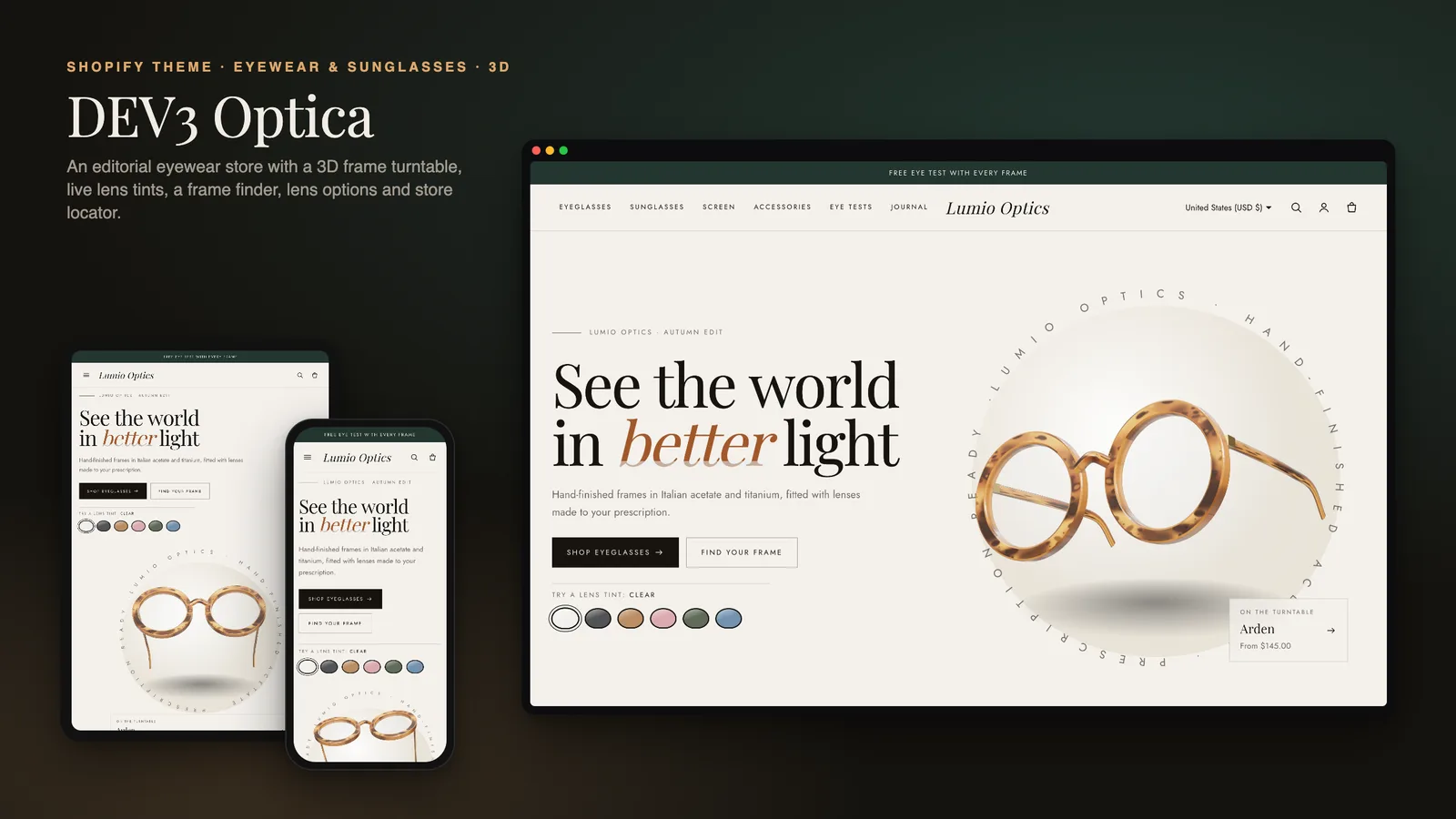
Selling glasses online means selling two things at once. There is the frame, which the shopper has to imagine on their face, and there are the lenses, with upgrades like blue-light filtering or polarisation and, often, a prescription. Most Shopify themes show a pair of glasses like any other product and leave lenses to a heavy configurator app. DEV3 Optica is an eyewear Shopify theme with lens options built in: upgrades are ordinary variants with their price difference shown, a prescription step records how the customer will supply it, and a frame finder narrows the range by face shape and use. This post covers who Optica is for, how to set up a frame with lens options, and how the finder, lens guide and eye-test booking work.
Who an eyewear Shopify theme like this is for
Optica was designed for businesses that sell frames and lenses:
- Independent eyewear brands selling optical frames and sunglasses online.
- Opticians with a few studios who want online sales and eye-test requests on the same site.
- Sunglasses labels offering standard tints, polarised lenses and prescription sun.
- Agencies building eyewear stores for clients who will add frames themselves.
The demo is the fictional Lumio Optics brand: 14 frames and 4 care accessories in 5 collections, with 5 pages and a journal.
Lens options with clear upgrade pricing
Optica is an Online Store 2.0 theme built from scratch on DEV3's own base, not a fork of Dawn. Its product section adds three eyewear blocks to the standard one, and the most important is Lens options.
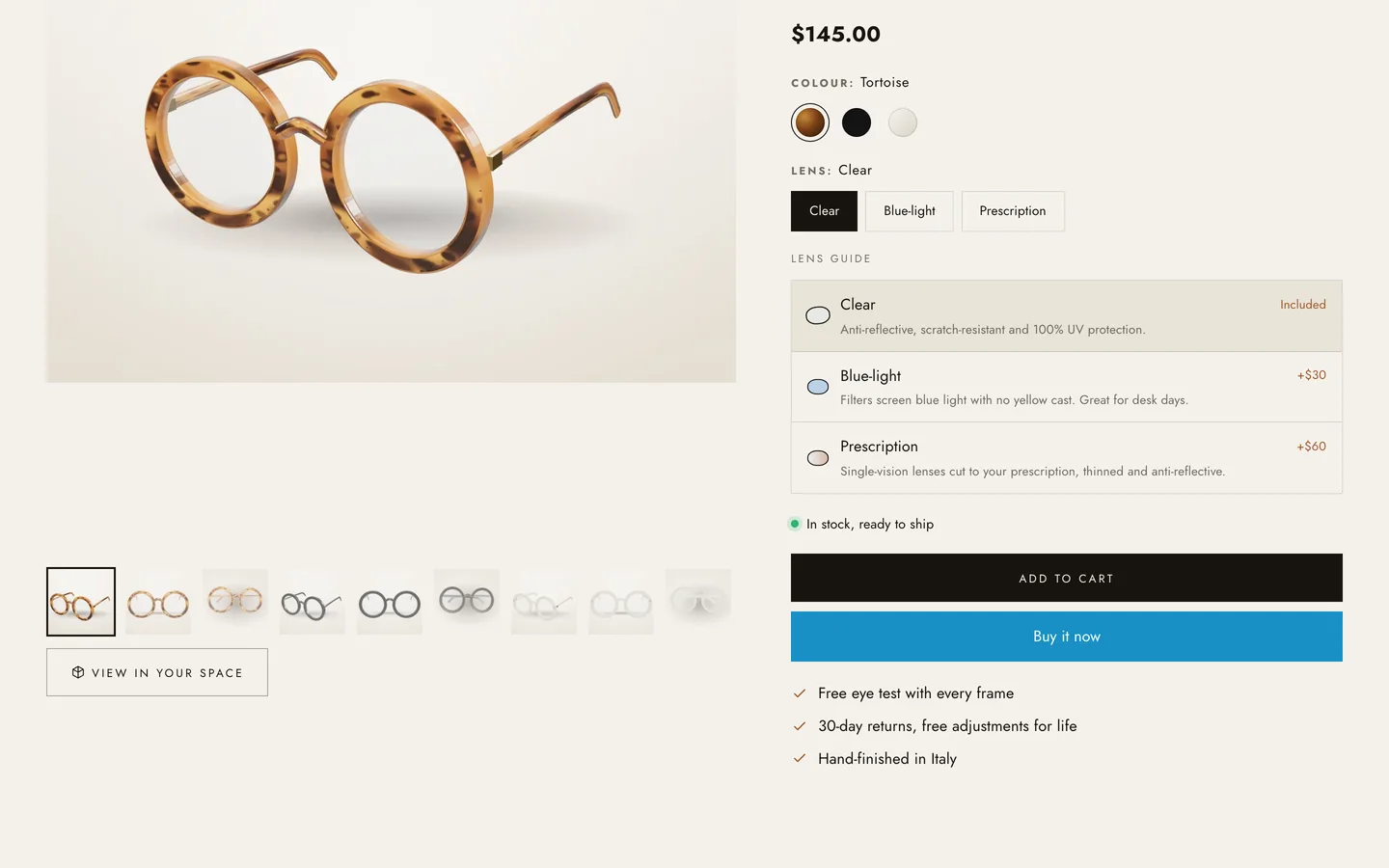
You set up each frame with two normal variant options: Colour and Lens (for example Clear, Blue-light and Prescription, or Standard tint, Polarised and Prescription sun), and you price each lens variant. The Lens options block then presents those values as a lens guide, each with a short description and its price difference from the base lens ("Included", or the upgrade amount). Because upgrades are real variants, the price in the cart and at checkout always matches what the shopper saw.
The prescription step
When the chosen lens contains "prescription" or "Rx", a prescription choice form opens under the options. The customer chooses how they will supply their prescription (email it later, use their last test, or book a test) and can add lens thickness and the name on the prescription. Those choices are saved as line-item properties, so they appear in the cart and on the order for your team.
The form deliberately never collects prescription values. Prescriptions are health information and the rules differ by country, so Optica records the customer's choice and leaves the confirmation to you, by email or in the studio.
Helping shoppers find a frame
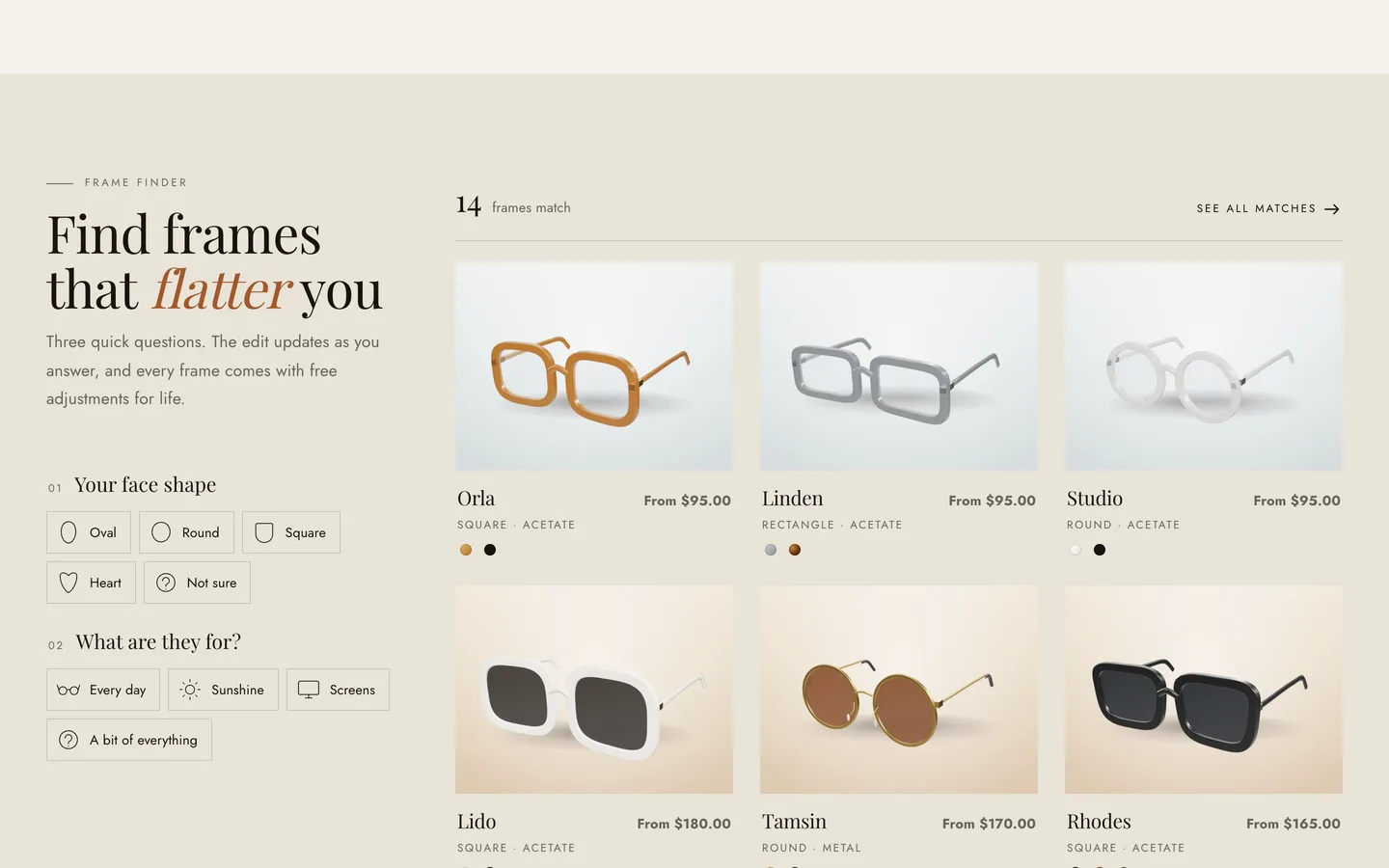
- Frame finder: up to four quick questions (face shape, how the glasses will be used, preferred feel) filter a grid of frames live as the shopper answers, with an animated re-flow. Each answer maps to a product tag such as
face-oval,type-sunormaterial-acetate, and "See all matches" opens the collection filtered by those tags. - Shop by shape: a row of line icons (round, rectangle, cat-eye and more) that draw themselves in, each linking to a collection or tag.
- Frame size: a drawn diagram with lens width, bridge and temple length from simple metafields, plus a fit note.
Swatches are a detail that matters in eyewear. Optica's colour map accepts gradients, so tortoiseshell and two-tone frames get realistic chips instead of a flat brown dot.
Lens guide and the polarised slider
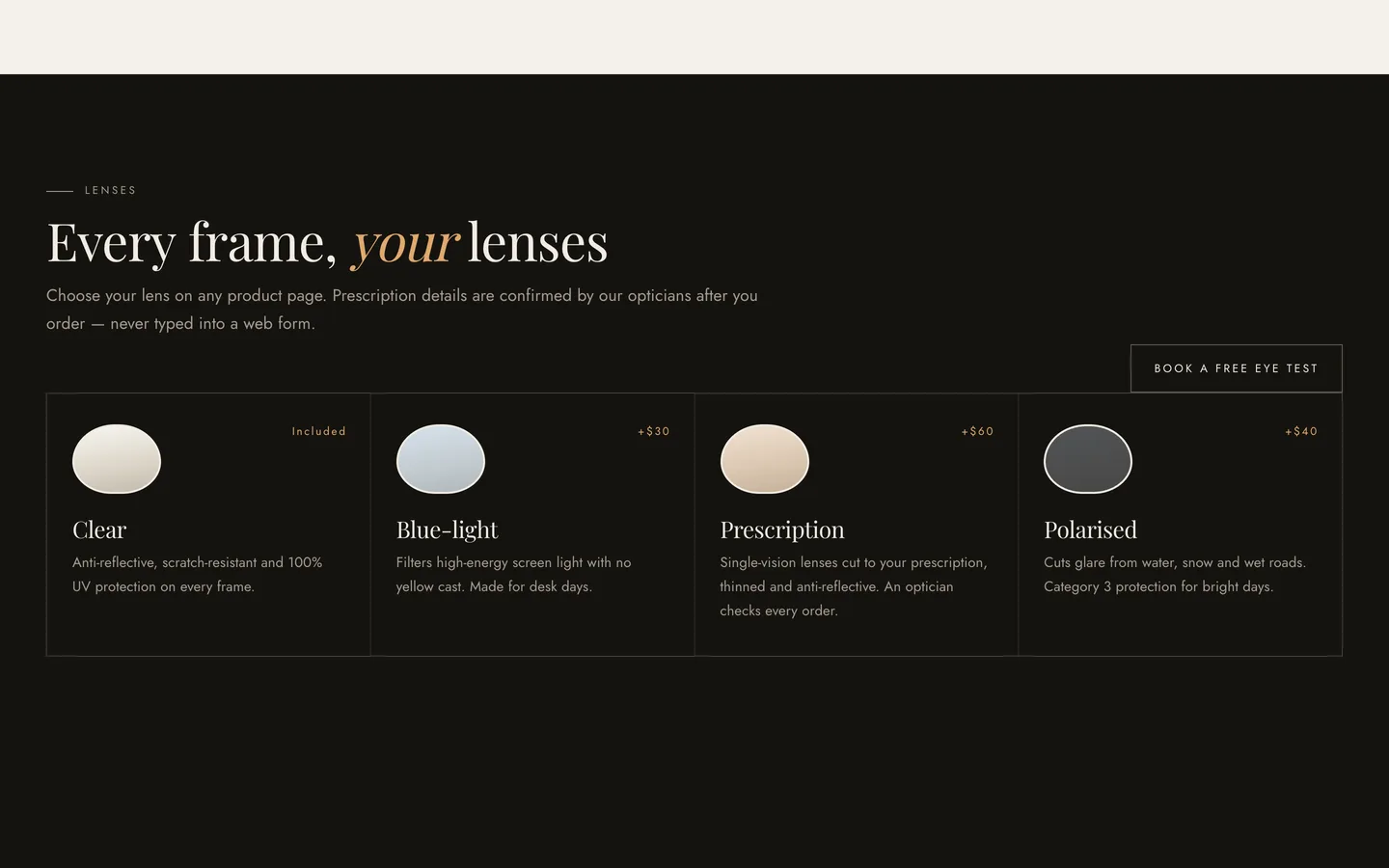
The lens guide section explains your lens types side by side, as cards with a title, a price note, a description and a tint colour, with a soft glint animation. Add one scene image and you also get a before/after slider for polarised lenses: one side shows glare, the other the clear, saturated view. The slider is a real range input, so it works with a keyboard and screen readers.
Stores and eye-test booking
The stores section lists your studios with city, address, hours, phone, services and a map link, with a city filter. Beside it, a booking card lets visitors request an eye test: name, email, studio, appointment type and a preferred date and time. It uses your store's contact form, so requests arrive by email; it takes no payment and syncs no calendar. Confirm each appointment by email, or swap in a booking app as an app block.
Optica has no camera or virtual try-on. A Try-on note block on the product page links to your studios, and if you want virtual try-on you can add an app that provides one through an app block.
One 3D object: the frame turntable
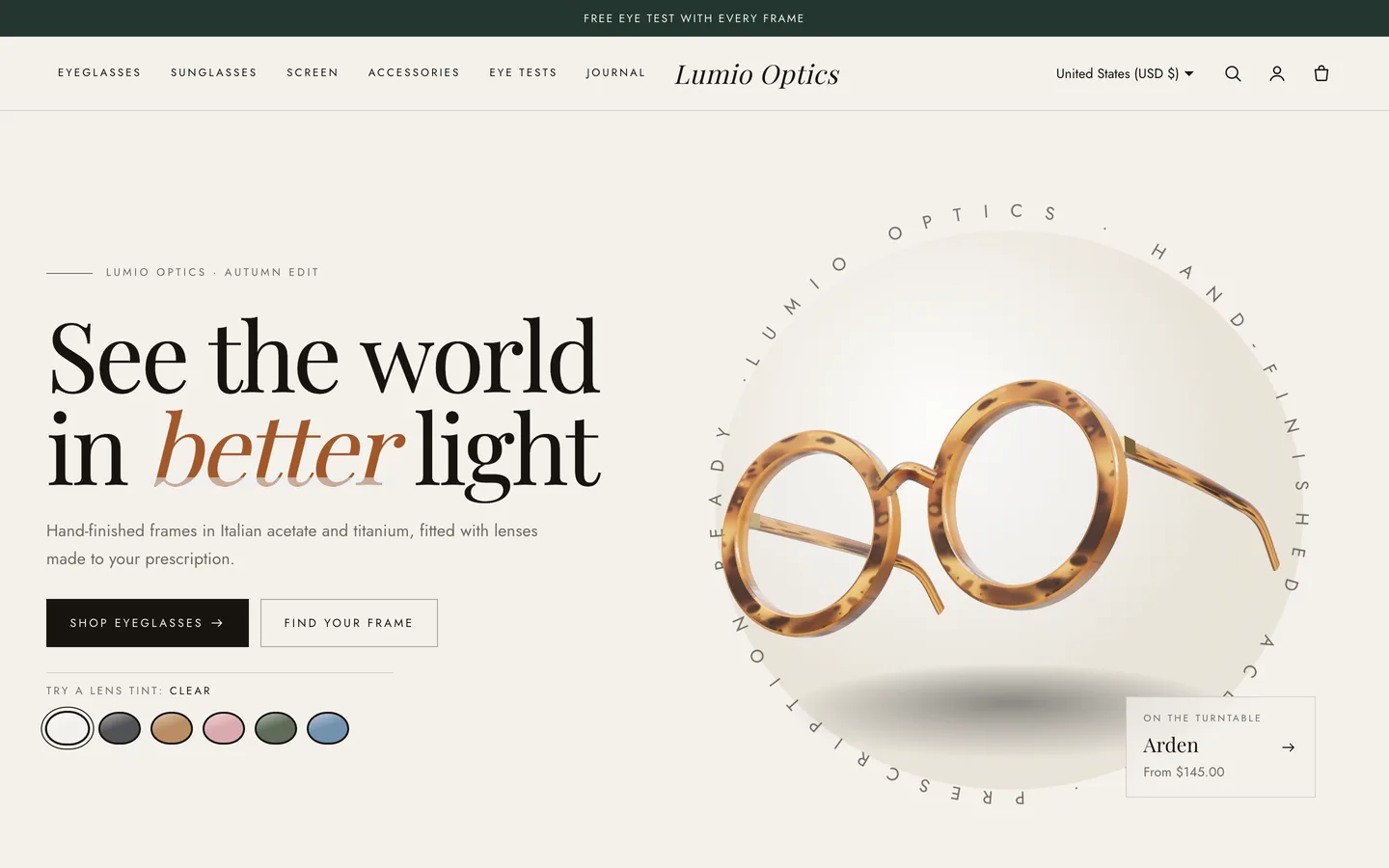
Optica's single 3D object is a pair of glasses turning slowly in the hero. Choose from 11 built-in frame shapes, three finishes (tortoiseshell, solid or crystal) and your colours, then add up to eight lens-tint swatches: tapping one recolours the 3D lenses smoothly. It is a showcase of tints, not a try-on.
The 3D engine loads only when the hero nears the screen and pauses offscreen; without WebGL, a poster shows. With reduced motion or animation turned off, the frame renders one still frame. On product pages, Shopify's native 3D model media gives each frame a "View in your space" button on supported phones; the demo includes two models.
Install and import the demo
- Go to Online Store → Themes → Add theme → Upload zip file and choose
dev3-optica-1.0.0.zipfrom the download. Click Customize, then Publish. - Import
Demo-Content/products.csvunder Products → Import, then add the images, size metafields, models, collections and pages listed in the demo README. A scripted seed is available from DEV3 support on request.
Optica passes Shopify Theme Check with 0 errors and 0 warnings, and we tested add to cart, the cart drawer and the checkout handoff on a live development store. The initial JavaScript stays under 25 KB gzip.
See it in motion
There is no public live demo, because the demo runs on a password-protected development store. The video tour walks through Lumio Optics from the turntable hero to the frame finder, a frame with lens options and checkout.
Before you launch
- Give every frame a Colour and a Lens option, price each lens upgrade, and check the price differences the lens guide shows.
- Tag frames for the finder (face, type, material and shape) and test each answer.
- Set your store's contact email so eye-test requests reach the right studio, and agree internally how your team confirms prescriptions.
- Replace the demo studios, hours and journal posts with your own.
Optica is on the DEV3 marketplace. The case study covers the design decisions in more depth.