All case studies

DEV3 Technologies · own product

DEV3 Optica: an eyewear Shopify theme with lens options, a frame finder and a 3D turntable

Our own Online Store 2.0 theme for eyewear and sunglasses brands: lens options with upgrade pricing and a prescription choice form, a face-shape frame finder, frame-size diagrams, store and eye-test booking, and a 3D frame turntable with live lens tints.

Industry
Eyewear and optical retail (Shopify theme)

Live project preview

Client systems are private — screenshots shown where permitted.

DEV3 Technologies · own product — screenshots
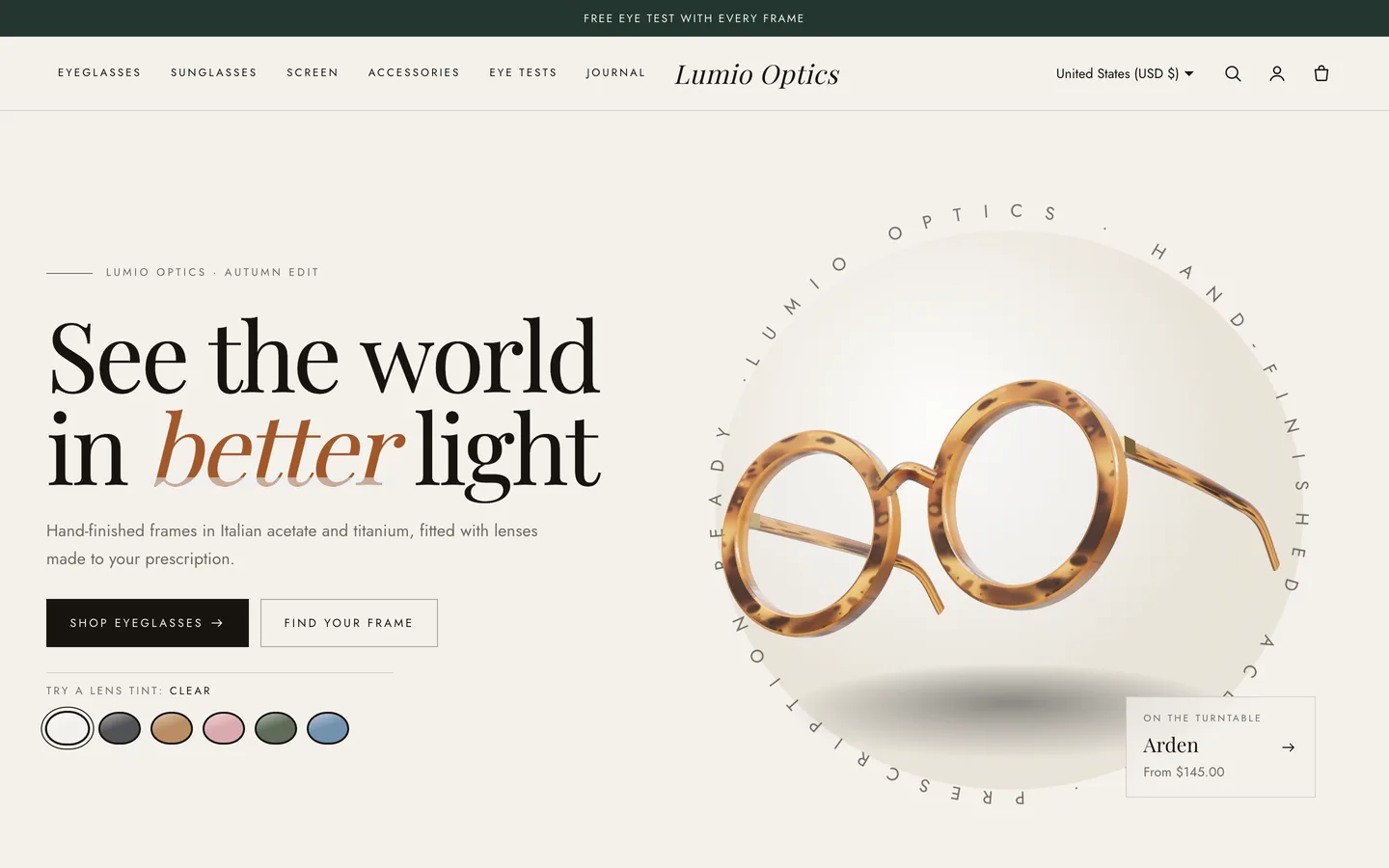
3D frame turntable hero — Real-time 3D glasses turn slowly beside an editorial headline and lens-tint swatches.

3D frame turntable hero — Real-time 3D glasses turn slowly beside an editorial headline and lens-tint swatches.

The challenge

Selling glasses online means selling two things at once: a frame the shopper has to imagine on their face, and lenses with upgrades and possibly a prescription. Most Shopify themes show a frame like any other product and leave lenses to a heavy configurator app, while prescription handling raises real privacy and regulatory questions. We wanted lens choices that stay ordinary Shopify variants with visible upgrade prices, a prescription step that records the customer's choice without ever storing prescription values, guided frame discovery by face shape and use, and an elegant 3D frame that shows tints without becoming a fake virtual try-on.

Our solution

Optica is an Online Store 2.0 theme built from scratch on DEV3's own Shopify theme base, not a fork of Dawn. The base supplies the standard templates, the cart drawer, predictive search, filters, swatches, the motion system and a lazy 3D accent engine; Optica adds its own sections, product blocks and 3D preset on top.

Key design decisions

  • Lenses as variants. The Lens option is a normal variant, so every upgrade has a real price that carries through the cart and checkout; the block only presents it with price differences and descriptions.
  • Prescription choice, not prescription data. Selecting a prescription lens opens a form that records how the customer will supply it (email later, last test, book a test) as line-item properties. No prescription values are collected.
  • Finder on tags. The frame finder filters by simple product tags (face, type, material, shape), so merchants control matching without a quiz app.
  • Booking through the contact form. Eye-test requests use Shopify's own contact form and arrive by email; there is no calendar to sync and a booking app can replace it.
  • A turntable, not a try-on. The procedural frame (11 shapes, three finishes) turns slowly and recolours its lenses from tint swatches; it loads lazily and falls back to a poster.

Results

Optica ships with the fictional Lumio Optics store: 14 frames and 4 accessories, 5 collections, 5 pages, 3 journal posts and 2 GLB models, as a product CSV with images.

  • Theme Check: 0 errors and 0 warnings in Shopify Theme Check.
  • Live store test: tested on a Shopify development store, from add to cart through the cart drawer to the Shopify checkout handoff.
  • Browser QA: an automated harness at desktop and phone sizes confirmed the 3D accent renders, reduced motion turns animation off, and the console shows 0 errors.
  • Weight: under 25 KB gzip of initial JavaScript; three.js loads lazily.

Optica is on the DEV3 marketplace. Watch its video tour there.

Setup guide

Requirements

  • A Shopify store with the Online Store sales channel
  • No app is required. Optional: the free Shopify Search & Discovery app for collection filters, a reviews app that writes the standard rating metafields.

What's in the download

Unzip the download from your DEV3 account first. Do not upload the download itself to Shopify.

  • dev3-optica-1.0.0.zip: the theme. Upload this zip as it is; do not unzip it.
  • Documentation/index.html: the full guide. Open it in a browser.
  • Demo-Content/: products.csv, seed.json, images/, models/lumio-arden.glb and models/lumio-cassio.glb and a README for the manual import.
  • LICENSE.txt and START-HERE.txt.

Install the theme

  1. In Shopify admin go to Online Store → Themes.
  2. Click Add theme → Upload zip file and choose dev3-optica-1.0.0.zip.
  3. When the upload finishes, click Customize to preview it in the theme editor.
  4. Click Publish when you are ready. Your current theme stays in the theme library.

Import the demo content (optional)

The demo brand Lumio Optics is fictional; every product, review and image is sample content rendered for this theme.

  1. Go to Products → Import and upload Demo-Content/products.csv. The CSV has no image URLs.
  2. Add each product's images from Demo-Content/images/, following the file names in the demo README.
  3. Settings → Custom data → Products: add optica.lens_width, optica.bridge and optica.temple (integers) and optica.fit (single-line text) for the frame-size diagram.
  4. Upload the two GLB frames as media on the matching products for the 3D/AR gallery view.
  5. Content → Files: upload the section images listed in the README.
  6. Create the collections, the pages with their templates (About, Stores, FAQ, Contact), the journal posts and the menus.

A scripted seed that does all of this in one command is available from DEV3 support on request. It runs against your own store with your own Admin API token, and it tags everything it creates so it never touches your other products.

After the import

  • Each frame needs a Colour option and a Lens option (for example Clear / Blue-light / Prescription), with a price per lens variant, and finder tags such as face-oval, type-sun, material-acetate and shape-round.
  • Set your store's contact email: eye-test booking requests arrive there. Confirm prescriptions with customers directly; the theme never collects prescription values.
  • Set up payments, shipping and taxes in Shopify's own settings; checkout is Shopify's.

Updates

Download the new version from your DEV3 account and upload the new theme zip under Online Store → Themes → Add theme. It arrives as a new theme in your library: copy your settings across in the theme editor or re-apply your changes, then publish it.
How to use

Set up a frame

  1. Create the options Colour (frame colour) and Lens, for example Clear / Blue-light / Prescription, or Standard tint / Polarised / Prescription sun. Price each lens variant.
  2. Assign a variant image per colour so the gallery jumps to it.
  3. Add finder tags: face-oval, face-round, face-square, face-heart; type-optical, type-sun, type-screen; material-acetate, material-metal; shape-round, shape-rect, shape-cateye and so on.
  4. For the size diagram, add the metafields optica.lens_width, optica.bridge, optica.temple (integers) and optica.fit (single-line text).

Optica product section

  • Lens options: reads the variant option named Lens (configurable) and shows each value with its price difference and a description.
  • When the chosen value contains "prescription" or "Rx", a prescription choice form opens. The choice (email later, use last test, book a test), lens thickness and the name on the prescription are saved as line-item properties and appear in the cart and on the order. The form never collects prescription values; confirm them with the customer directly.
  • Frame size: a drawn diagram with lens, bridge and temple sizes from the metafields.
  • Try-on note: a card linking to your studios. There is no camera try-on; add a try-on app as an app block if you want one.

Home page sections

  • Optica hero: pick the frame shape (11 built in), finish (tortoiseshell, solid or crystal) and colours. Add up to 8 Lens tint blocks; each becomes a swatch that recolours the 3D lenses. A second button can scroll to the frame finder (#finder). To use your own model, paste a .glb link; tints only recolour the built-in frame.
  • Shop by shape: line icons linking to a collection, optionally filtered by a tag such as shape-round.
  • Frame finder: up to 4 questions; each answer is one line, Label | product tag | icon. Use commas for alternatives and any to match everything.
  • Lens guide: lens cards (title, price note, text, tint colour) and an optional polarised before/after slider from one scene image.
  • Stores & eye tests: store blocks with city, address, hours, phone, services, map link and image, plus a city filter. Untick Show booking form to hide the booking card.

Swatches and theme settings

  • Theme settings → Products → Swatch colour map: lines of Name: CSS colour. Gradients work, so tortoiseshell and two-tone frames get realistic chips. Shopify's native swatches take priority.
  • Four colour schemes (bone, espresso, sand, bottle green), Playfair Display and Jost, square corners and landscape product cards.

Motion

Theme settings → Motion: animation level (Off, Subtle or Full), reveal style, duration and stagger. With reduced motion or animation off, content is static, the 3D frame renders one still frame and the ring text stops.

Related case studies

DEV3 Technologies · own product · Supplements and wellness (Shopify theme)

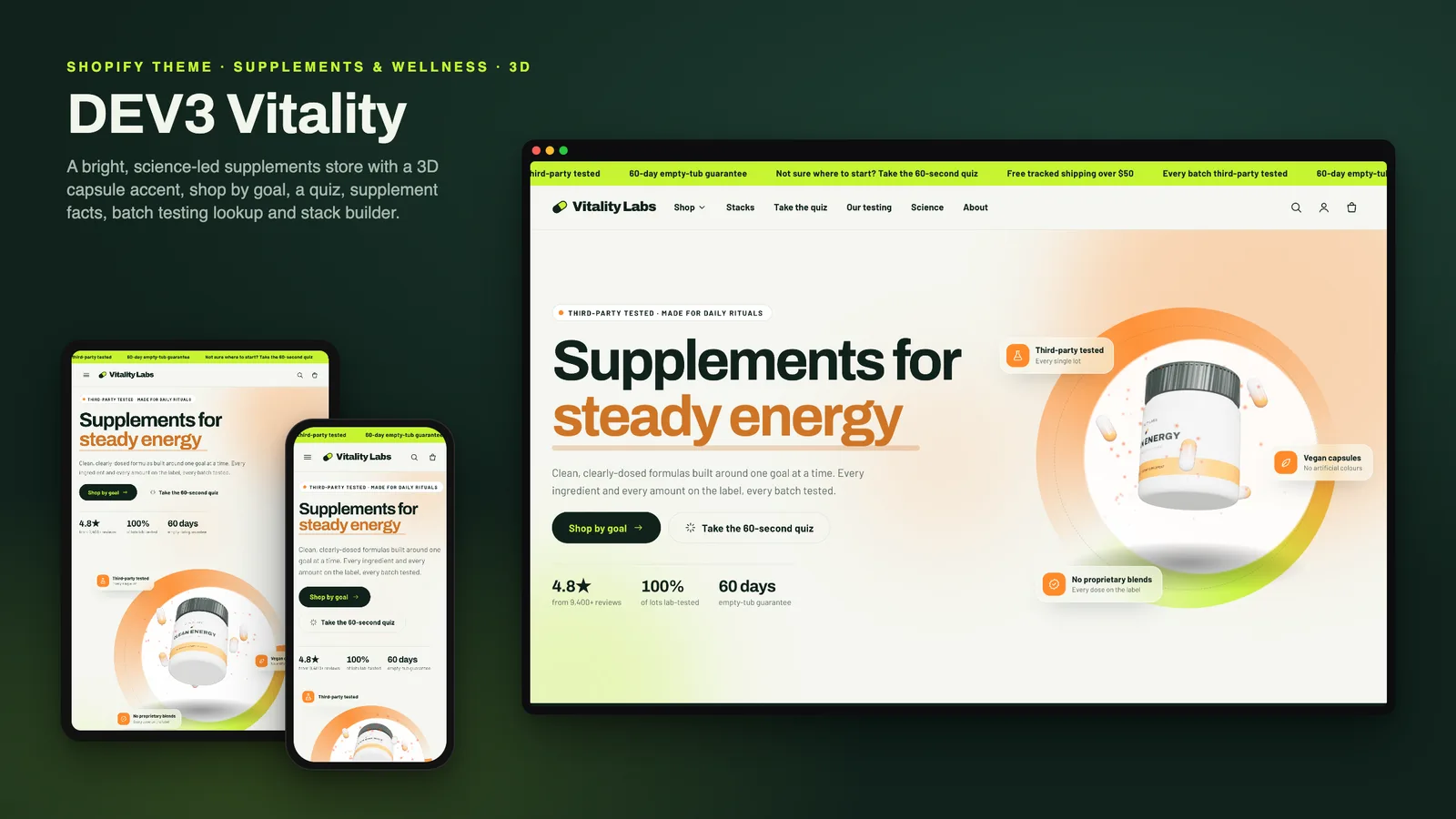
DEV3 Vitality: a supplements Shopify theme with supplement facts, a goal quiz and honest subscriptions

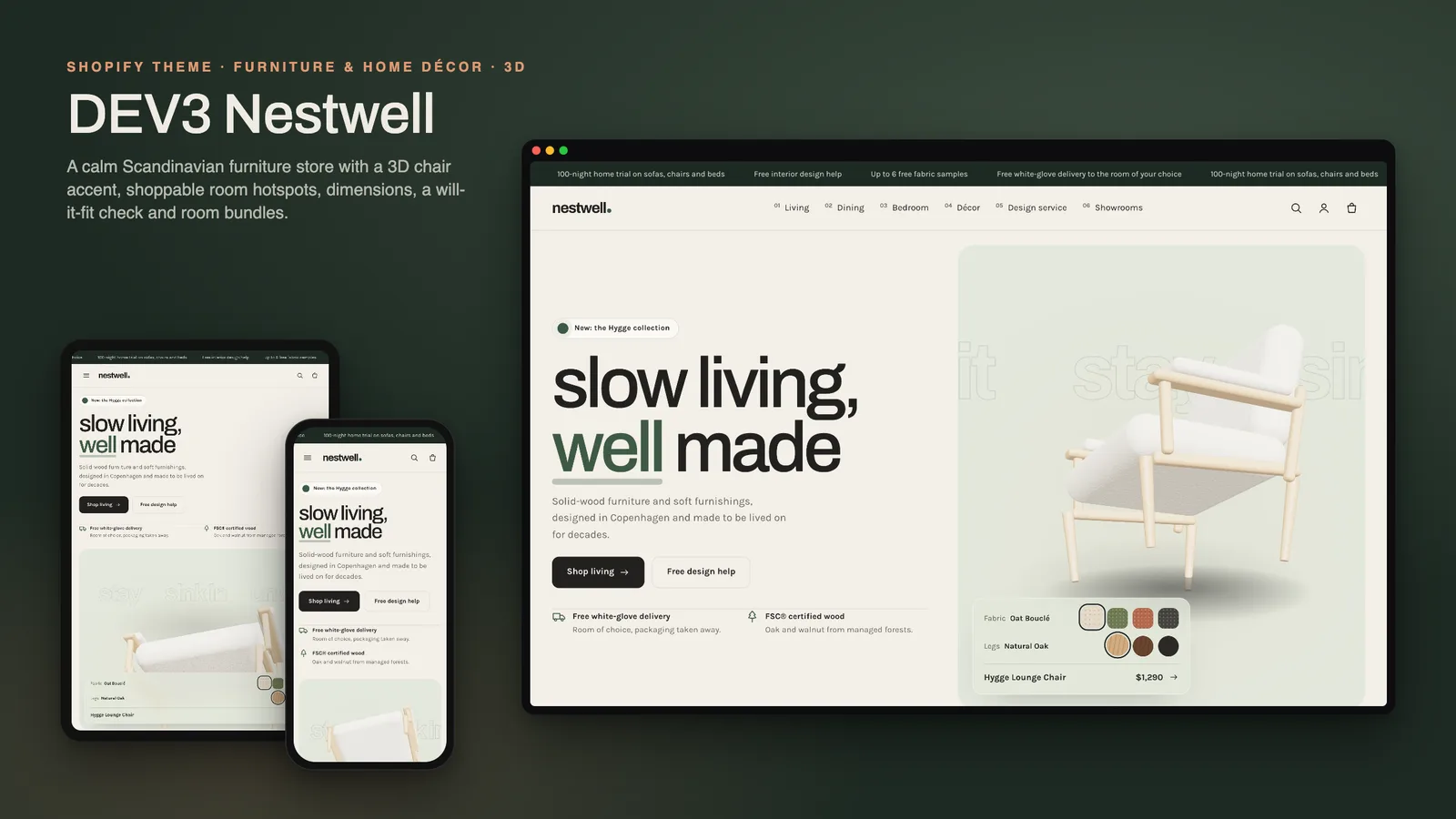
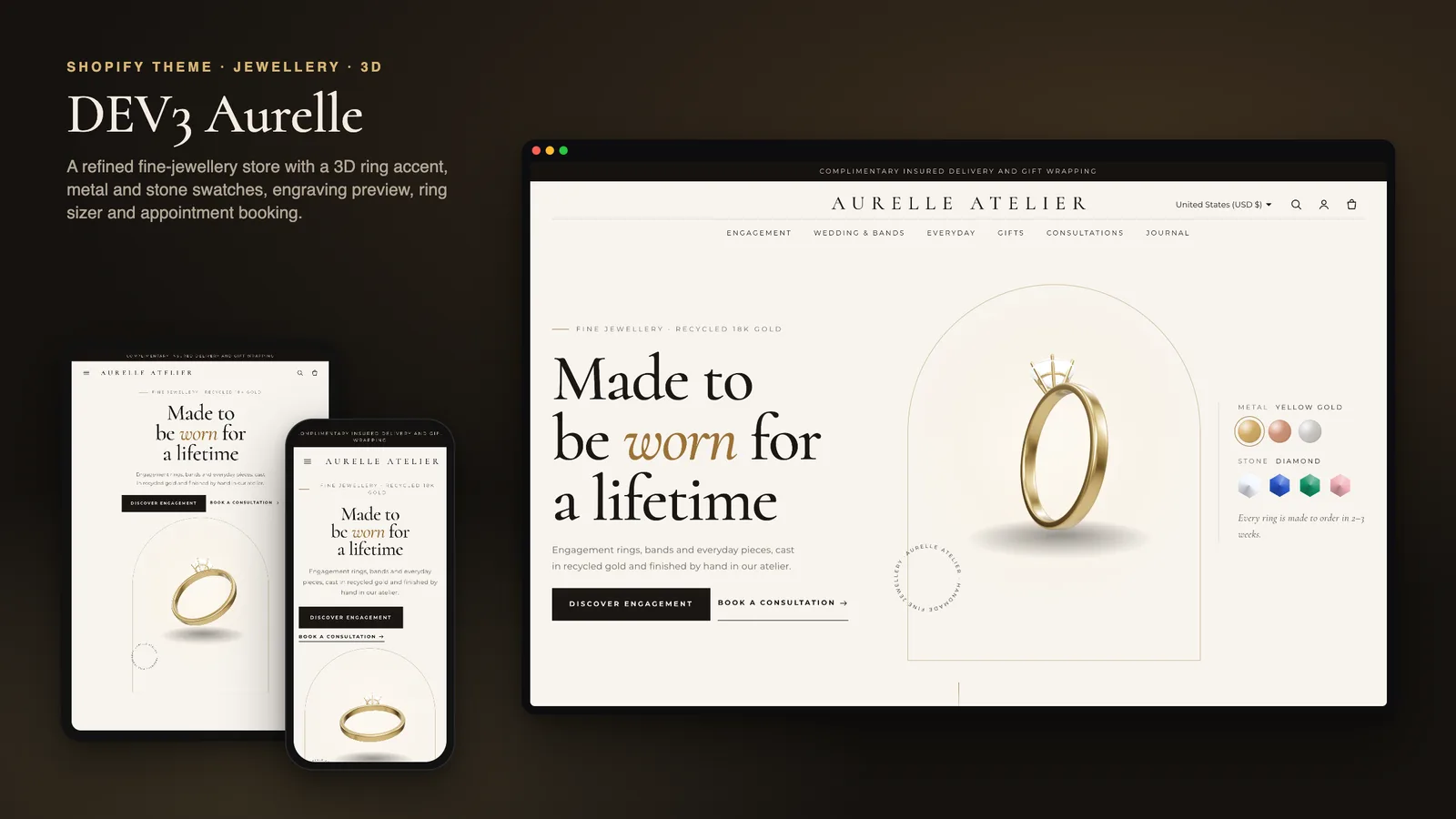
Our own Online Store 2.0 theme for supplement and wellness brands: shop by goal, a tag-matched product finder quiz, accessible supplement facts tables, subscribe & save that appears only with real selling plans, stacks, a testing story with lot lookup, a disclaimer block and a 3D tub hero.

DEV3 Technologies · own product · Furniture and home décor (Shopify theme)

DEV3 Nestwell: a furniture Shopify theme with shop-the-room, a "will it fit" check and a 3D chair

Our own Online Store 2.0 theme for furniture and décor stores: a 3D lounge chair that recolours from fabric and leg swatches, shop-the-room hotspots, complete-the-room bundles, dimensions with a doorway and floor-space check, delivery estimates, showrooms and trade enquiries.