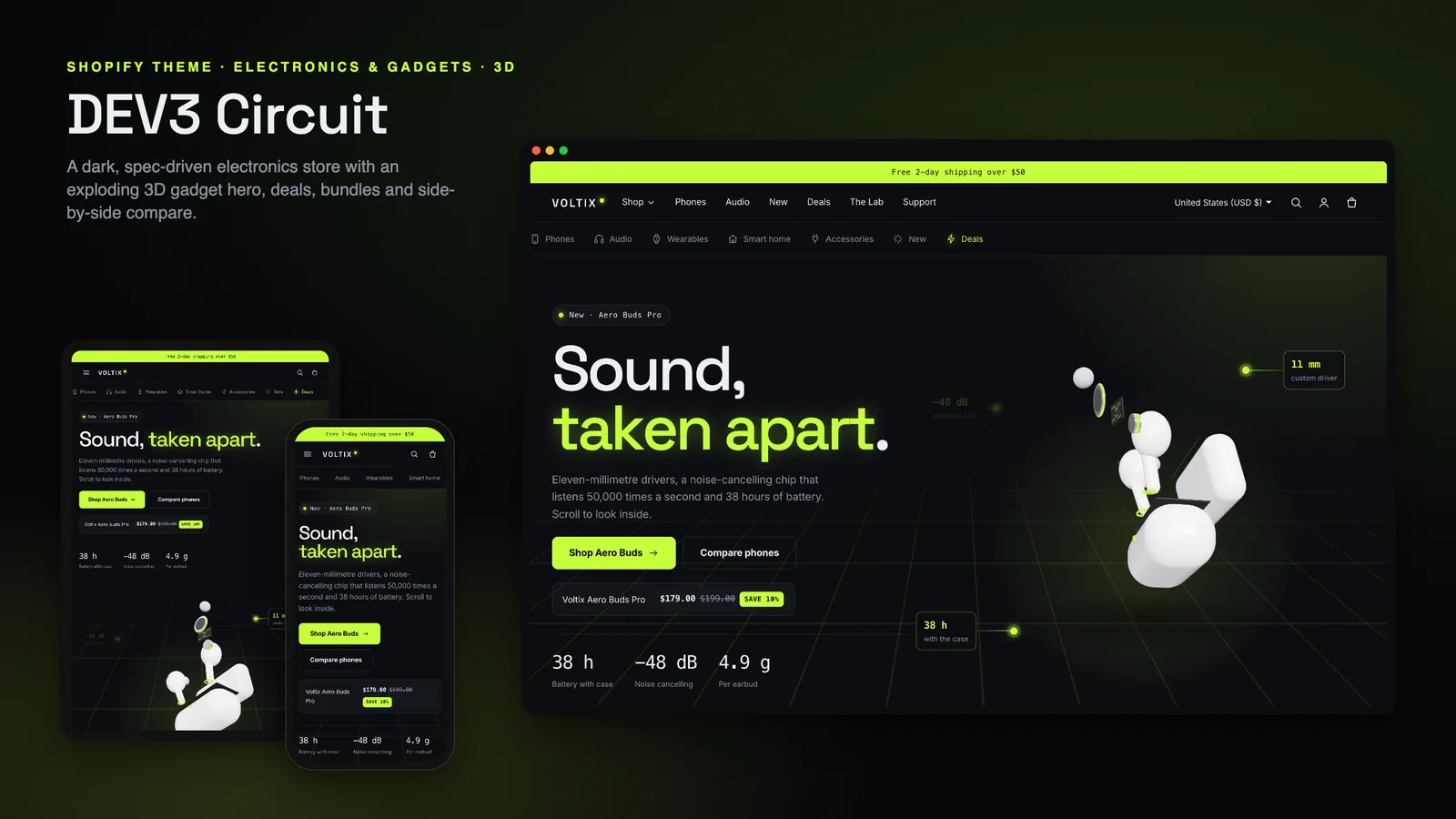
People who buy electronics compare. Which phone has the bigger battery? Is the case included? How long is the warranty? On most Shopify stores the answers are buried in description text, and side-by-side comparison means installing an app. DEV3 Circuit is an electronics Shopify theme that treats specs as data: you fill a few simple metafields once, and the theme turns them into spec chips on cards, tech-spec tabs on the product page and a compare view for up to four products, with no compare app. This post covers who Circuit is for, how to set up specs and compare, and how its bundles and deals work.
Who an electronics Shopify theme like this is for
Circuit was designed for stores with a real catalogue of technical products:
- Phone, audio and wearables retailers that carry several models per category.
- Smart home and accessories shops where cables, chargers and add-ons sell alongside the main device.
- Gadget brands with a product family to compare, such as three earbud models or two watch sizes.
- Agencies building tech stores for clients who will keep adding products themselves.
The demo is the fictional Voltix store: 16 products with 67 variants across 5 categories (phones, audio, wearables, smart home and accessories), with New arrivals and Deals collections.
Built for browsing a catalogue
Circuit is an Online Store 2.0 theme built from scratch on DEV3's own base, not a fork of Dawn, with sections everywhere and app blocks. For a catalogue it adds three things on top:
- A mega menu: give a menu item children and grandchildren and it opens as columns, with an optional promo tile.
- The category bar: icon chips under the header (phone, earbuds, headphones, watch, home, plug and more). The current page's chip is highlighted automatically.
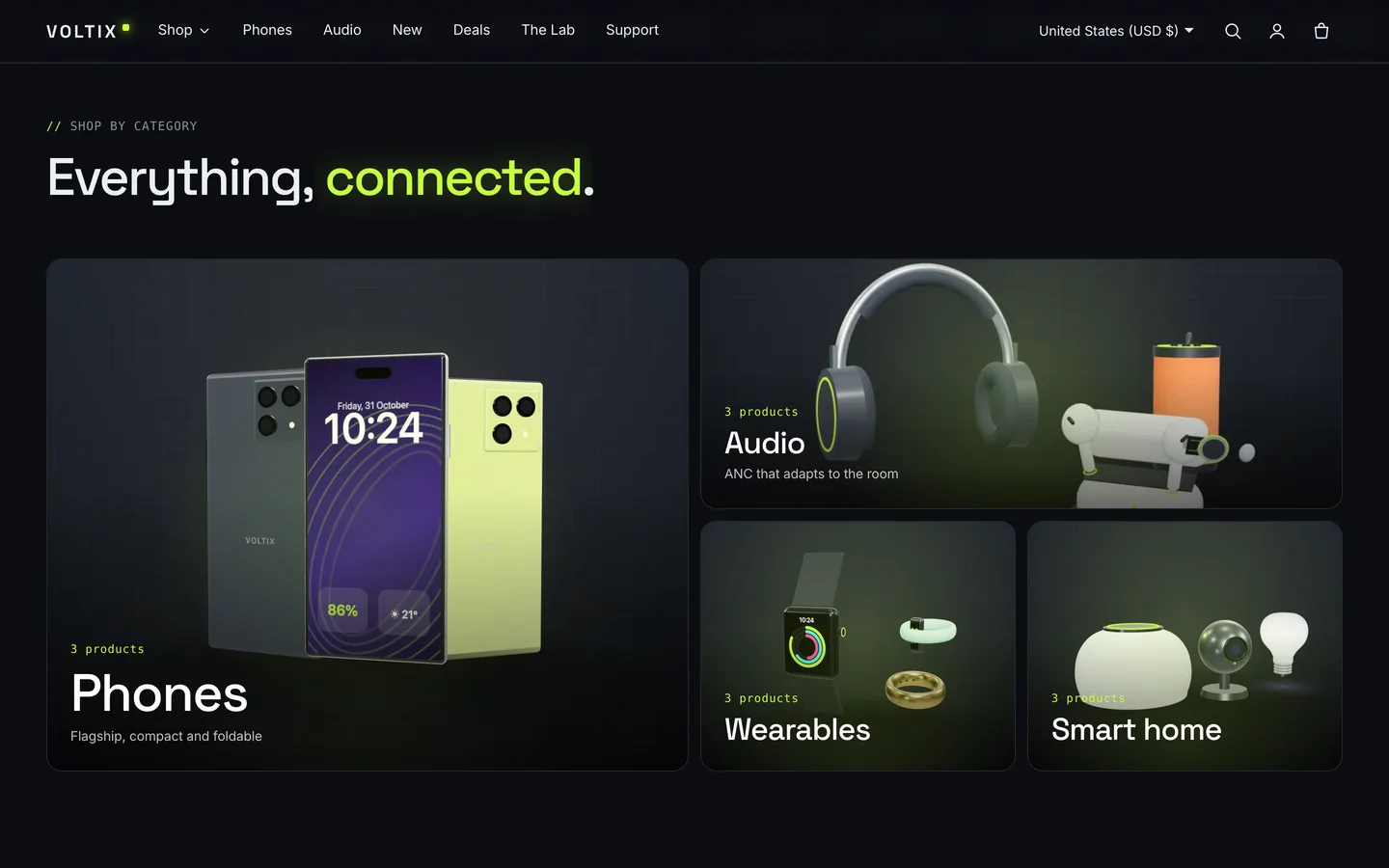
- A category bento on the home page: large, wide or normal collection tiles with a pointer spotlight and product counts.
Specs as metafields
Everything spec-related in Circuit comes from three optional product metafields, created under Settings → Custom data → Products:
custom.specs: multi-line text with oneName: valueper line, for exampleBattery: 5,000 mAh.custom.highlights: two to four short items, shown as chips on product cards and as tiles on the product page.custom.in_the_box: one item per line, for the "In the box" tab.
The one rule is consistency: use the same spec name on every product ("Battery", never "Battery life" on one of them), because the compare views line rows up by name. Card ratings read the standard reviews metafields that most review apps fill in.
Compare without an app
Every product card has a Compare checkbox. Tick one and a compare tray slides up from the bottom of the screen; it holds up to four products from any page. Compare now opens a dialog with the products side by side and a "Differences only" switch that hides the rows where they all match.
The dialog fetches each product's spec block from Shopify itself using the Section Rendering API, so there is no app, no external service and nothing to sync. The selection is kept in the shopper's browser as they move around the store.
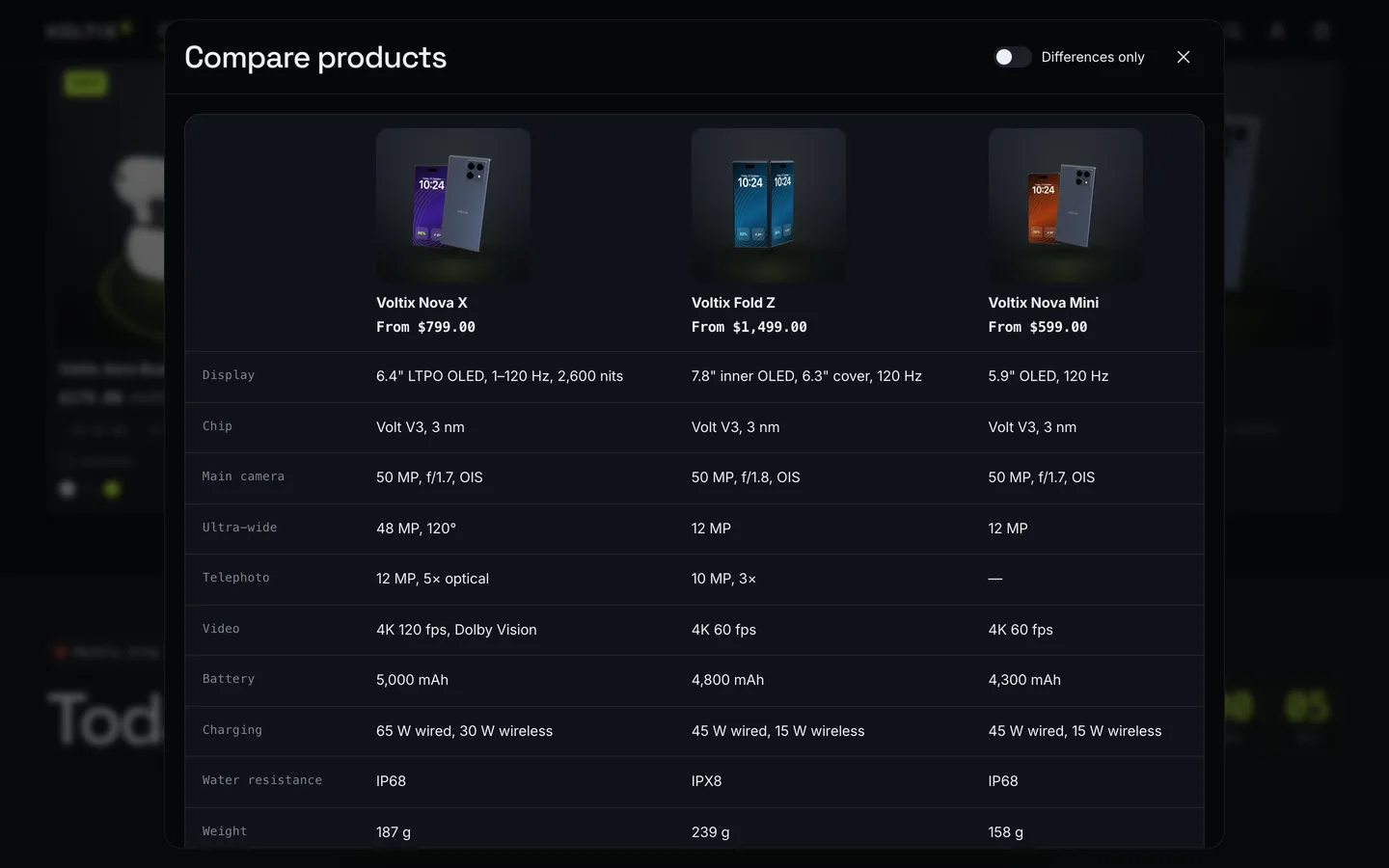
For a home page or a launch page, the spec compare section is a fixed table of two to four products you choose, with the same "Differences only" switch and an optional badge per product, which is useful for lining up a product family.
Tech-spec tabs on the product page
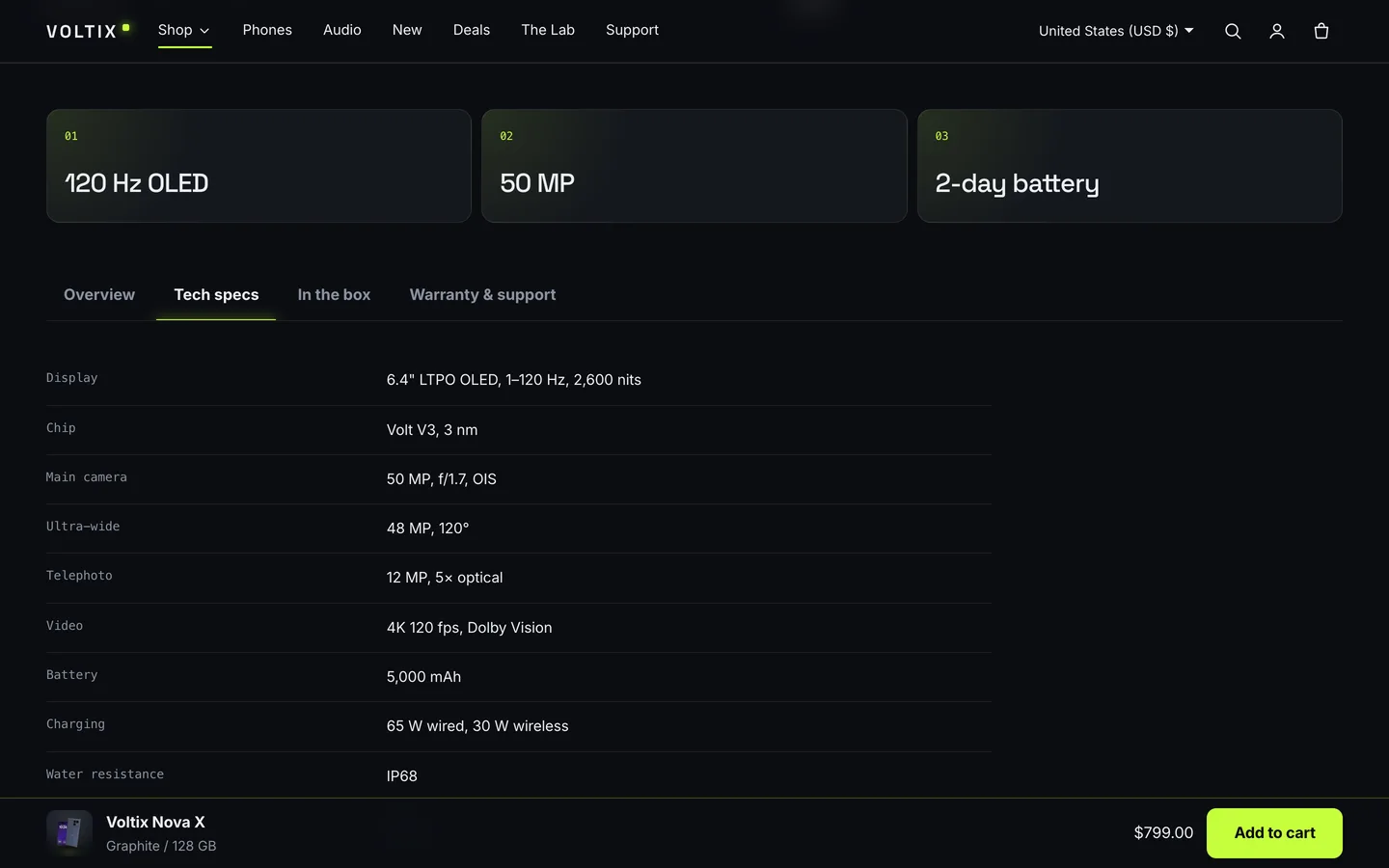
The product page uses Circuit's tech tabs below the gallery and buy box: highlight tiles first, then tabs for Overview (the description), Tech specs, In the box and Warranty & support. A tab with no content is hidden, so accessories with nothing in the box simply show fewer tabs. The tabs work with the keyboard, and an ink bar slides between them.
The gallery supports Shopify's native 3D model media, with a "View in your space" AR button on supported phones; the demo includes two models.
Bundles and deals, without invented discounts
The bundle section shows a main product (on product pages, the one being viewed) and up to three add-ons. Shoppers tick what they want, the total updates live, and Add bundle to cart adds every ticked item in one request. It adds items at their normal prices and shows a saving only where a compare-at price exists. If you want a real bundle discount, create an automatic discount in Shopify, such as money off accessories when the main product is in the cart.
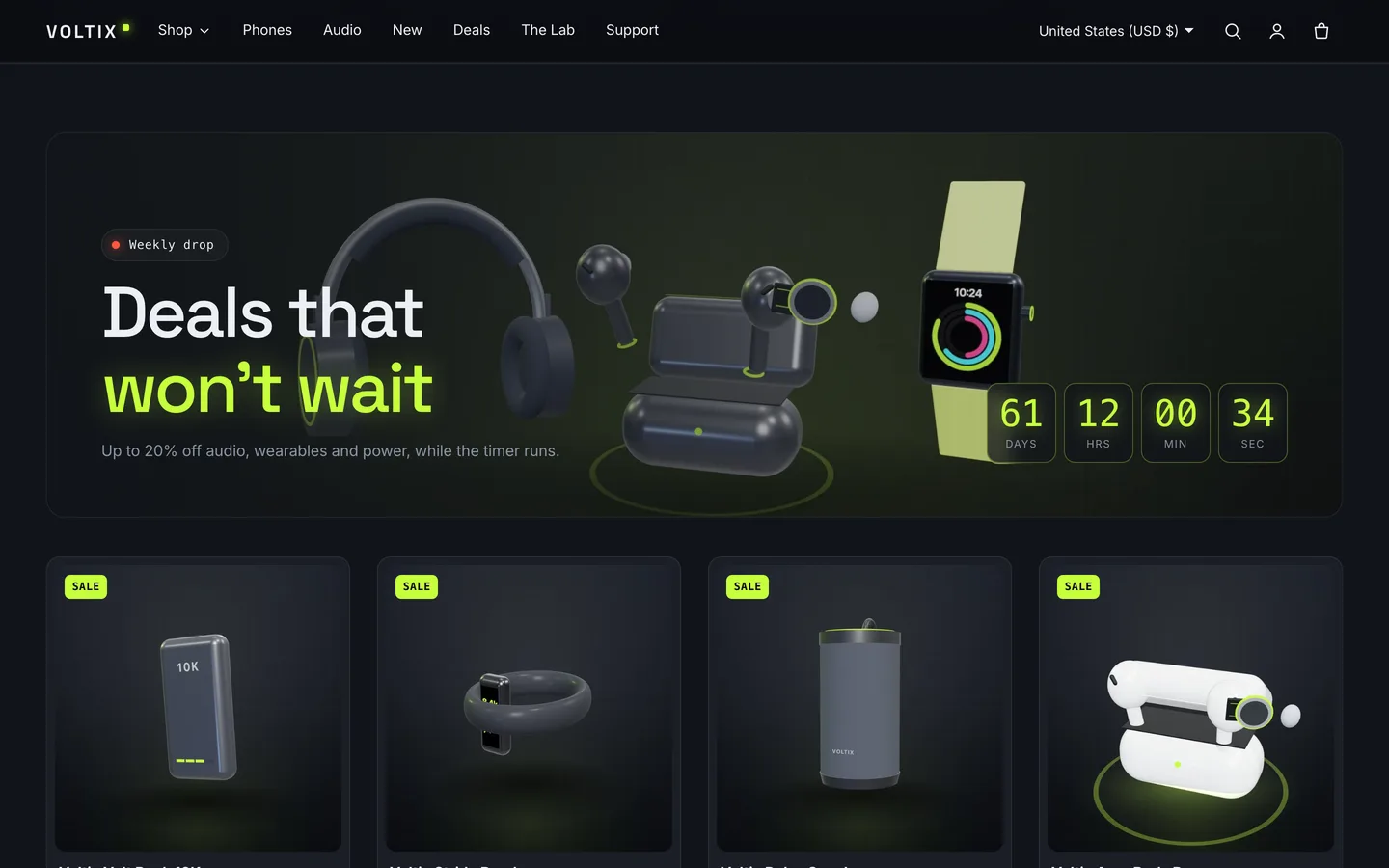
The deals countdown shows a collection under a timer with flip digits. Set the end date and time, and an end message replaces the timer at zero.
A 3D hero that explains the product
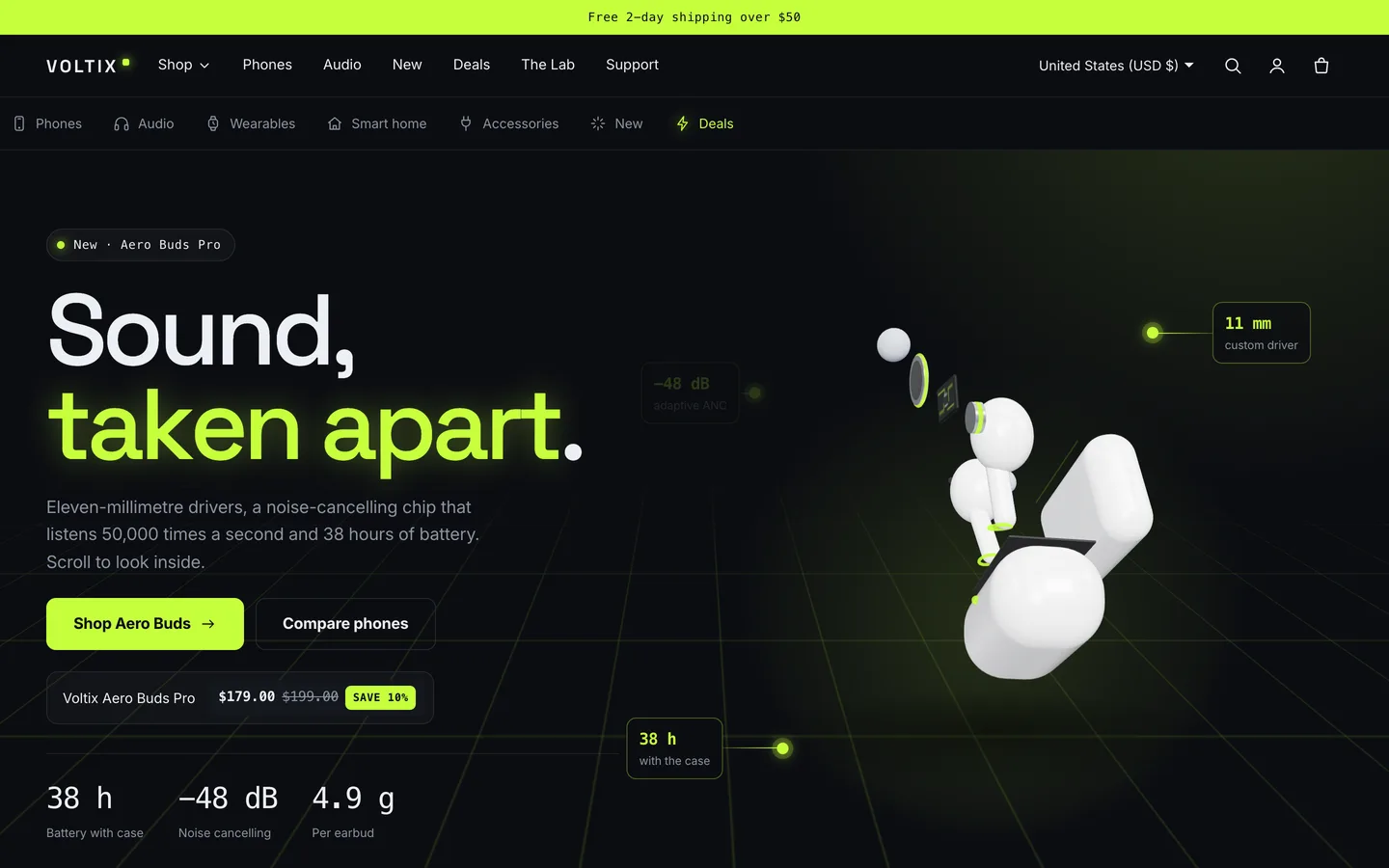
Circuit's single 3D object is the hero: procedural earbuds in a charging case. As the shopper scrolls, the lid opens, the buds lift out and one bud comes apart into tip, driver, circuit board and battery, while spec callouts fade in at points you set. You can recolour it, set how far apart it starts, or paste in your own .glb.
It stays out of the way of the catalogue. three.js loads only when the hero is near the screen and pauses offscreen; without WebGL, or with 3D turned off, a poster image shows and every callout is visible. The rest of the motion (blur reveals, letter-split headlines, card spotlight borders, tab ink and flip digits) follows a single Off, Subtle or Full setting, and visitors who prefer reduced motion get static, fully visible content.
Neon or Clean
Circuit ships two styles. Neon is the demo look: graphite backgrounds, a volt-lime accent, Space Grotesk headings and monospace spec type. Clean is a light, soft-grey look with a blue accent and Inter headings. The glow and neon lines follow your accent colour, so changing one colour restyles them all.
Install and import the demo
- Go to Online Store → Themes → Add theme → Upload zip file and choose
dev3-circuit-1.0.0.zipfrom the download. - Click Customize, then Publish when you are ready.
- Import
Demo-Content/products.csvunder Products → Import, then add the images, metafields, models, collections and pages listed in the demo README. A scripted seed is available from DEV3 support on request.
Circuit passes Shopify Theme Check with 0 errors and 0 warnings, and we tested add to cart, the cart drawer and the checkout handoff on a live development store. The initial JavaScript is about 26 KB gzip.
See it in motion
There is no public live demo, because the demo runs on a password-protected development store. The video tour walks through the Voltix store, from the exploded hero to compare, a product page and checkout.
Circuit is on the DEV3 marketplace. The case study covers the design decisions in more depth.