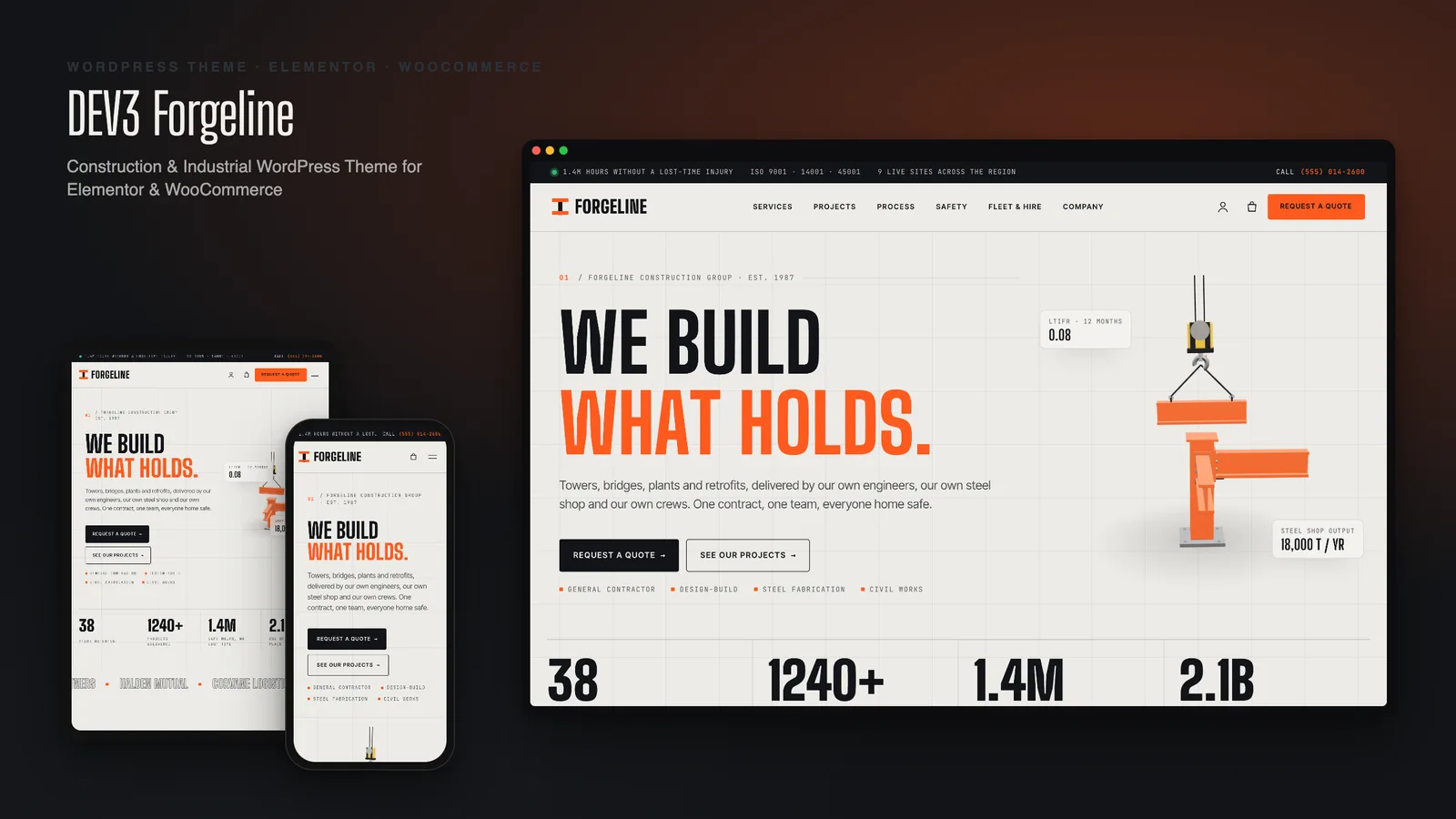
When a developer, a facilities manager or a public client shortlists contractors, they look for evidence: what you have built, for whom, at what value, how long it took and how safely you did it. A construction company website that shows a crane photo and a gallery of finished buildings leaves most of those questions unanswered. DEV3 Forgeline is a construction company WordPress theme built around the evidence. This post covers what the site needs to show, who Forgeline is for, and how to set it up in Elementor.
What a construction website has to prove
Before anyone calls you for a quote, your site should answer five questions:
- Have you built this kind of thing before? Projects filterable by sector, each with the client, value range, duration and location.
- Can you deliver it end to end? Clear services and a process from first brief to handover.
- Are you safe? Safety figures, certifications and accreditations, not just a line in the footer.
- Who will run the job? Leadership profiles and a team that is visibly hiring.
- How do I start? A quote request that accepts drawings, and a faster way to ask for a callback.
Forgeline has a page or a widget for each of them, and every one is ordinary WordPress content your team can update.
Who Forgeline is for
- General contractors and design-build firms with a portfolio across commercial, infrastructure, industrial, energy, residential and education work.
- Steel fabricators and civil engineers who want their trade to show in the design.
- Industrial builders and plant hire businesses that sell PPE, site kit or equipment hire online.
- Agencies building contractor sites that clients will keep up to date themselves.
Projects with a facts sheet
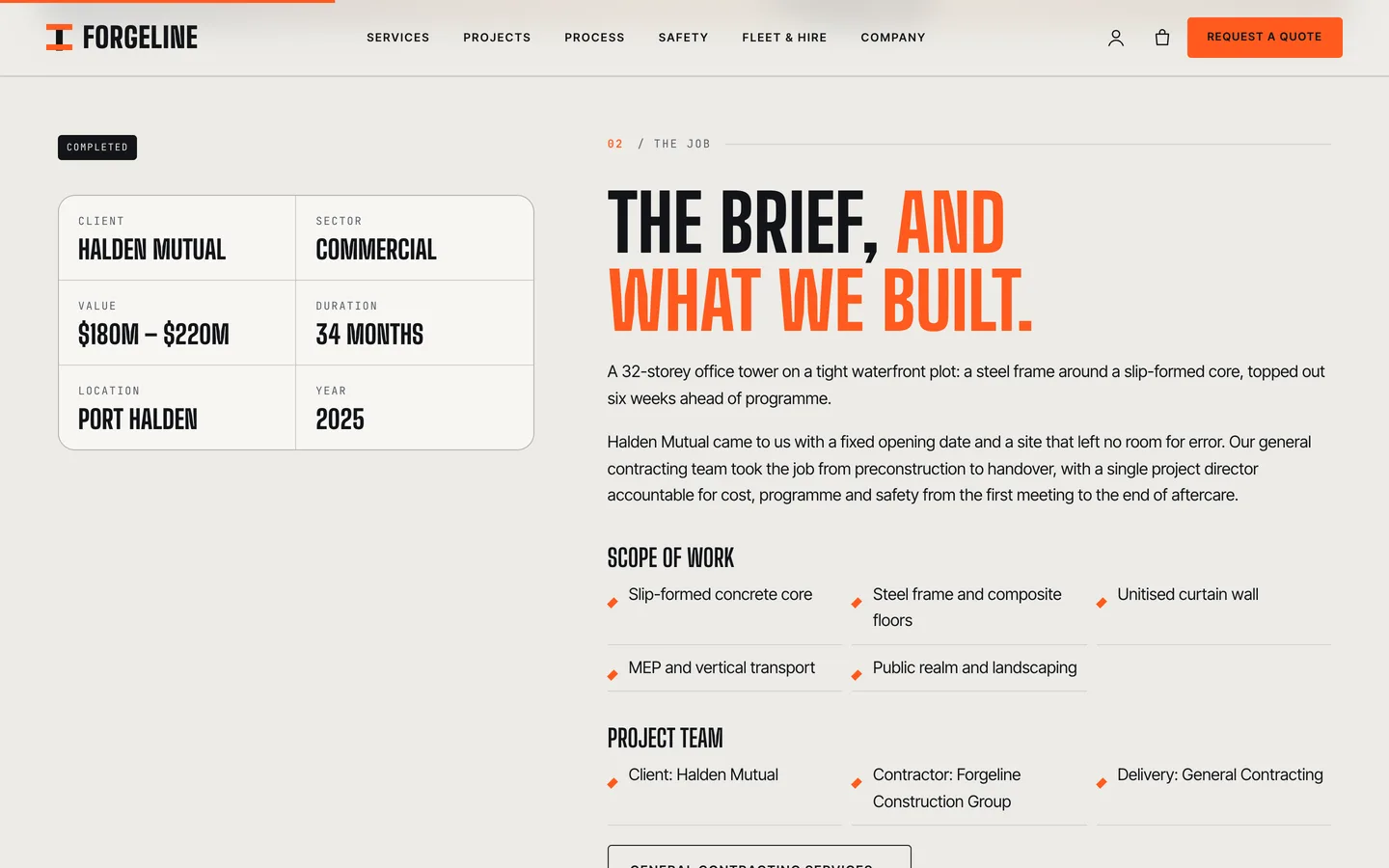
Projects are a post type with plain fields: client, sector, contract value range, duration, location, completion year and status (Completed, In progress or Awarded, shown as a badge), plus the scope of work, the project team and a gallery. Assign a project category such as Commercial or Infrastructure and it appears in the filter bar on the projects page.
On a project page, those fields become a facts sheet beside the scope of work. A giant title and counted key figures sit above a full-width render, and a before/after slider compares the site before and after the job.
On the home page, featured projects glide past in a pinned horizontal rail, and a live sites list reveals each current job's render, sector and status as you hover over it.
Setting up a construction site with Forgeline
1. Install the toolkit and the theme
Upload dev3-theme-toolkit.zip under Plugins → Add New → Upload Plugin and activate it. It adds the services, projects, job openings, leadership and testimonial post types, the Elementor widgets and the demo importer. Then upload dev3-forgeline.zip under Appearance → Themes → Add New → Upload Theme and activate it, and follow the notice to install Elementor, WooCommerce and Contact Form 7.
2. Import the demo
Go to Appearance → DEV3 Demo and click Import. You get a fictional contractor with:
- 14 Elementor pages: Home, Services, Projects, Process, Safety & certifications, Equipment & fleet, Company, Careers, Request a quote, Contact, Insights and the shop pages
- 6 services, 13 projects and 7 job openings, each built in Elementor
- 8 leadership profiles, 6 sample client reviews and 6 insight posts
- 10 products and 3 Contact Form 7 forms (project brief, job application, contact)
All the images, from project dioramas to fleet machines, are rendered from the theme's own 3D scenes, so there is nothing to license. Reset removes only what the import added.
3. Replace the projects first
Your projects are the strongest sales material on the site, so start there. Enter each job's facts, scope and gallery, set its status, and assign a category. Then update the safety page with your own figures and accreditations, and the leadership profiles.
4. Connect the quote forms
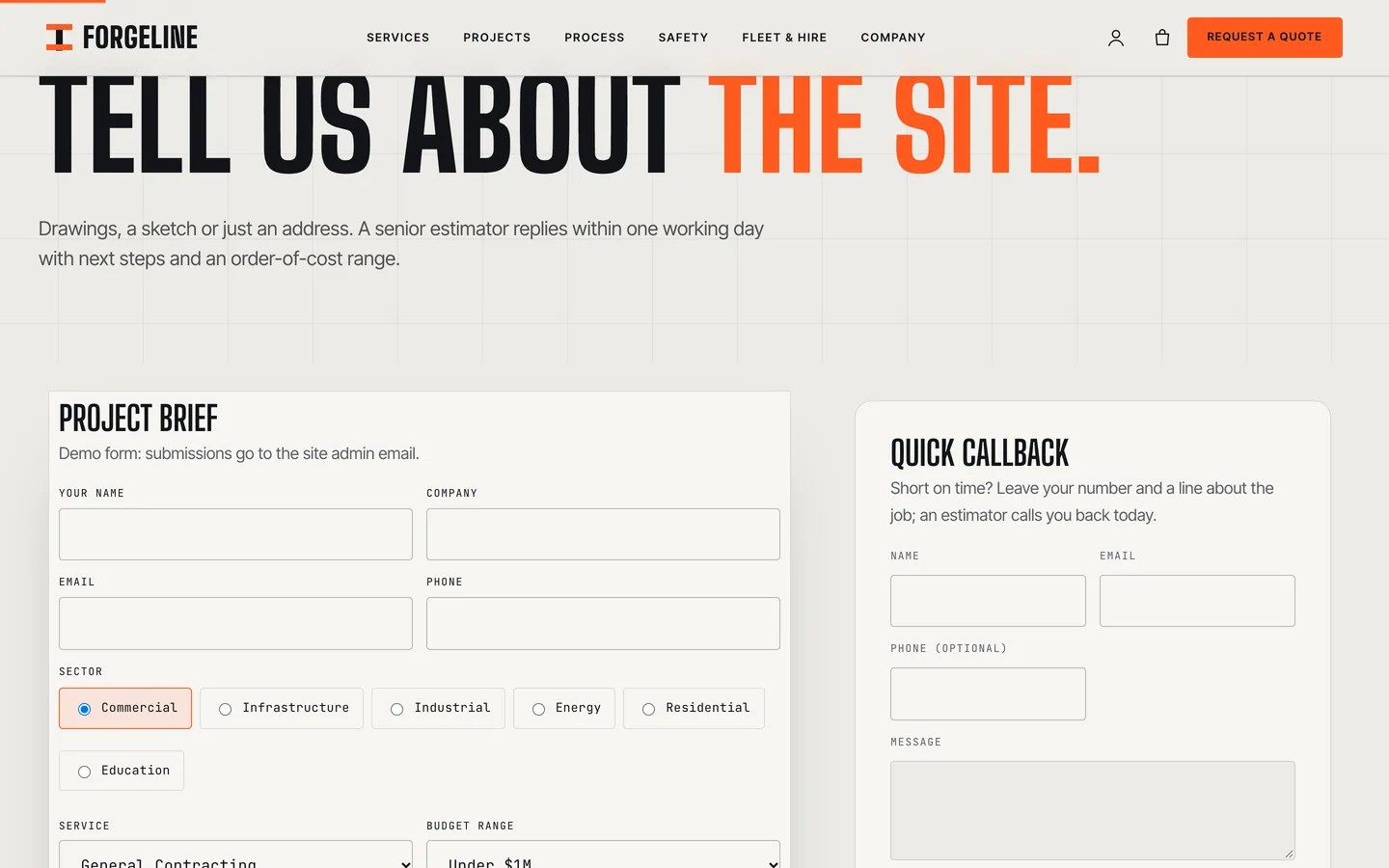
The Request a quote page has two forms side by side:
- A project brief in Contact Form 7, with sector chips, the service, a budget range, location, start date and a file upload for drawings.
- A quick callback form for people short on time. It works without any form plugin: requests are stored under Requests in the dashboard and emailed to the site admin, with a nonce, a honeypot and a rate limit against spam.
Set the recipient of the Contact Form 7 forms under Contact → Contact Forms.
5. Careers
Job openings have a department, location, contract type, salary range, closing date, requirements and benefits. The careers page lists them with discipline filters, and each opening has an application form that accepts a CV.
Motion that feels engineered
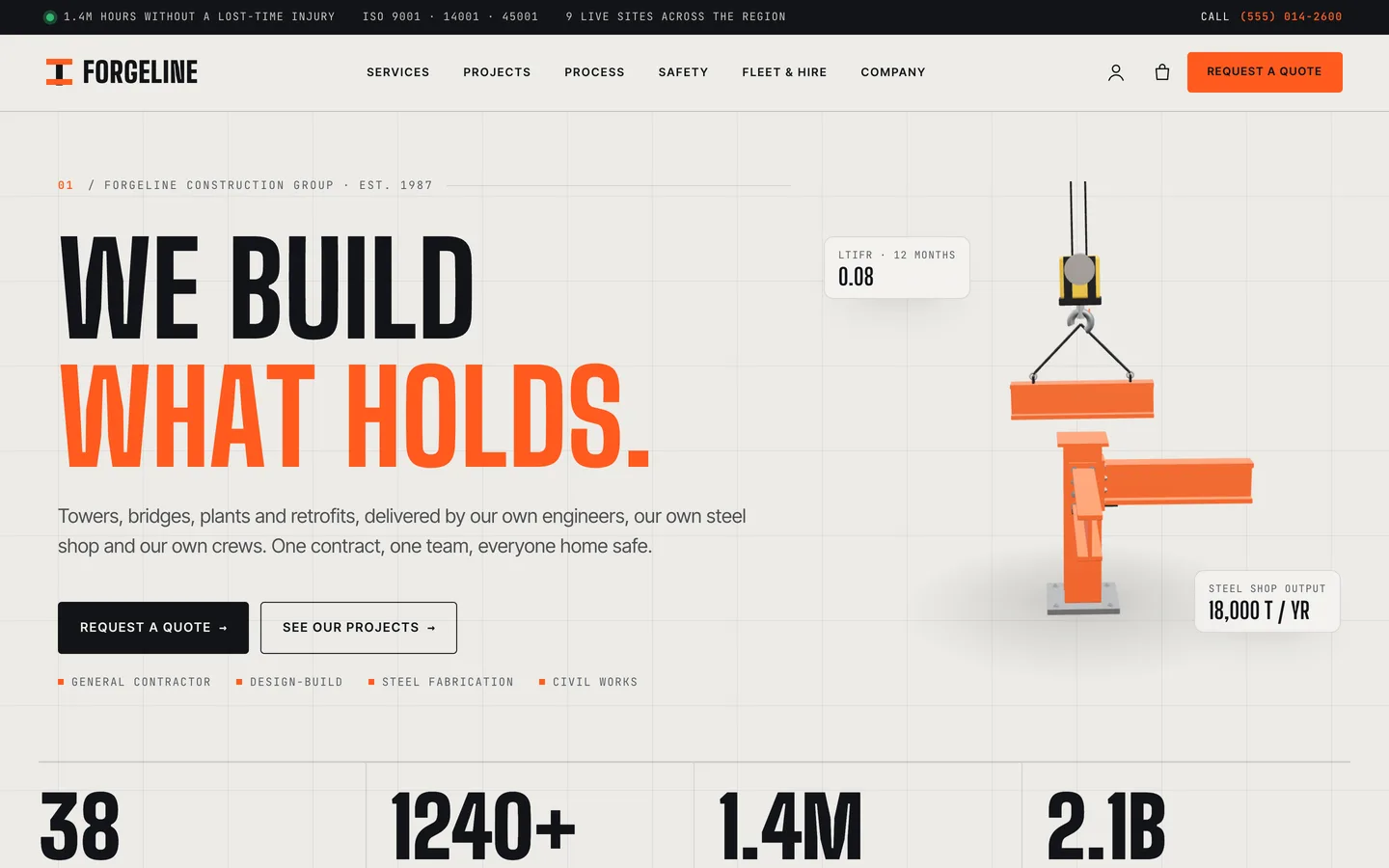
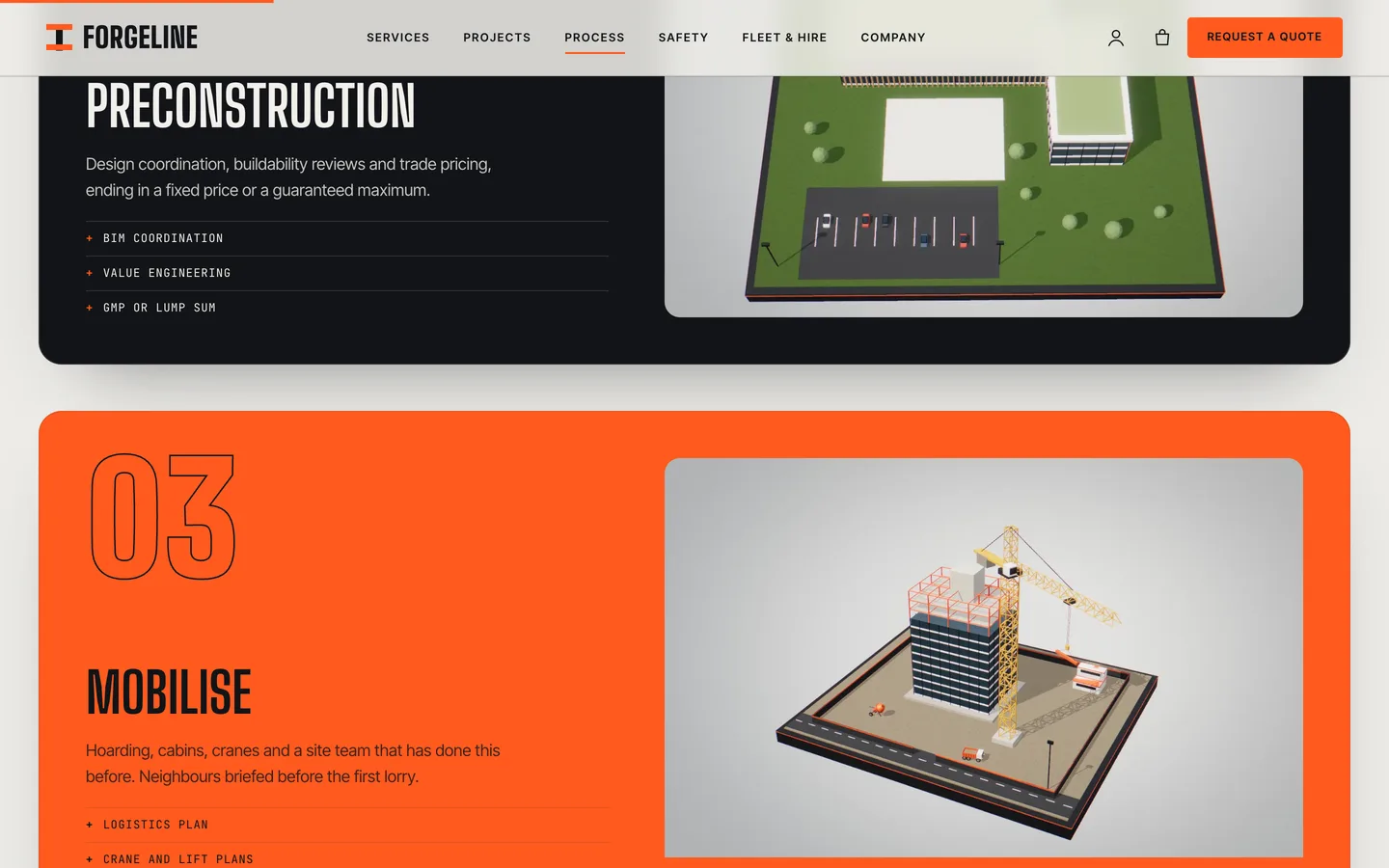
Forgeline is one of DEV3's newer modern themes: rich motion, and only one small 3D object. Headings split into place, counters run up as safety figures enter the screen, an orange ruler tracks your scroll and a dot pulses beside live sites. Each page has one signature moment: the horizontal project rail on the home page, and the stacked process cards on the process page. Any Elementor widget or container can use the same effects from Advanced → DEV3 Motion.
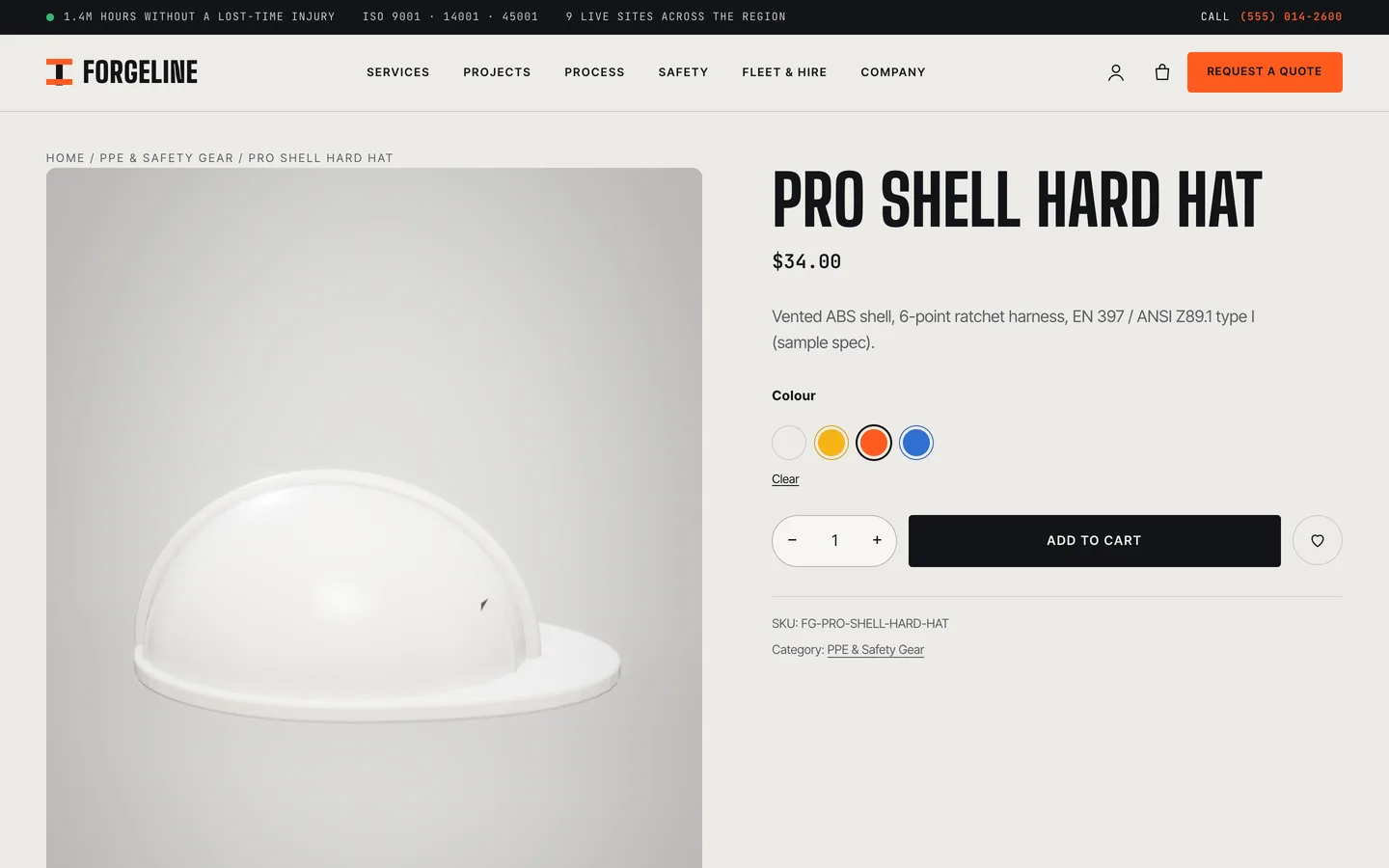
The 3D accent is a steel column-and-beam connection that bolts itself together while a crane hook lowers the next beam. It loads only when it comes into view and pauses when you scroll away. You can repaint it to your brand colour in the widget, and the same engine powers a drag-to-turn project diorama and the 3D product viewer, where colour swatches recolour a hard hat live. Visitors who prefer reduced motion see every element in its final state, and the 3D shows a still image.
A shop for PPE and equipment hire
If you sell online, the WooCommerce shop is ready for PPE with colour swatches and sizes, site essentials, and equipment hire. Hire products are variable by hire period (1 day, 1 week or 4 weeks). The price is the deposit, and a note above the add-to-cart button explains how the balance is invoiced; edit that note in the Customizer.
See it in motion
There is no public live demo, because the motion is best judged moving. The video tour runs from the steel-node hero through projects and the quote page to checkout.
Before you launch
- Replace the demo figures on the home and safety pages with your own audited numbers.
- Set the phone number and top bar items under Customizer → Forgeline: site info.
- Change the accent colour under Customizer → Forgeline Options → Brand colours; Elementor's global colours follow.
Forgeline is on the DEV3 marketplace. The case study covers the design decisions in more depth.