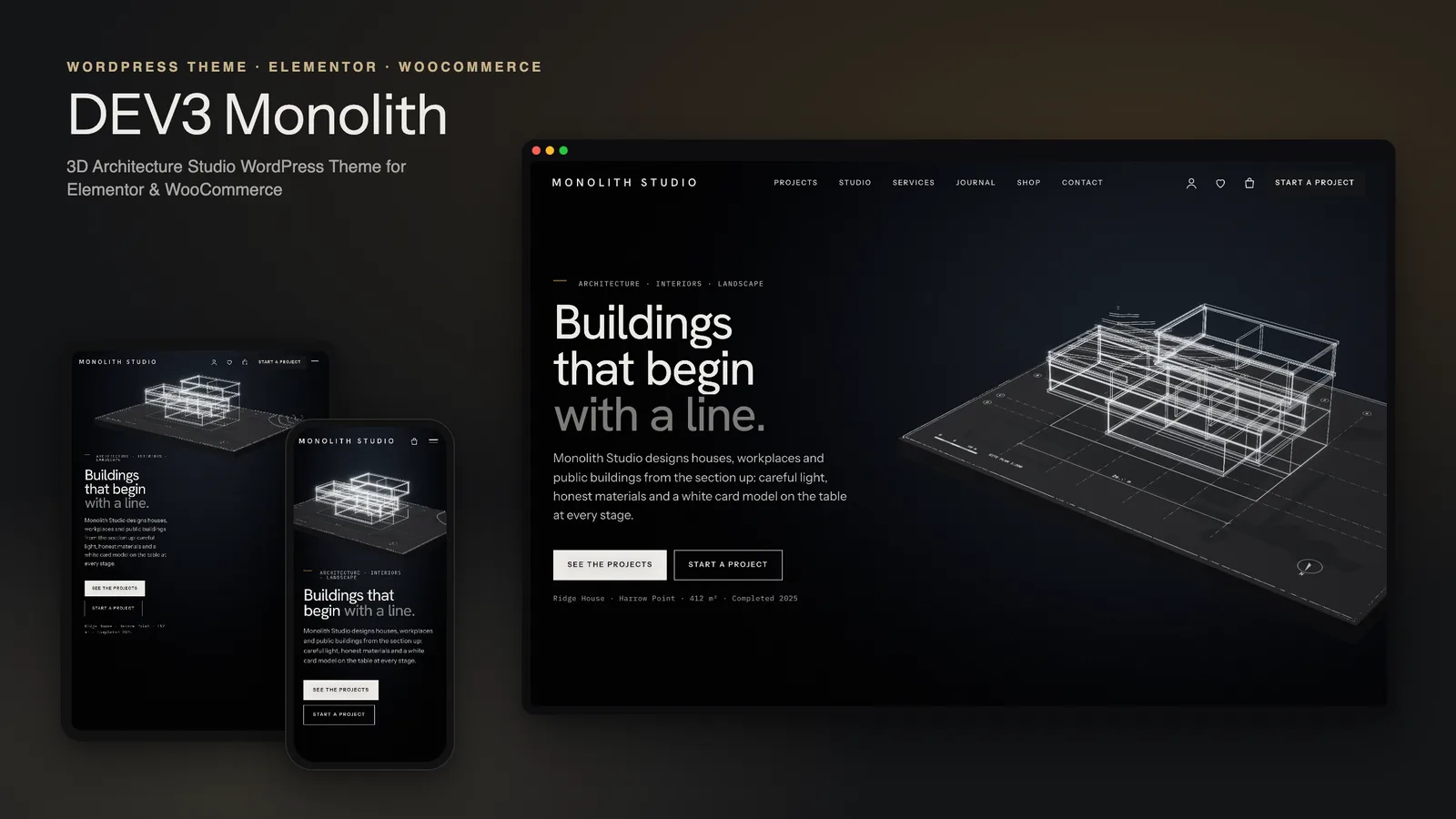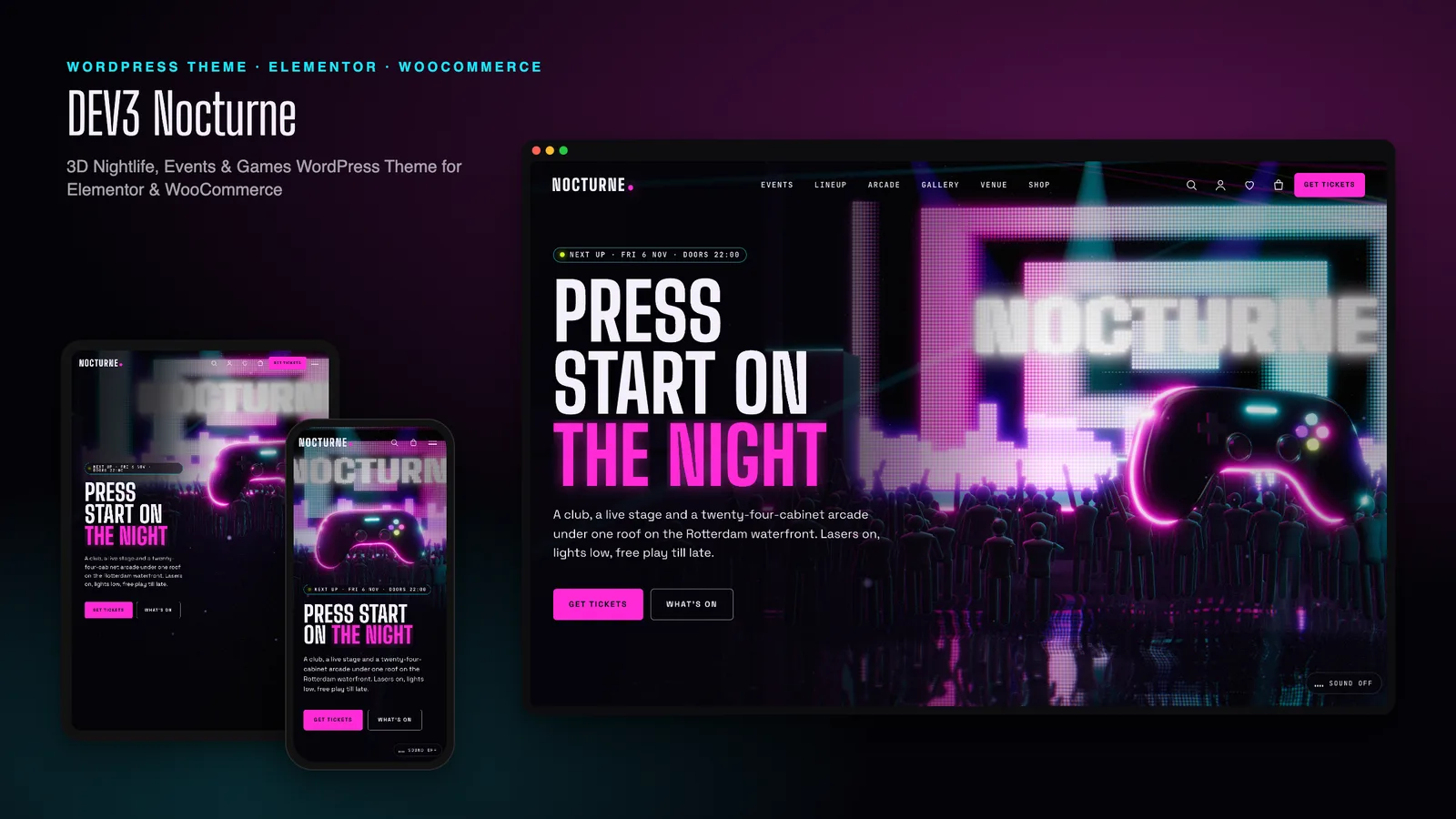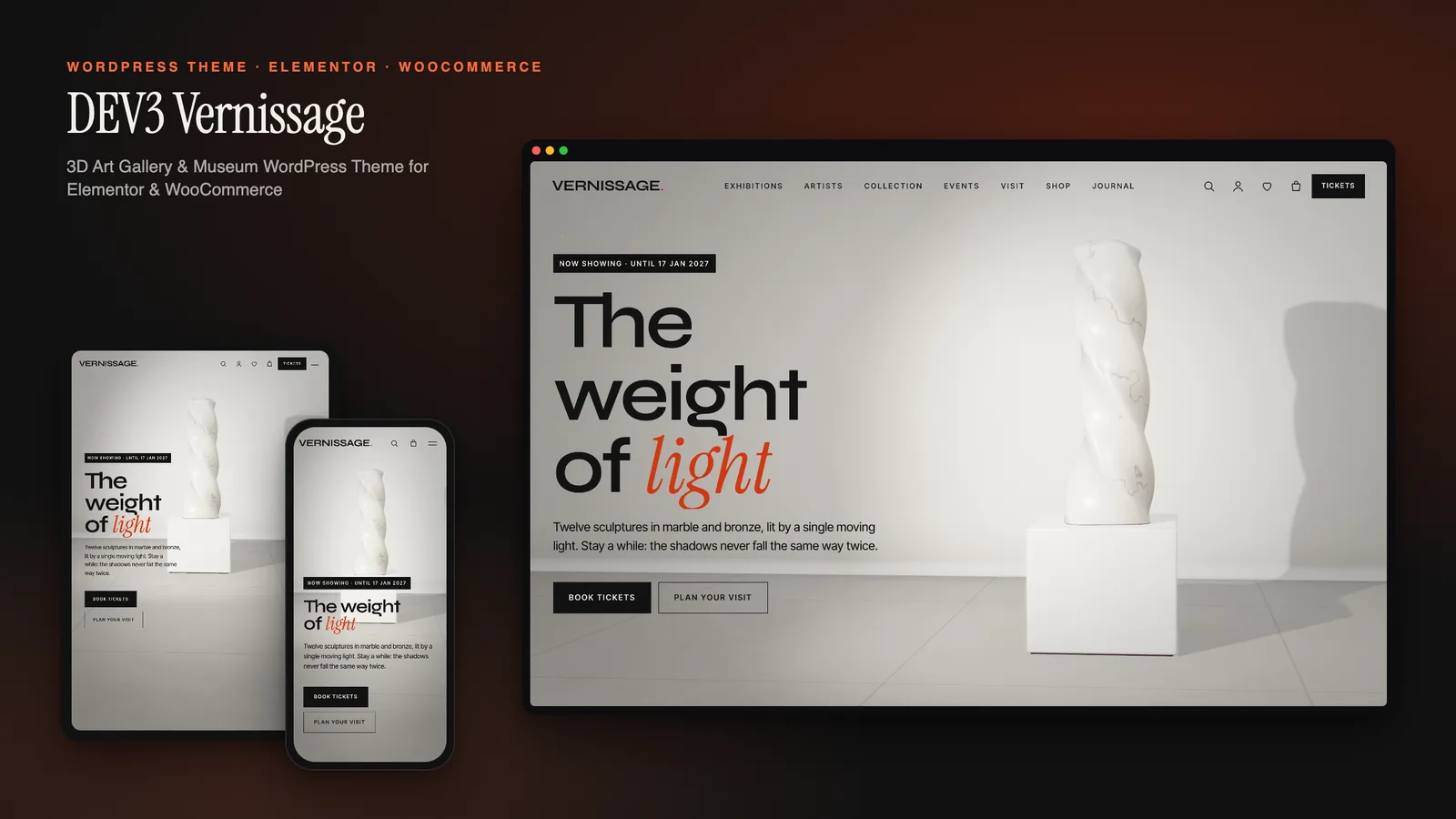
A gallery website has an odd job. It has to step back like a white wall, so the work is what people notice. It also has to carry more structured information than most business sites: what is on, until when, who curated it, who the artists are, what each work is made of, when the gallery opens, what a ticket costs. Many galleries and museums sell prints and memberships as well. DEV3 Vernissage is our art gallery WordPress theme, built for that double job. The atmosphere is a live 3D gallery with a marble sculpture and a moving light. The programme is ordinary WordPress content with the right fields. This post covers who Vernissage suits, how to set up a gallery site with it, and how to edit the 3D chapters in Elementor.
Who Vernissage is for
- Commercial and project galleries with a rolling programme of shows and a stable of artists.
- Museums and cultural centres that need visiting hours, admission, group bookings and events.
- Artists and collectives who want a portfolio that feels like a show rather than a grid.
- Festivals and print studios that sell editions, tickets or memberships online.
If you only need a single-artist portfolio with no shop or programme, Vernissage will feel larger than you need, though the demo pages are easy to remove. It is built for places with a calendar.
The gallery as a 3D story
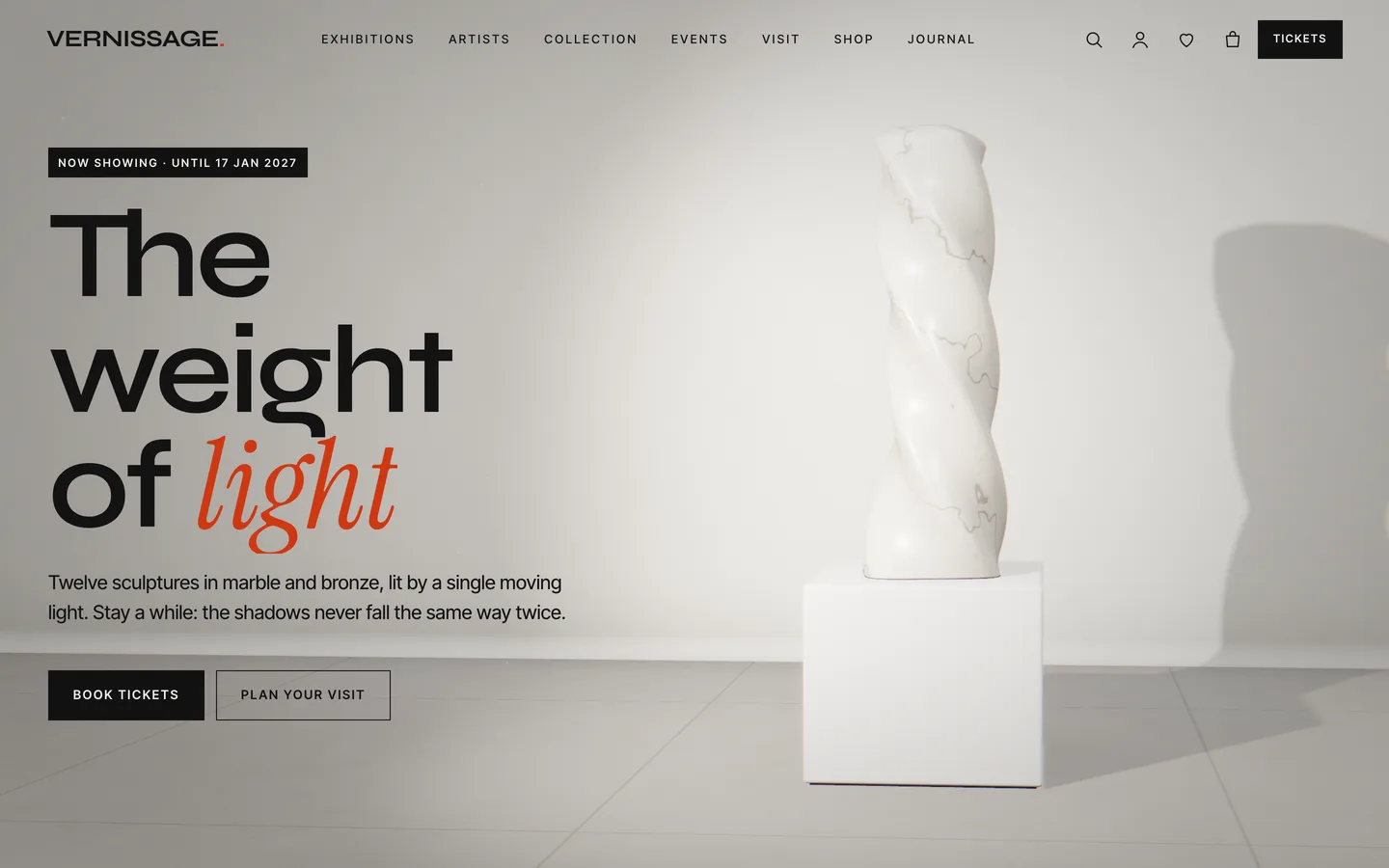
The home page is one three.js scene that stays fixed behind the page while you scroll. A marble sculpture stands on a plinth under a single raking light, and its shadow moves across the walls as the light sweeps. Further down, canvases slide along the long wall, the room dims to one light, and a feature wall turns vermilion to introduce the print shop. Between chapters, an ink stroke flows across the screen, and the room changes underneath it, so nothing jumps.
Everything is procedural. The sculptures are generated shapes: a twisted column, a spindle in flight, an endless loop, a resting ovoid and a stacked column. Each comes in white marble, nero marble, travertine or patinated bronze. The paintings come from a shader with six styles: colour field, hard-edge geometry, marbled ink, contour drawing, horizon and gesture. A palette and a seed make each painting repeatable. That is why the demo's 16 artworks need no licences, and why you can launch before your own photography is ready. When you have a 3D scan of a real sculpture, paste its .glb URL into the scene instead.
Setting up a gallery site with Vernissage
1. Install and import
Upload dev3-vernissage.zip under Appearance → Themes → Add New → Upload Theme and activate it. Then install the DEV3 Theme Toolkit from the prompt. It is required: it provides the exhibition, artist, artwork and event types, the widgets and the importer. Install Elementor, WooCommerce and Contact Form 7 from the same prompt. Then go to Appearance → DEV3 Demo → Import demo while logged in as an administrator. You get:
- the Home, Exhibitions, Artists, Collection, Visit, Events, Journal and Contact pages
- 6 exhibitions, 6 artists, 16 artworks and 6 events
- 13 products: framed prints, tickets and memberships
Imported items are tagged, so Reset later removes only the demo.
2. Model your programme
This is where Vernissage differs from a generic portfolio theme. Each part of a programme has its own content type and fields:
| Type | Fields | What you get |
|---|---|---|
| Exhibitions | Opens, closes, venue, curator | Current / Upcoming / Past filters, ExhibitionEvent structured data |
| Artists | Discipline, based in | Artist pages with Person structured data |
| Artworks | Artist, year, medium, dimensions or credit | A Collection grid filtered by medium, hung on a plaster wall |
| Events | Starts, ends, venue, line-up, price, ticket product | A "Book a ticket" button linked to WooCommerce |
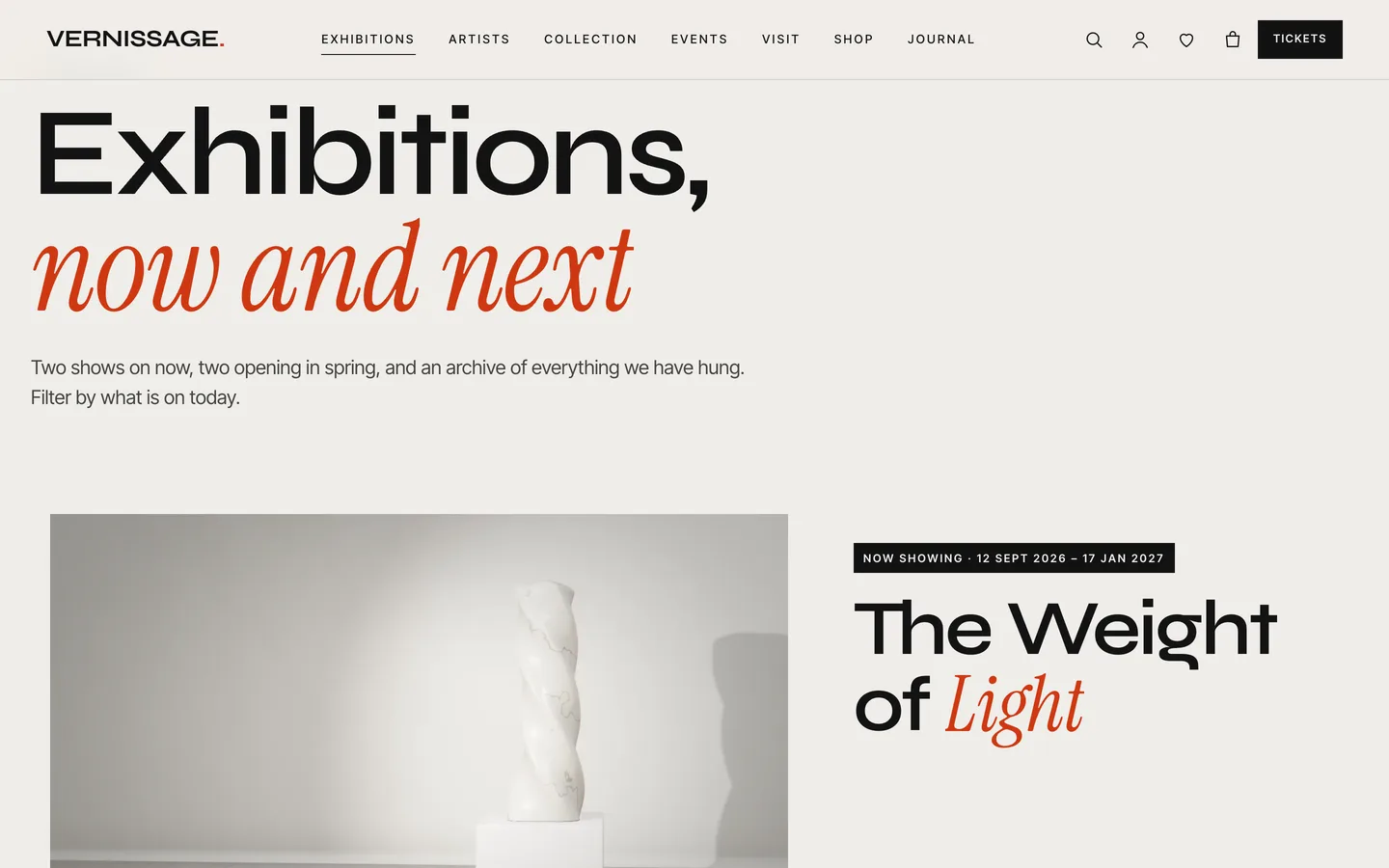
Start with the exhibitions, because the home page and the Exhibitions page lead with them. File each one as Current, Upcoming or Past. Then add artists and their works. Pages you build in the block editor show a wall label under the title automatically, with the dates, venue or medium. Every single page can also be designed in Elementor; the demo does that for all of them.
3. Fill in the visit page
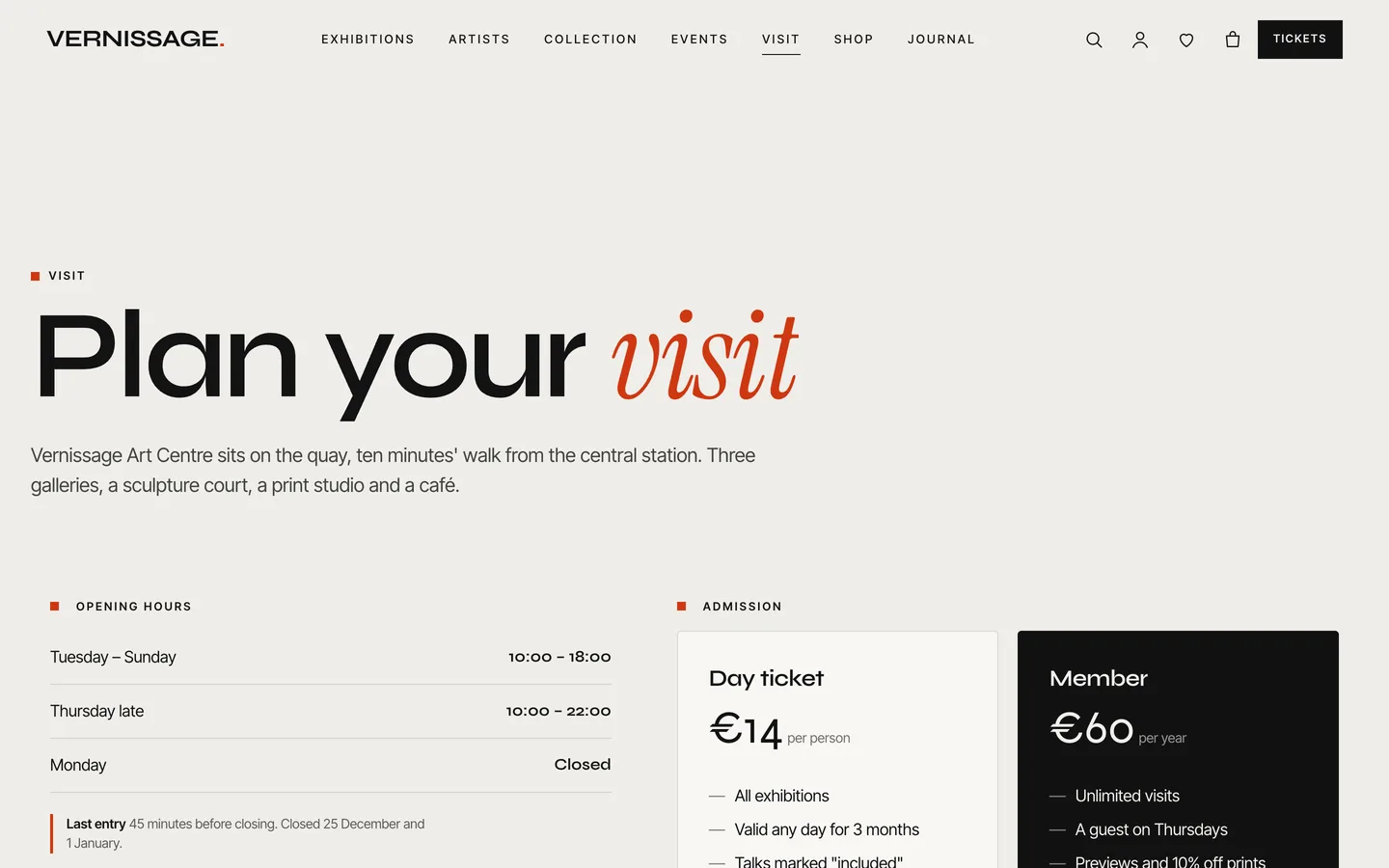
Set the hours line in Appearance → Customize → Venue (Vernissage). It appears above the footer on every page, for example "Open Tuesday – Sunday 10:00 – 18:00 · Thursdays until 22:00". The Visit page in the demo also includes:
- opening hours and last entry
- admission cards built with the Pricing Table widget
- a map that loads only after a click, so the page makes no third-party requests until the visitor asks
- a Group visit form for school and tour bookings
- an FAQ with FAQ structured data
4. Open the print shop
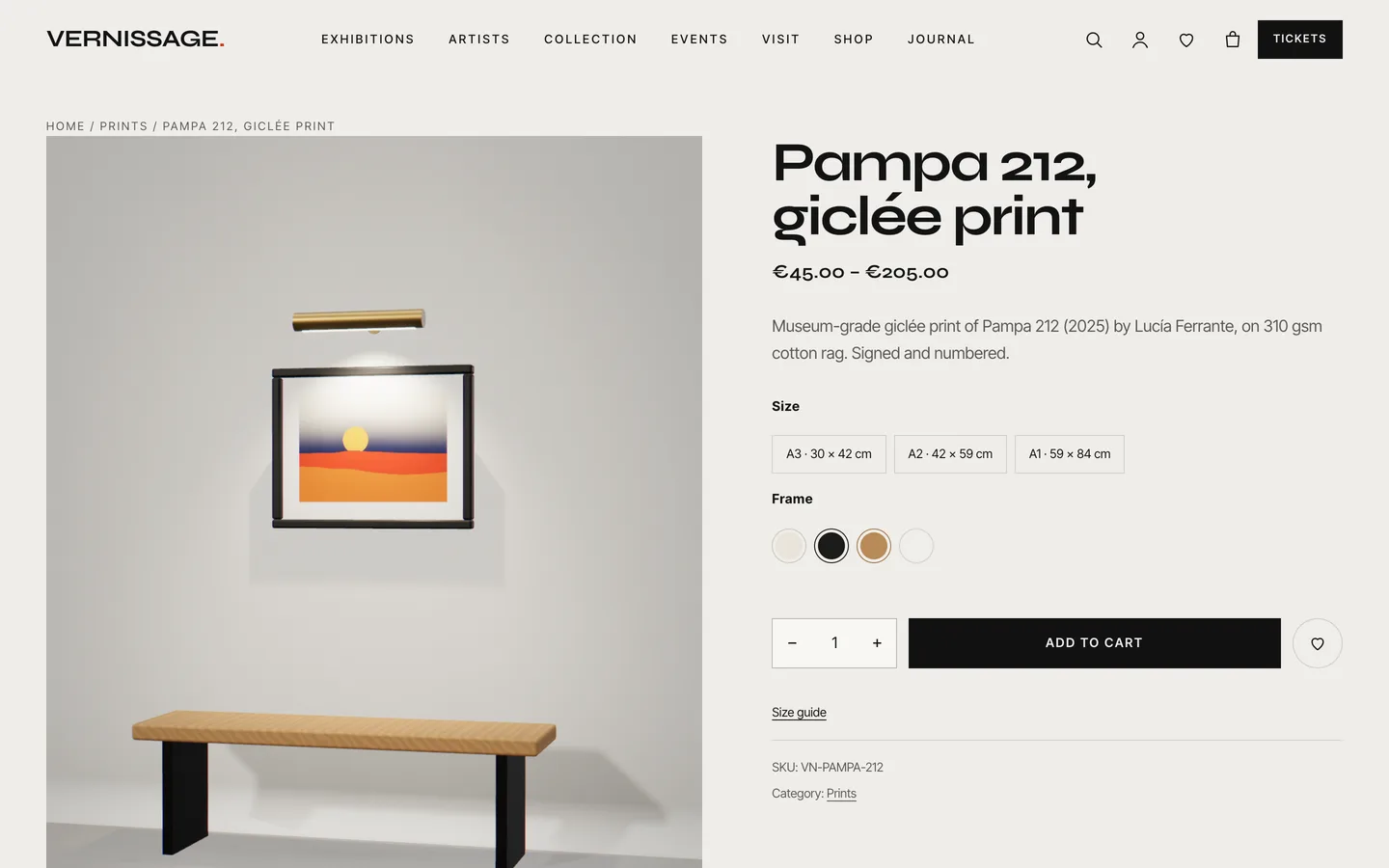
Framed prints are where the 3D earns its keep in the shop. Normally you would need a photo of every size and every frame, and a print in 3 sizes and 4 frames has 12 variations. On Vernissage, a print is one variable product with a Size attribute (A3, A2, A1) and a Frame attribute (unframed, black, oak, white, walnut, brass). On its 3D view tab, choose Vernissage: framed print on a wall with the artwork's style, palette and seed. The product page then shows the print hanging above a bench under a picture light. Picking A1 makes it bigger on the wall, and picking oak changes the moulding.
Tickets and memberships are simple virtual products with no shipping. Link an event to its ticket with the event's Ticket product ID. A mini-cart drawer, quick view and a saved-works wishlist are included.
Editing the 3D chapters in Elementor
Open the home page with Edit with Elementor. At the top is a 3D Scene widget with the marble in the gallery preset in Fixed background (scroll story) mode. Its panel picks the sculpture and material, the wall, feature-wall and ink colours, and the light intensity. It also switches the ink transitions and side-wall canvases on or off.
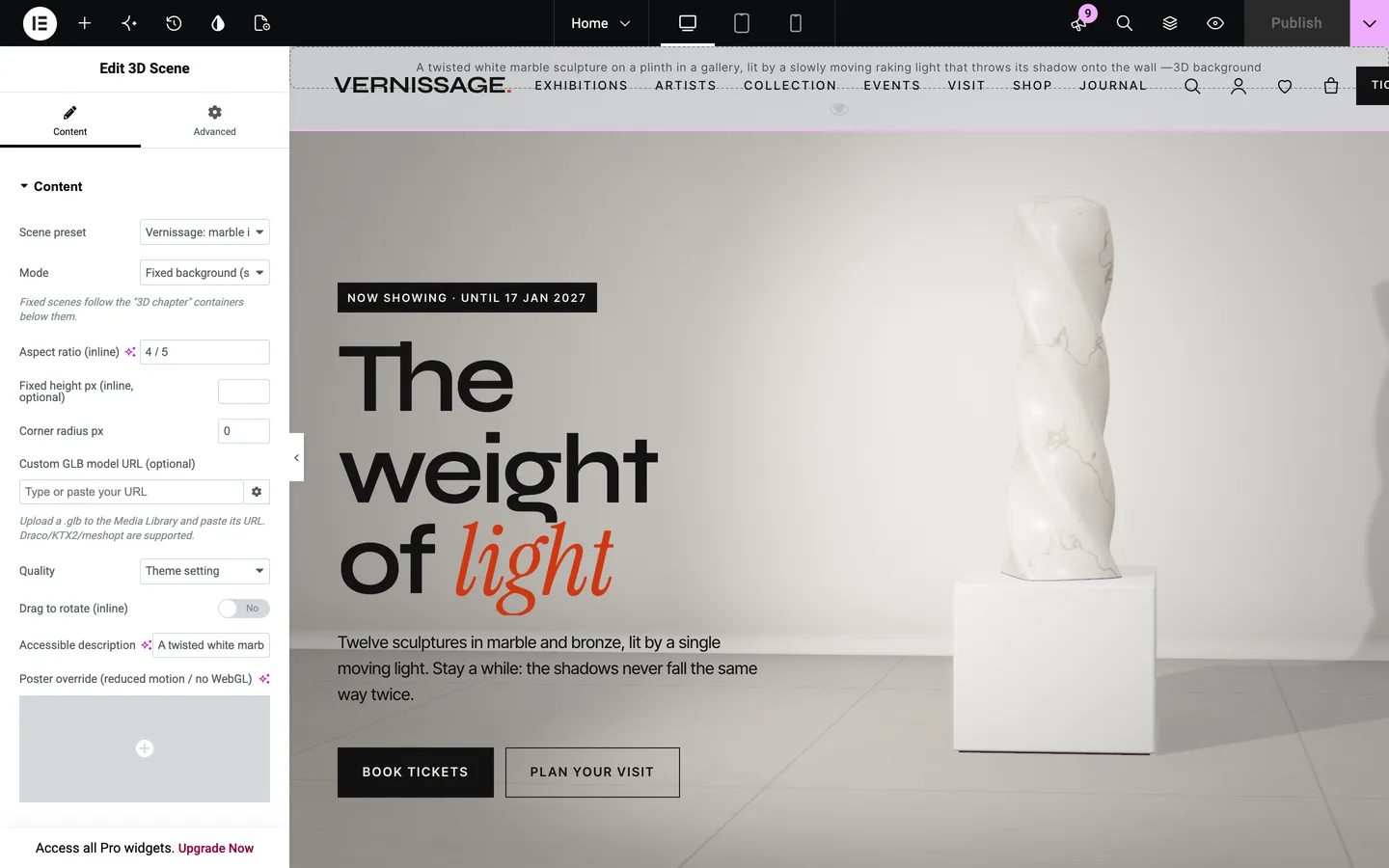
The chapters are the containers below, each with Advanced → DEV3 3D chapter → Use as 3D chapter switched on. Each is one camera stop:
- Copy side moves the sculpture to the side opposite your text.
- Header tone keeps the header readable: dark text on light chapters, light text on dark ones.
- Scene state JSON sets the mood of each chapter, and values blend between stops:
spinturns the sculpture.sweepmoves the raking light.dimtakes the room from an open gallery to a single light in the dark.wallturns plaster into the feature colour.slidemoves the canvases along the walls.warmadds evening light.art,artLandhangRhide or show the hangs.
A typical edit is adding a chapter for a new show. Duplicate a container, change its words, and give it a sweep and spin between its neighbours'. The light and the sculpture then move into position as visitors arrive, and the ink transition covers the change.
If you prefer the block editor, every widget has a block twin, the 3D Chapter block replaces the container setting, and there are 28 patterns. They include a gallery hero, a now-showing band, artwork with a wall label, a membership band and three ready-made 3D sections.
Speed and accessibility
Galleries are judged on restraint, and that includes loading time:
- All headings, dates and wall labels are HTML, visible to search engines and screen readers whether or not WebGL runs.
- The engine loads only on pages with a scene, within a 220 KB gzip budget including three.js. The Vernissage scenes add about 9 KB.
- The low quality tier lightens shadows and geometry on weaker devices.
- Visitors with reduced motion, Save-Data or no WebGL see a still poster of the gallery.
See it in motion
There is no public live demo; light is best judged moving. The video tour walks from the sculpture through the exhibitions and a print product page to checkout.
Vernissage is on the DEV3 marketplace. The case study explains the design behind the light, the painting shader and the 3D print room.