Attendance is where an HR app either earns trust or loses it. When a clock-in from a phone can be faked, approved twice, or judged by different rules from the web, the timesheets stop meaning anything. WorkPro iOS is the native iPhone and iPad app for WorkPro, and it now ships in the iOS-App/ folder of the WorkPro download. This post explains how its SwiftUI source handles geofenced attendance, timesheets and approvals, and why the phone never decides anything the server should.
What is in the source
The app targets iOS 26 (Liquid Glass) with Swift 6 strict concurrency, for iPhone and iPad. It is an XcodeGen project with three parts:
- WorkProKit holds the API client, the Keychain token store and the models. Its tests decode JSON captured from a seeded server.
- WorkProUI holds the "aurora glass" theme in teal and ocean blue, and the components.
- The app target plus a widget extension for the Home Screen and Lock Screen clock widgets.
Nuke loads images.
Staff, managers and admins get five tabs: Home, Time, Tasks, Approvals and More. Client-portal users get Home, Projects, Invoices, Tickets and More. Which tabs appear depends on three things, all resolved by the server: the user's persona, their security role's permissions and the organisation's switched-on modules. An organisation without the Projects module never sees timers, and a user without an approval permission never sees an empty Approvals tab.
How the app reaches the server
The WorkPro web app in the same package includes an /api/mobile layer. Nothing has to be switched on. The app uses that layer and the existing organisation API with a bearer token.
- Sign-in.
/api/mobile/auth/loginruns the same credentials check and lockout counter as the website, which share one module. The server returns awpm_token and stores only its SHA-256 hash on the sameUserSessionrows that browser sessions use. - Session lifetime. App sessions last 14 days from last use. They appear in the website's session list, where signing one out ends it. A password change bumps the session version and ends old sessions.
- Forced password change. If the organisation requires a password change, the server refuses every app request except the change itself. The app shows only that screen until the user has changed their password, and the server then returns a fresh token for this phone.
- Reads and writes. Read queries live under
/api/mobile/q/…. Mutations go through/api/mobile/rpc/<module>/<action>to an allow-list of the website's own server actions. - Super Admins pick an organisation first. The app then sends it as an
X-Tenantheader, and they can switch from More.
Geofenced attendance: the phone measures, the server decides
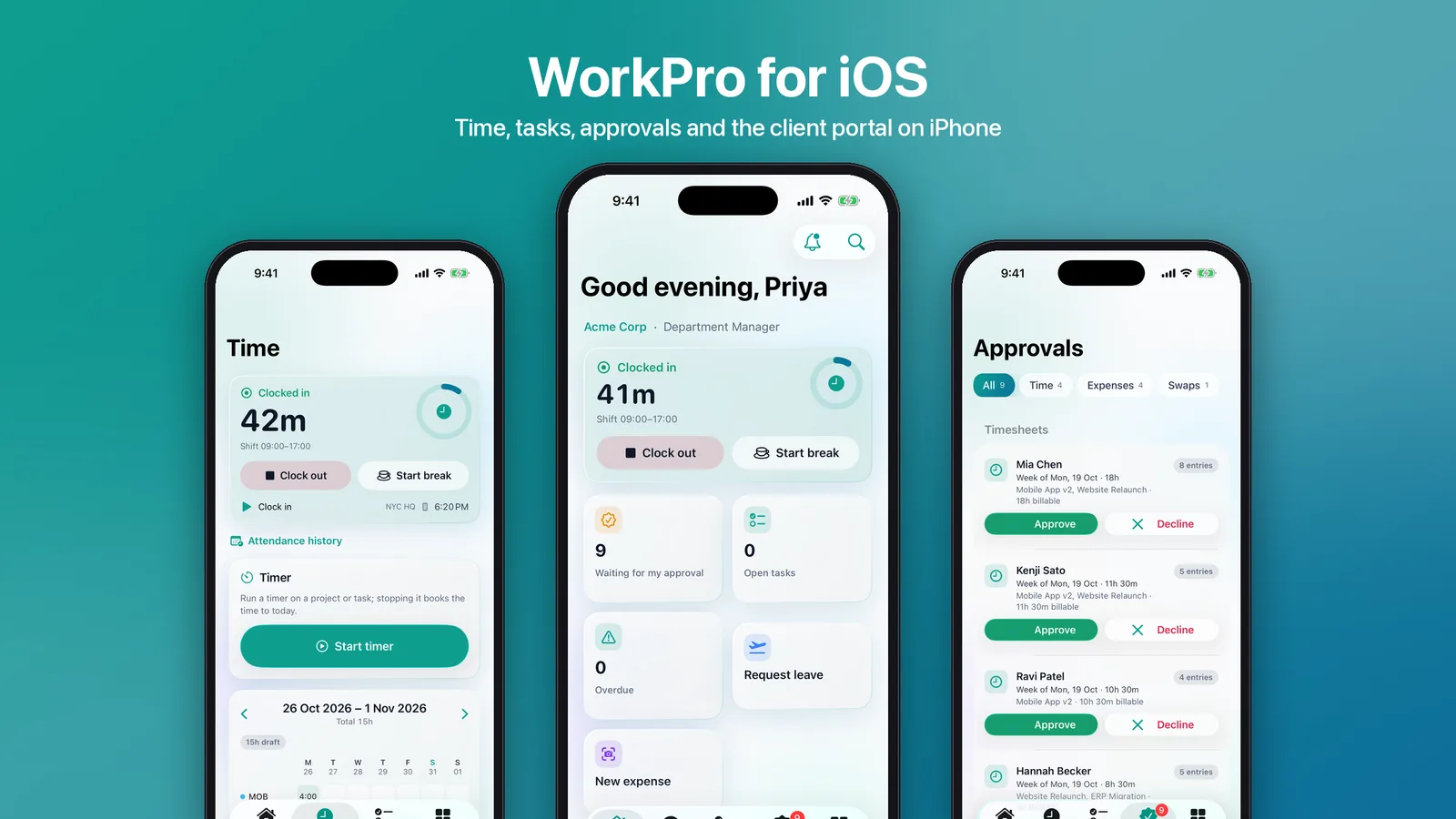
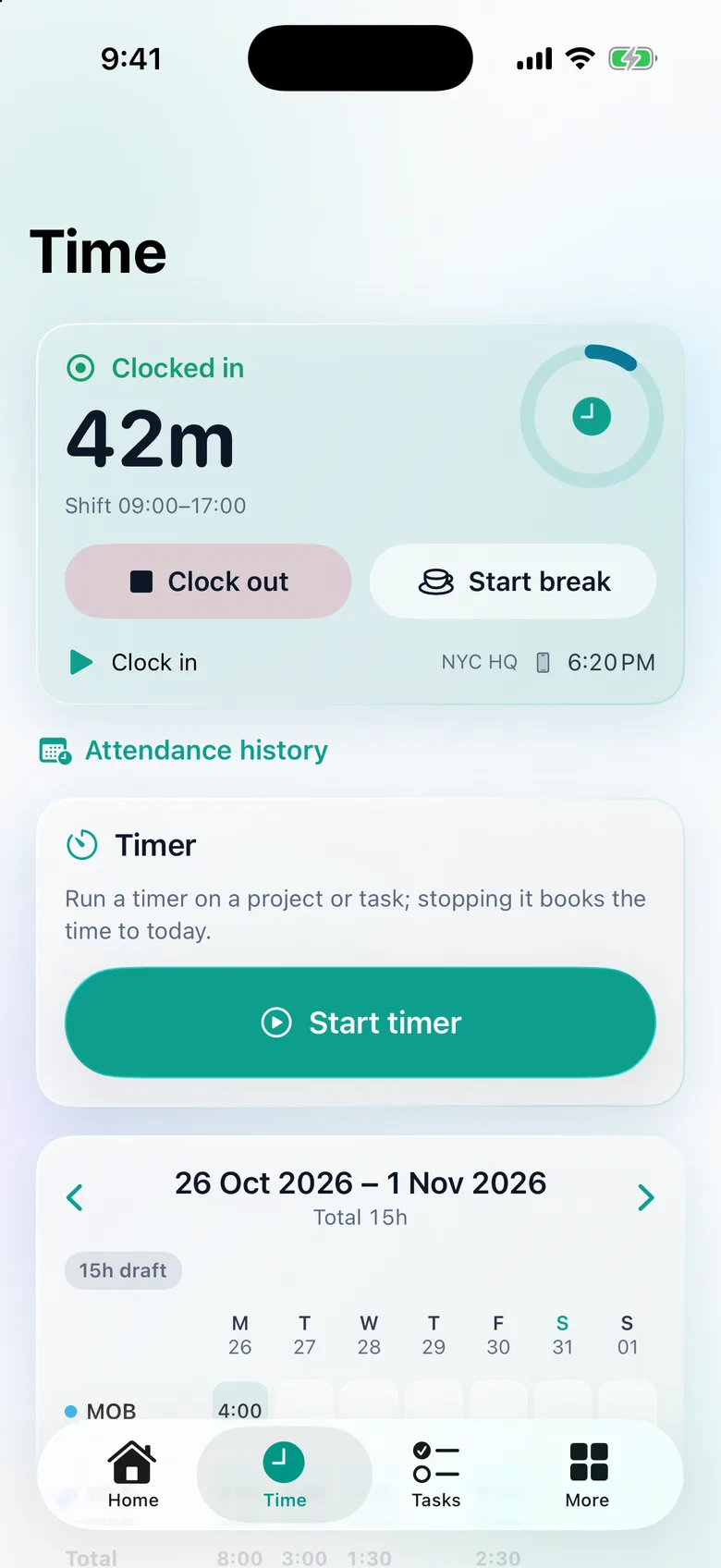
The clock card sends a punch through the website's own punchAction, with the source set to MOBILE and the phone's location. The location code asks for when-in-use permission the first time. It reuses a fix under a minute old with better than 100 m accuracy, and otherwise waits up to eight seconds for a new one. If location is denied or too slow, the punch is still sent, just without coordinates (condensed from ClockCard.swift):
private func punch(_ type: String) async {
    let fix = await LocationFix.shared.current()
    let input = PunchInput(type: type, lat: fix?.coordinate.latitude, lng: fix?.coordinate.longitude,
                           accuracyM: fix.map { max(0, $0.horizontalAccuracy) })
    _ = await app.run(label(type) + " ✓") {
        let r = try await app.api.action("attendance/punchAction", input, as: PunchResult.self)
        if r.late == true, let m = r.lateMin { app.show(.info(String(localized: "Clocked in \(m) min late"))) }
    }
}
The app sends a missing location instead of refusing, because the rules belong to the organisation and they live on the server. The attendance service in the web app makes the decision (condensed):
if (!ipAllowed(ip, sec.clockInIpRanges ?? [])) throw new UserError('Clocking in is only allowed from an approved network. …');
const fence = hasPoint && fences.length ? nearestGeofence({ lat: input.lat!, lng: input.lng! }, fences) : null;
if (sec.requireGeofence) {
  if (!hasPoint) throw new UserError('Your location is required to clock in. Allow location access and try again.');
  if (!fence?.inside) throw new UserError(`You are outside the allowed work locations (…).`);
}
An organisation that requires geofencing refuses a punch without a location, or one outside every work location, with a message that says how far away the user is. An organisation that doesn't require it still records the nearest geofence and distance on the punch. Network IP ranges, overnight shifts, double clock-ins and late arrivals are all handled in that one service, for the browser and the phone alike. In the attendance history, punches made from the app show a phone icon.
Timers and the weekly timesheet
The Time tab also runs a timer on a project or task. Stopping it books the time to today. Below the timer is the weekly timesheet grid: edit cells, add a project row and submit the week. Submitted time then goes to the manager's approval queue on the server.
One approvals inbox
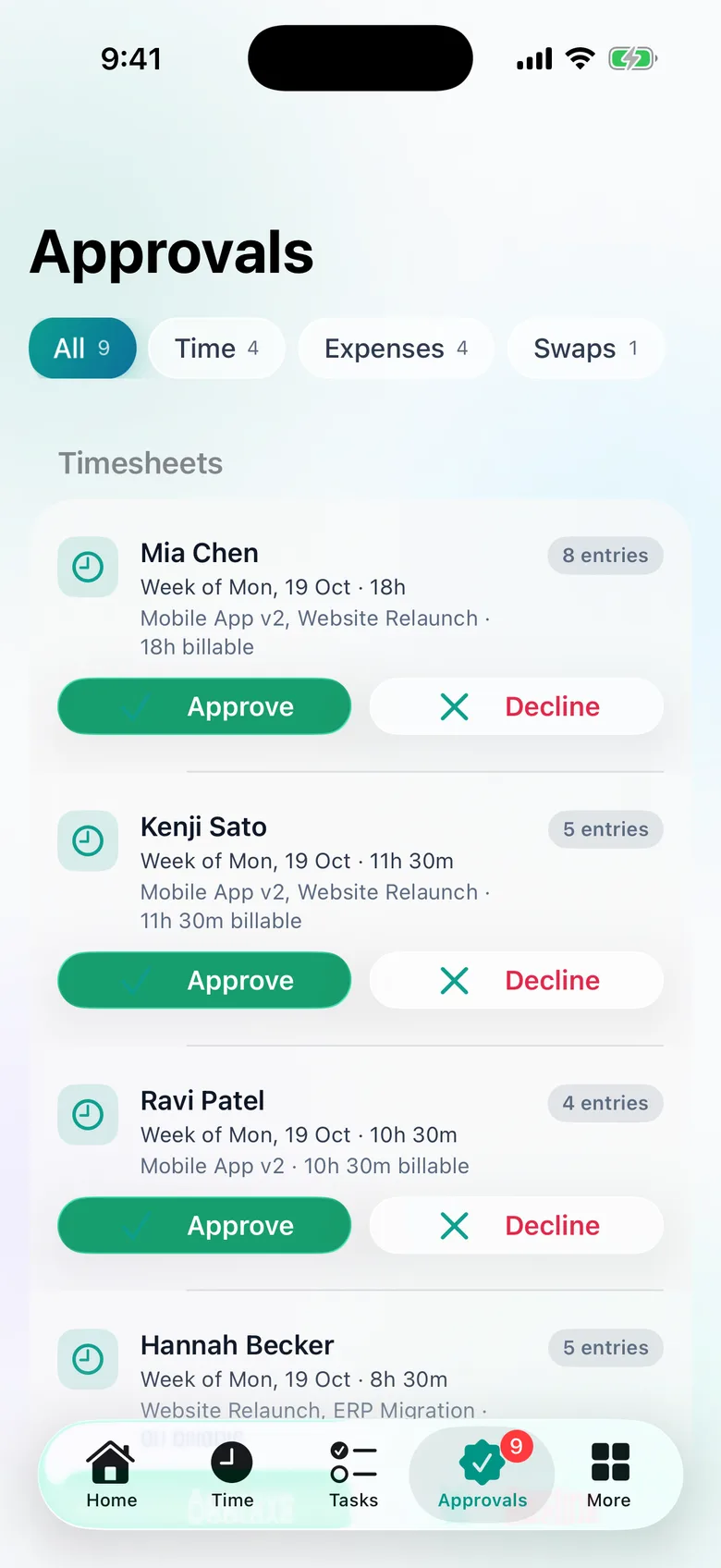
Managers get one inbox for six kinds of request: leave, timesheets, expense claims, attendance corrections, shift swaps and quotes. Each kind is filtered by the server before it reaches the phone. The query loads a kind only when the organisation has the module and the user holds the approval permission at the right scope:
const canTime = has(ctx, 'projects') && can(ctx.user, 'time.approve', 'team');
const canExpenses = has(ctx, 'finance') && can(ctx.user, 'expenses.approve', 'team');
const canCorrections = has(ctx, 'hr') && can(ctx.user, 'attendance.approve');
const canQuotes = has(ctx, 'crm') && can(ctx.user, 'quotes.approve');
Submitted time is grouped into one card per person and week, and the week is approved or sent back together, as in the web's approvals table. Approve and decline call the same server actions as the website. A decline asks for a reason.
Leave, people and the rest of More
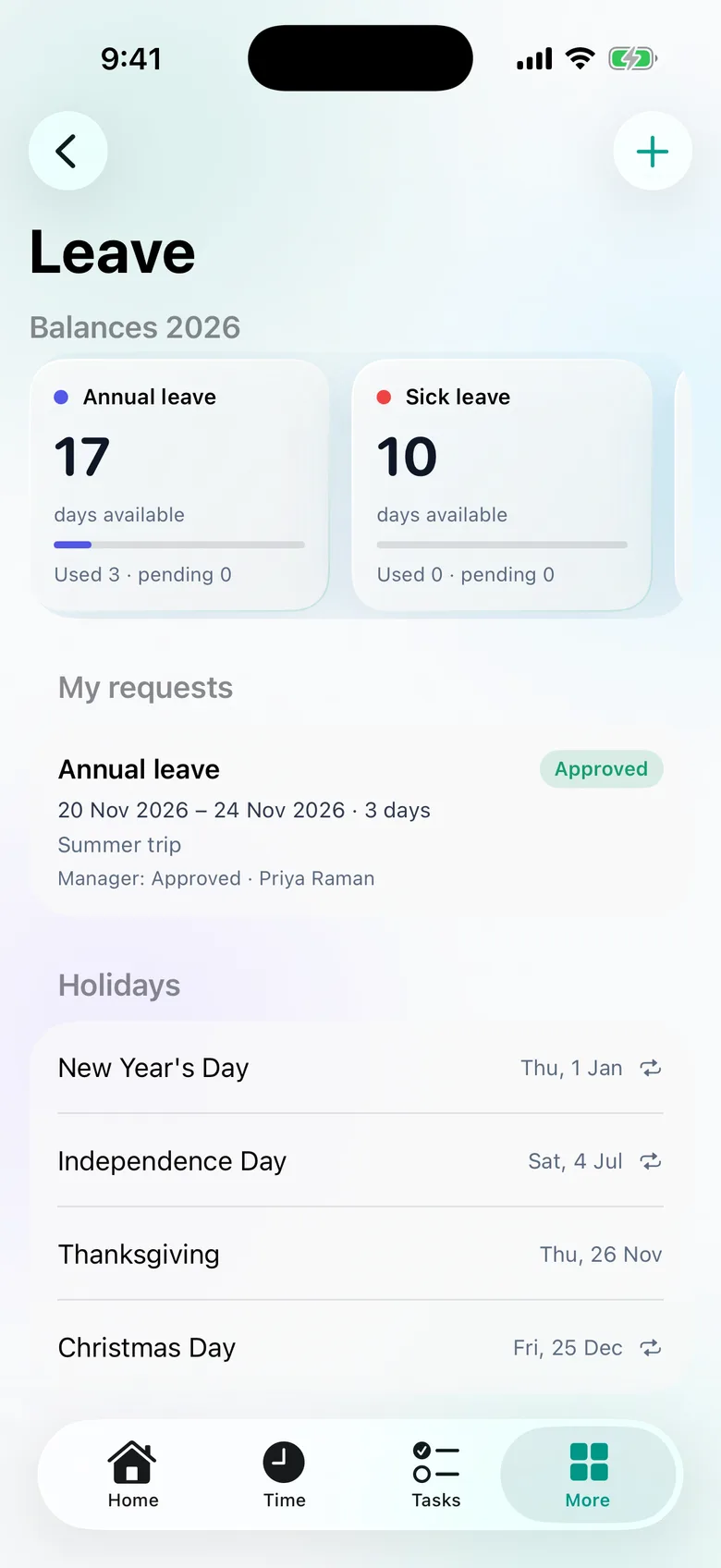
Leave shows balances per type, requests with their approval status and upcoming holidays. A new request shows a live preview before it is sent, and pending requests can be cancelled. More also holds:
- People: the employee profile, roster and shift swaps, the directory and the org chart.
- Money: expenses with a receipt photo, and invoices with PDF and record payment.
- Customers and work: clients with a 360 view, the leads pipeline, tickets, projects and interviews.
- Settings & records: a server-driven console with 17 screens, covering the organisation profile, users, departments, teams, roles, the audit log, leave policies, holidays, shift templates, expense categories, recurring invoices, the inquiry inbox, quotes, jobs, candidates and email templates. Its forms are built from the server's own validators.
Clients and candidates use the same app
A client-portal user sees their projects with progress and milestones, open tickets with replies, and invoices with the PDF and Pay now.
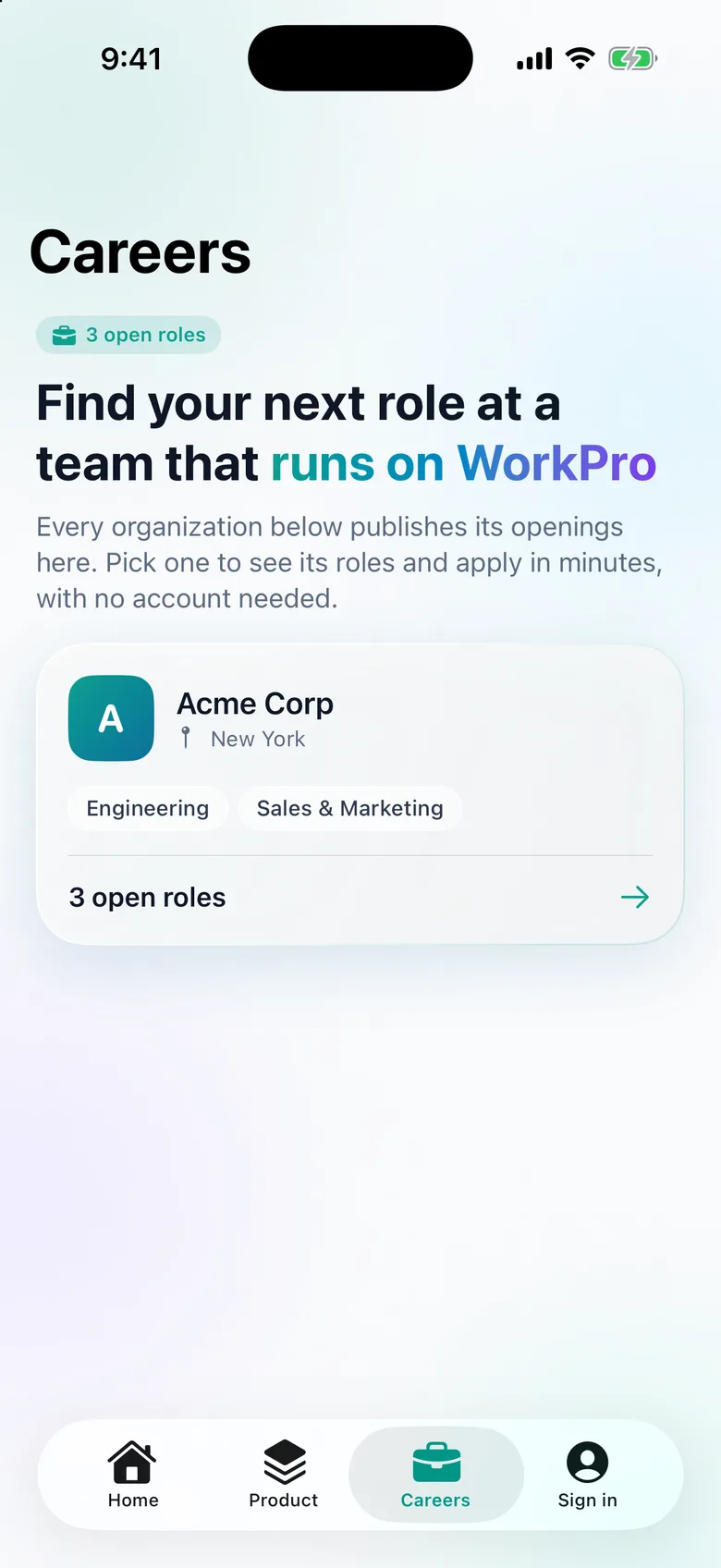
Signed out, the app is the company's public website, rendered natively from the CMS. It also has a careers board: organisations that are hiring, their job boards and postings, and an application form with a résumé upload and screening questions. No account is needed to apply. Emailed invoice links and an organisation's hosted inquiry form also open natively.
iOS integration
- Push notifications (APNs) for every in-app notification. Push is off until the server has APNs keys.
- Clock widgets on the Home Screen and Lock Screen.
- Links: deep links, Universal Links and links from notifications.
- Shortcuts: Spotlight for people and projects, Home Screen quick actions, and Siri Shortcuts for time, approvals and requesting leave.
- Face ID lock and light, dark or system appearance.
See it in motion
Rebrand and set up
- Backend. Deploy the included WorkPro web app. Its mobile layer ships with it and needs nothing switched on. For push, set the APNs key, key id, team id and bundle id on the server, and optionally a minimum app version to force updates. Receipt and résumé uploads use the web app's file storage settings.
- Brand. In
Config.xcconfig, set the app name, bundle id (the App Group is derived from it), Apple Team ID, the brand gradient, the URL scheme, the Universal Links domain and the server URL for debug and release builds. - Icon. Install XcodeGen and librsvg, then run
scripts/make-icons.shto redraw the clock-ring icon from your colours. - Build. Run
xcodegen generate, open the project, and enable Push Notifications, App Groups and Associated Domains on your App ID.
Universal Links also need an apple-app-site-association file on your domain. Signing and push need your own Apple Developer account. The app is not on the App Store and there is no hosted iOS demo. You build it and publish it under your own account.
Tests. The Swift package has 12 decoding tests against captured server responses. The app has unit tests for routes, tab gating, formatting and clock maths, plus a sign-in UI test. On the server, 19 tests cover the mobile API, including public reads that must not leak inbox addresses or internal job fields.
Get it
WorkPro iOS is included in the WorkPro download. The case study explains the role matrix and record scopes that every screen above relies on.