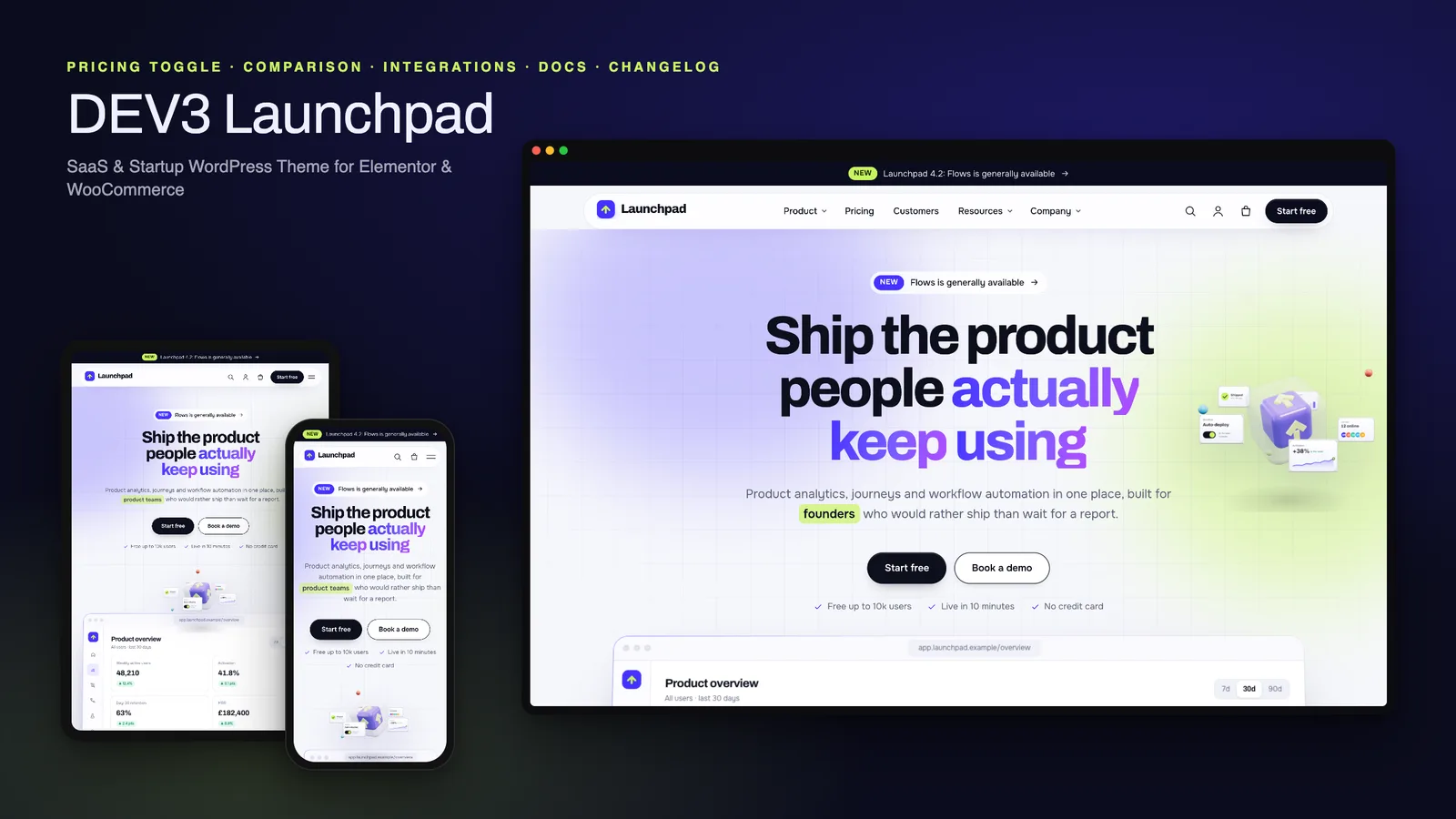
A SaaS website has two audiences who arrive at the same domain. Prospects want to see the product working, understand pricing and check that it fits their stack. Customers want the docs, the latest release notes and a search box that finds the answer. Most WordPress SaaS themes only serve the first group, so teams end up with a landing page on WordPress and a help centre somewhere else. DEV3 Launchpad is a SaaS WordPress theme built for both: a product-led homepage, pricing with a monthly / yearly toggle and a full comparison matrix, and a docs and help centre with search and a changelog, all in one site. This post covers who it is for, how the pricing and docs work, and how to set it up.
Who Launchpad is for
- SaaS companies that want marketing pages, pricing, docs and release notes on one WordPress site.
- Startups launching an app, an API or a developer tool, who need to look like a real product from day one.
- Product marketers and agencies building sites that non-developers will keep editing in Elementor.
- Indie makers selling add-ons, templates or merch alongside the product, through WooCommerce.
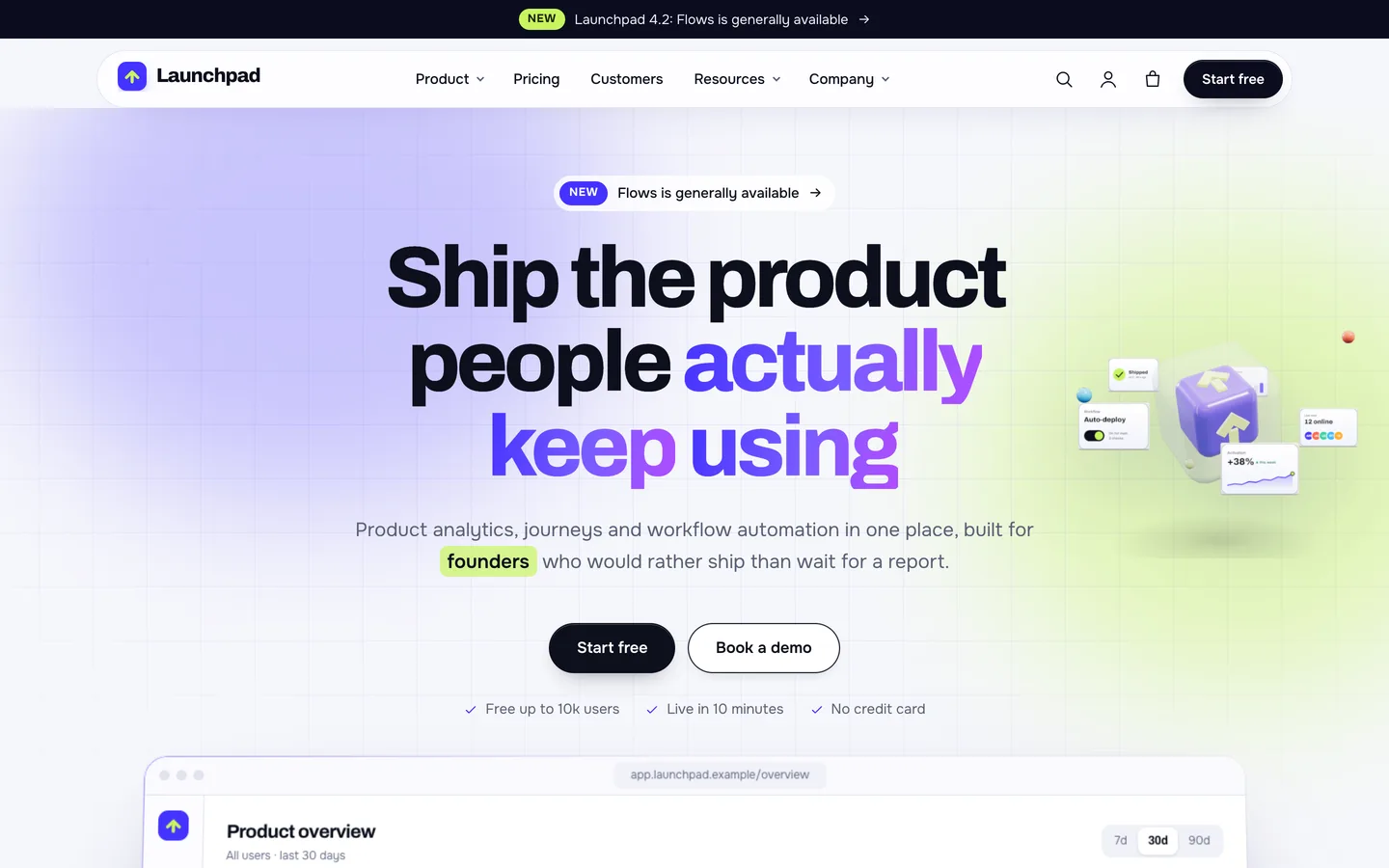
The look is bright and product-led: a light canvas, ink type, ultramarine and lime accents and a floating pill header. Instead of laptop screenshots, the hero shows a product mockup built in HTML, so the numbers count up, the chart draws itself and sample events stream in.
Pricing with a monthly / yearly toggle
Pricing is where SaaS visitors make up their minds, and it is usually the weakest page in a theme. Launchpad splits it into two widgets that work together.
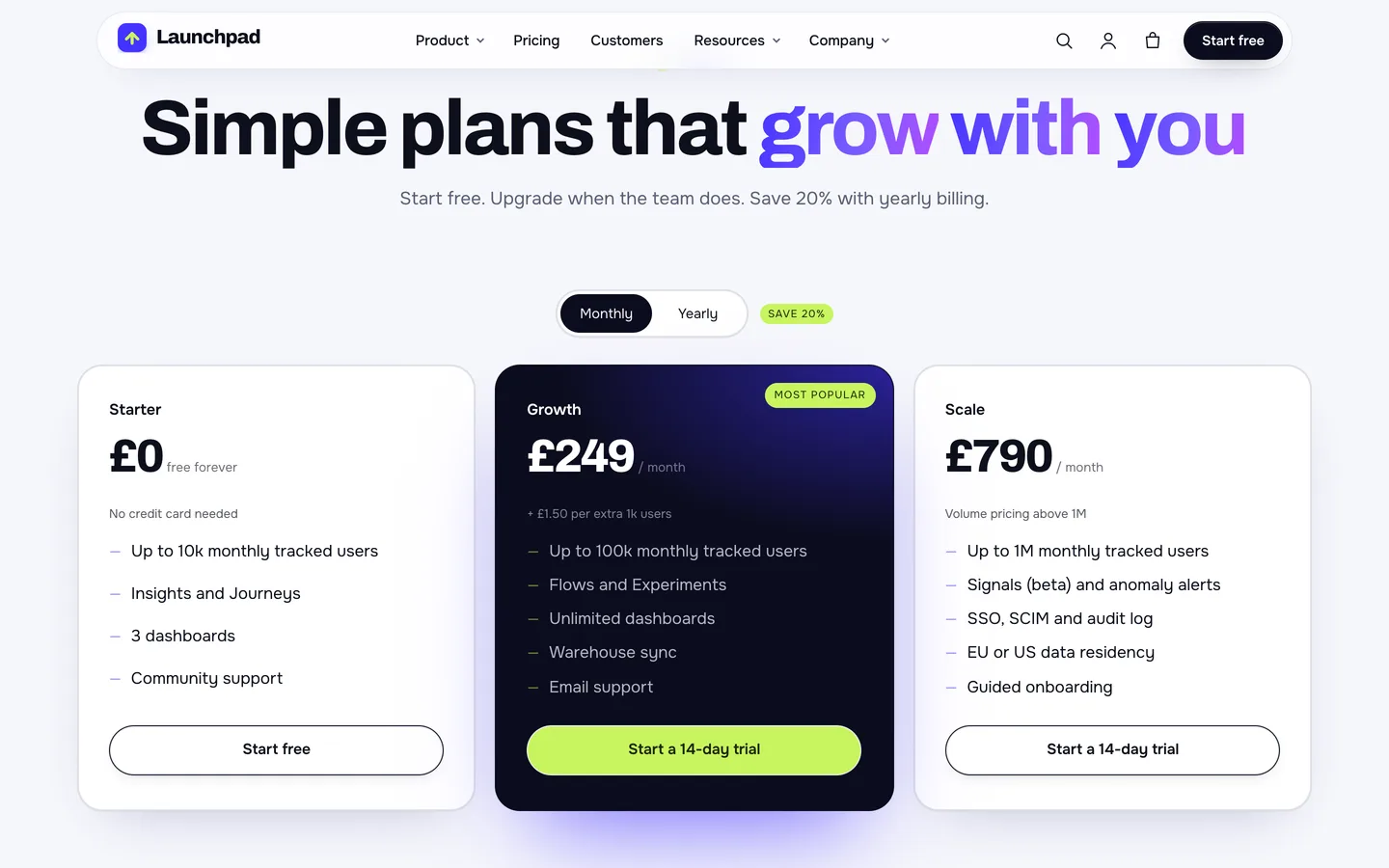
The Pricing Table widget has a billing toggle. Turn it on and each plan takes a second price and period, so visitors can switch between monthly and yearly and see the saving badge ("Save 20%" in the demo). Each plan also takes a badge such as "Most popular", small print under the price, a feature list and a button. Mark one plan as featured and it becomes the ink card with the lime button.
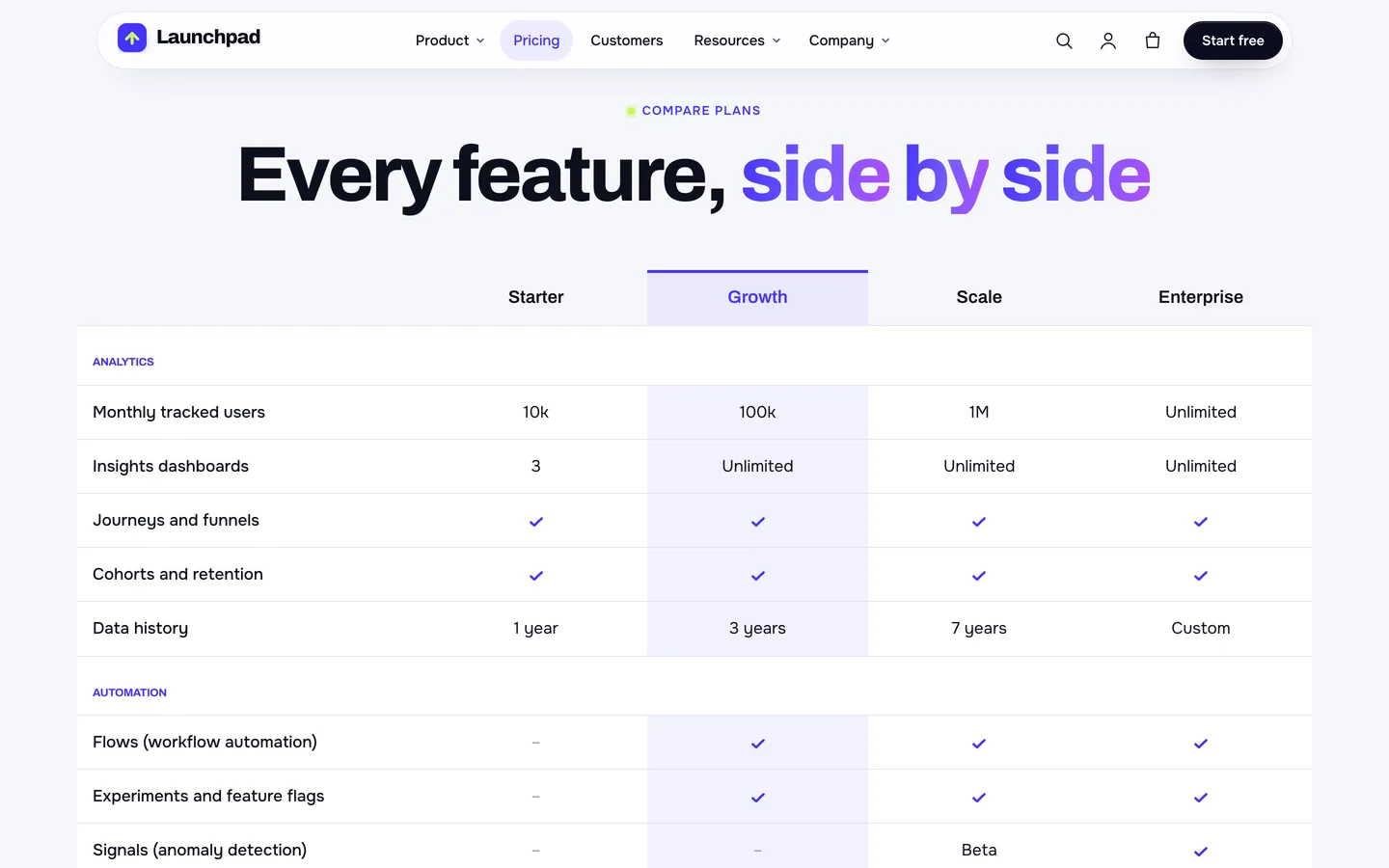
The Feature Comparison widget sits below it. Columns are plan names; rows are features with "yes", "no" or text values separated by a pipe; a row with only a heading becomes a group row such as Analytics or Automation. One column can be highlighted, the headings stay in view as the table scrolls, and each plan gets a button at the bottom. On phones the matrix shows one plan column at a time, so nothing scrolls sideways.
The demo Pricing page adds a security strip, add-on products from WooCommerce and a billing FAQ that prints FAQ structured data.
A docs and help centre inside WordPress
Docs are where a SaaS WordPress theme usually hands over to another tool. Launchpad keeps them in WordPress, as their own post type.
- Docs are hierarchical. Set a parent to nest articles, put them in categories such as Getting started or API reference, and give each an audience.
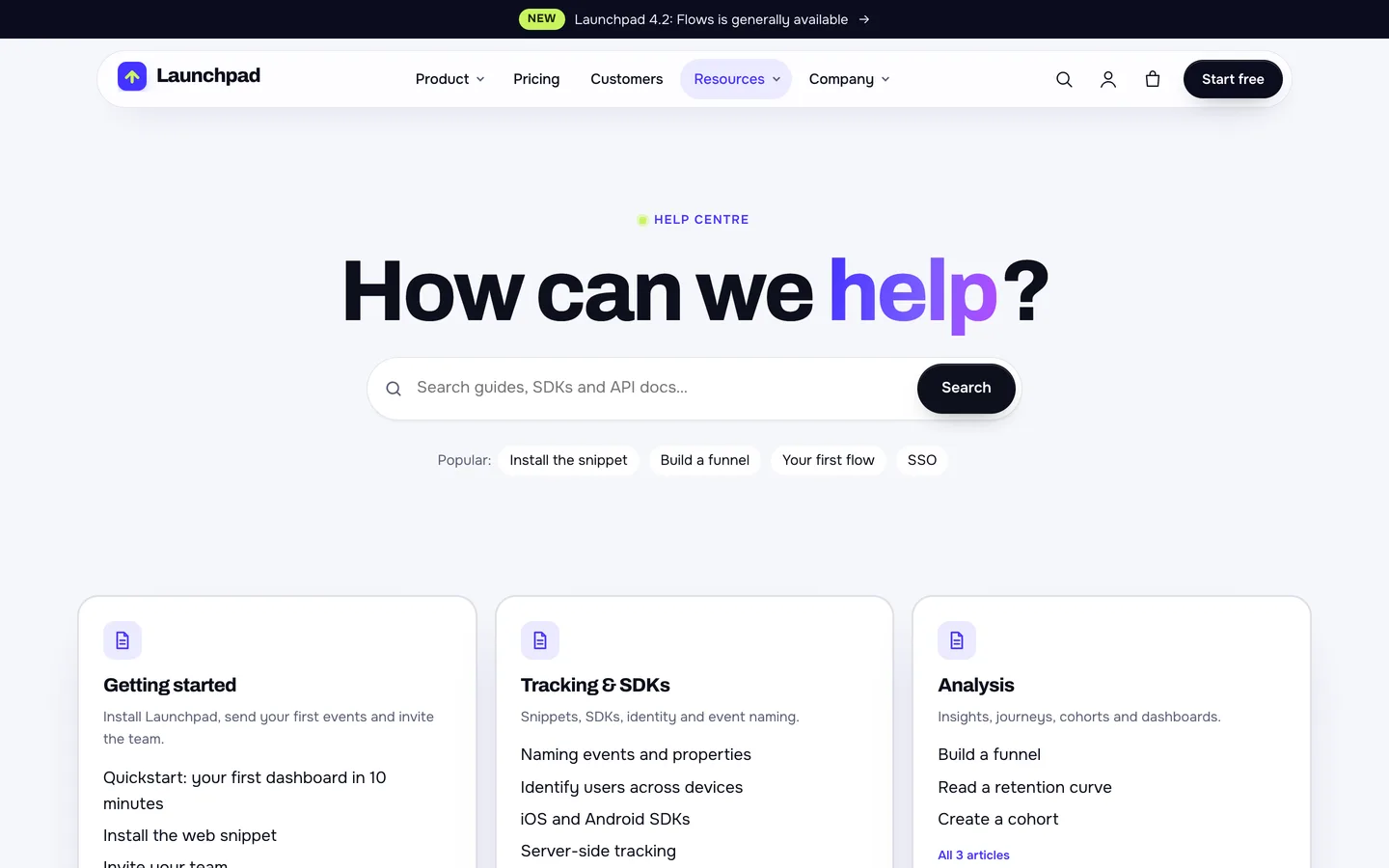
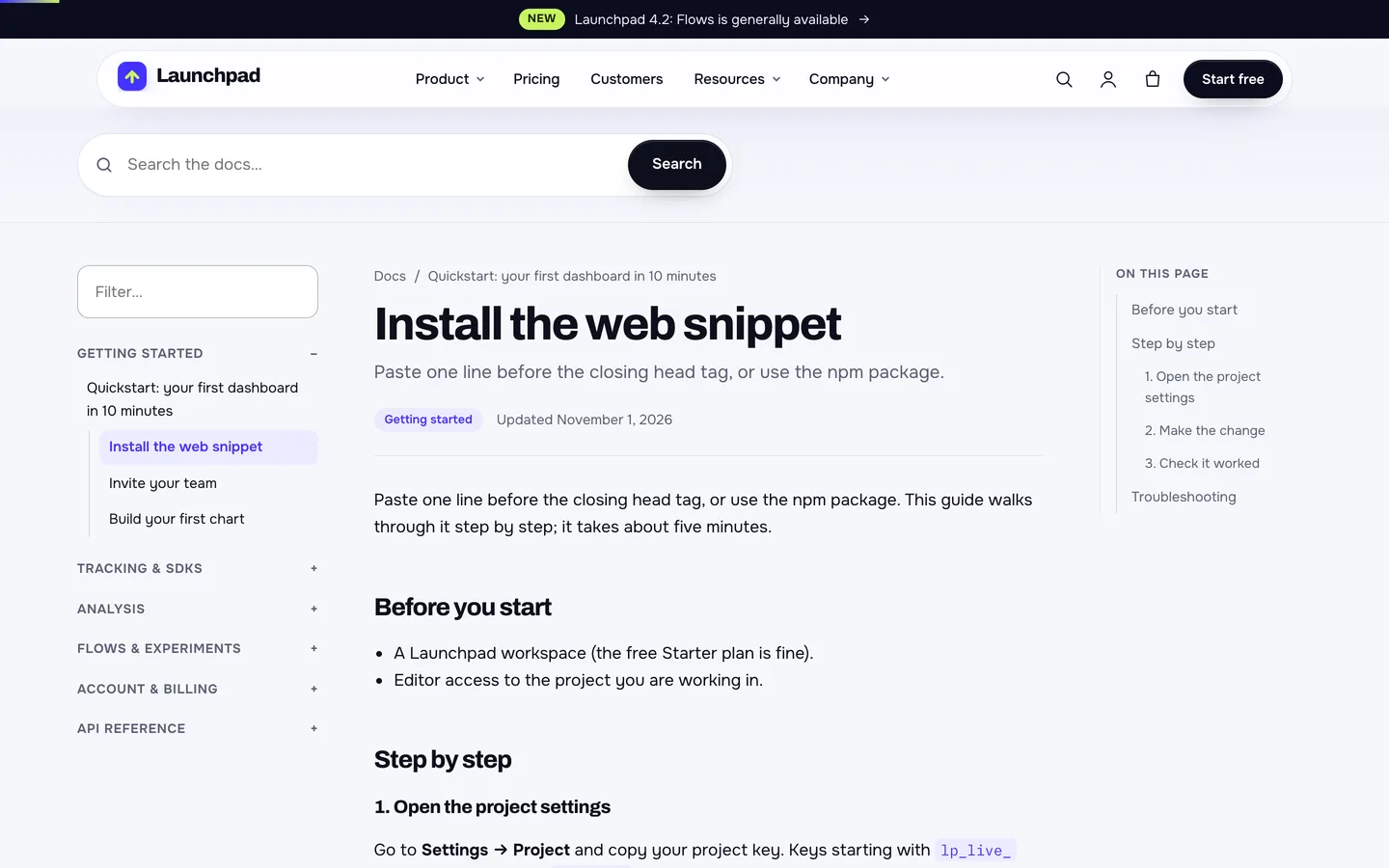
- The help centre page has a search box with instant suggestions, popular links and category cards. Searches from it land on a dedicated docs results layout rather than the blog search.
- Each doc page has a sidebar navigation with a filter, a breadcrumb, an on-this-page table of contents built from the headings, a reading progress bar and a "Was this helpful?" prompt.
A changelog that tags itself
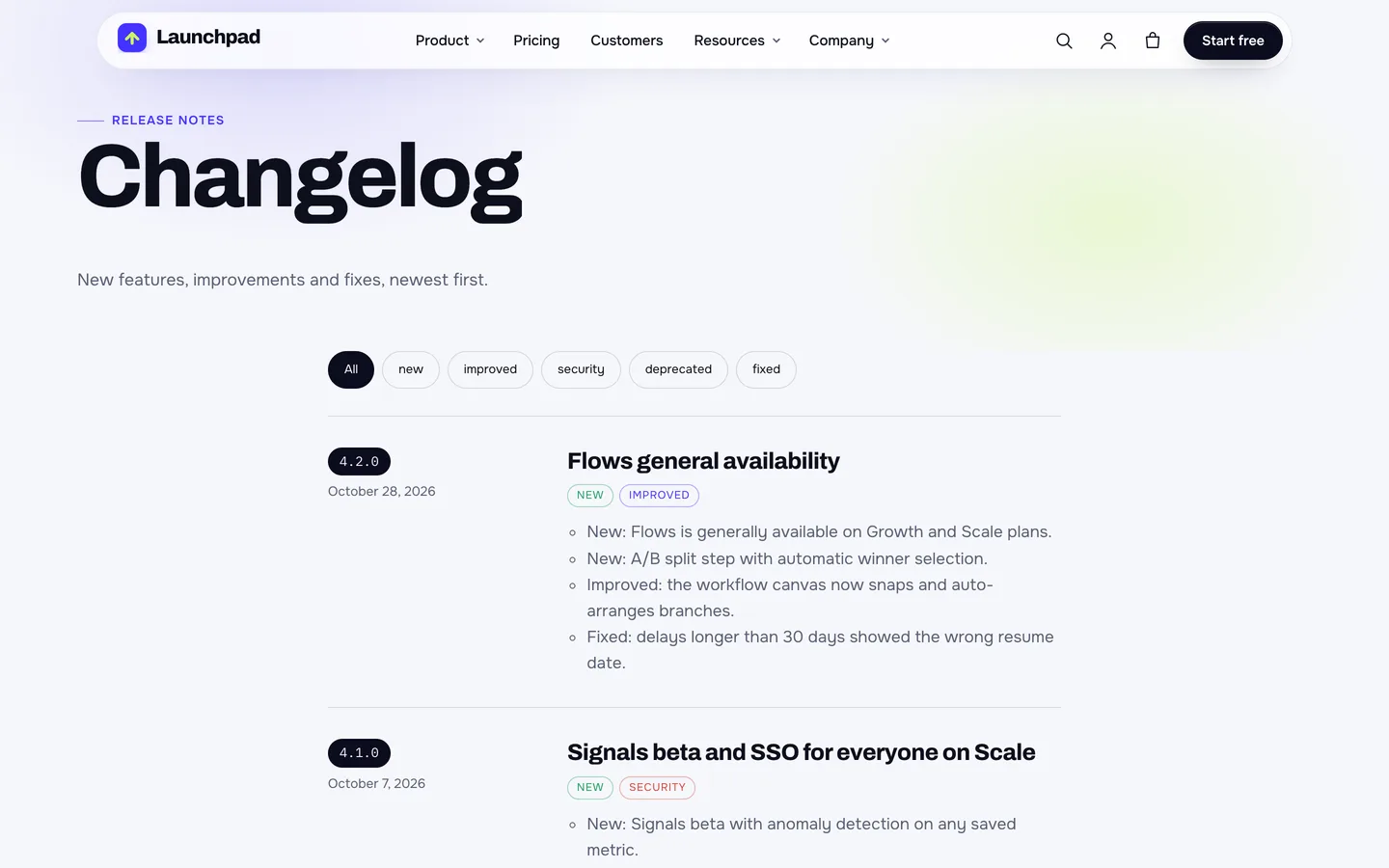
Release notes are a quiet trust signal: they show the product is alive. Under Changelog → Add New, set a version, a release date and tags, then write the notes as a list. Lines that start with "New:", "Improved:", "Fixed:", "Security:" or "Deprecated:" are tagged and coloured automatically, and the changelog page gets tag filters. Point the announcement bar at the latest entry and the homepage stays current with one edit.
Setting up a SaaS site with Launchpad
1. Install the theme and the toolkit
Upload dev3-launchpad.zip under Appearance → Themes → Add New → Upload Theme and activate it. Then upload dev3-theme-toolkit.zip under Plugins → Add New → Upload Plugin; it is required and adds the features, customer stories, docs and changelog post types, the SaaS widgets and the demo importer. Install Elementor, WooCommerce and Contact Form 7 from the notice, and set Settings → Permalinks to "Post name" so /docs/, /changelog/ and /customers/ work.
2. Import the demo
Go to Appearance → DEV3 Demo → Import demo. You get a fictional product analytics company, Launchpad:
- 8 pages: Home, Platform, Pricing, Integrations, Help centre, About, Careers and Book a demo
- 8 blog posts, 6 features, 6 customer stories, 8 changelog entries and 18 docs in 6 categories
- 8 team members, 6 customer quotes and 10 products: plan add-ons, templates and merch
Every image is an original render made from code. The brands, people and numbers are fictional, quotes are badged "Sample review" and figures say "Sample data". Reset removes only the demo content.
3. Replace the product screens
The hero mockup and the product tour are HTML widgets, so you edit the text in place in Elementor. Keep the class names and the layout keeps animating. For the tour, copy an existing tab to add one. If you prefer real screenshots, set them as the featured image of each feature.
4. Set your plans
Edit the Pricing Table on the Pricing page and the teaser on Home: names, both prices, periods, badges and features. Then fill the Feature Comparison rows. Sell add-ons as WooCommerce virtual products so they show under the plans.
5. Write docs and release notes
Start with a Getting started category and a quickstart doc, then nest how-to articles under it. Add a changelog entry for each release. Both feed the help centre and the homepage without further layout work.
6. Integrations, customers and demos
List the tools you connect to in the integrations directory (cards with search and category filters), add customer stories with results written as +18% | trial-to-paid so they count up on the story page, and point Book a demo at the request form. Requests are stored in WordPress and emailed to you.
Motion, with one small 3D accent
Launchpad is one of DEV3's newer themes: a modern look, rich motion and only a little 3D. The mockup tilts back as you scroll, the bento's mini charts grow into view, the "how it works" cards stack as you scroll, and every Elementor widget has an Advanced → DEV3 Motion panel. The product tour advances once and stops when the visitor interacts, and reduced motion shows every section in its final state.
The 3D accent is a glass app cube with UI tiles orbiting it. In Elementor you can change the cube and mark colours, the number of tiles, the orbit speed and the spin, or delete the widget. It loads only near the screen, pauses offscreen and shows a poster image without WebGL.
See it in motion
There is no public live demo. The video tour runs from the product hero through pricing and the help centre to the store checkout.
Before you launch
- Replace the sample product screens, logos and figures with your own, and remove the "Sample data" badges.
- Set up a real payment method under WooCommerce → Settings → Payments; the demo uses Cash on delivery for testing.
- Update the announcement bar with each release so it always points at the newest changelog entry.
Launchpad is on the DEV3 marketplace. The case study explains the design decisions behind the product UI, pricing and docs.