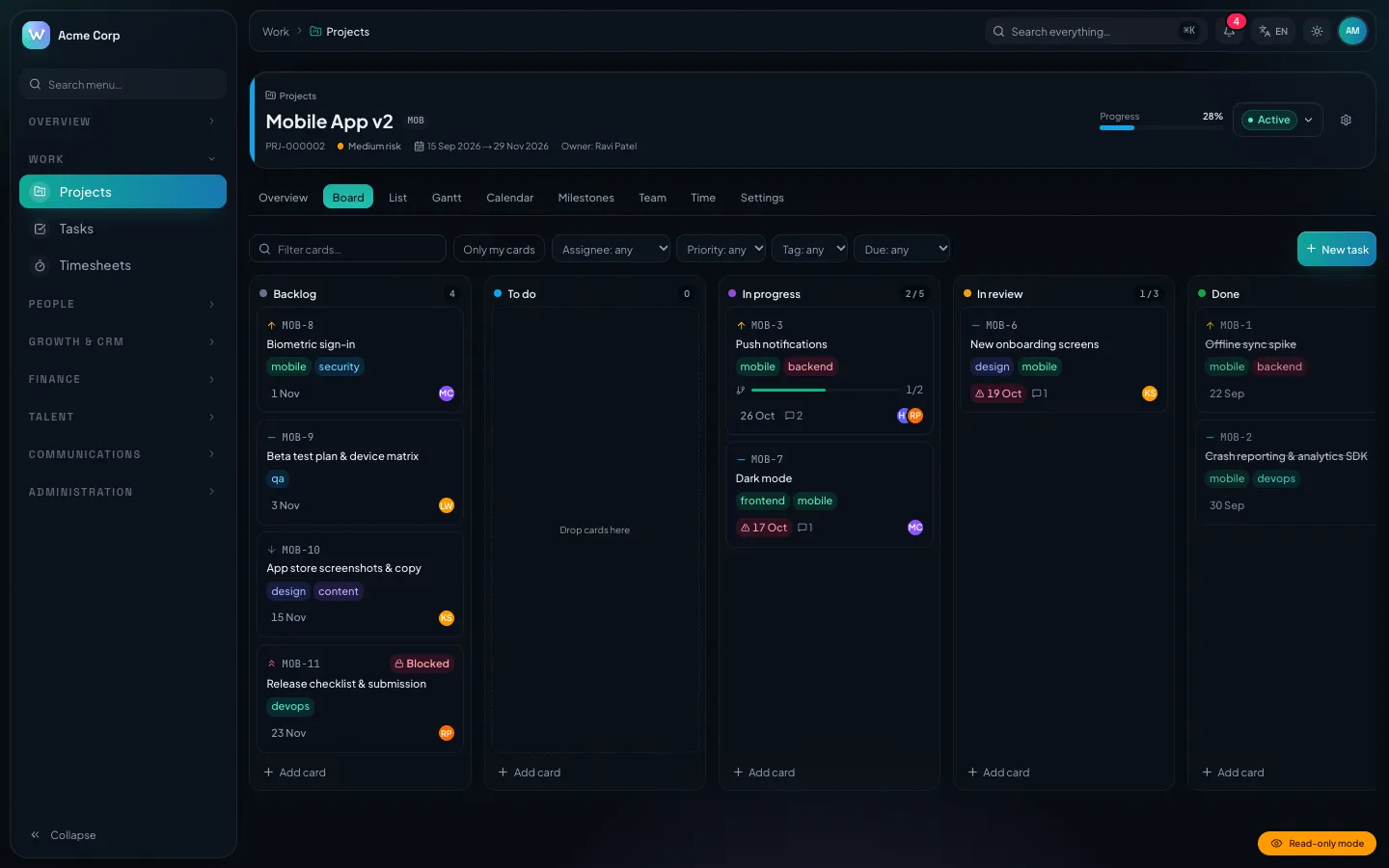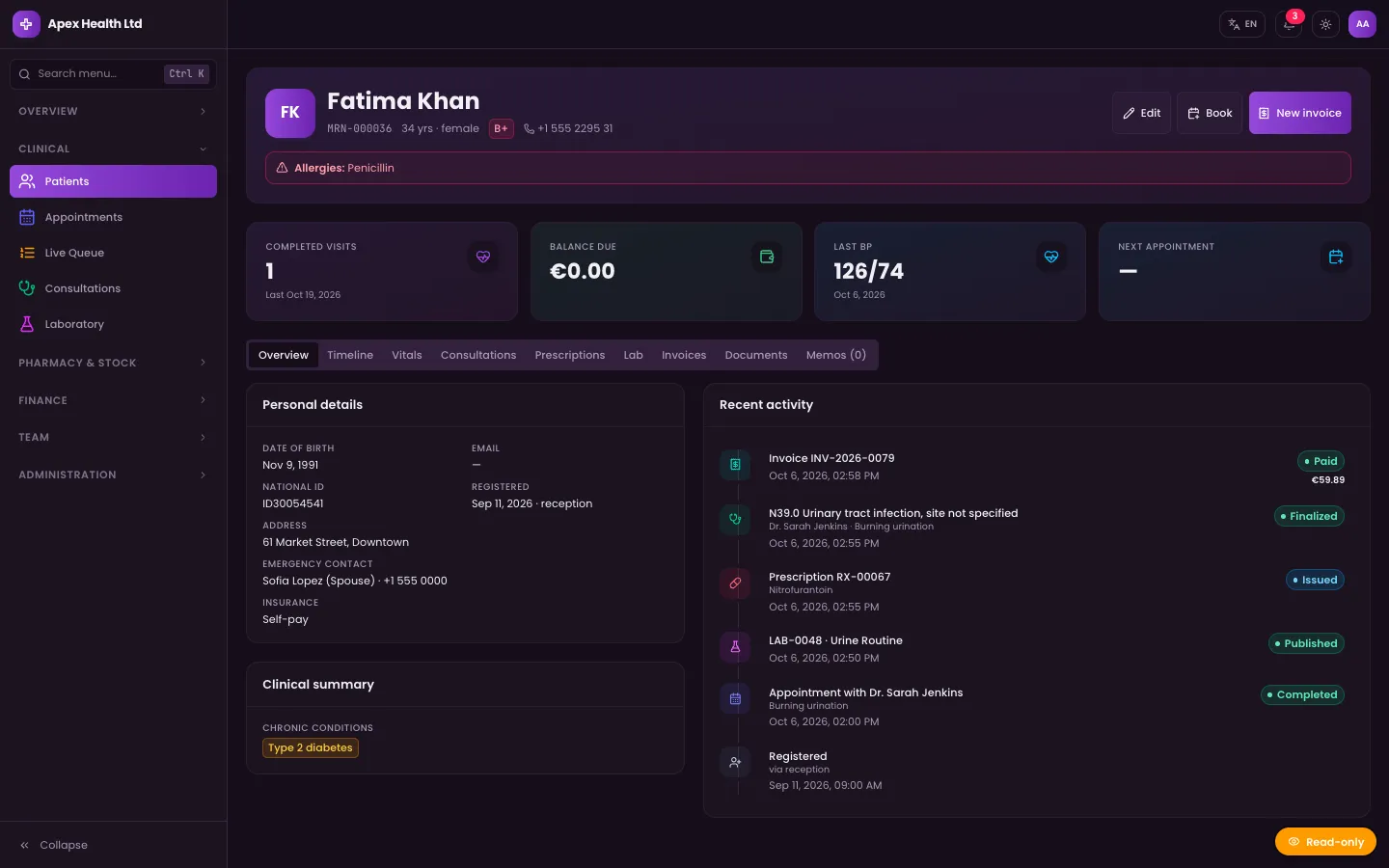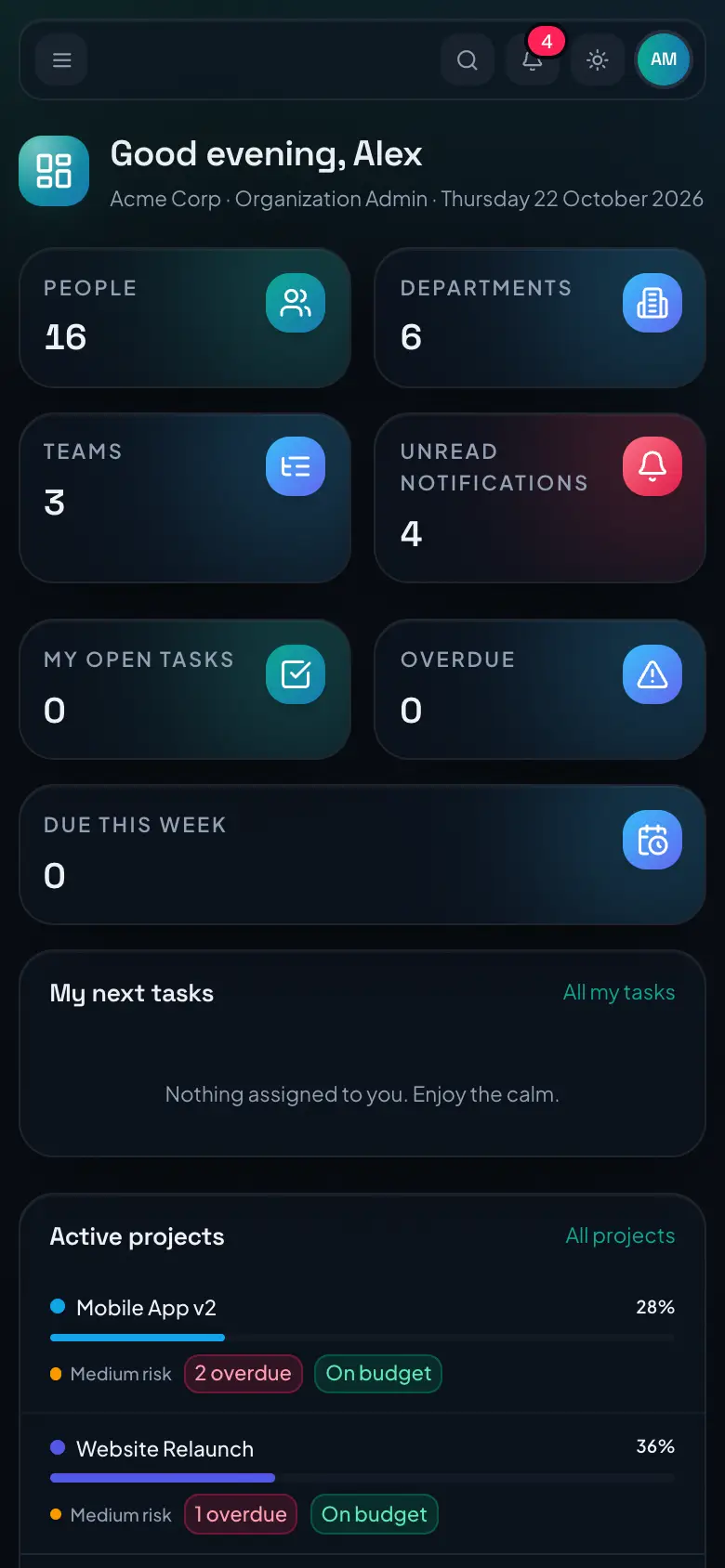
Somewhere between ten and fifty people, HR stops fitting in a spreadsheet. The employee list lives in one file, leave in another, and attendance in a chat thread where people post "in" and "out". Nobody is quite sure how many days someone has left, contracts sit in an inbox, and every new joiner gets a slightly different first week because the onboarding list is in somebody's head.
This guide shows how to run day-to-day HR for a growing company in WorkPro, our self-hosted company management platform. It is for founders and operations managers who are taking HR out of spreadsheets. The steps follow the order you would roll things out, and we say where WorkPro stops so you can plan the rest.
What the HR module covers
| Area | What you get |
|---|---|
| Employee records | Personal, job and reporting details, employment status, salary history, emergency contacts |
| Document vault | Contracts, IDs, visas and certificates with categories, a confidential flag and expiry dates |
| Org chart | Built from each person's direct supervisor |
| Onboarding and offboarding | Checklist templates generated automatically when an employee's status changes |
| Attendance | Web and phone clock-in with breaks, IP allow-list and geofence checks, a monthly ledger and timesheet sign-off |
| Rosters | Shift templates, a one- or two-week grid, conflict checks and shift swaps |
| Leave | Policies with accrual and carry-over, a two-step approval chain, holidays and a team calendar |
| Self-service | Staff see their own record, update their contact details, upload documents, clock in and request leave |
What it does not do: WorkPro does not run payroll. It stores salary history (amount, currency, frequency and effective date) and uses it to cost time on projects, but it does not calculate pay, deductions or payslips. A payroll provider can work from WorkPro's timesheet exports and leave records.
Step 1: Set up the organisation's shape
Approvals and visibility follow the structure, so set it up first.
- Departments and teams in Settings → Structure. Department heads matter: they become the fallback leave approver and, for the HR and IT departments, the owners of checklist tasks.
- Working week and hours in organisation settings: the first day of the week, workday start and end, a lateness grace in minutes and the daily hours after which overtime starts. If your week starts on Saturday, Friday and Saturday are treated as the weekend.
- Company holidays under HR → Leave → Policies & holidays. A holiday can repeat every year. Holidays are excluded from leave day counts and shown in the attendance ledger.
- Clock-in rules in Settings → Security: allowed IP addresses or IPv4 CIDR ranges, and optionally required geofences, each with a name, centre point and radius.
Step 2: Move employee records in
Each person gets an employee record with an automatic number (EMP-000123 style). Records hold:
- Personal details: name, work and personal email, phone, date of birth, nationality and address
- Job details: job title, department, team, direct supervisor, location, hire date and probation end date
- Employment: type (full-time, part-time, contract, intern, temporary), work model (onsite, hybrid, remote) and contracted weekly hours
- Status: onboarding, probation, active, on leave, offboarding or terminated
- Emergency contacts and skills
Work emails must be unique, and a supervisor chain cannot loop. Managers below organisation-wide scope can only place employees in their own departments.
Compensation and confidential fields
Salary history is a list of entries, each with an amount, currency, pay frequency and the date it takes effect, plus an optional reason. Only HR administrators can add or remove entries. The legal section (ID type and number, tax number, bank account) and HR notes are also confidential. The source includes an integration test, "keeps compensation confidential", that checks other roles cannot see these fields.
Coming from a spreadsheet
WorkPro can import employees, attendance and leave from CSV or Excel files. Rows go into a review step before anything is saved, and a committed batch can be rolled back.
Step 3: Put documents in the vault
Each employee record has a document vault:
- Categories: contract, ID, passport, visa, tax, certificate, policy, medical and other
- Confidential flag: confidential documents are visible to HR; other viewers see non-confidential documents and the ones they uploaded themselves
- Expiry dates: documents expiring within 30 days are highlighted, and expired ones are flagged, so visa and certificate renewals do not slip
- AI assistance (optional): AI can read an ID, passport, visa, permit or contract and suggest profile fields, including an expiry date. Nothing is saved until a person reviews and accepts it.
Step 4: Make onboarding repeatable
Onboarding and offboarding run from checklist templates. Each task has:
- an owner team: HR, IT or Management (the employee's manager), or a fixed person
- a due offset in days from the hire date or the last day, which can be negative for tasks that must happen before
Templates can be limited to certain employment types. When an employee's status moves to onboarding or offboarding, WorkPro generates the matching checklists and assigns each task. Repeating the status change does not duplicate a checklist that is already open. Task owners tick off their own tasks from their dashboard.
If you also use WorkPro's recruitment module, hiring a candidate creates the employee record and starts onboarding in the same step. AI can draft a checklist template for a role, which you then edit before saving.
Step 5: Replace the "in/out" chat with real attendance
Staff clock in from HR → Attendance, on a desktop or phone. The sequence is clock in, optional break start and end, then clock out. Several in/out pairs on one day are allowed for split shifts.
Each punch records the IP address and, where given, the location. The rules are checked on the server:
- An IP address outside the allow-list is refused, and the message shows the address so you can fix the list.
- When geofences are required, a clock-in without location is refused. One from outside every fence is refused with the distance to the nearest site.
- Someone still clocked in from yesterday must clock out first.
How the day is judged
The expected hours come from the person's rostered shift or, if none, the organisation's workday on working days. WorkPro then works out worked minutes, break minutes, late arrival (after the grace period), early leave and overtime. For timesheet exports, overtime is calculated daily and weekly without counting the same hours twice.
Corrections and sign-off
- Staff who forget to clock out request a correction with a reason. Approvers are notified, and nobody can approve their own request.
- Managers can edit a day's punches directly, with a mandatory reason that is kept in the audit trail.
- Managers approve timesheets for one or more days.
- The monthly ledger shows employees against days, with each day marked present, late, absent, on leave, half day, early leave, holiday or weekend. Timesheets export to CSV or Excel.
An optional AI summary can point out attendance patterns worth a conversation, such as late streaks or overtime. It works from facts calculated exactly from the ledger.
Step 6: Roster shifts without double-booking
If your team works shifts, set up shift templates (name, start, end, break) and drag them onto a one- or two-week grid of employees and days. Each placement is checked:
| Check | Effect |
|---|---|
| Overlaps another shift for the same person | Blocked |
| Person has left by that date | Blocked |
| Approved or pending leave that day | Warning |
| More than 12 hours in a day | Warning |
| More than 48 hours in a week | Warning |
Warnings can be confirmed; blocks cannot be overridden. Copy week copies a roster forward and skips any shift that would conflict. Shift swaps go from the employee to a colleague, who accepts, and then to a manager for approval. Approval moves the shifts. Nobody can approve a swap they are part of.
Step 7: Run leave on policies, not memory
Configure policies
Each leave policy has a type (paid, sick, casual, parental or unpaid) and an accrual rule:
- Annual: a yearly allowance, pro-rated for the hire year
- Monthly: days credited each month
- None, or unlimited for things like unpaid leave
Policies also set a carry-over cap (anything above it is forfeited at year end), how far a balance may go negative, whether half days are allowed, whether the leave is paid, which employment types it applies to, and whether HR must approve after the manager. A scheduled daily job credits accruals and closes the year. It is safe to run more than once.
Request, approve, plan
When someone requests leave, the form shows live how many working days it uses (weekends and holidays excluded, half days as 0.5), the balance afterwards, any overlap with their own requests and who else in the team is off. On submit the days are held as pending.
Approval goes to the direct manager (or the department head), then to HR when the policy requires it. Rejections need a comment. Final approval moves the days from pending to used, and a rejection or cancellation releases them. Once leave has started, only HR can cancel it. The team calendar shows full details within your scope; teammates outside it appear simply as "Away" for approved leave, so people can plan around each other. HR can also adjust balances.
Step 8: Let people serve themselves
Every employee with a login can:
- open My profile and see their own record
- update their personal email, phone, address and up to five emergency contacts
- upload documents to their own record, and remove the ones they uploaded
- clock in and out, view their attendance history and request corrections
- see their leave balances, request leave and cancel pending requests
- request and answer shift swaps
What they see is controlled by roles. Each role is a grid of resource and action with a scope of Own, Team, Department or All. The source's tests check that standard staff see only their own record and that a department manager sees their department.
Rollout checklist
- Departments, teams and department heads in place
- Working week, workday hours, lateness grace and overtime threshold set
- Holidays entered for the year
- IP ranges and geofences configured and tested from the office
- Employees imported and reviewed; logins linked
- Contracts and IDs uploaded with expiry dates
- Onboarding and offboarding templates written
- Leave policies configured; opening balances adjusted
- Roles reviewed so staff see only their own records
Where to go from here
The HR module sits alongside WorkPro's projects, CRM, finance and recruitment modules, so the same people records carry through. The behaviour described here is covered by 16 HR integration tests in the source (tests/integration/hr.test.ts). You can get the source on the WorkPro marketplace page, and DEV3 can install it or customise it to your policies. For the wider build, read the case study.