"We won the project, but the quote is in one tool, the tasks in another, the hours in a spreadsheet, and the invoice goes out three weeks late." If you run an agency, studio or consultancy, that sentence probably sounds familiar. Every hand-off between tools is a place where hours go unbilled and clients ask "where are we on this?" by email.
This guide shows how to run the whole client journey, from the first inquiry to the paid invoice, in one workspace, using WorkPro, our self-hosted company management platform. It is written for owners and operations leads at services businesses, and for agencies that want to host a platform like this for their clients.
What good looks like
A services business needs the same chain of records every time:
- An inquiry comes in from the website.
- It becomes a lead, which is qualified and sent a quote.
- The won lead becomes a client with a project.
- The team logs time against the project, and a manager approves it.
- Approved, billable time and the accepted quote become an invoice.
- The client follows progress, invoices and tickets in a portal, instead of asking by email.
When each step creates the next record for you, nothing is typed twice and nothing falls through the gap. That is the chain WorkPro is built around.
Step 1: Set up the organisation
1. Create the workspace
Sign in as the Super Admin, open System health to check the database, email, Cloudinary, scheduled jobs and AI, then go to Organizations → New organization. You set the name, slug, base currency, time zone, tax rate, enabled modules and the first Organization Admin. One installation can host many organisations, so an agency can run its own workspace and its clients' workspaces side by side.
2. Shape it to your company
Sign in as the Organization Admin and open Organization settings for the profile, logo, brand colour, localisation and operations. Then build Departments & teams, adjust Roles & permissions and invite people in Users. Each permission can be granted at an Own, Team, Department or All scope, so a sales associate sees their own leads while the head of sales sees the whole pipeline.
3. Connect a mailbox
In Communications → Mail settings, connect Gmail or Google Workspace (app password or OAuth) or any SMTP server, and add sender identities such as billing@ for invoices.
Step 2: Turn inquiries into leads
Every organisation gets a hosted inquiry form at /i/<org> with topic routing (for example Sales, Support or General), custom fields, a honeypot and rate limiting. Link to it from your website's contact page. Inquiries land in the inbox with statuses (New, In progress, Resolved, Archived), team assignment and internal comments, and can be turned into a lead with one click.
Leads can also arrive by CSV import, manual entry or a REST endpoint (POST /api/public/leads/<org> with an organisation API key), so a landing-page builder or ad form can post straight into the pipeline. Duplicates by email are detected.
Step 3: Qualify, quote and win
The Leads board has configurable stages: New, Qualified, Proposal sent, Negotiation, Closed-won and Closed-lost by default. Each lead gets a rule-based score from 0 to 100 with a breakdown, source tracking, loss reasons and reminders.
Quotes have line items, tax and discounts, approval for large amounts, and a PDF you can email. When a lead is won, one click converts it into a client and contact. Then create the project and give the client portal access. Accepted quotes can later be converted into invoices.
Step 4: Run the project
Each project has a start and end date, a target budget against the actual burn, a status, a risk level, a client link and a billing type: fixed, hourly or non-billable, with rates. Set this correctly at the start, because it decides what can be invoiced later.
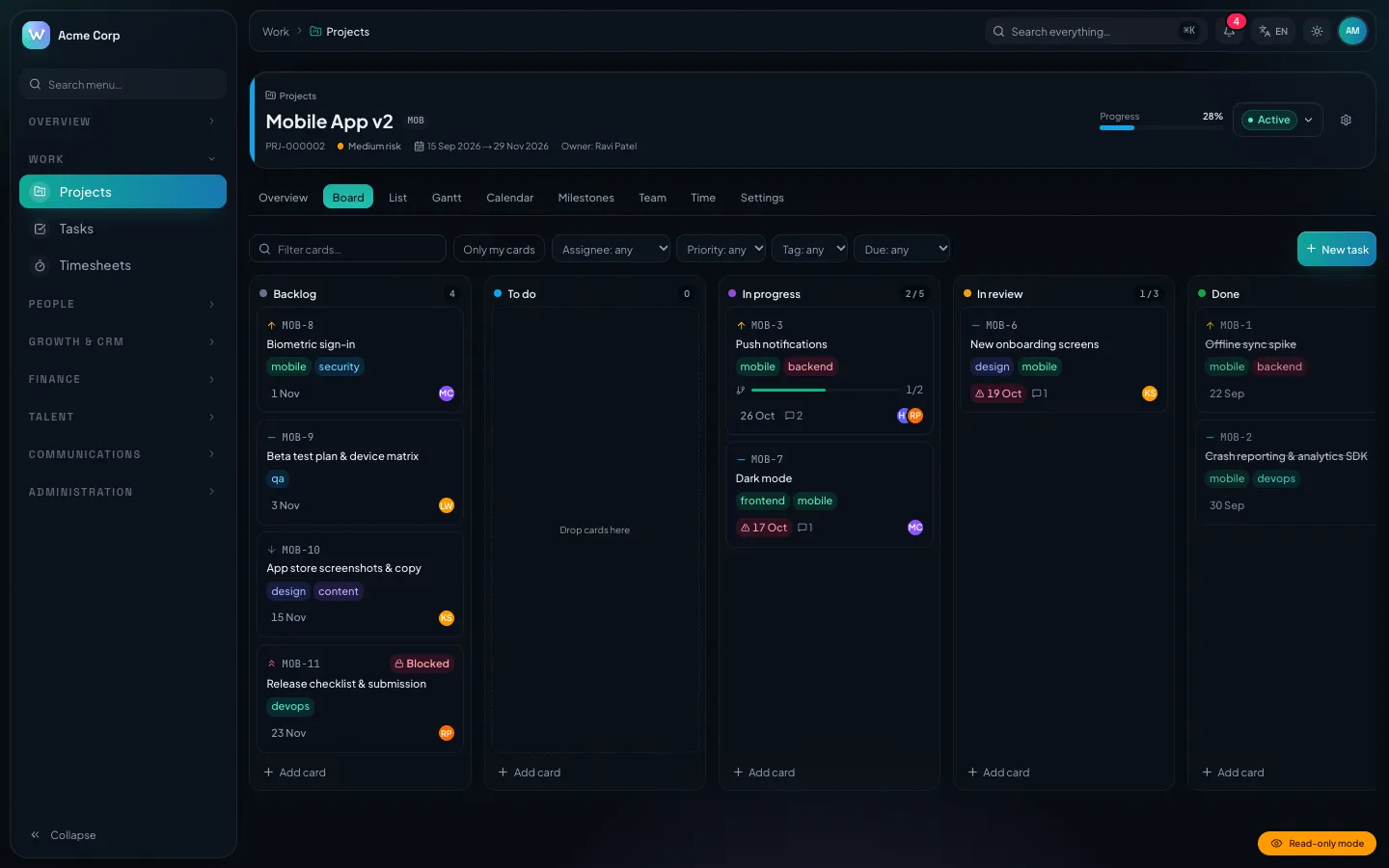
The team works in whichever view suits them: Board, List, Gantt (with dependencies and the critical path), Calendar, Milestones, Team or Time. Tasks have priorities, estimates, sub-tasks, dependencies, @mentions and attachments.
Step 5: Log and approve time
Timesheets are a weekly grid per project and day, with a running timer. At the end of the week each person submits the week for approval, and the manager approves it or sends it back. Only approved billable time is available to invoice, which keeps disputed hours off the client's bill.
Step 6: Invoice and get paid
In Finance → Invoices, the invoice builder can pull lines from approved unbilled time or an accepted quote. Invoices can be in any currency with an exchange rate to your base currency, and carry your legal entity and payment instructions.
When you send one, the client gets a PDF and a tracked public link; the first time they open it, the invoice is marked Viewed. Status then moves through Partially paid, Paid or Overdue, and you record payments by bank transfer, card, cash, cheque or other. For retainers, recurring schedules invoice each period exactly once, and reminder jobs chase overdue invoices.
Step 7: Give clients a portal
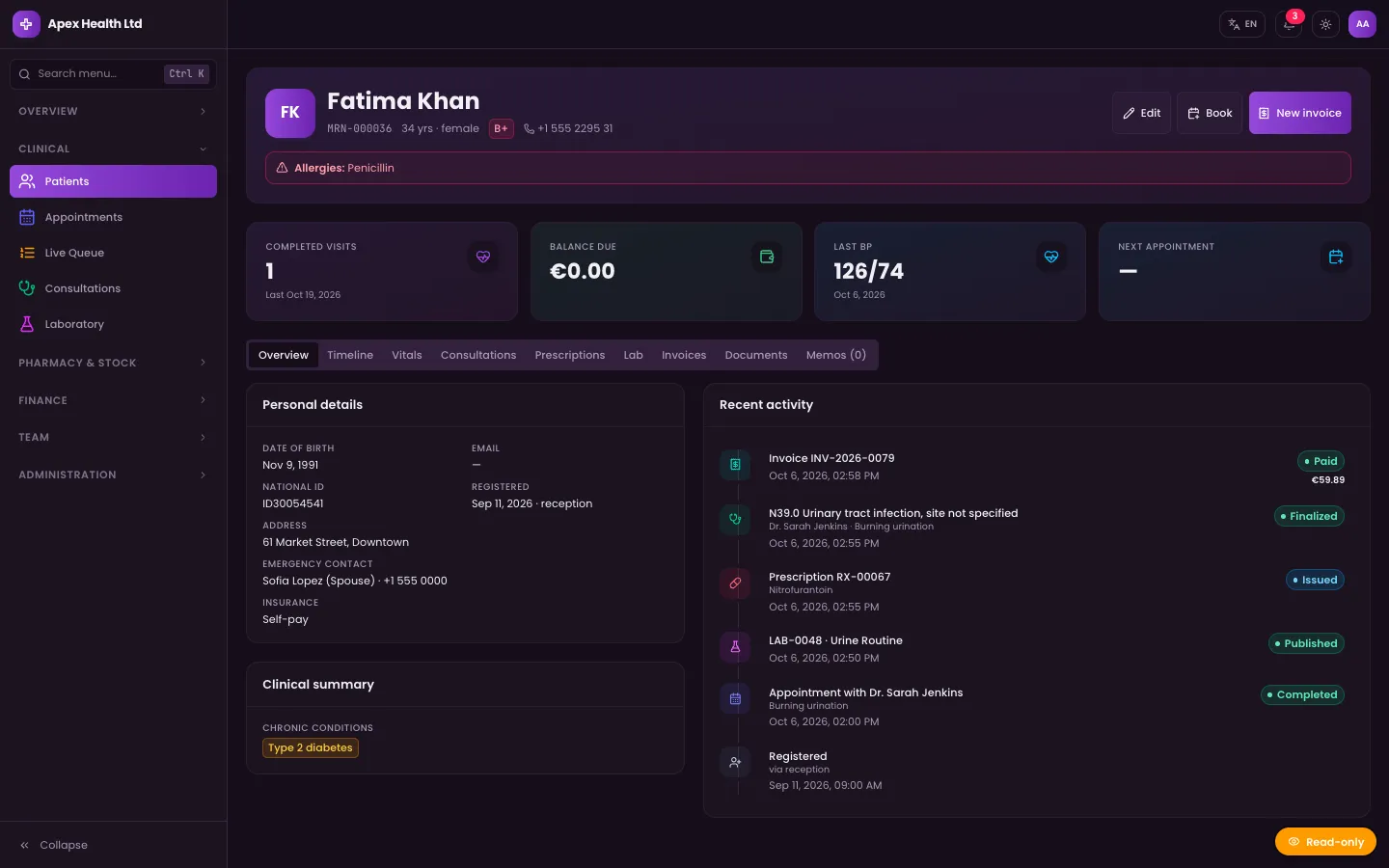
Portal logins are created from the client record. In the portal, clients follow live project progress and milestones, view and download invoices with payment instructions, and open and reply to support tickets. They only ever see data linked to their own client account.
Tips and pitfalls
- Schedule the five jobs. Recurring invoices, invoice reminders, leave accrual, task due dates and email retry run from cron endpoints. Without them, retainers will not invoice themselves.
- Decide billing type per project up front. Changing a fixed-price project to hourly halfway through makes the profitability report harder to read.
- Use project profitability. The report shows revenue minus labour cost from logged hours minus attributed expenses, so you can see which clients really pay.
- Let AI draft, not decide. If you add a Google Gemini key, assistants can summarise a lead, draft a follow-up email or turn unbilled time into client-friendly invoice lines. Every suggestion is reviewed before it is applied, the app keeps quantities and rates exactly, and each organisation can switch AI off.
- Clear the demo before going live. The demo passwords are public. Suspend the demo organisation or clear it with Admin → Developer tools → Data cleaner.
Who it's for
WorkPro suits agencies, studios, consultancies and other services companies that want projects, people, clients and finance in one system they host themselves. It also includes HRIS (attendance, rosters, leave) and recruitment with public careers boards, so it can grow with the team. It runs in English, Arabic, Hebrew and Spanish, with right-to-left layouts.
The WorkPro case study explains how the modules and customer-designed roles fit together. If you would like it deployed or customised, talk to our web development team.
Next step
WorkPro turns the inquiry-to-invoice chain into one set of linked records, so approved hours become invoices and clients see progress without asking. Try the role logins in the live demo, then get the source on the WorkPro marketplace page.