"The waiting room is full, the phone keeps ringing, and nobody knows who is next." If you run a clinic, you have probably heard some version of that from your front desk. Appointments live in one book, walk-ins are written on a sticky note, the nurse shouts names, and the doctor finds out a patient has been waiting forty minutes only when they complain.
This guide walks through how to set up a calmer patient flow, from the online booking to the waiting-room screen, using ClinicPro, our self-hosted clinic management platform. It is written for clinic owners and practice managers, and for agencies that set up software for clinics.
What a good front desk looks like
Before picking any software, it helps to agree on what "good" means. For most clinics it comes down to five things:
- One list of who is coming today. Booked patients, online bookings and walk-ins in the same place, per doctor.
- No double-booking. A slot that is taken is taken, even if two receptionists click at the same moment.
- Patients can help themselves. Booking from a phone, checking in on a tablet, without queuing at the counter.
- Everyone can see the queue. Staff see where each patient is; patients in the waiting room see when it is their turn.
- The visit flows into the bill. The consultation, lab tests and medicines end up on one invoice without being typed in again.
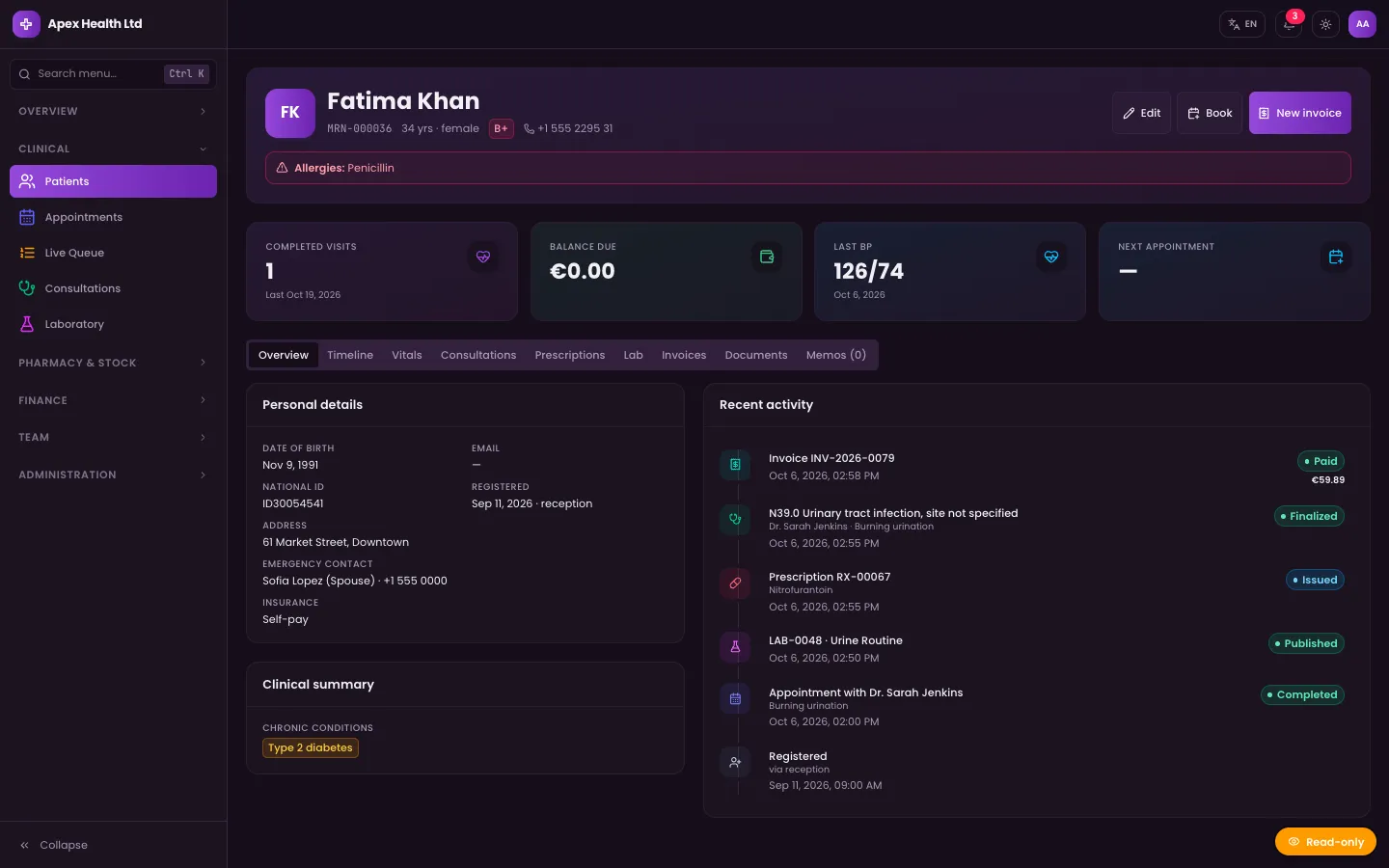
ClinicPro is built around exactly this journey. Reception registers the patient (or the patient registers at the kiosk or in the portal), check-in issues a token that appears on the waiting-room display, the nurse records vitals, the doctor finalises the consultation, and accounts take payment on an invoice that has already collected the consultation, lab and pharmacy lines.
Step 1: Set up the clinic and its doctors
1. Create the clinic
After the 4-step web installer (environment check, database and keys, Super Admin account, done), sign in as the Super Admin and open Clinics → New clinic. This also creates the clinic's first Clinic Admin account, starter services and lab tests. One installation can run many clinics, so a group with several practices, or an agency serving several clients, creates one clinic for each.
2. Fill in the clinic settings
Sign in as the Clinic Admin and open Settings. This is where the front-desk behaviour is decided:
- profile, address, time zone, language and display currency
- brand colour and logo, which also brand the patient portal and printed documents
- opening hours and rooms
- the queue token prefix (tokens look like A-101, A-102…)
- switches for online booking and the kiosk, and offline payment instructions
3. Add staff and doctor schedules
In Staff, create each person with their role: Doctor, Nurse, Receptionist, Accountant, Pharmacist or Lab Technician. For doctors, set the specialty, fee, room, signature and weekly schedule, including breaks and leave. The slot engine uses these schedules, so a doctor on leave never shows free slots.
Step 2: Take bookings without the phone
1. Bookings at the desk
The Appointments screen has a day and week calendar with a column per doctor and a "now" line, plus a list view. The booking dialog searches for the patient and only offers free slots from the doctor's schedule. Double-booking is prevented by the database itself, not just by the screen, so two people booking the same slot at once cannot both succeed.
Registration checks for duplicates (by phone, or by name plus date of birth) before a new record and MRN are created. That alone saves a lot of tidying up later.
2. Bookings from the patient's phone
Each clinic gets its own branded, mobile-first patient portal at /portal/<clinic-slug>. Patients register (they are linked to their existing record by phone), verify their email, or accept an invitation sent by staff. When online booking is switched on in Settings, the flow is short: choose a doctor, choose a slot, confirm. Patients can also reschedule and cancel, which frees the slot for someone else.
Put the portal link on your website, your Google Business profile and your social media pages.
Step 3: Let patients check themselves in
Place a tablet at reception and open the self check-in kiosk at /kiosk/<clinic-slug>. It is a touch-friendly screen where patients:
- check in for an appointment with their phone number and date of birth,
- register as a new patient, or
- take a walk-in token.
The kiosk is rate-limited, so a curious child tapping the screen cannot flood it. Receptionists stay free for the patients who actually need help.
Step 4: Put the queue on the wall
1. The staff board
The Queue screen is a drag-and-drop patient-flow board with five columns: Checked in → Vitals → Waiting → In consultation → Billing. Nurses move patients along as they record vitals; doctors open the next patient straight from the queue into the consultation workspace.
2. The waiting-room display
Connect a TV to any browser and open /q/<clinic-slug>. The full-screen display shows tokens, the doctor and the room, with a highlighted Now serving row and a chime. Patient names are masked (for example "John S."), so the screen is useful without exposing who is in the room. It refreshes every few seconds by itself.
Step 5: Close the loop at billing
When the doctor finalises the consultation, the record locks (later changes are added as addenda), the appointment is completed and the items are added to the draft invoice. Lab and pharmacy lines join the same invoice. Accounts can take split payments, and patients can see the invoice in the portal and pay through Stripe Checkout, if you connect a Stripe account, or follow your offline payment instructions.
Tips and pitfalls
- Run the daily job. Patients who never arrive are marked as no-shows automatically by the daily maintenance endpoint. Schedule it with cron as described in the installation guide; without it, your no-show reports stay empty.
- Back up the encryption key. National ID, insurance policy number and clinical notes are encrypted at rest with
FIELD_ENCRYPTION_KEY. If that key is lost, those fields cannot be recovered. - Remove the demo accounts. The demo data is great for training, but its passwords are public. Clear demo clinics with Admin → Developer tools → Data cleaner before going live.
- Test on the real TV and tablet. Open the kiosk and queue display on the actual devices before opening day, and check that the chime is audible in the waiting room.
- Start with the front desk. You do not need every module on day one. Get booking, check-in and the queue running, then add lab, pharmacy and HR.
Who this is for
- Single clinics and small groups that want booking, queue, EMR, lab, pharmacy and billing in one system they host themselves.
- Multi-language practices: ClinicPro runs in English, Arabic, Hebrew and Spanish, with full right-to-left layouts.
- Agencies and software vendors that want to offer clinic software to many clients from one installation, with plans and module gating per clinic. The ClinicPro case study explains how each clinic's data is kept apart.
If you would rather have it installed, branded or extended for you, our web development team can help.
Getting started
ClinicPro gives your clinic online booking, a self check-in kiosk, a live queue board and a waiting-room display that all feed the same patient record and invoice. Try the one-click role logins in the live demo, then get the full source code on the ClinicPro marketplace page.