"Is this project making money?" sounds like a simple question, but most services companies can only answer it a month late, from a spreadsheet that joins timesheet exports, salary data and the invoice list by hand. By the time the answer arrives the budget has already gone, and nobody can say whether the problem was the quote, the hours or the expenses.
This guide explains how WorkPro, our self-hosted company management platform, answers that question as the work happens. It covers how logged hours are turned into labour cost from salaries, how budget burn is measured, how billable time becomes invoice lines exactly once, and how the project profitability report adds it all up. It is written for owners, finance leads and project managers who want the numbers to be trustworthy, and it is honest about the assumptions the maths makes.
The three numbers that matter
For every project you need to know:
| Number | Question it answers | Where it comes from in WorkPro |
|---|---|---|
| Cost to date | What has this project cost us? | Submitted and approved hours × each person's cost rate, plus approved expenses linked to the project |
| Billable value | What could we charge for the work done? | Billable hours × the billing rate snapshot on each entry |
| Revenue | What have we actually invoiced? | The project's share of issued invoices, before tax and after discounts |
Cost against budget tells you whether the project is on track. Revenue minus cost tells you whether it was worth doing. The gap between billable value and revenue shows you work that has not been invoiced yet.
Step 1: Give every person a cost rate
Labour cost comes from HR, not from a separate rate card. Each employee's record has a salary history: entries with an amount, currency, pay frequency and the date each one takes effect. Only HR administrators can change it, and other roles cannot see it.
When someone logs time, WorkPro looks up the salary in force on the day the work was done and turns it into an hourly cost:
- hourly salaries are used as they are
- other frequencies are converted to an annual figure (monthly × 12, weekly × 52, every two weeks × 26) and divided by 2,080 working hours a year
So an annual salary of 52,000 becomes a cost rate of 25 an hour. People with no salary entry cost nothing, which is worth checking before you trust the report.
Rates are snapshots
Each time entry stores two snapshots at the moment it is logged:
- cost rate: the hourly labour cost above
- billing rate: the person's rate on the project if one is set, otherwise the project's hourly rate (zero on non-billable projects)
A pay rise or a new client rate therefore applies to new entries only. Last quarter's margins do not change when you update a salary today.
Step 2: Set up the project's money fields
When you create a project, fill in:
- Budget, in the project's currency
- Billing type: fixed, hourly or non-billable
- Hourly rate, plus optional per-member rates on the project team
Time on a non-billable project is logged as non-billable automatically. On hourly and fixed projects new entries are billable by default, so on a fixed-price job decide up front whether you will invoice from time or from milestones and quotes.
Step 3: Log time the team will actually keep up with
Timesheets are a weekly grid of projects and days, and there is a start/stop timer for people who prefer it. Starting a new timer stops the running one, and a timer books between one minute and 24 hours. Entries can be linked to a task, which keeps a running "logged" total on the task.
A few rules protect the numbers:
- Time cannot be logged on completed or archived projects.
- Submitted time is locked until it is approved or sent back.
- Invoiced time can never be edited.
Submit and approve
At the end of the week each person submits the week. Project owners are notified. Approvers need team scope or wider, and below organisation-wide scope they cannot approve their own time. Sending time back needs a reason, and the person is told how much was returned.
What counts as cost: submitted and approved time. Drafts and rejected entries are ignored, so the cost figure reflects time people have put their name to. Approving promptly matters less for cost than for billing, but it keeps the approval queue honest.
AI can turn a person's own week of entries into a short "what I did this week" summary for a status update. It reads the entries; it does not change them.
Step 4: Watch budget burn
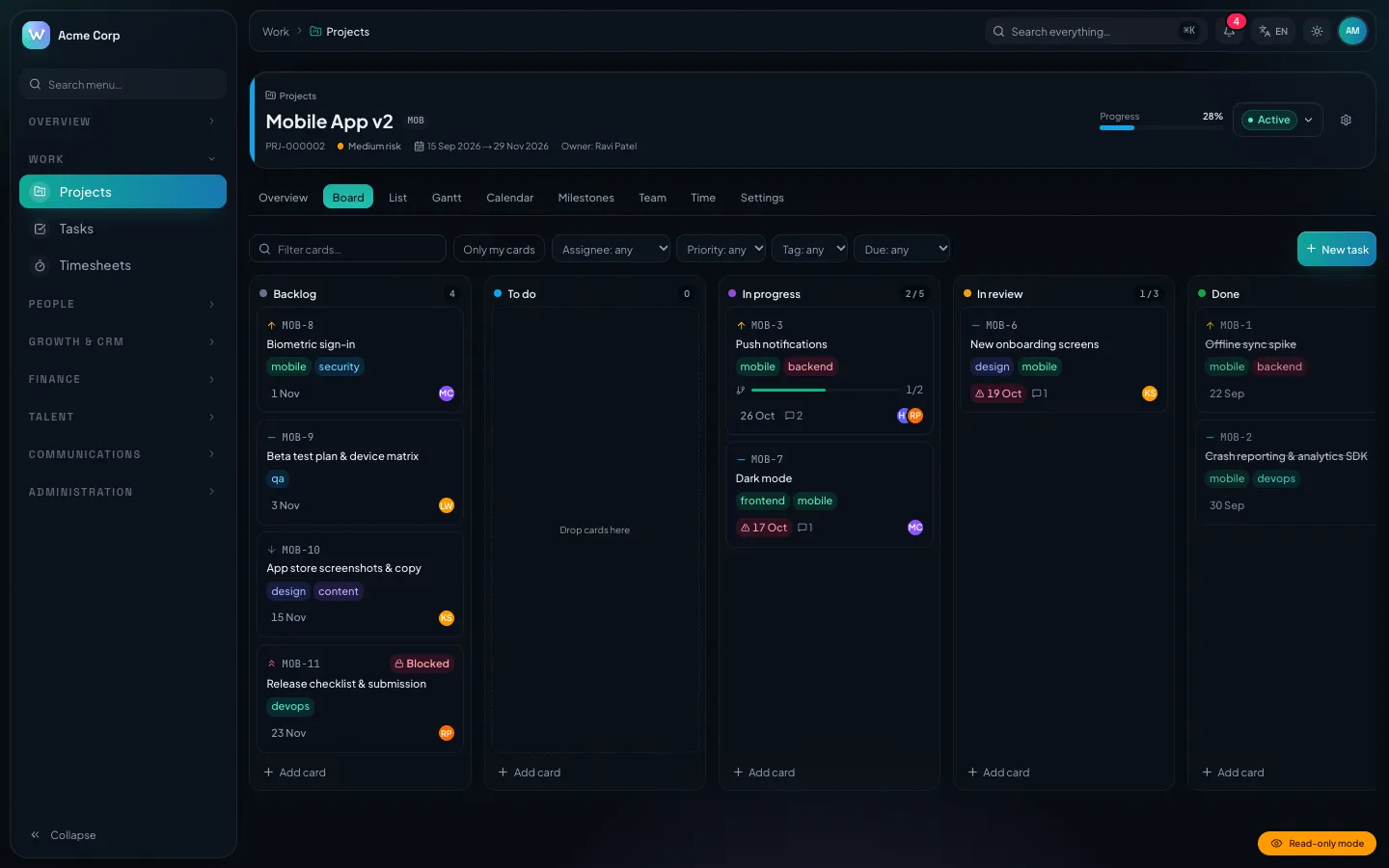
Each project's overview shows:
- Spent: labour plus expenses, and the percentage of the budget it represents
- Labour, Expenses, Hours costed and Billable value side by side
- a burn status: on track below 80 % of the budget, at risk from 80 % to 100 %, and over budget beyond 100 %
The same status appears as a badge on the project list and the dashboard's active-projects widget. Projects without a budget show no status at all, which is a good reason to always set one.
| Burn | What to do |
|---|---|
| On track | Nothing; check again next week |
| At risk | Compare billable value with budget; agree scope or a change request with the client |
| Over | Decide whether to stop, re-quote or absorb the cost, and record why |
Step 5: Attribute expenses to projects
Expenses go through their own workflow: draft, submitted, then approved or rejected, and reimbursed for staff claims. Approvers need a scope that covers the claim, and nobody can approve their own claim. Each expense has a category, vendor, receipts, tax and currency, and is converted to the base currency.
Link an expense to a project and, once approved, it counts towards that project's cost and budget burn. AI can read a receipt photo or PDF into the expense form for you to check.
Note: an expense can be flagged "billable to client", but WorkPro does not add flagged expenses to invoices automatically. Today you add them as invoice lines yourself; automatic re-billing would be a customisation.
Step 6: Turn billable time into invoices, once
In the invoice builder, choose a project and import its unbilled billable time. WorkPro collects submitted and approved billable entries that are not already on an invoice and groups them into one line per person and rate, with the date range in the description. AI can rewrite those lines into client-friendly wording, but quantities and rates stay exactly as calculated.
The important part is what happens on issue:
- the time entries are marked with the invoice, in a single transaction
- if any of them were billed on another invoice in the meantime, the issue is refused and you are asked to re-import
- once marked, they cannot be imported again or edited
- cancelling the invoice releases them, so they can be billed again
This is the "bill once" guarantee, and it is covered by an integration test in the source.
Step 7: Read the profitability report
Finance → Reports → Project profitability lists each project for a date range (the last 12 months by default) with:
- Revenue: the project's share of invoices issued in the range, using line-level project links, with discounts spread across lines, before tax and converted to the base currency
- Labour: submitted and approved minutes × cost rate
- Expenses: approved and reimbursed expenses linked to the project
- Net and margin %
- Hours and billable hours
- Unbilled: the billable value of time not yet invoiced
- Budget, for projects in the base currency
Projects with no activity in the range are left out. Rows are sorted by net result, so the projects losing money sit at the bottom.
How to read it
- High unbilled, low revenue: you are doing the work but not invoicing it. Raise an invoice.
- Margin falling while hours rise: scope creep or estimation. Look at hours by task.
- Labour near zero: check that the people on the project have salary entries.
- Revenue with no hours: fixed-price work invoiced from a quote; compare against the budget instead.
Step 8: See the whole company
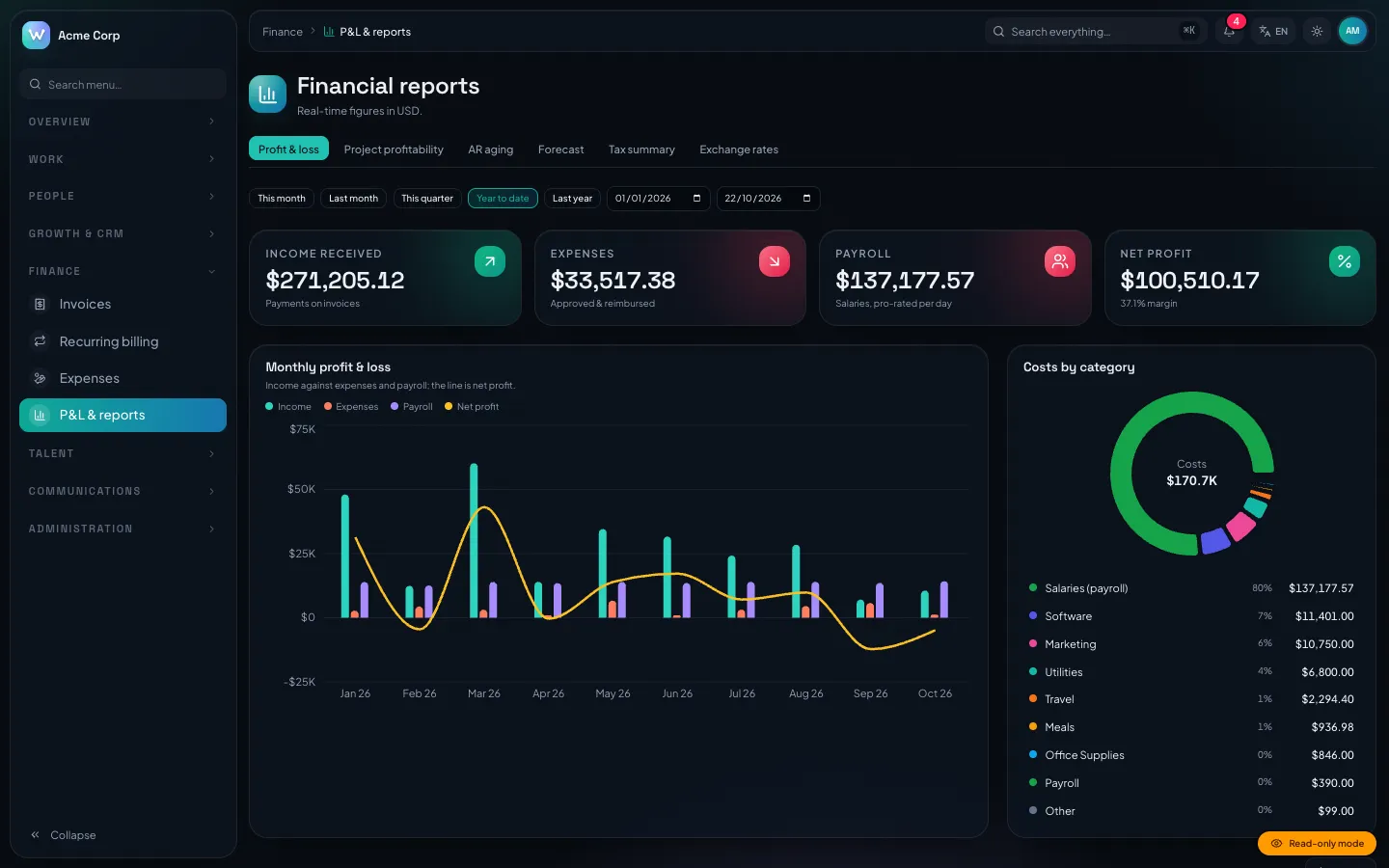
Project profitability counts only direct labour. The company P&L report adds the rest:
- Income by the date payments were received, converted at the rate on the payment date
- Expenses by category
- Payroll, pro-rated per employed day: annual salary ÷ 365 for each day between hire and termination, converted at that day's rate
From there you also get receivables ageing, a revenue forecast and a tax summary. AI can write a short explanation of a period from the report figures, including outliers it found. Report tables and timesheets can be exported to CSV, and timesheets to Excel as well.
Assumptions to know before you trust the numbers
- 2,080 hours a year is the standard full-time year used for every salaried person. If your team works a different contract, the cost rate will be off by the same ratio.
- Salary currency. The cost rate is taken in the currency of the salary entry and is not converted before being added up. Keep salaries in your base currency, or ask for conversion as a customisation.
- Salary only. Employer taxes, benefits and overheads are not included in the cost rate. If you want a loaded rate, that is a change to one function.
- No payroll. WorkPro stores salaries to cost time and estimate payroll; it does not run payroll or produce payslips.
Set-up checklist
- Salary history entered for everyone who logs time
- Budgets, billing types and rates set on every client project
- Approvers with team or department scope for time and expenses
- Expenses linked to projects where they belong
- A weekly habit: submit Friday, approve Monday, invoice unbilled time monthly
- Profitability report reviewed once a month
Next step
The calculations above are covered by integration tests in the source, including "actual cost = costed time × cost rate + approved expenses", "bills unbilled time once" and "computes project profitability: revenue − direct labour − attributed expenses". For the wider inquiry-to-invoice workflow, see our agency guide. You can get the source from the WorkPro marketplace page, and DEV3 can install it or adjust the costing rules to your business. For the full build, read the case study.