Ask a café owner where the money leaks and the answer is rarely the till. It is the dairy invoice that went up without anyone noticing, the second bakery order someone placed on the company card, and the gap between what the kitchen should have used and what was actually bought. Getting control of that starts with three things: knowing your suppliers, keeping ingredient prices current, and making sure every bill is approved by someone allowed to approve it.
This guide shows how to set up café purchasing in CafePro, our self-hosted restaurant and café management platform. It covers suppliers, ingredient pack prices, supplier price-list imports, purchase bills with approval limits, and how the P&L shows the gap between purchases and what was sold. It also says plainly what CafePro does not do yet: it does not count stock on hand, raise purchase orders or log wastage. We explain how to work around that, and what adding it would involve.
What CafePro covers, and what it does not
| Area | In CafePro | Notes |
|---|---|---|
| Supplier records | Yes | Contact, address, tax ID, payment terms, notes, active flag |
| Spend per supplier | Yes | Approved and paid spend over the last 90 days, and the date of the last bill |
| Ingredient pack prices | Yes | Pack price and size, costed per gram, millilitre or piece |
| Supplier price-list import | Yes | Updates prices by ingredient name and re-costs recipes; can be rolled back |
| Purchase bills | Yes | As expenses, with receipts, tax, payment method and outlet |
| Approval limits | Yes | Per role; bills above a limit escalate |
| Purchases vs recipe cost | Yes | P&L variance between the two |
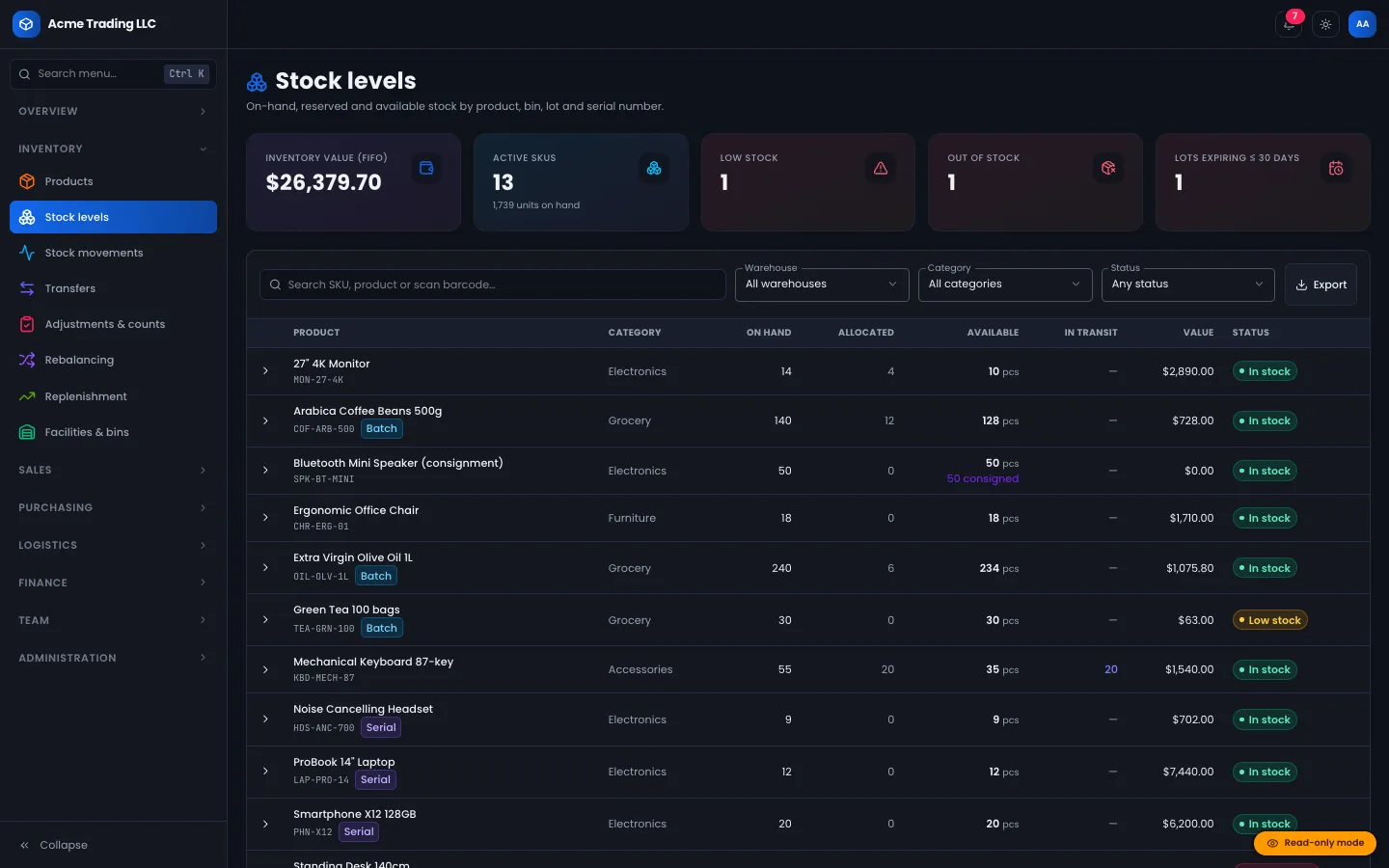
| Stock on hand | No | No quantity is held per ingredient |
| Purchase orders | No | Bills are recorded after purchase |
| Stock counts | No | No count sheets or count variance |
| Wastage log | No | Recipes carry a planned waste allowance only |
If you need the last four rows today, see "Adding stock tracking" below.
Step 1: Set up your suppliers
Go to Finance → Vendors. A vendor is any supplier you pay: roasters, dairies, bakeries, packaging suppliers, as well as the landlord and utilities. For each one record:
- name (unique per business) and category
- contact name, email and address
- tax ID
- payment terms in days (30 by default)
- notes, such as delivery days or minimum order
The vendor list shows what you have spent with each supplier over the last 90 days and when their last bill was recorded. Only approved and paid bills count, so a disputed invoice waiting for approval does not inflate the figure.
A vendor with bills on file cannot be deleted. Mark it inactive instead, so the history stays intact.
Step 2: Enter ingredients the way you buy them
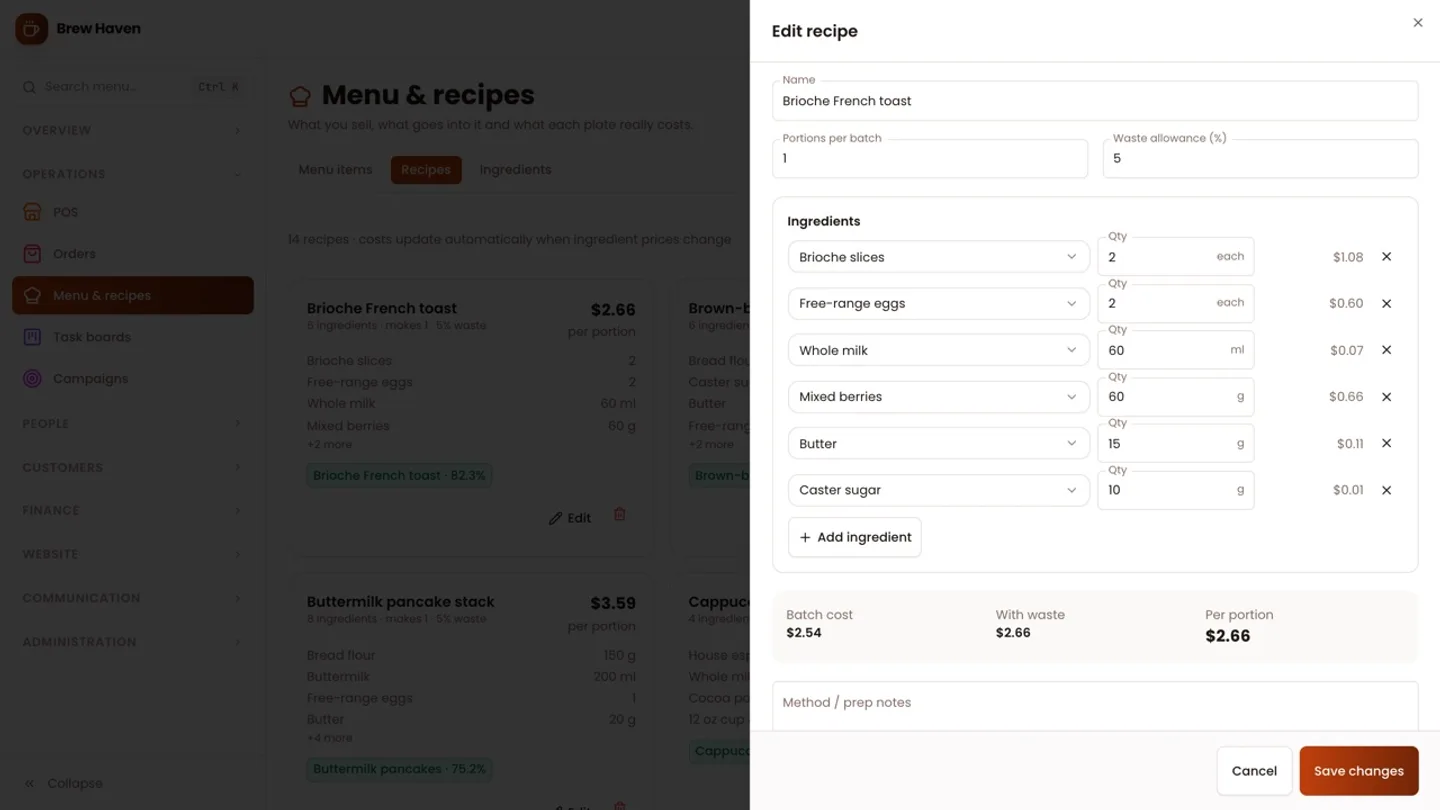
Under Menu → Ingredients, each ingredient is entered as a pack, the way it appears on the supplier's invoice:
- name and category (coffee and tea, dairy and alternatives, bakery, produce, meat and fish, dry goods, sauces and syrups, packaging, other)
- base unit: g, ml or each
- pack size in that unit (a 2 l bottle is 2,000 ml; a flat of 30 eggs is 30 each)
- pack price and a pack description ("2 l bottle", "case of 24")
- the supplier, linked to a vendor
CafePro divides the pack price by the pack size to get a cost per gram, millilitre or piece. Recipes use that cost, so the moment you change a pack price, every recipe and menu item that uses the ingredient is re-costed and its margin updates. The source has an integration test for exactly this behaviour.
Ingredient names are unique regardless of capitals. An ingredient used in a recipe cannot be deleted; mark it inactive instead.
For how recipe costs, sale-time cost snapshots and the P&L fit together, see our recipe costing guide.
Step 3: Keep prices current with supplier price lists
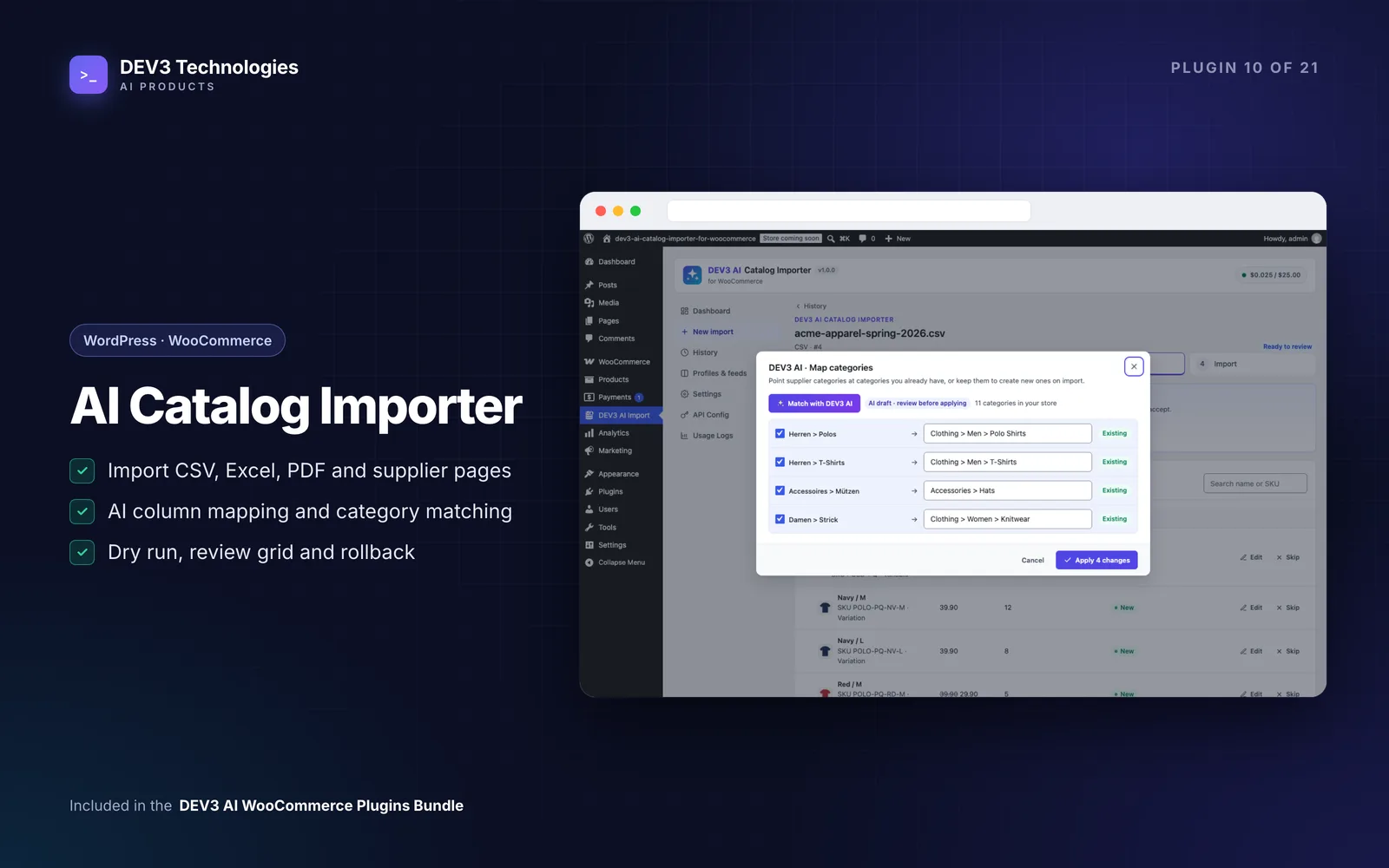
Supplier prices change more often than anyone updates a spreadsheet. CafePro's import turns a price list or invoice into ingredient updates:
- Open the import from the ingredients page and choose Ingredients & supplier prices.
- Upload a CSV or Excel file, a PDF, a photo of the invoice, or paste the text.
- Check the rows in the review grid: name, category, unit, pack size, pack price, pack description and supplier.
- Commit.
The rules are simple:
- Existing names (ignoring capitals) get the new pack price and size, and every recipe using them is re-costed.
- New names create new ingredients.
- Suppliers are matched to existing vendors where possible.
- The whole batch commits or nothing does, and a committed batch can be rolled back, which restores the previous prices.
Delimited files and simple price lists are parsed without AI. With AI switched on, CafePro can also read photos and PDFs. It is told to convert sizes to base units, to use the unit price rather than the line total, and to leave out delivery, deposit and discount lines. You still review every row before anything is saved. For how the review grid and rollback work in detail, see our import guide.
A weekly price routine
- Import each supplier's latest invoice or price list
- Look at which menu items' margins moved
- Decide whether to change a supplier, a portion or a price
Step 4: Record every purchase as an approved bill
Purchases are recorded under Finance → Expenses. Each bill has:
- date, category, vendor and outlet
- description, total and the tax included in it
- payment method: bank transfer, card, cash, cheque or other
- a reference and an attached receipt
- notes
Use the right category. Ingredients, Beverages and Packaging are treated as cost of goods in the P&L; everything else (rent, utilities, maintenance, equipment, cleaning, delivery fees and so on) is an operating expense.
AI can scan a receipt photo or PDF and fill in the vendor (matched to your list), category, date, amount, tax and reference for you to check.
Approval limits by role
Each role has an expense approval limit. The owner's admin role has no limit; you set limits for managers and supervisors. The flow:
- A bill within the submitter's own limit is approved straight away, with an "Within approval limit" entry in its history.
- A bill above the limit goes to pending, and everyone whose limit covers the amount is notified.
- An approver whose limit is too low can still approve; the bill is escalated to someone with a higher limit for final sign-off.
- Nobody can approve their own bill, or approve the same bill twice.
- Approved bills can be marked paid with a date.
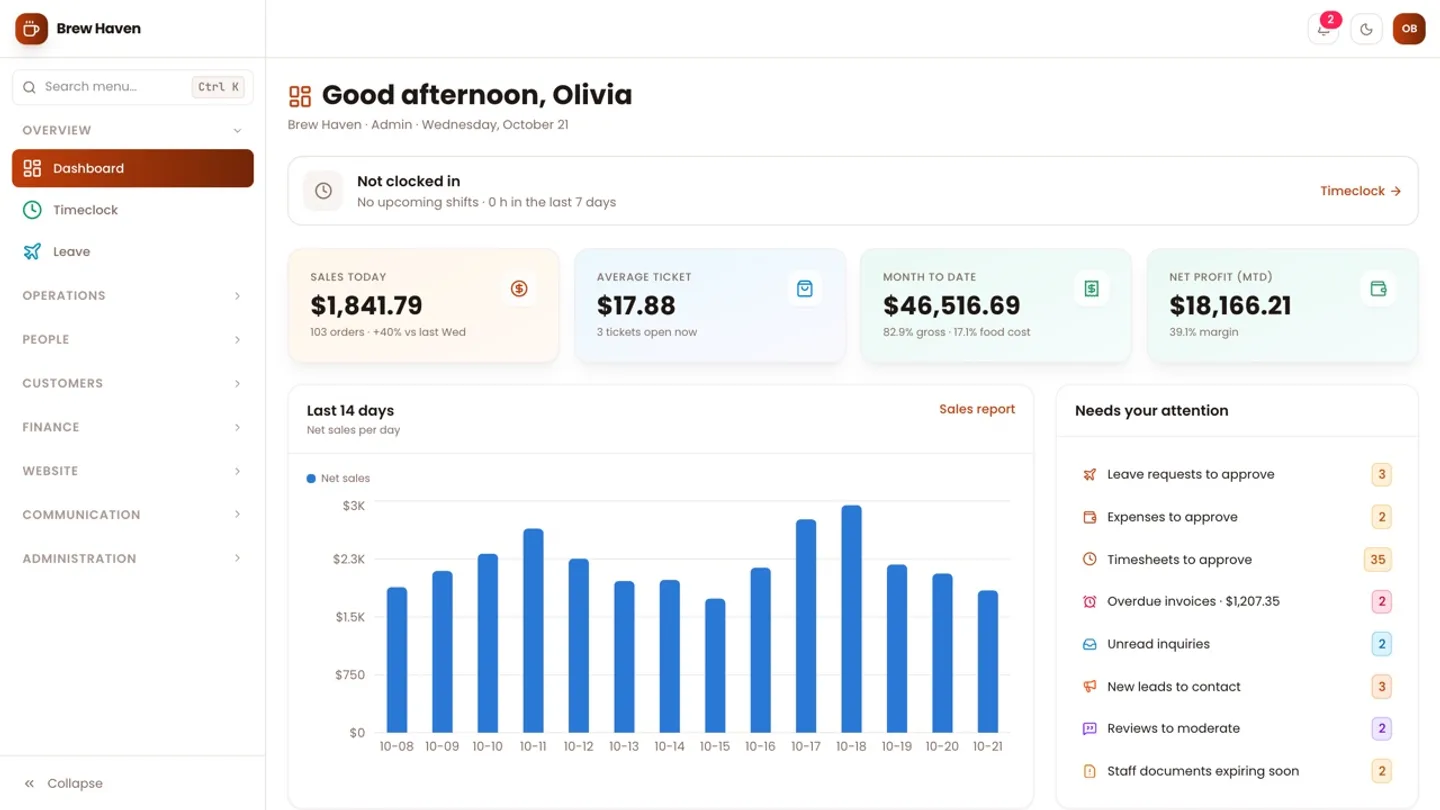
Pending bills can be edited, which resets their approvals. Rejected and paid bills are locked, and so are approved bills, except that someone can still correct an approved bill that falls within their own limit. Paid bills cannot be deleted. Pending approvals also appear in the dashboard's "Needs your attention" panel.
Bills from a bank export or a pile of receipts can be imported too. Those within the importer's own limit are approved, and the rest go to pending.
Step 5: Read the gap between purchases and sales
Every POS sale stores the cost of what was sold at the moment it was sold. The P&L can use either:
- Recipe COGS: the cost of what you sold, available in real time
- Purchases: what you bought in the cost-of-goods categories
Whichever basis you choose, the report shows both, and the variance between them: purchases minus recipe cost. You can run it for the whole business or one outlet. Bills without an outlet are included in every outlet's view.
A large positive variance means you bought more than your recipes say you used. The report itself lists the usual reasons: waste, over-portioning, comps or stock build-up. Without stock counts CafePro cannot tell you which, but it does tell you how big the gap is and in which period, which is where most cafés currently have no number at all.
Working the variance without a stock module
- Compare periods of the same length, such as week on week, so a large delivery does not look like waste.
- Record bills on their delivery date.
- Keep cost-of-goods categories clean: a coffee machine repair filed under Ingredients will distort the variance.
- Set each recipe's waste allowance and yield honestly; recipes include a waste percentage that is added to their cost.
- If the gap stays high, do a manual count of your top five ingredients at the start and end of a week and compare.
Adding stock tracking
Stock on hand, purchase orders, delivery receiving, stock counts and a wastage log are not in CafePro today. They fit naturally on top of what exists:
- an append-only stock movement ledger per ingredient and outlet (received, sold through recipes, wasted, counted)
- purchase orders to vendors, received against a delivery and turned into a bill
- count sheets whose differences post as adjustments with a reason
- wastage entries with a reason code, which would split the P&L variance into waste and unexplained loss
The design for that kind of ledger is described in our inventory ledger article. DEV3 can add it to CafePro as a customisation.
Set-up checklist
- Vendors entered with payment terms
- Ingredients entered as packs and linked to vendors
- Latest supplier price lists imported and reviewed
- Expense approval limits set for each role
- Staff told to attach a receipt and choose the right category and outlet
- P&L variance checked every week
Next step
CafePro will not count your shelves, but it keeps supplier prices current, puts every bill through the right approver and shows you the gap between what you bought and what you sold. You can get the source from the CafePro marketplace page, and DEV3 can install it or add stock tracking for you. For the wider build, read the case study.