Your supplier just sent the new season's range. It's a semicolon-separated price list with German column headers, or an Excel sheet with one row per size, or a 40-page PDF catalogue. Sometimes it's just a link: "everything's on our website". You need it in WooCommerce, with the right categories, prices, images and variations, before the products sell out at someone else's shop.
WooCommerce's built-in importer is fine if your file already uses its column names. Most supplier files don't. And if the import goes wrong (wrong prices, sizes imported as separate products, 40 new junk categories), there's no "undo" button. You fix it by hand or restore a backup. This guide covers a safer process using DEV3 AI Catalog Importer, organised by what your supplier actually sends you.
What a good supplier import looks like
- Any format goes in. CSV, Excel, PDF or a web page.
- Columns are mapped for you, and you confirm the mapping rather than typing it.
- Sizes and colours become variations of one product, not 30 separate products.
- You see every product before anything is written, with errors flagged.
- You can preview the result, field by field, before it's real.
- You can take the whole import back if it's wrong.
- Next month's file from the same supplier is one click.
Before you start
You'll need WordPress 6.0+, PHP 7.4+ and WooCommerce 8.0+. Install and activate the plugin, then open DEV3 AI Import. A Google Gemini key under API Config is optional. Spreadsheets, feed URLs and supplier pages with structured product data import fully without one. PDF catalogues and free-form web pages need it.
The importer is a four-step wizard: Source → Map → Review → Import. Nothing is written to your store before the last step.
Scenario 1: The supplier sends a CSV or Excel price list
- Go to New import and drop the file on Upload a file. Delimiter, encoding (UTF-8, UTF-16, Windows-1252) and the first worksheet are detected automatically.
- In Map columns, check where each column goes. Common supplier headers in English, German, French, Spanish, Dutch and Italian are mapped for you, so a German or French price list doesn't need translating first.
- For anything left over, click Map with DEV3 AI. Each suggestion comes with a confidence score and a reason. Tick the ones you agree with and click Apply N selected.
- Set the category separator and the multiple-values separator to match the file.
- Click Build products & review.
Targets include name, SKU, parent SKU, prices, descriptions, categories with hierarchy, tags, images, stock, weight and dimensions, GTIN/EAN, brand, attributes and custom fields.
Turning one-row-per-size into variable products
This is where most supplier imports go wrong. If the file has a row for every size and colour, map the style or model column to Parent SKU / style (groups variations) and each option column (Size, Colour) to Attribute. Rows sharing a parent SKU become one variable product, and only the attributes whose values differ across those rows become variation attributes. A simple product that gains variations in a later file is converted to a variable product.
Scenario 2: The supplier sends a PDF catalogue
- In New import, drop the PDF.
- On the Extract step, click Extract products with DEV3 AI. One AI request reads up to 100 products from a PDF.
- The extracted products land in the review grid marked as AI extracted.
Check PDF imports more carefully than spreadsheets. Catalogues are designed for people, not machines, so prices next to the wrong product or a missed footnote are worth a second look.
Scenario 3: "It's all on our website"
- In New import, switch to Supplier web page or feed and paste a product or category page URL.
- Click Extract products with DEV3 AI on the Extract step.
Pages with schema.org product data are read without AI first. DEV3 AI reads free-form pages, up to 50 products per request. All URLs are fetched server-side through a guard that only allows public http and https addresses.
Review: the step that saves you
Whatever the source, every product lands in Review. Work through the tabs: New, Update, Warnings, Errors and Skipped. The importer flags missing names, invalid prices, sale prices not lower than the regular price, duplicate SKUs inside the file and SKUs that already exist in your store.
- Click Edit on a row to fix it in a drawer, or Skip to leave it out. Rows with errors are never imported.
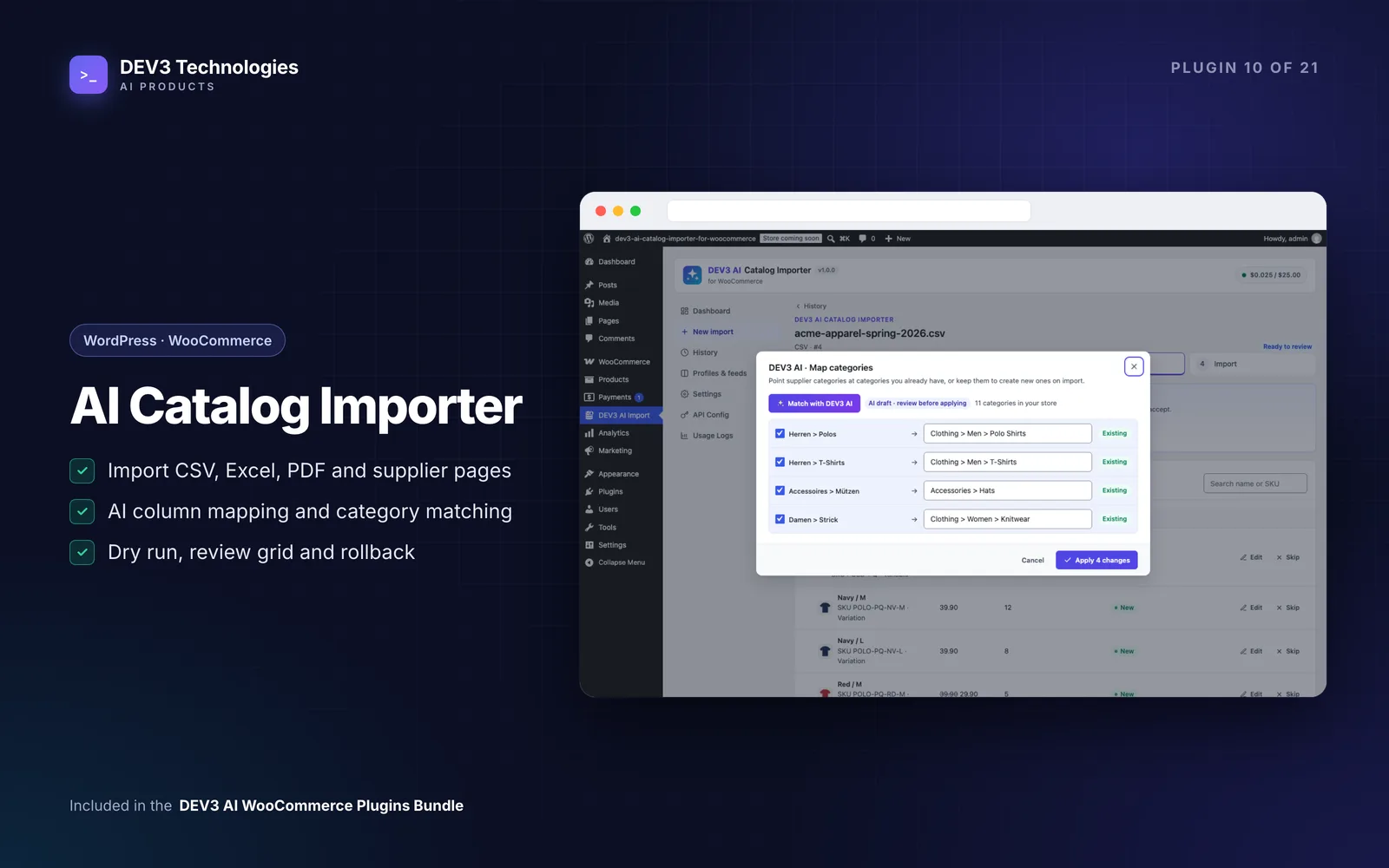
- Click Map categories so supplier categories like
Herren > Polospoint at your existing tree instead of creating new ones. - Click Polish titles with DEV3 AI for cleaner names and short descriptions. Accept or reject each one under Review N AI drafts.
Dry run, then import
Click Continue to import. Choose what happens when a SKU already exists (update or skip) and which Fields to overwrite when updating. If you've written your own descriptions, don't let the supplier file overwrite them.
Click Start dry run. Each row shows what would be created or updated, field by field, such as a price changing from 5 to 7.25. When it looks right, click Import N rows. The import runs in the background with progress, cancel and retry, and Download report gives you a CSV of every row's outcome.
If it goes wrong: roll back
Open the import from History and click Roll back import. Products and variations it created are deleted, products it updated get their previous values back, images it downloaded are deleted, and categories, tags and attributes it created are removed if nothing else uses them. Rollback is available for as long as the import stays in History (30 days by default, set in Settings).
Next month: profiles and feeds
On the Map columns step, click Save as profile. The next file with the same columns from that supplier is mapped automatically. If the supplier publishes a CSV or Excel feed, go to Profiles & feeds, edit the profile, add the feed URL and choose a daily or weekly schedule. Developers can script the same thing with WP-CLI:
wp dev3ci import supplier.csv --profile=3 --dry-run
wp dev3ci import supplier.csv --profile=3
Tips and pitfalls
- Always dry-run the first file from a new supplier. It's the cheapest way to catch a wrong column.
- Limit what updates can overwrite. Price and stock are usually safe. Your own descriptions and SEO work usually aren't.
- Map categories before importing. It's much easier than merging duplicate categories afterwards.
- Your orders are safe. The importer only writes products, variations, terms and media.
Who it's for
Retailers and dropshippers who take stock from several suppliers, stores moving off another platform, and agencies loading client catalogues. The case study goes into the review grid, dry run and rollback in more detail.
Get started
DEV3 AI Catalog Importer is part of the DEV3 AI WooCommerce Plugins Bundle. Drop in your next supplier file, review it, dry-run it, and save the profile for next time. If you need a custom supplier integration, our web development team can build it.