"I know the data is in there, I just can't get it out"
WooCommerce Analytics holds a lot of useful information, but getting a specific answer out of it is slow. "Which products sold best in Dubai last month?" means picking a report, setting dates, adding filters, exporting a CSV and working it out in a spreadsheet. So most store owners check revenue now and then and leave the more useful questions unasked: which customers come back, which best sellers are about to run out, why yesterday was so quiet.
You don't need a data analyst for these questions. You need a way to ask them in plain words and get a straight answer, plus a heads-up when something unusual happens.
This guide shows how to set that up with DEV3 AI Store Insights for WooCommerce.
What good looks like
Useful store reporting for an owner or manager:
- Answers questions in plain English, with a chart, the table behind it and a short explanation.
- Shows how it understood the question, so you can trust the answer or correct it.
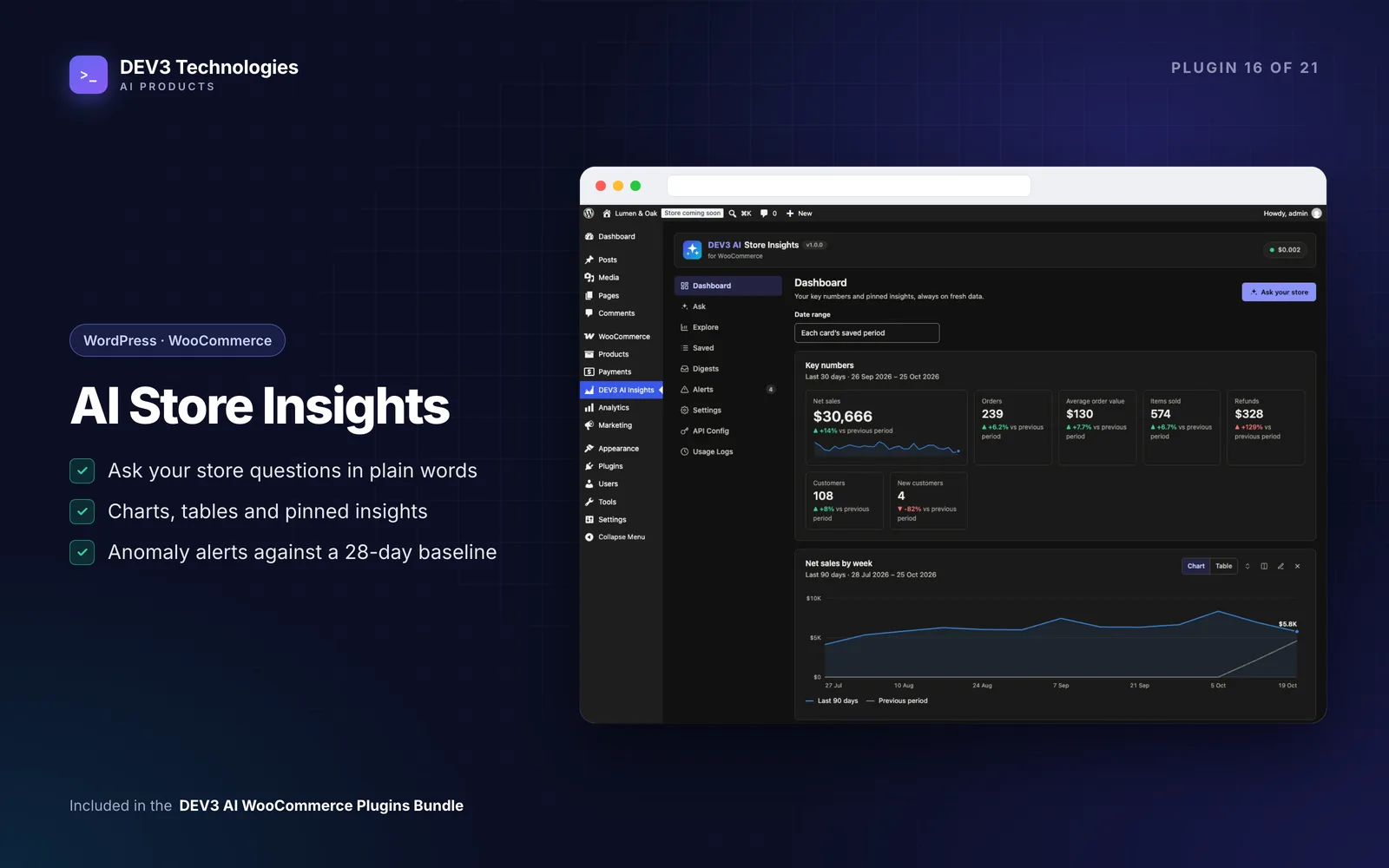
- Keeps your key numbers on one dashboard, refreshed every time you open it.
- Comes to you: a weekly email instead of remembering to log in.
- Warns you about unusual days and points to what moved.
- Can't damage or leak your data, whatever someone types.
- Still works without AI.
Step-by-step setup
1. Install and check data health
Upload the zip in Plugins › Add New › Upload Plugin and activate it (WordPress 6.0+, PHP 7.4+, WooCommerce 8.0+). Open DEV3 AI Insights in the admin menu.
Open the Dashboard first. Reports read the WooCommerce Analytics tables, which WooCommerce fills in the background. If the data health notice says some orders are missing, click Import them now.
2. Decide how questions are answered
In Settings, choose whether to answer questions with DEV3 AI (falling back to rules) or with built-in rules only, and whether locations come from the billing or shipping address. Also pick the theme (match device, light or dark) and the default dashboard period.
To use AI, create a key in Google AI Studio and paste it under API Config. You can set a monthly budget cap there too. Customer names are anonymised before anything is sent to Google Gemini unless you allow them, and email addresses are never sent.
3. Ask your first questions
Open Ask and click a suggestion, or type a question. Some to try:
- "Best sellers in Dubai last month"
- "New vs returning customers this quarter"
- "Top coupons past 14 days"
- "Which products are low on stock?"
- "Customer retention cohorts"
Each answer shows "DEV3 AI read this as…" chips so you can check how it understood you, a chart with a Table toggle, notes (for example, which address was used for locations), an explanation and follow-up questions. You can download a CSV, open the query in Explore to adjust it, or Save or pin it.
Without AI, the built-in rules still understand periods ("last month", "in March", "this quarter"), report words (best sellers, by country or city, refunds, cohorts, stock, coupons, AOV) and "top N", plus the locations and categories in your store.
4. Know what reports are available
Every answer comes from a fixed library of 11 read-only reports: store summary, sales trend, top products, top categories, sales by location, customer segments, top customers, refunds, customer cohorts, stock status and top coupons. Filters cover location, category, product, customer type and account type. If you'd rather click than type, Explore builds any of these by hand, and works without AI.
5. Pin your dashboard
Saved questions store the report and its options, not the numbers, so they re-run on fresh data each time. "Last month" moves forward with the calendar. Pinned questions become dashboard cards you can reorder, resize, open in Explore or export. The date range above the cards applies to all of them, or you can keep each card's own period.
A WordPress Dashboard widget also shows today's numbers against yesterday, with a 14-day sparkline and your pins.
6. Set up an email digest
In Digests › New digest, choose daily, weekly or monthly, the hour to send, and the recipients. Add key numbers, any saved questions you want, and an optional DEV3 AI summary paragraph. Use Preview and Send test before relying on it.
7. Turn on anomaly alerts
In Alerts › Rules, keep the default rules or click Suggest rules with DEV3 AI, which reads 90 days of daily totals and proposes thresholds as a draft. Rules compare yesterday with the 28 days before it for net sales, orders, AOV, items sold, refunds and refund rate, optionally for one location or category. The stock rule flags top-10 sellers with fewer days of stock left than you set.
Each alert shows the 29-day trend, the products and countries that moved most, and an explanation. Check now scans the last few days straight away.
Tips and pitfalls
- Numbers differ from the Orders screen? Reports follow WooCommerce Analytics: order statuses excluded under WooCommerce › Settings › Advanced › Analytics are left out, and refunds are subtracted. Missing orders can be imported from Settings › Data health.
- Read the interpretation chips. If a question was understood differently than you meant, click Edit query and adjust it in Explore.
- Locations match broadly. "Dubai" matches a country, a state or region, or a city, so orders matching any of them are included.
- Digests need working mail and cron. Use an SMTP plugin and make sure WP-Cron runs, either through site traffic or a server cron job.
- Explanations without tokens. If you turn off "Explain every answer with DEV3 AI", the plugin writes the summaries itself and uses no tokens.
- The AI can't change your data. It only chooses a report and fills in its options; every option is checked on the server and reports run as read-only prepared queries.
Who it's for
Store owners and managers who want answers without exporting spreadsheets, stores selling across several countries or cities, teams that want a weekly summary in their inbox, and anyone who'd like to hear about a bad sales day before a customer mentions it. For how the AI is kept away from raw SQL, read the case study.
Wrapping up
The questions that help you run a store are usually simple; getting the answers shouldn't take an afternoon. DEV3 AI Store Insights turns them into charts, digests and alerts, and it ships in the DEV3 AI WooCommerce Plugins Bundle. If you need reporting across more systems than WooCommerce, our AI implementation team can help.