Procurement in a spreadsheet works until the second person joins. Then the questions start. Was this order approved, or just drafted? Did the supplier confirm the price? How many cartons actually arrived, and how many were damaged? Have we already paid for goods we have not received? Each answer lives in a different tab, inbox or person's head, and the stock count is only as good as whoever last remembered to update it.
This guide walks through the full purchasing cycle in Inventra, our source-code inventory and ERP platform: from a reorder alert to a draft purchase order, approval, sending, receiving and paying the vendor. It covers what each step records, who is allowed to do it, and what the accounts see. If you are replacing a purchasing spreadsheet, use the steps as a template for how the process should run in any system.
The cycle at a glance
| Stage | PO status | Who | What it records |
|---|---|---|---|
| Draft | Draft | Buyer or the system | Vendor, receiving warehouse, lines, currency, expected date |
| Approve | Approved | Business Admin | Approver and time |
| Send | Sent | Buyer | PDF emailed to the vendor |
| Receive | Partially received / Received | Warehouse | Goods receipt, lots, serials, rejects |
| Pay | (unchanged) | Accountant | Vendor payment and ledger entry |
| Finish | Closed or Cancelled | Buyer | Short-closed remainder, or a cancelled order |
A PO can only move forward through these states, and each step checks the one before it. You cannot send a draft, receive an unapproved order or edit a PO once it has been approved.
Step 1: know what to buy
Most purchasing starts with "we are running low". Inventra can raise that signal for you.
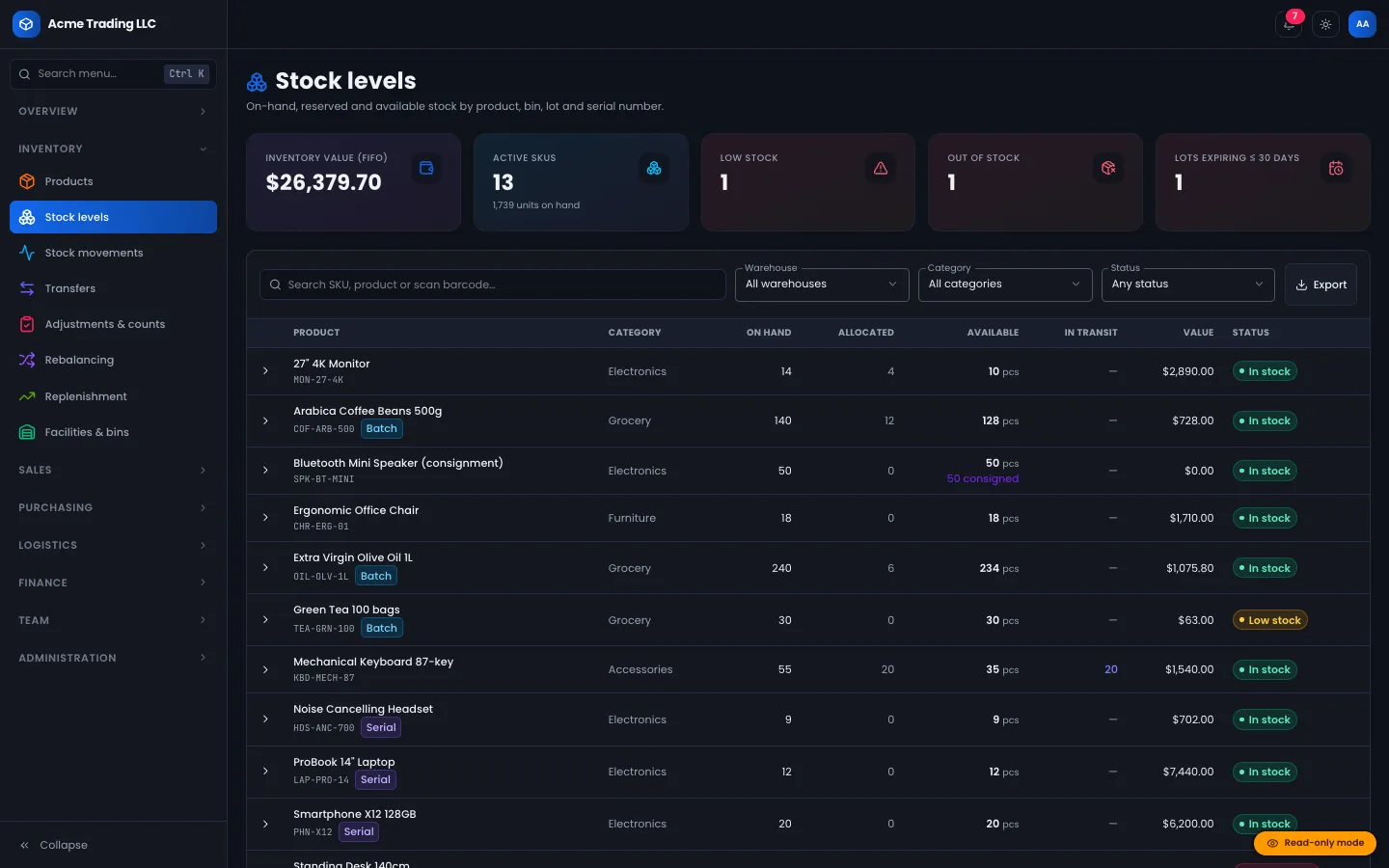
- Reorder points. Each product can have a reorder level, a reorder quantity and a preferred vendor. When stock falls to the reorder level and there is no open PO for it, the system adds it to an automatic draft PO for that vendor, grouping products from the same supplier into one draft. A notification asks someone to review and approve it.
- Drafts only. Automatic POs are never sent on their own. A person always reviews and approves them.
- Better reorder points. The replenishment tools can calculate a dynamic reorder point from average daily sales, the vendor's measured lead time and its variability, plus a safety stock. Results can be applied to products and per-facility settings, and can run nightly.
- Rebalance before you buy. If one shop is low but another location has plenty, the rebalancing tool proposes an internal transfer instead of a new PO.
Step 2: draft the purchase order
A PO names the vendor, the warehouse that will receive the goods, the currency and an expected delivery date, then lists products with quantities, unit costs and tax rates.
A few things the system handles for you:
- Foreign currency. A PO can be raised in the vendor's currency. Inventra stores the exchange rate at the time, and keeps a base-currency total for reporting.
- Money without rounding drift. Every amount is held in minor units (cents), so line totals and tax always add up.
- Consignment vendors. If a vendor supplies on consignment, the PO defaults to consignment and the goods will stay vendor-owned after receipt (more on that below).
- Getting old orders in. On the day you switch, the AI import can read a list of open orders from a spreadsheet or document and stage a draft PO per vendor, with currency conversion and price-variance flags, for you to review before anything is created.
Drafts can be edited freely. Once approved, the lines are fixed.
Step 3: approve
Approval is a separate permission. In the default roles, warehouse managers can draft, send and receive POs but cannot approve them; only a Business Admin can. Every approval is written to the audit log with the approver's name.
What to know before you rely on it:
- There is one approval step, with no amount thresholds or multi-level chains (for example, manager up to one amount, director above it).
- The system does not stop an admin from approving a PO they drafted themselves. (Stock transfers do enforce this separation; purchasing does not.)
If your controls need value-based approval chains or strict maker-checker rules on POs, that is a customisation DEV3 can build on top of the existing permission model.
Step 4: send it to the vendor, and let them respond
Sending generates the PO as a PDF and emails it to the vendor's address (or one you enter), with an optional message, and marks the order as sent.
Vendors can also be given their own login to the vendor portal. There they see only their own orders and can:
- confirm the PO as issued;
- propose a revision to quantities, prices or the delivery date, which the buyer accepts or rejects (accepting updates the PO, and is only allowed before anything is received);
- propose a supply order of their own, which arrives as a draft for the buyer to approve;
- send an advance shipping notice (ASN) listing what is on its way, with lot numbers, expiry dates and serial numbers.
The vendor portal replaces the email chain of "can you confirm?" and "we can only do 80". Everything ends up on the PO.
Step 5: receive the goods
Receiving is where spreadsheets usually fail, because what arrives rarely matches what was ordered exactly. Inventra records a goods receipt for each delivery against the PO.
For each line, the receiver enters:
- the quantity accepted into stock;
- the quantity rejected, with a reason (damaged, wrong item and so on);
- a bin location, if the warehouse uses bins (otherwise stock waits in an unbinned staging area until it is put away);
- a batch or lot number, required for batch-tracked products;
- an expiry date, required for products that track expiry;
- serial numbers, one per unit, for serialised products. Duplicates of serials already in stock are refused.
If the vendor sent an ASN, the receiver can start from it, and the quantities, lots, expiry dates and serials are filled in from the notice.
Guards that protect the count:
- You cannot receive more than is still open on a line.
- A delivery that does not complete the order sets the PO to partially received; later deliveries add further receipts until it is received.
- If the vendor will not deliver the rest, the buyer can close short, which ends the order without pretending the goods came.
- A PO can only be cancelled if nothing has been received against it.
- If two people try to receive the same PO at once, the second is asked to refresh rather than double-counting.
Accepted goods become stock at the PO's unit cost converted to your base currency, as FIFO cost layers, so later sales are costed from what you actually paid. Rejected units do not enter stock, but they do count towards the vendor's defect rate.
Step 6: the accounts, and paying the vendor
Each goods receipt posts a balanced journal automatically:
| Account | Debit | Credit |
|---|---|---|
| Inventory | Net value received | |
| Input tax | Recoverable tax | |
| Accounts payable (vendor) | Gross amount |
Paying the vendor is a separate step, done by someone with the finance permission (the Accountant role by default). Inventra only allows payment up to the value of goods actually received and not yet paid, so you cannot accidentally pay for an order that has not arrived.
For foreign-currency POs, the payable is cleared at the PO's exchange rate and the bank side at the rate on the payment date; the difference is posted to FX gain or loss.
A worked example from the test suite. The purchasing integration test raises a PO for 10 units at €10 each with 5% tax, at a rate of 1.1. Six units are accepted and one rejected as crushed. That receipt posts $66.00 to inventory, $3.30 input tax and $69.30 to the vendor's payable. Three more units arrive and the PO is received. A €40 payment made when the rate is 1.2 clears $44.00 of payable, takes $48.00 from the bank, and records a $4.00 exchange loss.
Consignment and drop-ship
Two vendor arrangements do not fit the standard flow:
- Consignment. Received goods sit in your warehouse but stay vendor-owned, so the receipt posts no payable and adds no inventory value. When a consigned unit is sold or lost, Inventra posts the payable to the vendor and creates a settlement line, which the buyer pays from the consignment screen.
- Drop-ship. Confirming a customer order with drop-ship lines creates a PO per vendor with the customer's address as the ship-to. The vendor dispatches from the portal with tracking, and the goods never touch your stock.
Measure your vendors
Because every PO records when it was sent and every receipt records when goods arrived, Inventra builds a vendor scorecard without extra data entry:
- Actual lead time compared with the quoted lead time;
- OTIF: the share of POs received in full on or before the expected date (a reject means not in full);
- Defect rate: rejected units as a share of units delivered;
- lead-time variability and bias, and ASN accuracy (did the notice match what arrived?).
These feed back into the dynamic reorder points in step 1, so unreliable vendors automatically get more safety stock.
What is not included
Being clear about the gaps helps you plan:
- Landed costs. Freight, duty and clearance charges are not allocated onto received stock. Inventory is valued at the PO unit cost. The logistics module estimates duty and landed cost for outbound shipments, but that is a calculator, not a purchase-cost allocation.
- Purchase requisitions and RFQs. There is no separate request or quotation stage before the PO.
- Approval chains, as noted in step 3.
- A printable goods received note. Receipts are recorded and listed, but only POs, invoices, waybills and transfer notes have PDF layouts.
All of these are realistic customisations.
Closing
Procurement without spreadsheets is mostly about making each step leave a record: who approved it, what the vendor agreed, what actually arrived, and what was paid. For moving the rest of your stock processes off spreadsheets, see how to replace inventory spreadsheets with a multi-warehouse stock system. You can explore the purchasing screens in the read-only demo and get the source from Inventra; DEV3 can install it or add the pieces above. The design decisions are in the case study.