"We sold the same can three times"
You sell cola as single cans, 6-packs and cases of 24. In the warehouse it's one stack of cans. In WooCommerce it's three products with three separate stock numbers, so a big order of cases doesn't reduce the stock of single cans, and sooner or later you sell stock you don't have.
The same thing happens with fabric sold by the metre across many products, blank T-shirts printed with dozens of designs, or gift boxes built from items you also sell on their own. WooCommerce tracks stock per product or variation. Your stock room doesn't work that way.
This guide shows how to fix it with DEV3 AI Shared Stock & Inventory for WooCommerce: one physical stock, many products drawing from it.
What good looks like
Shared stock done properly means:
- One number for one physical thing. The cans, metres or blanks are counted once.
- Each product deducts the right amount. A 6-pack takes 6 cans; half a metre of linen takes 0.5.
- Every product shows the right availability on the storefront, in the quantity selector, feeds, the REST API and the block checkout.
- Carts can't oversell. A 6-pack and five single cans can't both go through against ten cans.
- Stock goes back correctly when orders are cancelled, refunded or edited.
- You know what to reorder before you run out.
Step-by-step setup
1. Install and turn on stock management
Upload the zip in Plugins > Add New > Upload Plugin and activate it (WordPress 6.0+, PHP 7.4+, WooCommerce 8.0+). Then go to WooCommerce > Settings > Products > Inventory and make sure Enable stock management is on; WooCommerce only reduces stock for orders when it is. Open DEV3 Shared Stock in the admin menu.
2. Create your first pool
A pool holds the physical units. Go to Stock pools > New pool and follow the example from the docs:
- Name: "Cola cans". Unit: "cans".
- Opening stock: 480. Low-stock threshold: 48.
- Optionally add a SKU (used by CSV import), supplier name and email, lead time and unit cost. You'll want the supplier and lead time later for reordering.
3. Link products with units per sale
On the pool page, click Add link:
- "Cola can" with 1 unit per sale.
- "Cola 6-pack" with 6.
- "Cola case of 24" with 24.
Each product now shows the shared stock: the can 480, the 6-pack 80, the case 20. Sell any of them and all three update. You can also link from the product editor's Shared stock tab and from each variation's fields.
4. Use attribute rules for bigger catalogues
Linking one product at a time doesn't scale for fabric or blanks. Links can also be:
- A variable product: every variation of "Crew tee" uses 1 blank tee.
- A single variation: the red tee also uses 1 red print.
- A store-wide attribute rule: every product or variation with Material = Linen uses 0.5 m of linen.
- A product attribute rule: this tee's Size = XL variations use 1.2 blanks.
When several links point at the same pool, the most specific one wins: variation, then product, then product attribute rule, then store-wide rule.
5. Build kits from several pools
Link one product to more than one pool and every sale deducts from each. A gift box linked to the candle pool and the soap pool sells only while both have enough. If you use WooCommerce Product Bundles, Composite Products or Mix and Match, choose under Settings > Bundles and composite products whether the bundle, the bundled items, or both deduct.
6. Let the plugin propose pools
Not sure where to start? Set up pools for me uses built-in rules to spot pack sizes in product names ("6-pack", "Case of 24", "x12"), pack-size variations and shared material attributes. With a Google Gemini key in API Config, Propose pools with DEV3 AI reads your products, variations and attributes and proposes pools with links and opening stock. Proposals are drafts: tick the ones you want, edit them, then Create.
7. Set up alerts and reordering
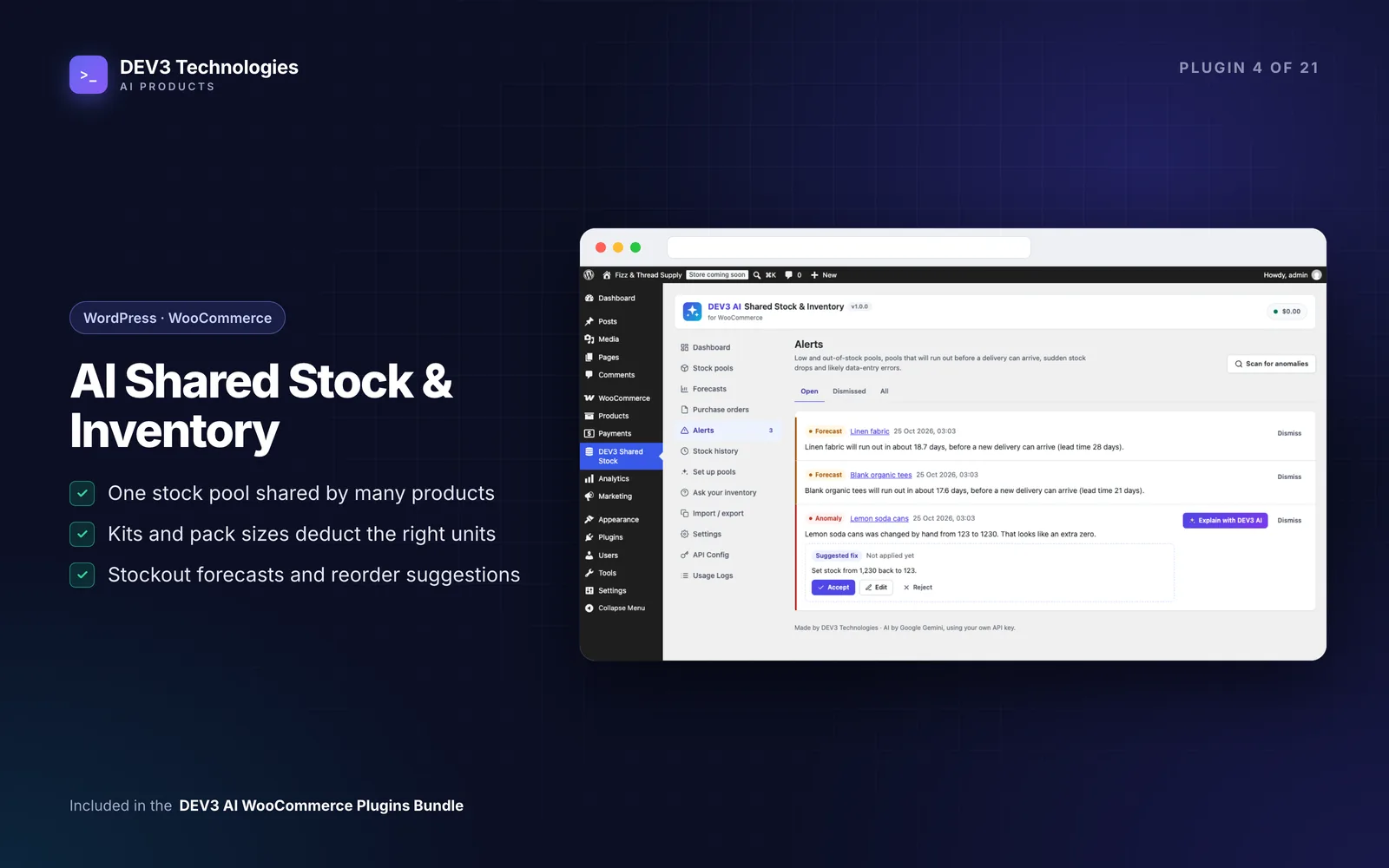
Alerts email the recipients in Settings when a pool goes low or out of stock, and when a pool will run out before a new delivery could arrive. Anomalies flag changes that look like typos, such as an extra zero, and sudden drops, with a suggested correction to accept, edit or reject.
Each pool gets a forecast from its stock history, with a reorder point, reorder date and suggested quantity, explained in plain words. From a pool you can Draft PO email with DEV3 AI or Use template, review it, email it to the supplier, and click Receive when the delivery arrives to add the stock back.
Tips and pitfalls
- Edit the pool, not the product. Linked products follow their pool, so a manual change to a product's stock is overwritten. Adjust the pool with Add, Remove or Set to, or turn off "Keep product stock in sync".
- Orders not changing pools? Check WooCommerce stock management and "Deduct pool stock for orders" are both on, and that the pool isn't paused.
- Changing links later is safe. Each order line remembers the pools and units it used, so a refund on an old order returns exactly what was taken, and every pool change is noted on the order.
- Import with a preview. Pools and links can be imported from CSV (comma or semicolon, up to 5,000 rows), and imports always show a preview first.
- Ask questions. Ask your inventory answers things like "What should I reorder this week?" from your pools and forecasts. Without AI, built-in answers cover dates, reorders, best and slow sellers and low stock.
- Permissions. Shop managers can use the inventory screens; API Config and Settings need an administrator.
Who it's for
Drinks and food sellers with packs and cases, fabric and craft stores selling by length, print-on-demand shops with shared blanks, gift box and kit sellers, and any store where one item in the stock room appears as several products online. The engineering behind keeping pools correct through refunds and edits is in the case study.
Wrapping up
When stock is counted the way it physically exists, overselling stops and reordering gets easier. DEV3 AI Shared Stock & Inventory is included in the DEV3 AI WooCommerce Plugins Bundle; if your inventory needs to connect to a warehouse or ERP system, get in touch.