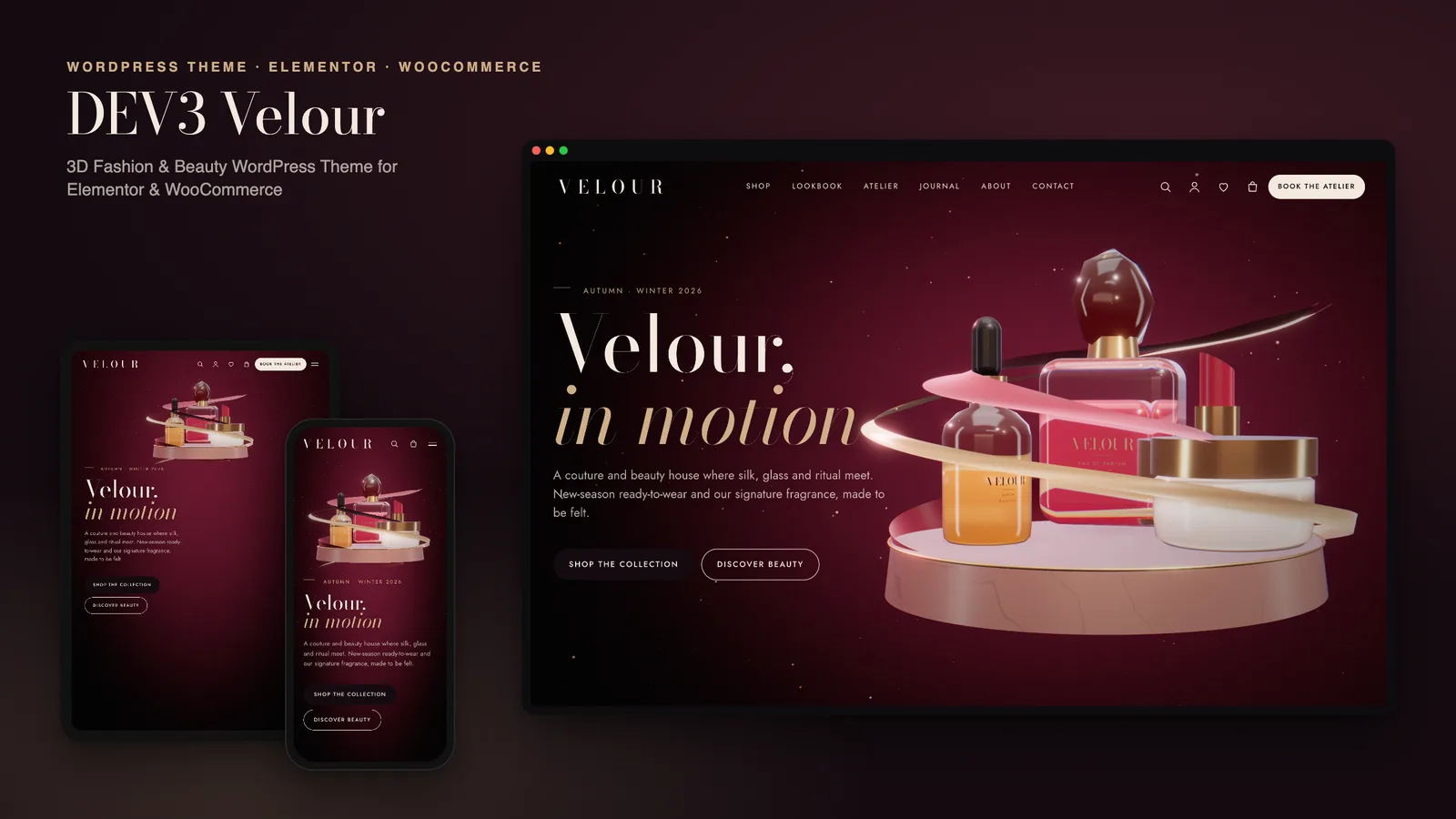
Luxury fashion sites sell things you cannot touch through a screen: the weight of silk, the way light bends through a perfume bottle, the drape of a slip dress. The usual answer is an expensive photo shoot and a hero video, and most independent labels and salons have neither. DEV3 Velour is our luxury fashion WordPress theme with 3D. It takes another route: the products are rendered live in the browser, they move when you scroll, and they change colour when a shopper picks a swatch. This post covers who Velour suits, how to set up a boutique with it, and how to edit its 3D chapters in Elementor.
Who Velour is for
Velour was the first of DEV3's nine WordPress themes, and the one with the heaviest WooCommerce use. It fits:
- Independent fashion labels with a small ready-to-wear range: dresses, tailoring, knitwear and accessories.
- Fragrance, skincare and make-up brands whose products are glass, liquid and colour.
- Beauty salons and ateliers that sell treatments as well as products and take bookings.
- Concept stores that mix both and want an editorial look rather than a catalogue grid.
If you sell thousands of SKUs and rely on product photography from suppliers, a plain WooCommerce theme will be simpler. Velour suits a curated range where every product deserves a stage.
What "3D" means in Velour
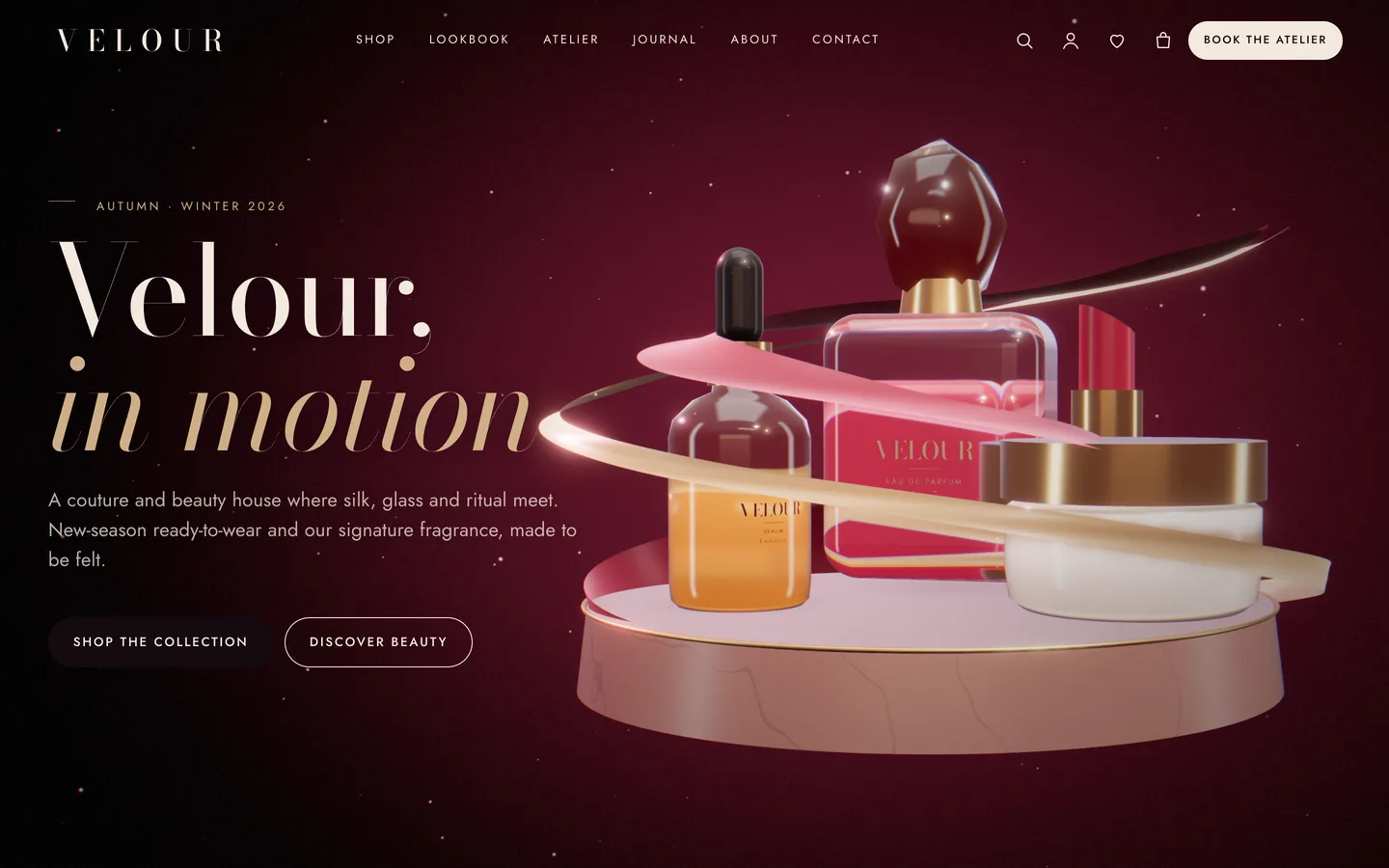
There are three scenes, all generated in code with three.js. There are no licensed renders or photos to replace.
Silk & glass is the signature home-page story. A silk ribbon, simulated as cloth, flows around a perfume bottle, a serum, a lipstick and a cream jar on a marble plinth. The glass refracts the room behind it. As you scroll, the camera circles the still life, the ribbon tightens and loosens, and the focus moves from fragrance to serum to the season's looks.
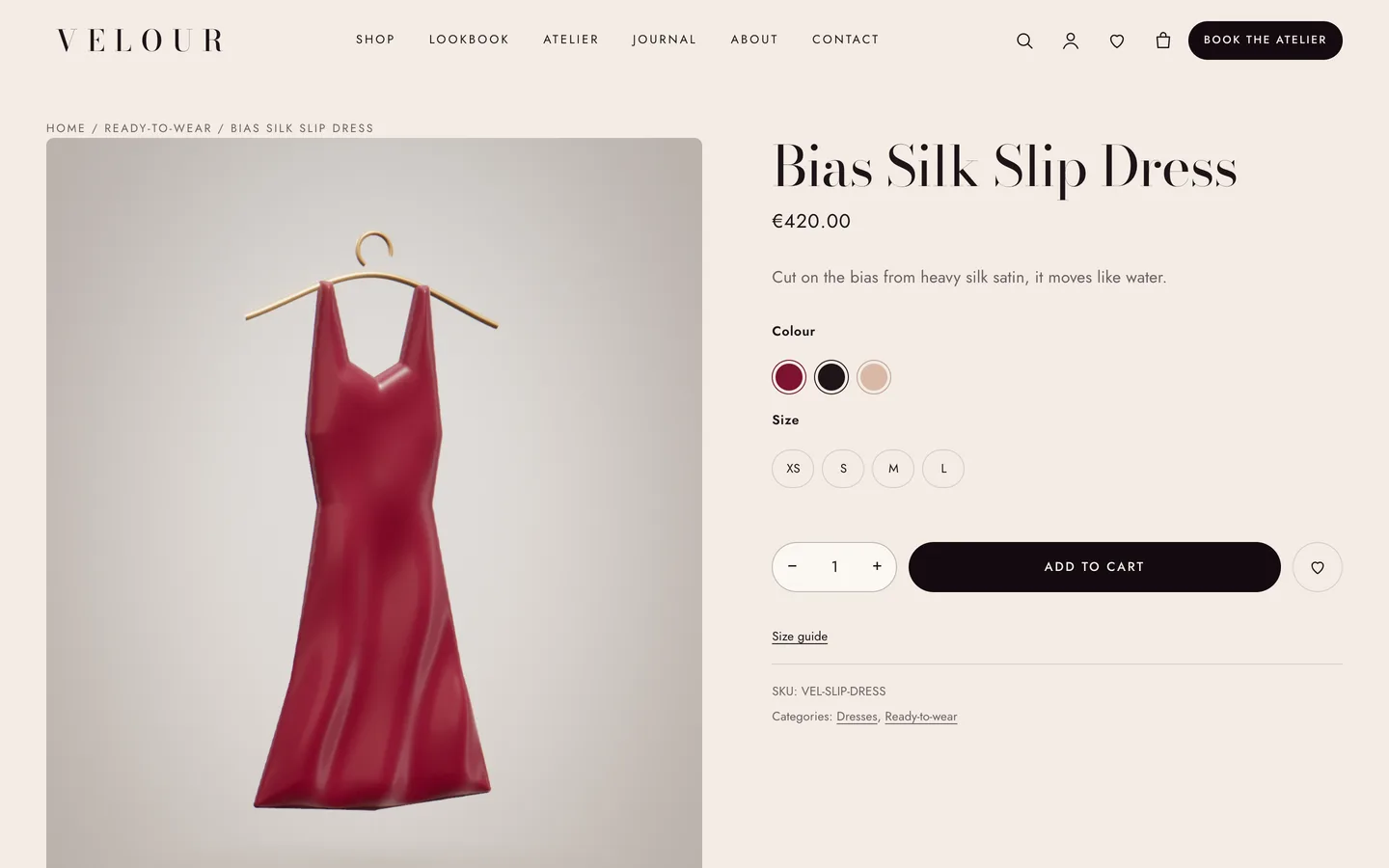
Product studio puts one object on a soft paper backdrop: a perfume, serum, cream jar, lipstick, slip dress, blazer, knit, trousers or tote. This is what product pages use.
Lookbook rail hangs garments on a brass rail that visitors drag to turn.
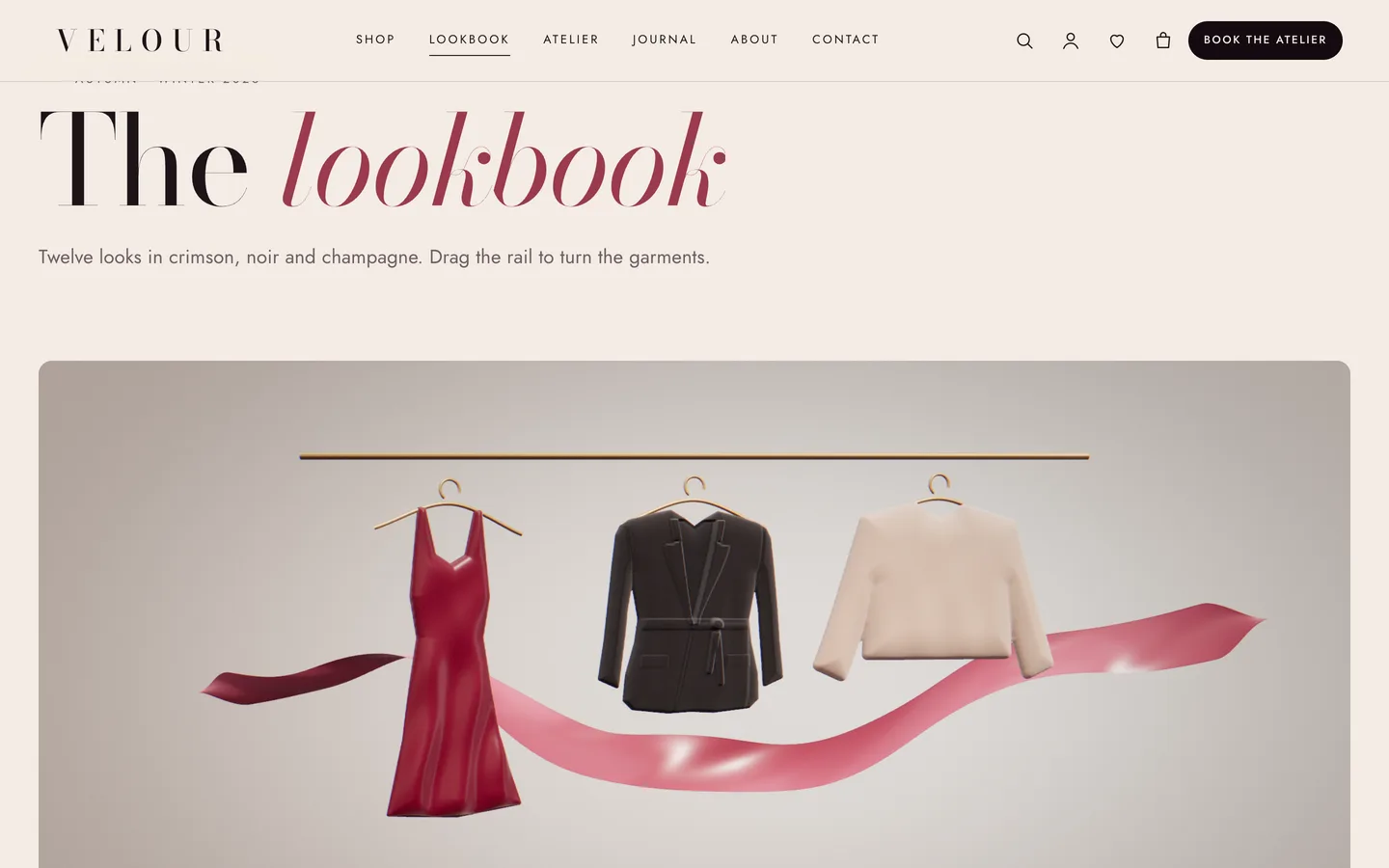
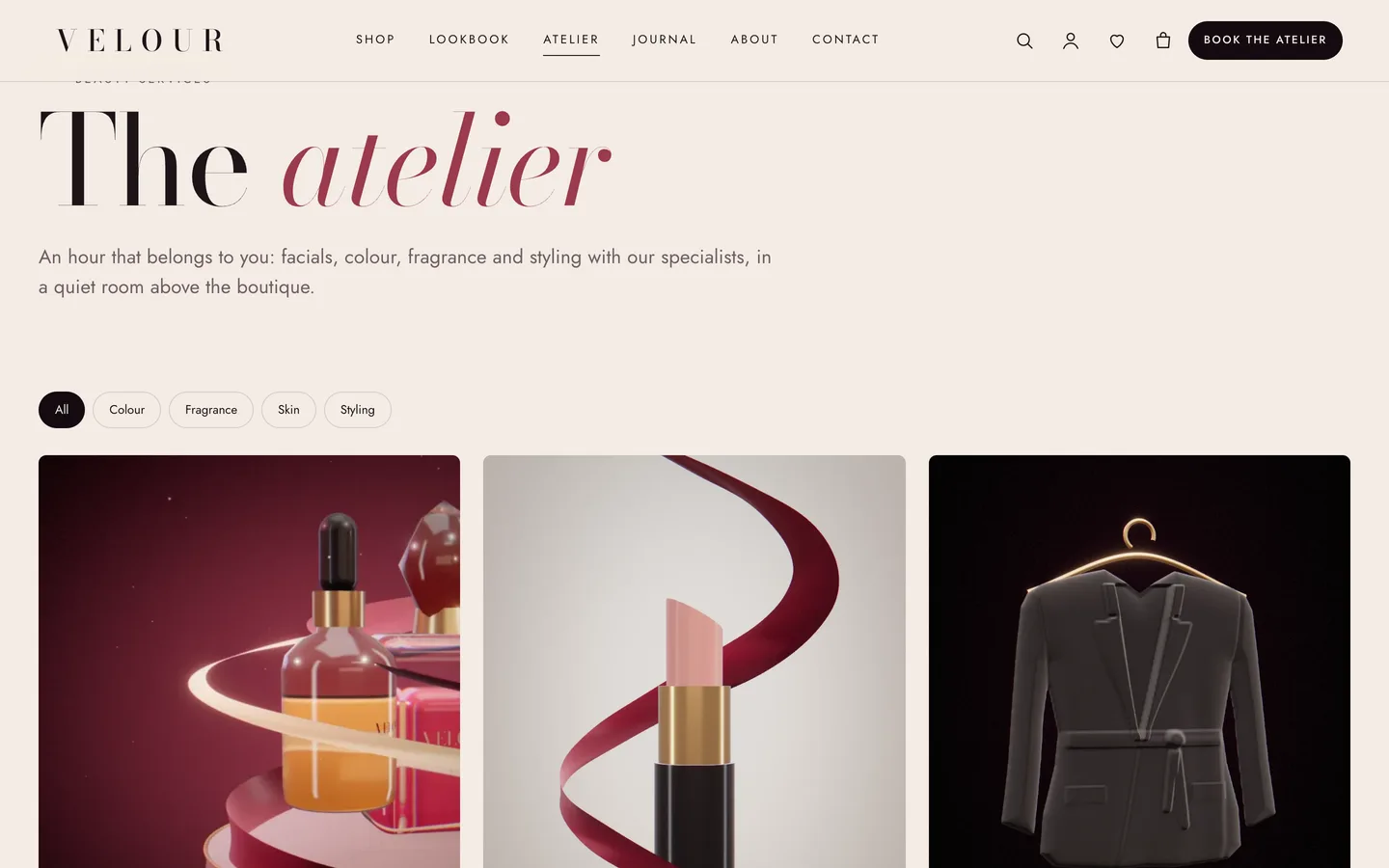
Because the scenes are code, the demo's product images, journal covers and service cards were all rendered from them. You can launch with the demo imagery and swap in your own photography as it arrives.
The part shoppers notice: swatches that recolour the product
On a typical fashion theme, picking a colour swaps a photo, if someone photographed every colour. On Velour, the product page shows a 3D garment or bottle that you can drag to turn. The colour swatches are wired to it, so choosing crimson, noir or champagne recolours the model in place.
You set this up with ordinary WooCommerce data:
- Create a Colour attribute and give each term a Swatch colour in Products → Attributes.
- Build a variable product with those colours and your sizes.
- On the product's 3D view tab, choose the Velour: product studio preset with parameters such as
{"object":"dress","color":"#7d1230"}.
That is all. Products with a Size attribute also get a size-guide link. If you have a real 3D scan of a product, paste its .glb URL instead of choosing a preset. Draco, KTX2 and meshopt compression are supported, and Android phones get a View in AR link for products with their own model.
Setting up a boutique with Velour
1. Install
Upload dev3-velour.zip under Appearance → Themes → Add New → Upload Theme and activate it. A notice offers to install the DEV3 Theme Toolkit, which is required. The toolkit provides the widgets, the post types, the WooCommerce extras and the demo importer. Install the recommended Elementor, WooCommerce and Contact Form 7 at the same time. If you will touch code, activate the included child theme too.
2. Import the demo
Go to Appearance → DEV3 Demo and click Import demo while logged in as an administrator. In about a minute you have the whole boutique:
- Home, Shop, Lookbook, The Atelier, About, Journal, Contact, Cart, Checkout, My account and Wishlist pages
- 11 products across dresses, tailoring, knitwear, fragrance, skincare and make-up
- 6 treatments, 4 specialists, 6 journal posts and 2 forms
Everything imported is tagged, so Reset removes only the demo once your own content is in.
3. Replace products first
Products are what visitors see most, so start there. Edit each demo product's name, price, variations and description. Leave its 3D view in place until you have your own photos or models. The Product Grid and Category Showcase widgets on the home and shop pages pick up your changes automatically.
4. Set up the atelier
Services live under Treatments, each with a price, a duration and an optional booking link. Their categories drive the filters on The Atelier page. Staff live under Specialists. The Atelier booking form is a Contact Form 7 form, so change its recipient in Contact → Contact Forms. The theme deliberately has no mail engine of its own. Use any CF7 or WPForms form, or a booking-service link, in the Form widget. The site also outputs BeautySalon structured data.
5. Make it yours in the Customizer
Under Appearance → Customize → DEV3 Velour Options you can set:
- the colour palette (background, surface, text, muted, accent, champagne, ink)
- the fonts: Bodoni Moda, Jost and Cormorant Garamond are bundled and self-hosted
- the header style: transparent over the hero, solid or centred logo
- the 3D quality, loader, custom cursor, smooth scrolling, film grain and chapter rail
- the shop: columns, sidebar, mini-cart drawer, quick view and wishlist
When you save, Elementor's Global Colors and Fonts update to match, so pages you build later use the same palette.
Editing the 3D chapters in Elementor
Open the home page with Edit with Elementor. At the top is a 3D Scene widget set to the Velour: silk & glass preset in Fixed background (scroll story) mode. Its panel controls the silk colour, silk highlight, perfume colour, room colour, wind and light, and which objects appear. Changes show in the editor as you make them.
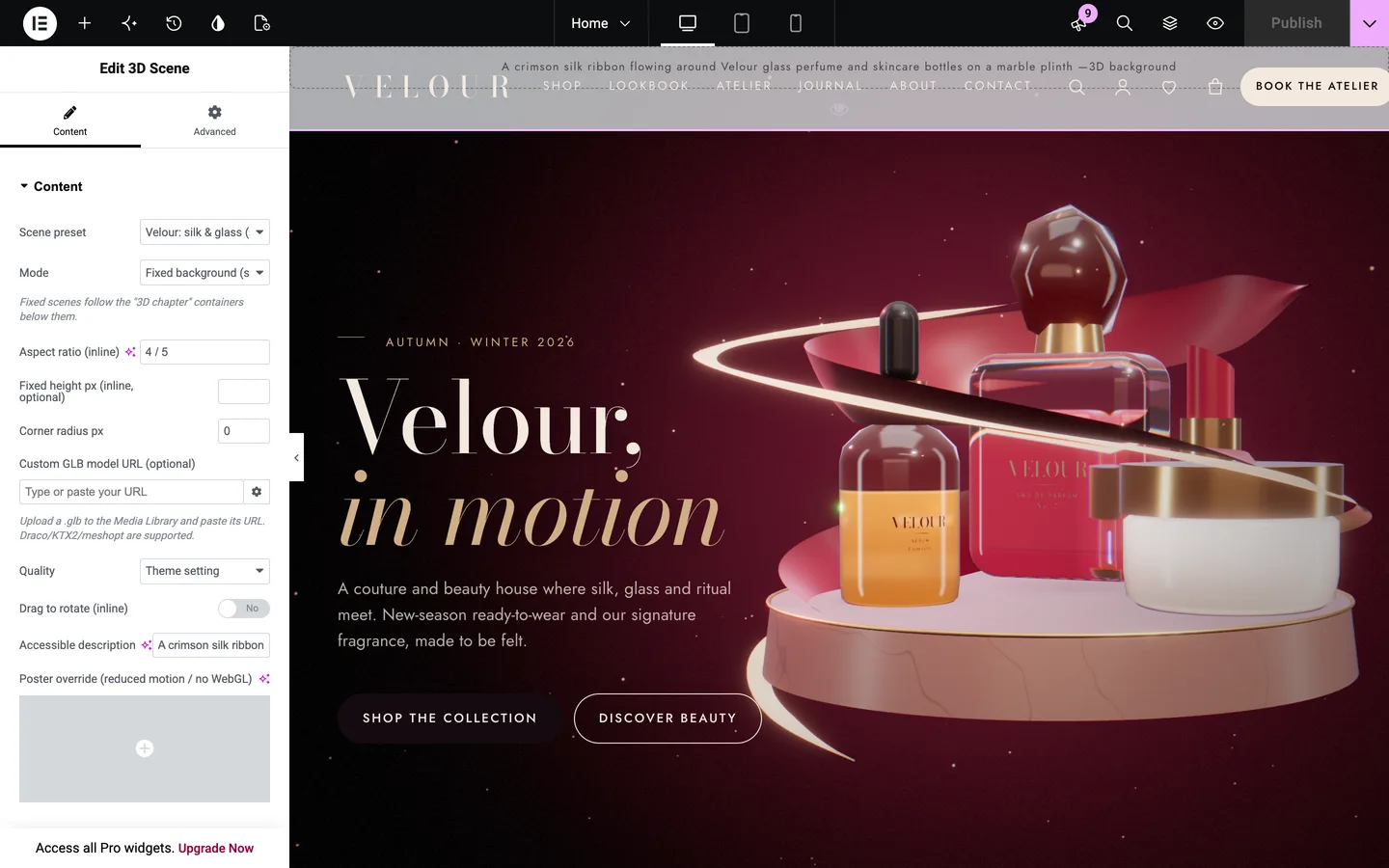
The story itself is made of the containers below the scene. Each one has Advanced → DEV3 3D chapter → Use as 3D chapter switched on, which turns it into a camera stop. You edit the story the way you edit any Elementor page:
- Add a chapter: duplicate a container and change its words.
- Remove a chapter: delete the container.
- Reorder the story: drag the containers.
- Place the text: set Copy side to left, right or centre. The still life moves to the opposite side so it never sits under the text.
- Keep the header readable: set Header tone to light while the scene is dark behind it.
- Label the rail: the Rail label names the chapter in the small rail at the bottom left.
For finer control, a chapter can set the camera position and target, plus Scene state JSON. The keys are flow (how fast the silk moves), wrap, spread, focus (0 for the perfume, 1 for the serum), warm and lift. Values blend smoothly from one chapter to the next. For example, {"flow":1.3,"wrap":0.4,"warm":0.5} gives a faster, looser, warmer ribbon.
Prefer the block editor? Every widget has a block twin, the 3D Chapter block replaces the container setting, and Patterns → DEV3 Velour offers 26 patterns. Two of them are ready-made 3D sections: a scroll story and a product studio.
Speed and accessibility
A fashion site cannot afford a slow first screen, so the 3D is layered on top of a normal page rather than replacing it:
- All headings, copy and buttons are HTML. Search engines and screen readers get the full page whether or not WebGL runs.
- The engine loads only on pages with a scene and stays under a 220 KB gzip budget, including three.js. Other pages load about 10 KB of JavaScript.
- Quality is chosen per device and steps down if the frame rate drops.
- Visitors with reduced motion, Save-Data or no WebGL see a still poster of the same scene.
- Fonts are self-hosted, with no calls to font CDNs.
See it in motion
There is no public live demo. The video tour goes from the silk-and-glass story through the lookbook and a product page to checkout.
Velour is on the DEV3 marketplace. Velour was the reference build for the whole suite, and the case study explains how its engine, toolkit and quality gates were designed.