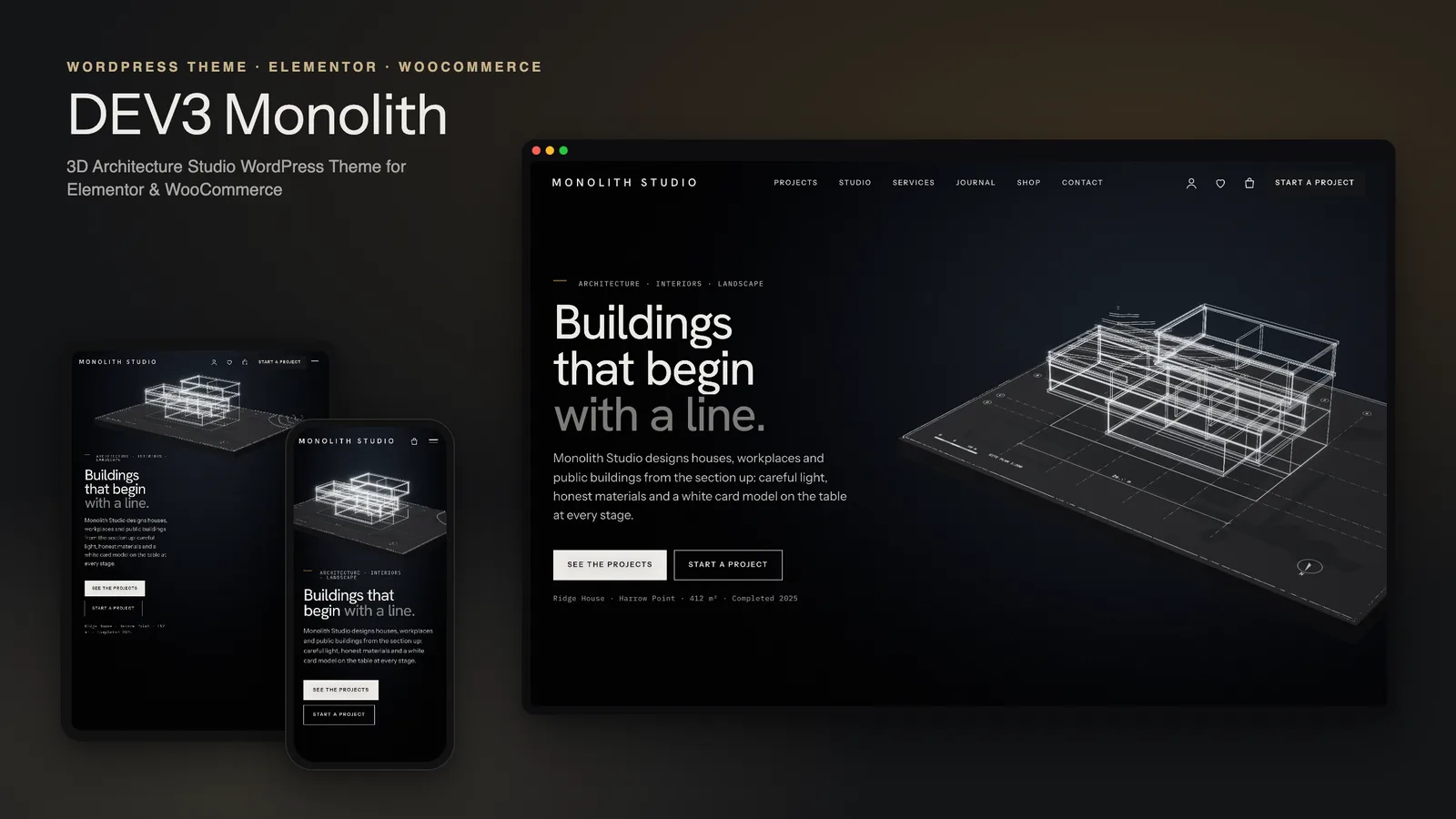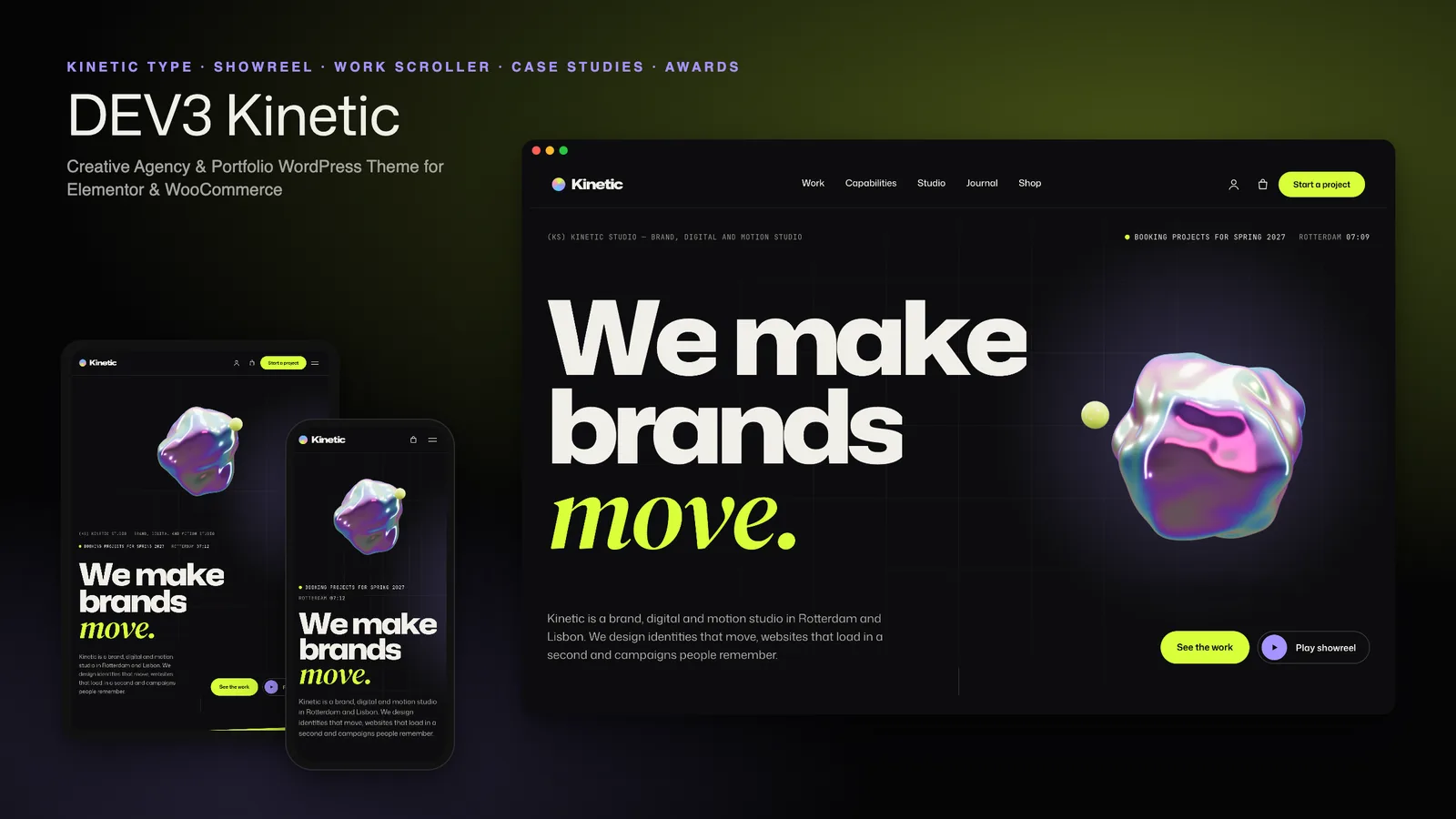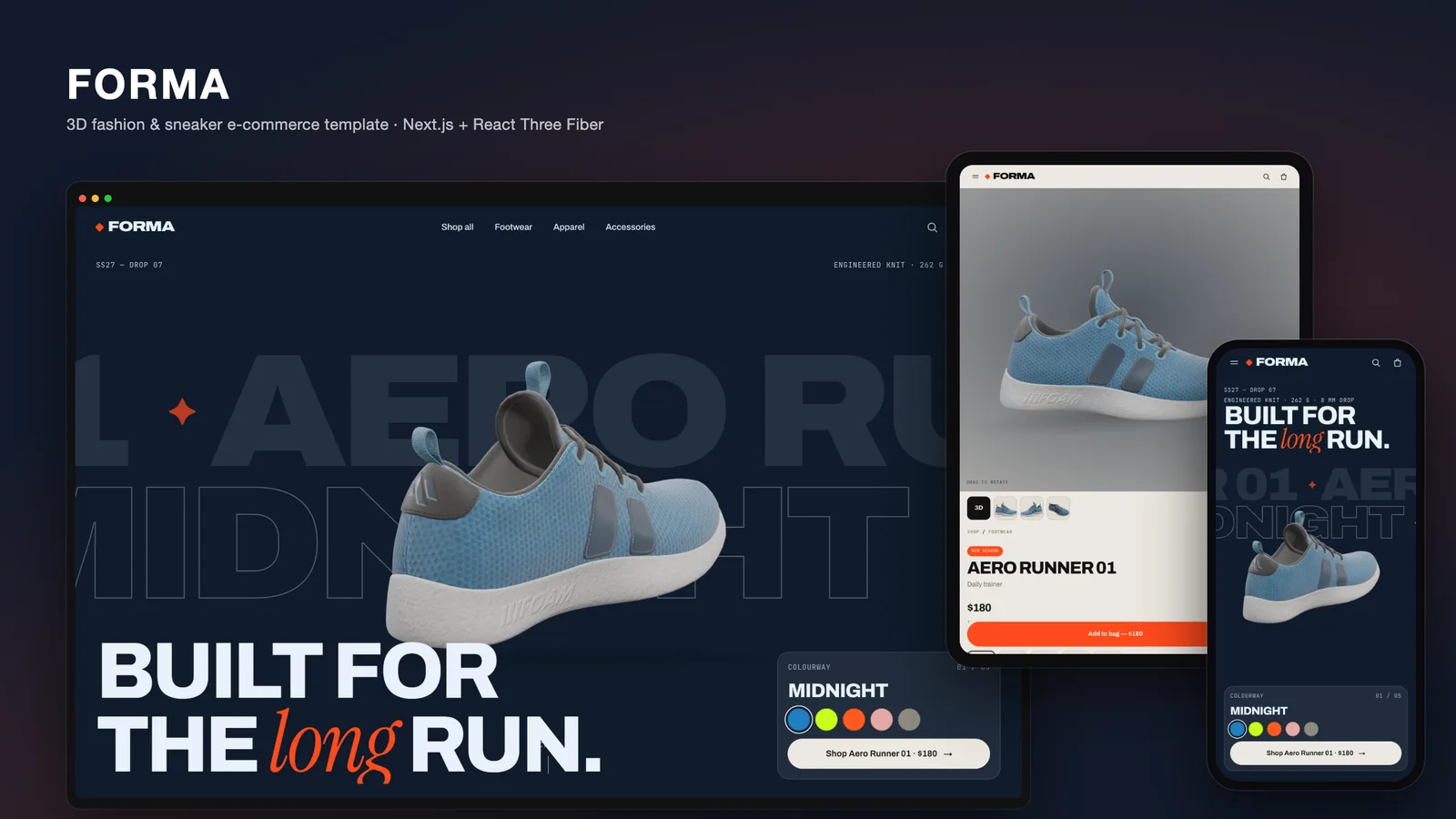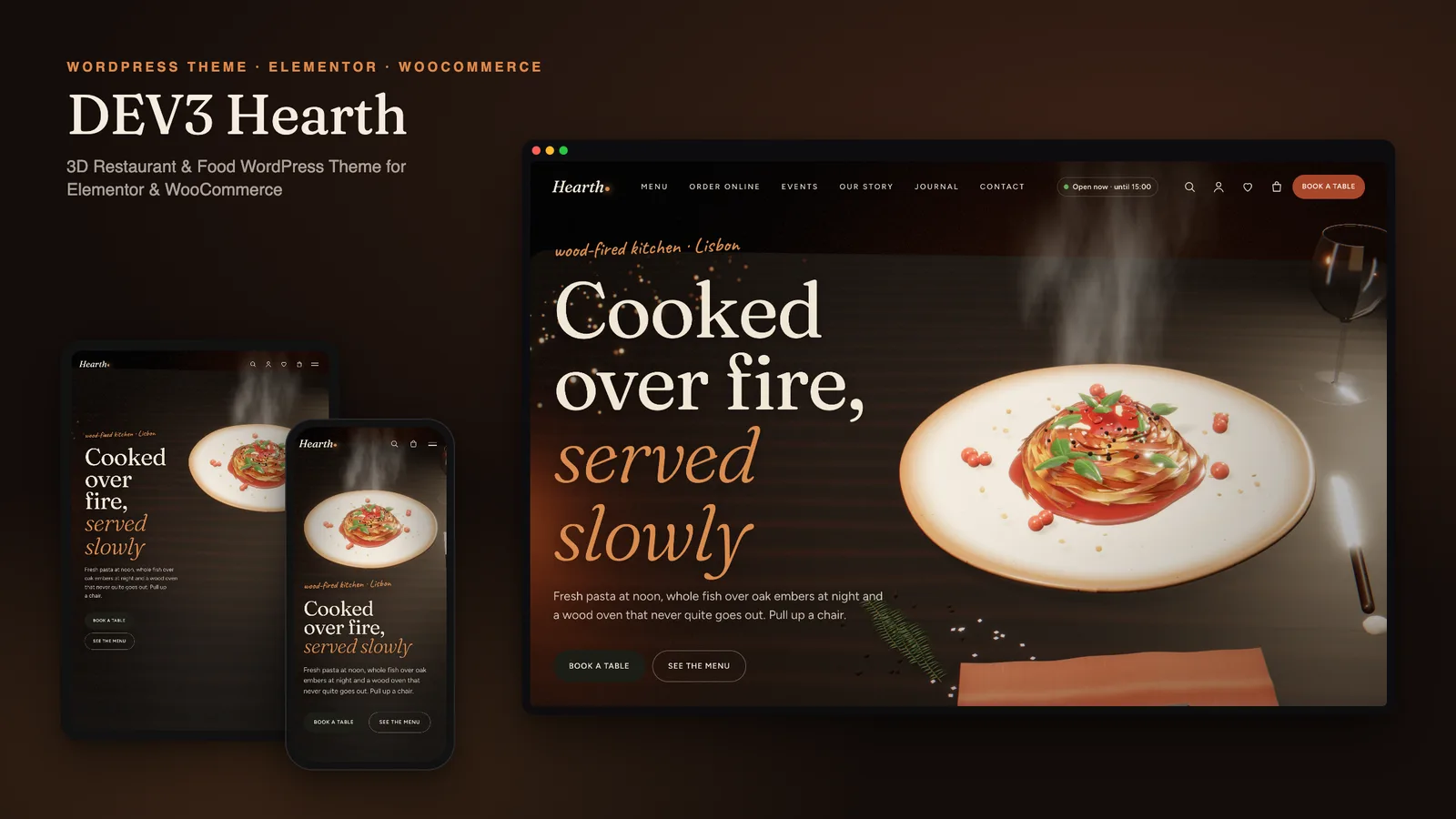
Most restaurant websites follow the same template: a photo slider at the top, a PDF menu at the bottom, and a "Book now" button that opens someone else's widget. They work, but they look the same, and every change means editing a PDF or calling whoever built the site. DEV3 Hearth is our 3D restaurant WordPress theme. It takes a different route: the dish itself is the hero, rendered live in the browser, and everything a restaurant changes week to week is ordinary WordPress content. This post covers who Hearth is for, how to set up a restaurant site with it in an afternoon, and how to edit the 3D story in Elementor without touching code.
Who a 3D restaurant theme is for
Hearth was designed around kitchens where the food is the brand:
- Wood-fired restaurants and trattorias that want the fire, the steam and the plate front and centre.
- Bistros and wine bars that run tastings, supper clubs and private dining alongside the regular service.
- Cafés and bakeries that sell bread, pastries and gift cards online as well as at the counter.
- Agencies and freelancers building restaurant sites for clients who need to edit the menu and hours themselves after launch.
If you need a booking engine with table maps and deposits, Hearth works alongside one. Its own booking flow sends a structured enquiry through Contact Form 7, and you can paste an OpenTable-style embed into any page instead. If you run a delivery-only kitchen with hundreds of SKUs, a plain WooCommerce theme may fit better. Hearth is for places where atmosphere sells the table.
What the 3D story actually is
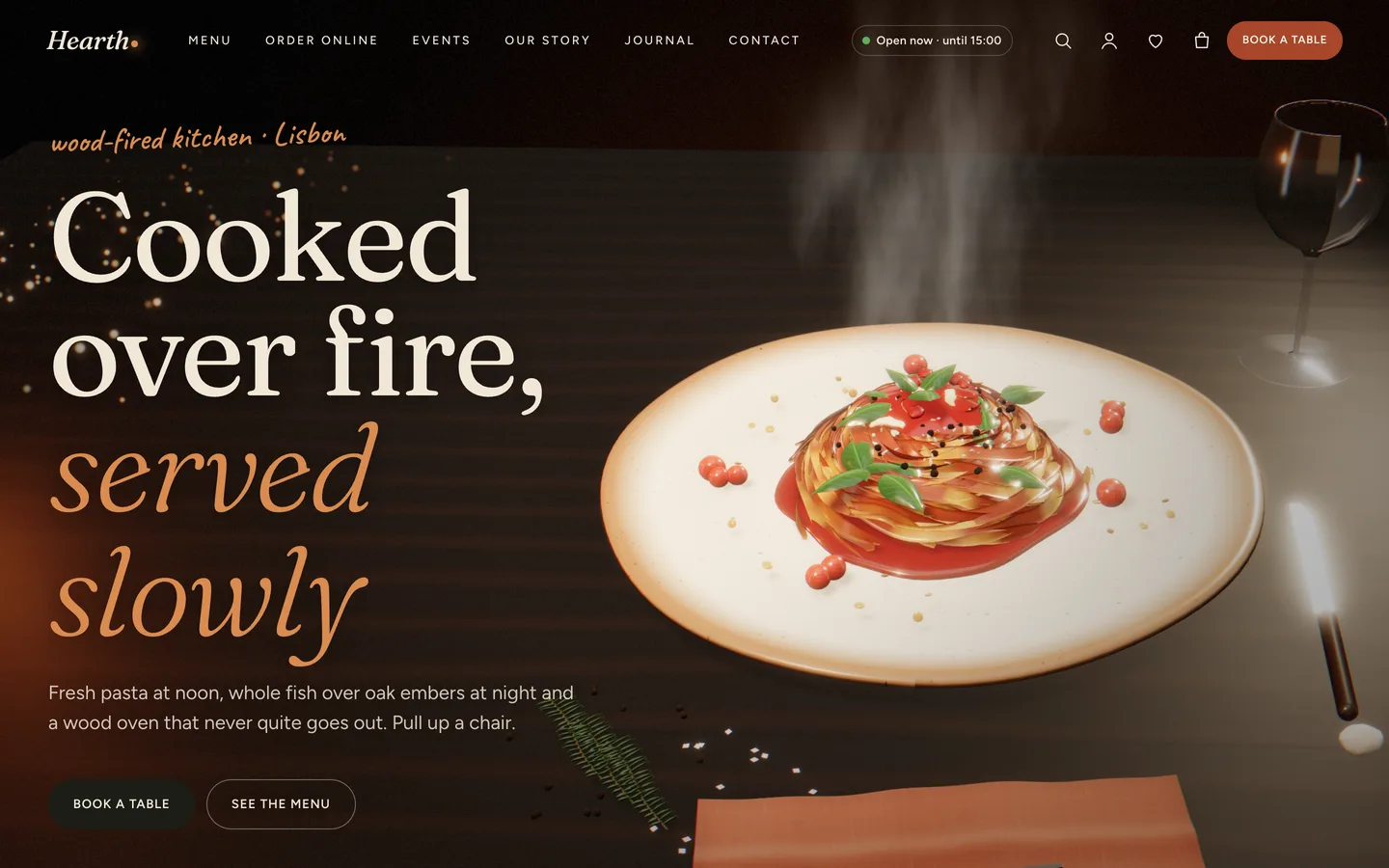
The home page is a single three.js scene that stays fixed behind the page while you scroll. A handmade stoneware plate sits on a dark plank table, lit like food photography. Steam rises, and embers drift in from a wood fire you never quite see. As you move between chapters, the garnish lifts off the dish in slow motion: basil, tomatoes, peppercorns, a thread of olive oil, rosemary. It orbits, then settles into the next course. Pasta becomes grilled fish, and the fish becomes a chocolate tart under a dusting of sugar. The last chapter fills two glasses with wine.
None of it is a video or a photograph. The plate, the food and the effects are generated in code. That has three practical consequences for a restaurant site:
- There is nothing to license or replace. The demo's dish photos, gallery images and journal covers were rendered by the theme's own scenes. You can keep them until your own photography is ready.
- The text arrives first. Headings, menu items and buttons are normal HTML in the page. The 3D engine loads afterwards and only on pages that have a scene: about 209 KB gzip including three.js, plus about 20 KB for the Hearth scenes. Pages without a scene load about 12 KB of JavaScript.
- It degrades gracefully. The engine picks a quality tier per device. Phones get fewer embers, less garnish, smaller shadow maps and no glass refraction. Some visitors have reduced motion or Save-Data switched on, or a browser without WebGL. They see a still poster of the same scene, and the page reads exactly the same.
Setting up a restaurant site with Hearth
Here is the order we recommend for a new site. The documentation in the download covers each step in more detail.
1. Install the theme and its plugins
Upload dev3-hearth.zip under Appearance → Themes → Add New → Upload Theme and activate it. A notice offers to install the DEV3 Theme Toolkit, which is required: it provides the post types, Elementor widgets, block twins and the demo importer. It also offers Elementor, WooCommerce and Contact Form 7. Install all four unless you know you will not sell online. If you plan to change code, activate the included child theme as well.
2. Import the demo
Go to Appearance → DEV3 Demo and click Import demo while logged in as an administrator. You get the whole site:
- every page built in Elementor
- 27 dishes in 7 menu sections, 4 chefs and 4 events
- 16 WooCommerce products, including pasta and pizza with portion and extras variations, a gift card and event seats
- 6 journal posts, 3 forms (table booking, private dining, contact), the menus and the theme settings
Everything imported is tagged, so Reset removes only the demo items once you have replaced them.
3. Set your hours before anything else
This is the step people skip, and it matters more than anything else. Hearth treats your opening hours as the single source of truth. Set your timezone in Settings → General. Then enter one line per day or range in Appearance → Customize → Restaurant (Hearth), for example Tue–Thu: 12:00–14:30, 18:00–22:00 and Mon: Closed. Those lines then drive:
- the "Open now · until 22:00" badge in the header and footer, refreshed every minute
- the Hearth: Opening hours widget
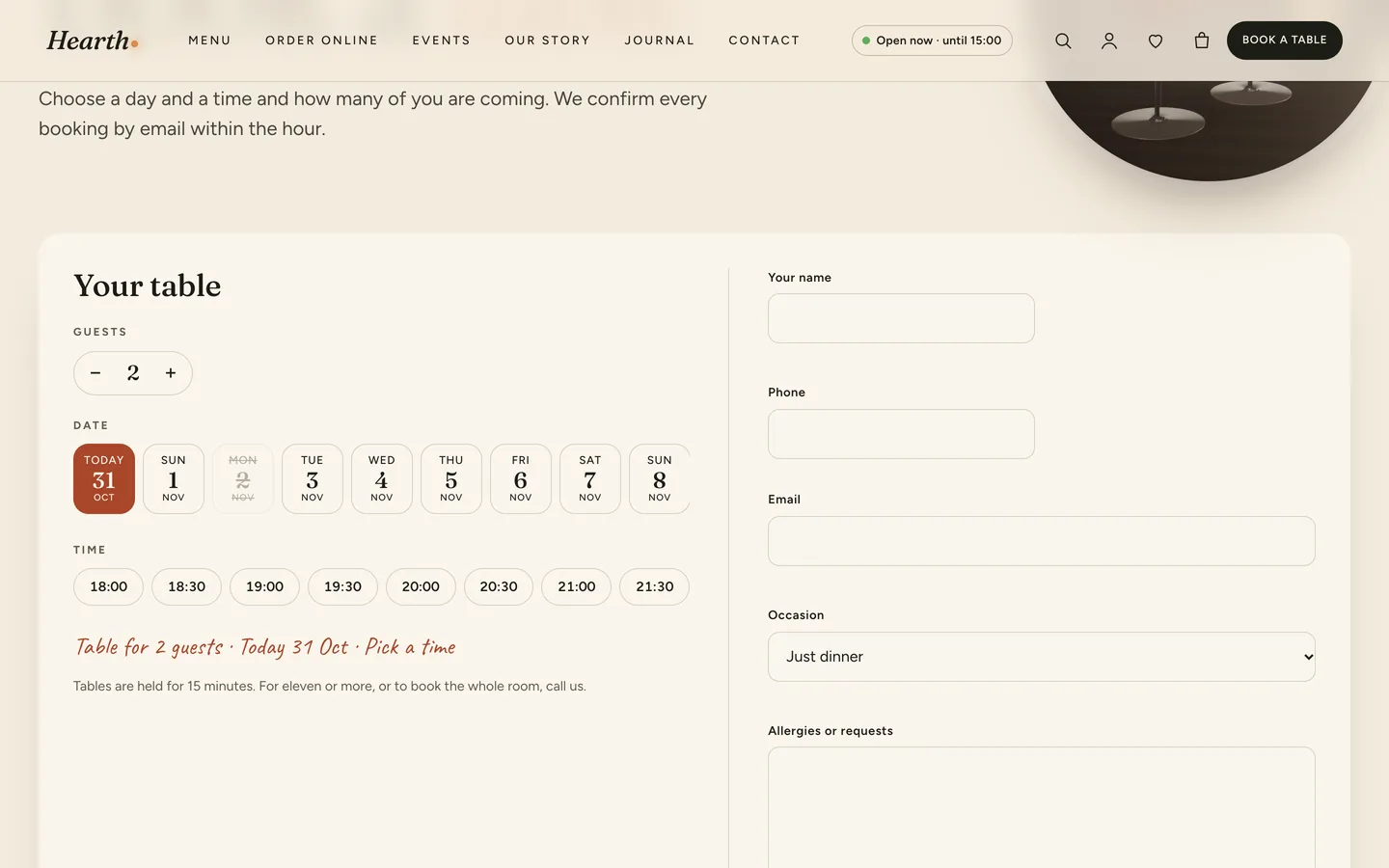
- the booking time slots: every 30 minutes, with the last seating 75 minutes before closing and no slots in the next hour today
- the Restaurant structured data search engines read
4. Replace the menu
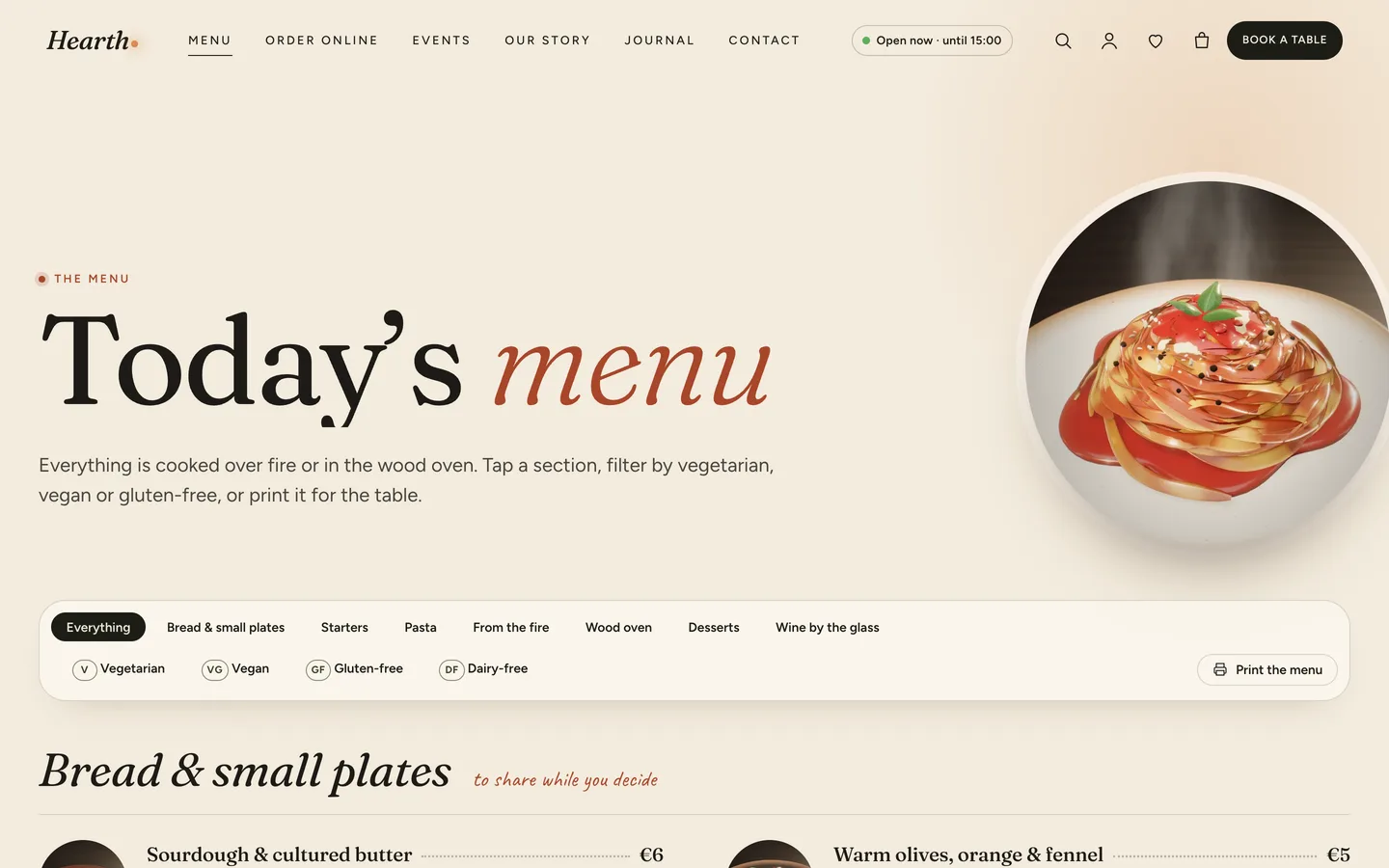
Dishes live under Menu in the dashboard. Each has a price, dietary tags (V, VG, GF, DF, N), a pairing note, a chef's-special switch and an optional link to an online-order product. Sections are dish categories, and a section's description becomes the handwritten line next to its heading. The Hearth: Menu board widget does the rest. It adds tabs per section, dietary filters (a vegan dish also matches the vegetarian filter), three layouts, an allergen footnote and a Print the menu button. That button prints only the menu, in black on white. No more PDFs to keep in sync.
5. Connect bookings and orders
Open Contact → Contact Forms and change the recipient on the Table booking, Private dining and Contact forms. Then set payments and your Local pickup or Flat rate zones in WooCommerce → Settings. The pickup or delivery note you write in the Customizer appears on the cart and checkout.
Editing the 3D chapters in Elementor
The part most people expect to be hard is the easiest. Open the home page with Edit with Elementor and you will see two kinds of element.
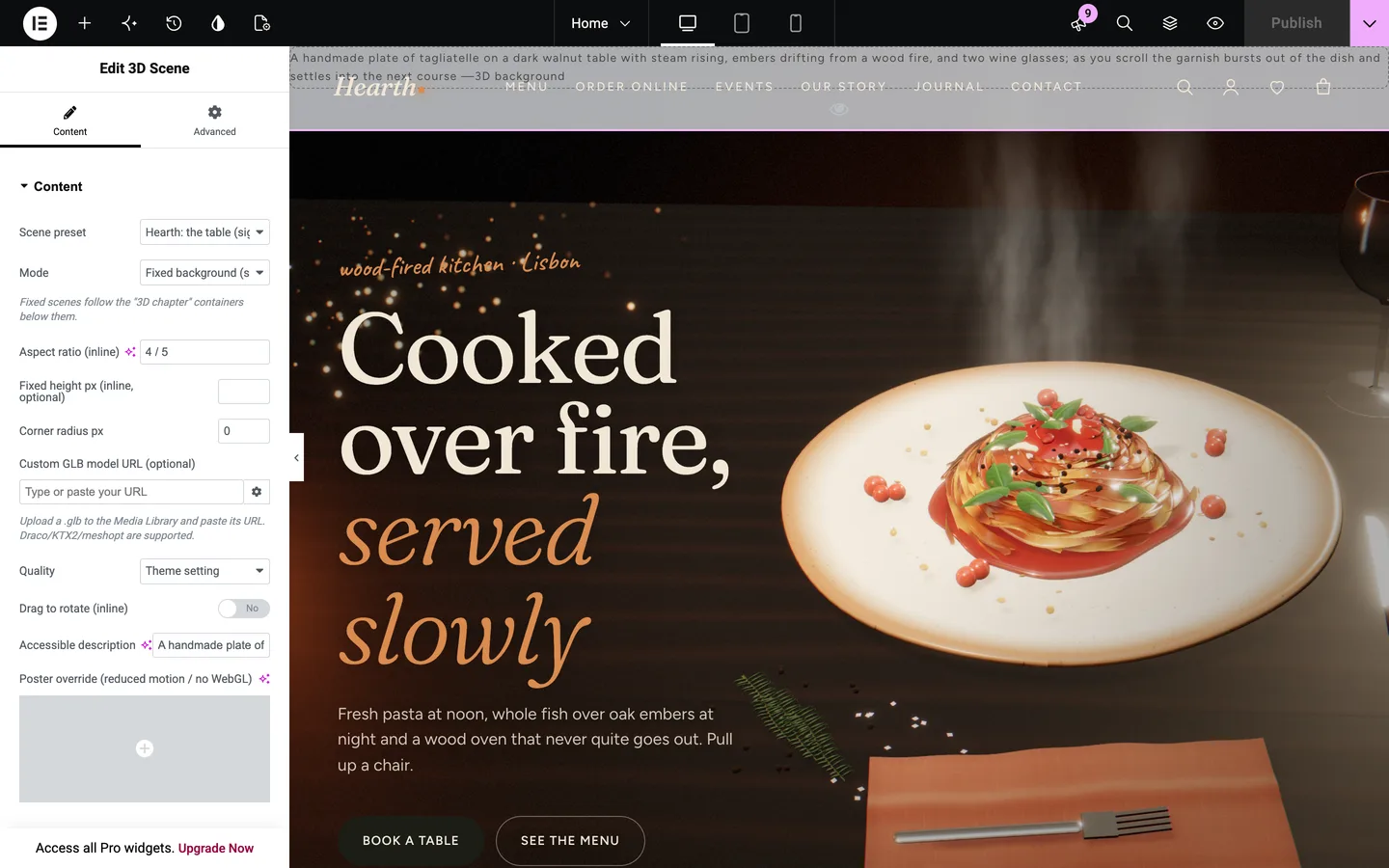
The scene. At the top is a 3D Scene widget with the Hearth: the table preset, set to Fixed background (scroll story). Its panel holds the look of the whole story:
- the first course, second course and dessert, chosen from 25 dishes
- the table wood (walnut, oak, smoked ash or slate) and the plate glaze
- the wine colour and the napkin colour
- the light intensity, steam and embers
Change a control and the scene in the editor updates as you drag.
The chapters. Below the scene, each section is an ordinary Elementor container with Advanced → DEV3 3D chapter → Use as 3D chapter switched on. Each chapter is one camera stop. To change the story, work with sections as you normally would:
- Add a chapter: duplicate a section and edit its text.
- Remove a chapter: delete the section.
- Reorder the story: drag the sections.
- Choose where the text sits: Copy side places it left, right or centre, and the plate slides to the opposite side so it never sits under your words. On phones, the copy sits at the bottom and the plate lifts into the top half.
For finer control, each chapter has an optional Scene state JSON field. The keys are course (which dish is on the plate), steam, embers, fire, key (the key light), sugar, wine and pour. Values blend smoothly between chapters. Setting course to 1 on the next chapter plays the garnish burst into the second dish. Setting wine to 1 on the last chapter fills the first glass.
If you prefer the block editor, every widget has a block twin, and the 3D Chapter block does the same job as the container setting. Hearth also ships 27 block patterns, from a chalkboard specials panel to a two-column menu with dotted leaders.
Online ordering with a 3D dish
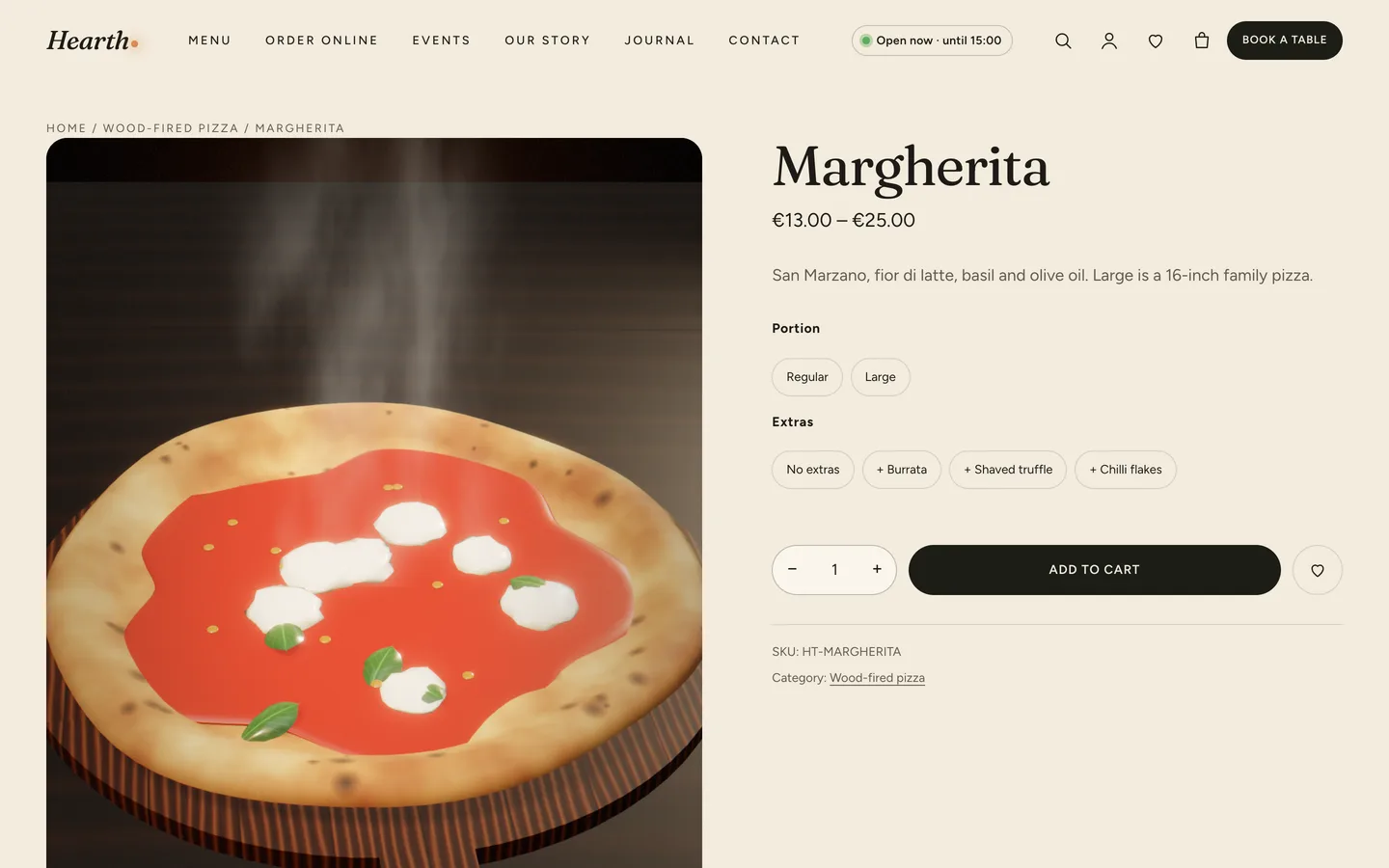
Dishes you sell are WooCommerce products. Pasta and pizza in the demo are variable products with Portion (Regular, Large) and Extras (burrata, shaved truffle, chilli flakes) shown as label swatches. Their product pages use the Hearth: a single dish preset. Pick a large portion and the serving grows; add burrata and it appears on top. Visitors can drag to turn the plate. The mini-cart drawer, quick view and a saved-dishes wishlist come from the toolkit, and the classic and block checkouts are both styled.
See it in motion
There is no public live demo, because the scene is best judged in motion. The video tour runs through the whole demo, from the first chapter of the home story to the order-received page.
Before you launch
A short checklist we use on our own builds:
- Write an Accessible description on each 3D Scene widget. Screen readers announce it in place of the scene.
- Set Customizer → 3D & Motion → Quality to Auto unless you have a reason not to. Use Off for a quick test of the poster fallback.
- Replace the generated chef monograms and gift-card art when you have real material. Keep the dietary tags honest, because guests filter by them.
Hearth is on the DEV3 marketplace. The case study covers the design decisions in more depth: why the hours drive everything, how bookings avoid a custom engine, and how variations drive the 3D.