All case studies

DEV3 Technologies · own product

VOLTA: a 3D product launch page where one can carries the whole story

Our own Next.js and React Three Fiber template for a fictional energy drink: a procedural can, a shader-driven liquid wipe between flavours, cursor-following lightning and eight scroll chapters, with no 3D model or image downloads.

Industry
Food & beverage (web template)

Live project preview

DEV3 Technologies · own product — screenshots
Open live demo
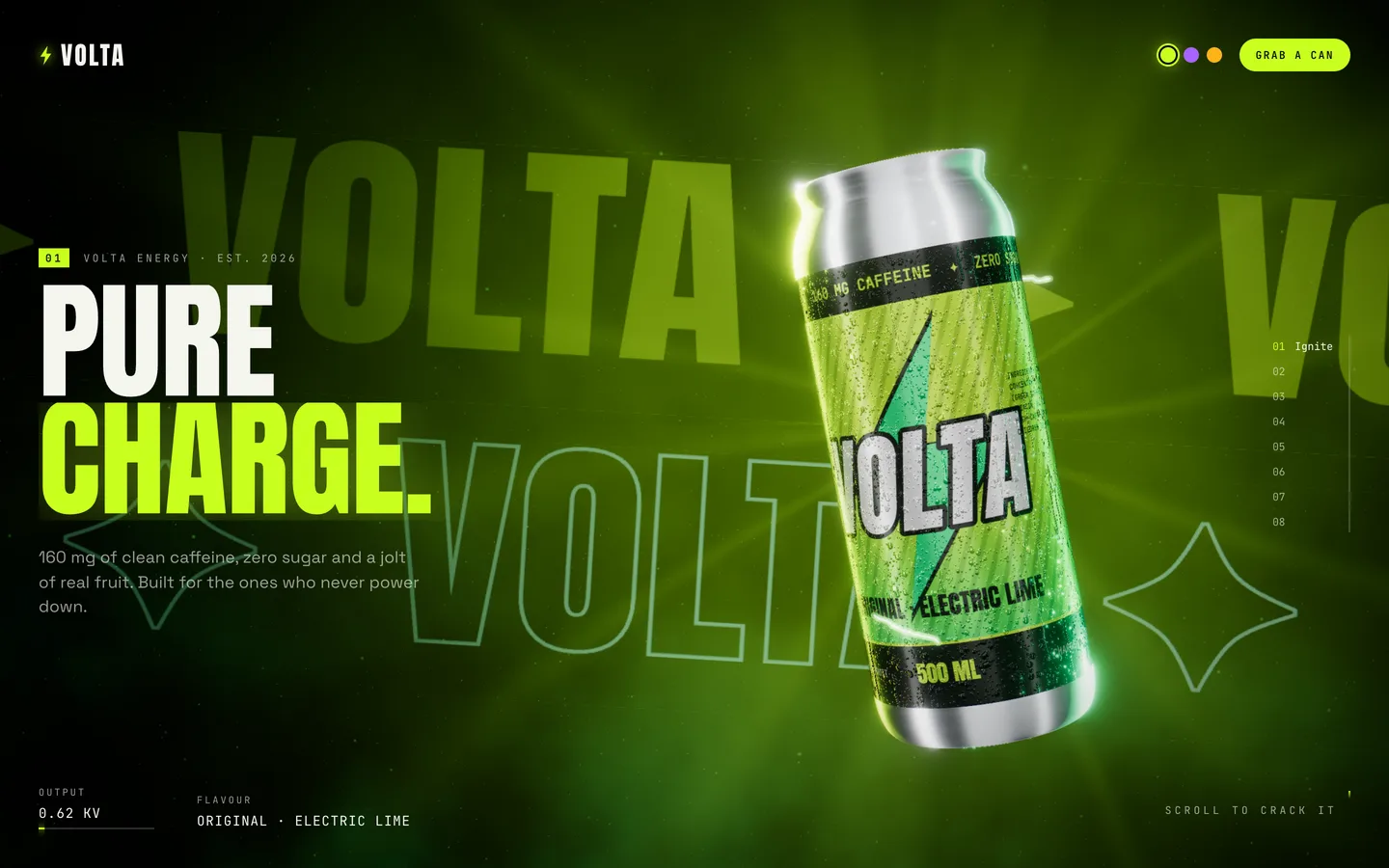
Pure Charge hero — a glossy 3D can of the fictional VOLTA energy drink spins over giant outlined type in electric lime.

Pure Charge hero — a glossy 3D can of the fictional VOLTA energy drink spins over giant outlined type in electric lime.

The challenge

Drink and consumer-product launches compete on the shelf feeling, not on a spec sheet, and most landing pages fall back on a hero photo and a carousel. We wanted a template where the product itself is the interface: a can you open, look inside and recolour by flavour as you scroll. It had to look like a studio render, switch flavours without a reload or a visible seam, react to the visitor's pointer, stay smooth on phones and respect reduced motion, and still be easy to rebrand from a single content file.

Our solution

We built VOLTA on Next.js 16 with React Three Fiber 9, three.js 0.187, postprocessing and Lenis, as one fixed WebGL canvas under a scroll-driven overlay.

Key design decisions

  • Everything procedural. The can is a lathe profile with a domed base, neck and rim bead plus an extruded pull-tab. Label art, the emissive circuit mask, condensation normal and roughness maps, fruit cross-sections and the type sheet are canvas textures painted in code, so rebranding changes the product itself.
  • A shader wipe between flavours. The label material is a MeshPhysicalMaterial patched with onBeforeCompile. It samples the current and next label and moves a wavy liquid line up the can, with fizz bubbles under the line.
  • Lighting that follows the colourway. A small softbox scene is re-baked through PMREMGenerator when the wipe passes halfway, and the rim lights take the flavour's colours.
  • No React work on scroll. A mutable store holds progress, velocity and pointer; React subscribes only to chapter and flavour through useSyncExternalStore.
  • No first-scroll hitch. Every shader, including hidden flavour labels, is compiled with gl.compile before the loader releases.
  • Reduced motion as a first-class mode. Smooth scroll, parallax, idle spin, chromatic aberration and marquee motion switch off, and transitions shorten.

Results

VOLTA ships as a complete Next.js project of about 2,800 lines across the scene, journey and UI files: eight chapters, three flavour colour worlds, interactive lightning, a splash and ingredient orbit, and camera stops for both wide and portrait screens.

It builds as a normal Next.js app or as a static export served from a sub-path, which is how the public live demo is hosted. Screenshots and the video tour were captured from the running template at desktop, tablet and phone sizes.

VOLTA is available on the DEV3 marketplace.

Setup guide

Requirements

  • Node.js 20.9 or newer and npm
  • A modern browser with WebGL 2 (current Chrome, Edge, Firefox or Safari)
  • No environment variables, database or API keys are needed

Install and run

  1. Download the ZIP from your DEV3 account and unzip it.
  2. Open a terminal in the project folder and install the dependencies:
npm install
  1. Start the development server:
npm run dev

The script starts Next.js on port 3190. Open the address it prints and scroll through the eight chapters. Run npm run lint to check the code.

Build for production

npm run build
npm run start

npm run build creates an optimised Next.js build, and npm run start serves it.

Deploy to Vercel

  1. Push the project to a Git repository (GitHub, GitLab or Bitbucket).
  2. Import it in Vercel. The Next.js preset is detected automatically; keep the default build command (npm run build).
  3. Deploy. No environment variables are required.

Any host that runs Node.js and Next.js (Netlify, Render, a VPS with npm run start) works the same way.

Static export

The template can also be exported as plain HTML, CSS and JavaScript for static hosting. The included build:demo script sets DEMO_EXPORT_BASE, which switches next.config.ts to output: "export" with a matching basePath, and writes the site to out/.

  • To host it under a sub-path such as /launch, run DEMO_EXPORT_BASE=/launch npx next build.
  • build:demo also sets NEXT_PUBLIC_DEMO_DOWNLOAD_URL, which shows a small "Get this template" badge used on the public demo. Leave it unset for your own site; without it the badge does not render.

Upload the contents of out/ to any static host or CDN.

Documentation

Open Documentation/index.html in a browser, or read README.md, for the chapter list and a map of the source files.

How to use

Edit the copy and chapters

Everything the page says lives in lib/content.ts:

  • CHAPTERS holds each chapter's label, kicker, title (use \n for the line break), tagline and the giant word shown behind the can.
  • INGREDIENTS is the numbered list in the Fuel chapter.
  • FLAVORS defines the three flavours. The flavour chapters are generated from this array, starting at FLAVOR_CHAPTER.

The overlay layout (header, chapter rail, stats, flavour pills and call to action) is in components/ui/Overlay.tsx. Wire the order button in the final chapter to your shop or checkout there (the header Grab a can button scrolls to that chapter).

Change colours and flavours

Each flavour has its own colour world:

  • primary: the can and accent colour
  • secondary: highlights and the second rim light
  • deep: the background
  • ink: the type printed on the label

Change these and the label, wipe, studio reflections, lights, particles and kinetic type all follow. Add or remove an entry in FLAVORS to change the number of flavours. If you do, update the camera stops in components/scene/CameraRig.tsx: there is one stop per chapter, plus a matching entry in PORTRAIT_DIST and PORTRAIT_DROP for phones.

Change the label and logo

The can's label is drawn by canvas painters in components/scene/art.ts: the brand name, lightning mark, flavour line, small print, emissive circuit mask, condensation maps, fruit slices and the type sheet. Edit the painter to change the brand name or artwork. To use a designed label instead, load your own image as the label texture, keeping the same width-to-height ratio so it wraps the can without stretching.

Change the product shape

The can is a LatheGeometry built from a 2D profile in components/scene/Can.tsx. Edit the profile points to make a slimmer can, a bottle or a jar. The flavour-wipe shader works on any UV-mapped label, so it carries over. To use a modelled product, load a GLB with the GLTFLoader from three.js and apply the label material to its label mesh.

Change fonts

Fonts are loaded with next/font/google in app/layout.tsx: Anton for headlines, Space Grotesk for body text and JetBrains Mono for labels. Swap the imports and keep the CSS variable names (--font-display, --font-body, --font-mono). The kinetic type behind the can is drawn into a canvas texture sheet, so it waits for fonts to load before painting.

Tune motion and effects

  • Postprocessing: bloom, chromatic aberration, tone mapping, grain and vignette are set in components/scene/Experience.tsx.
  • Scroll feel: the Lenis settings, the snap delay and keyboard stepping are in components/Journey.tsx.
  • Lightning: the number of arcs and their roughness are constants at the top of components/scene/Energy.tsx.
  • Reduced motion: visitors with prefers-reduced-motion get no smooth scroll, parallax, idle spin, chromatic aberration or marquee motion. Keep that behaviour when you add effects by checking journey.reduced.

SEO and metadata

Set the page title, description and social preview in app/layout.tsx. The chapter copy is rendered as real HTML text in the overlay, so search engines and screen readers can read it.
Related case studies