Every community gets its first bad day eventually: a scam link in a popular thread, a member being piled on in their DMs, an anonymous message that crosses a line. How that day goes depends on what you set up before it. You need tools that catch obvious abuse automatically, a queue where people can report what the filters miss, staff roles that match who you actually trust, and a clear path for someone who thinks a decision was wrong.
This guide walks through those four layers in SocialPro, our self-hosted social, chat and creator platform, and checks each against the code. It covers what members can do themselves, what the automated safety filters catch, how the report queue works, how staff roles are set up, and what happens with appeals. The last part is short, because SocialPro doesn't have an appeals workflow yet, and this post says so plainly.
Layer 1: tools members use themselves
The cheapest moderation is the kind members do for themselves, without waiting for staff.
| Tool | What it does |
|---|---|
| Block | Stops both people seeing and messaging each other |
| Mute | Hides someone's posts from your feeds without telling them |
| Restrict | Their comments on your posts are visible only to them |
| DM policy | Choose who can message you (everyone, followers, friends or nobody) |
| Message requests | Messages from people you're not connected to go to a requests folder |
| Whisper controls | Turn anonymous messages off, require approval, or block an anonymous sender's handle |
| Delete comments | Post owners can remove comments on their own posts |
| Report | Flag posts, comments, profiles, ads, messages, whispers and communities |
Encourage members to block and restrict before they report. It protects them immediately, and your team sees fewer reports.
Layer 2: automated safety filters
Every post, comment, profile, community, ad, DM and whisper goes through a safety pipeline before it's delivered. It scores the content from 0 to 100 and returns one of three verdicts: allow, hold for a moderator, or block.
What the scanners look for
- Links. Admin-listed blocked domains (and their subdomains), URL shorteners, risky top-level domains, raw IP addresses, "user@host" tricks, punycode and mixed-script hosts, and brand look-alikes such as
paypa1-login.com. - Toxic wording. A word filter with categories (hate, harassment, sexual, self-harm, threat, spam) and three severities. Matching survives leetspeak, separators, stretched letters and look-alike characters, but matches whole words only.
- Harassment patterns. Hostile messages sent repeatedly to the same person within a few minutes, message floods, and repeated @-mentions of one person.
- Spam patterns. Link floods, mass mentions, mostly-capital text, character flooding, and the same text posted again and again within an hour.
- AI moderation, when an AI provider is configured. It adds a moderation score and categories on top of the word filter, with a timeout. Uploaded images can also be checked by an AI vision scan.
Stricter where it matters
The thresholds differ by channel. Private and anonymous channels are stricter than public posts, because a DM or whisper lands directly in one person's inbox. Whispers are held at a lower score and blocked earlier than anything else. Ads are held early too, since they go to human review anyway.
Reviewing what the filters held
Held items appear in Admin → Content safety, where a moderator can release (publish), remove, or dismiss each one. The same screen manages the blocked domain list (each domain set to hold or block) and the word filters. For whispers, the safety record stores only an anonymous key for the sender, never their account ID.
One design choice to know about: the filters fail open. If the safety check itself breaks, the content is allowed and the failure is written to the system log. That keeps the platform usable during an outage, but it means you should watch the logs. If your community needs fail-closed behaviour for some channels, treat it as a customisation.
Layer 3: the report queue
What happens when a member reports
- The member picks a reason: spam, harassment, hate speech, violence, sexual content, self-harm, misinformation, impersonation, scam, intellectual property or other.
- Each reason has a starting severity from 1 to 4. If the reported content also trips the safety filters, the severity goes up one step.
- One member can have only one open report per item. Reporting again increases a duplicate count instead of opening a new case.
- Self-harm reports (and anything that reaches severity 4) notify staff immediately.
- Auto-hide: when three different members report the same item and the severity is at least 3, the item is hidden automatically while the reports stay open for a moderator. Only content that can be restored is auto-hidden, so a wrong call can be undone.
Working the queue
Reports are grouped by target in Admin → Reports, so ten reports about one post are one case. A moderator opens the review sheet and chooses an action:
| Action | Effect |
|---|---|
| Assign | Claims the case and marks it in review |
| Escalate | Raises severity to the top and notifies admins |
| Dismiss | Closes the reports as unfounded and undoes any auto-hide |
| Restore | Brings back content that was hidden |
| Remove | Takes the content down |
| Warn | Sends the author an in-app warning |
| Suspend | Suspends the author for 1 to 365 days (7 by default) |
| Ban | Bans the author's account |
| Shadow limit | Shows the author's posts only to people already connected to them |
Every resolution stores the action, the moderator, the time and a note. The admin user page shows the reports against a member and the reports they filed, which helps you spot both repeat offenders and people misusing the report button.
What each penalty means for the member
- Warning: an in-app notification with the moderator's message.
- Suspension: the member can still browse and report content but can't post or message until the end date. They're told the end date and the reason.
- Ban: sign-in is refused, every active session is revoked, and the member gets an in-app and email notice with the reason.
- Shadow limit: no notice. Use it sparingly and document why.
Anonymous content stays anonymous
Whisper reports never store the sender's account ID, only a sealed reference. Moderators see "Anonymous sender #…", yet warnings, suspensions and bans still reach the real account. An integration test (never expose the anonymous sender, yet actions reach them) checks exactly that.
Layer 4: roles that match who you trust
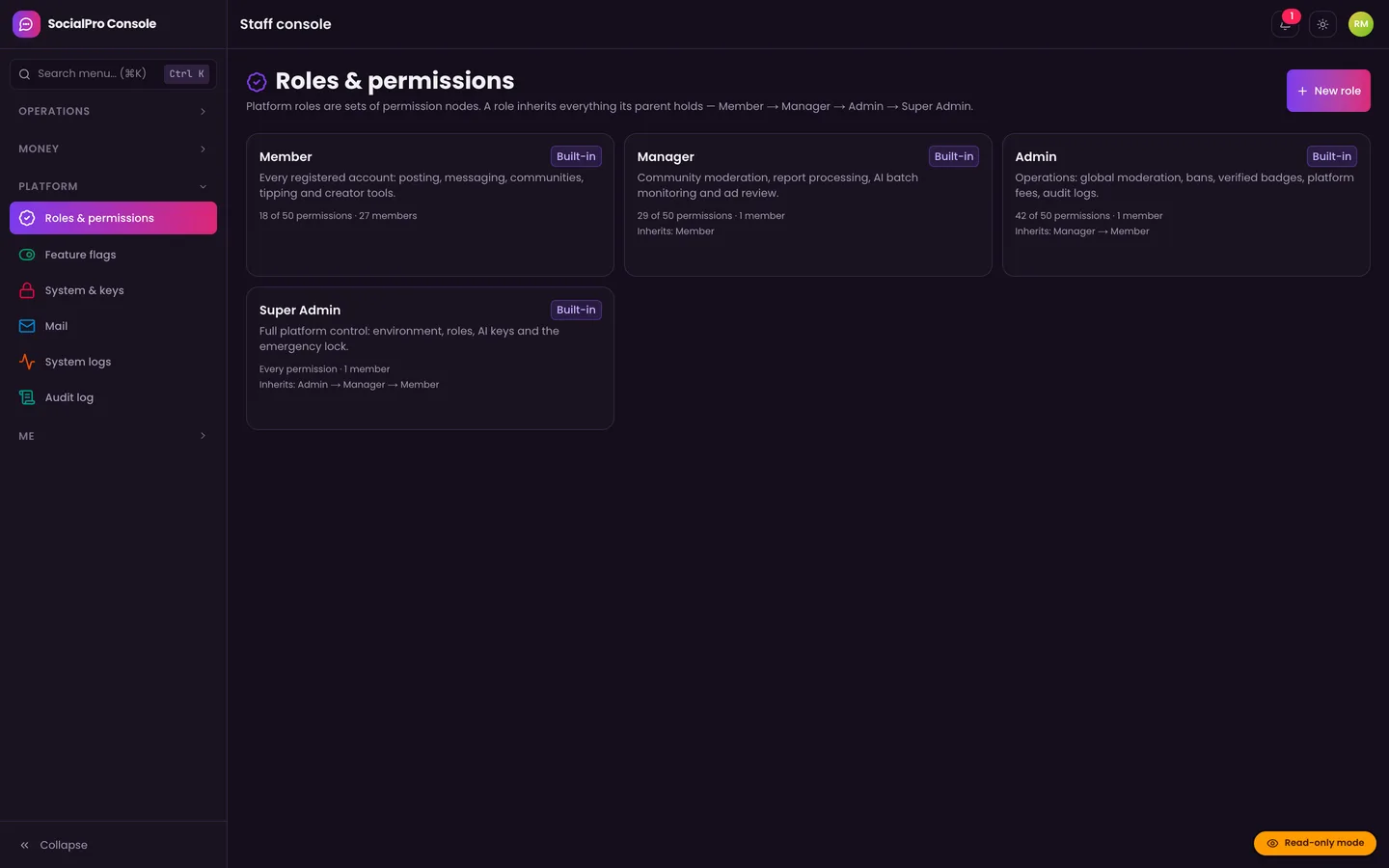
SocialPro's platform roles inherit from each other: Member → Manager → Admin → Super Admin, and you can add custom roles in Admin → Roles & permissions.
| Role | Moderation powers by default |
|---|---|
| Manager | Report queue, remove content and comments, suspend and shadow-limit users, approve ads, AI oversight |
| Admin | Everything above, plus bans, verified badges, IP blocks, user roles, refunds, fees, audit and system logs, feature flags |
| Super Admin | Everything, including AI keys, roles and the emergency lock |
Two rules stop staff powers from being misused:
- Rank rule. Nobody can moderate their own account, and only a Super Admin can act on staff at or above their own level.
- Audit log. Sensitive actions are written to an audit log with categories such as moderation, security and billing.
Community-level moderators
Each community has its own roles. New communities start with Owner, Moderator and Member, and owners can create more. Community roles cover posting, moderation, member management and settings, including approving join requests and removing or banning members from that community. Community moderators can't act on members who outrank them. This lets you hand a topic to trusted members while platform staff keep the final say.
Ads and AI accounts
Every ad goes through the safety pipeline, an image scan of the creative and an AI risk check, but a Manager or Admin always signs off. The automated review only rejects an ad on its own when the safety filter blocks it. AI personas, if you use them, carry an AI badge and disclosure and can be paused from Admin → AI oversight.
For the worst day
Admins can block IP addresses or network prefixes, revoke a member's sessions, and the Super Admin has an emergency global lock that makes the whole platform read-only within seconds.
Appeals: not built in yet
SocialPro does not currently have an appeals workflow. There's no "appeal this decision" button, no appeal queue and no second-reviewer step. What exists today:
- Warned, suspended and banned members are told the reason in the notification.
- Staff can reverse decisions: unsuspend, unban, restore content or dismiss reports.
- Every decision is recorded with the moderator and a note, so a reviewer can see what happened.
Until you add a proper workflow, publish a contact route for appeals in your Community Guidelines and have a different staff member review each one. A built-in version would need an appeal form linked from the moderation notice, a queue in the staff console, and a rule that the original moderator can't decide the appeal. DEV3 can build that as a customisation.
A moderation setup checklist
- Write your Community Guidelines and link them from sign-up.
- Add known scam domains and community-specific terms to the safety lists.
- Decide whether whispers are on at launch, and with what review settings.
- Create Manager accounts for your moderators; keep Admin to a few people.
- Agree what each penalty is for, and when shadow limiting is allowed.
- Publish how members can appeal, even if it's by email for now.
- Check Admin → Content safety and the system log daily in the first weeks.
The test suites back this up: 6 moderation integration tests and 12 safety unit tests, counted in the SocialPro test folders. For the wider launch, see how to launch your own community and creator platform.
Where to go next
SocialPro gives you member safety tools, channel-aware safety filters, a grouped report queue with auto-hide, ranked staff roles and an audit trail, and it is honest that appeals still need building. Get the source on the SocialPro marketplace page, or read the case study for the architecture behind it.