Web Scripts & Software
DEV3 Webcam & Microphone Test — Source Code (React + Tailwind)
from $20$29
Loading…
Everyday tool
Free, no sign-up. Runs in your browser; nothing is uploaded. Buy the source code: $29 Regular / $69 Extended
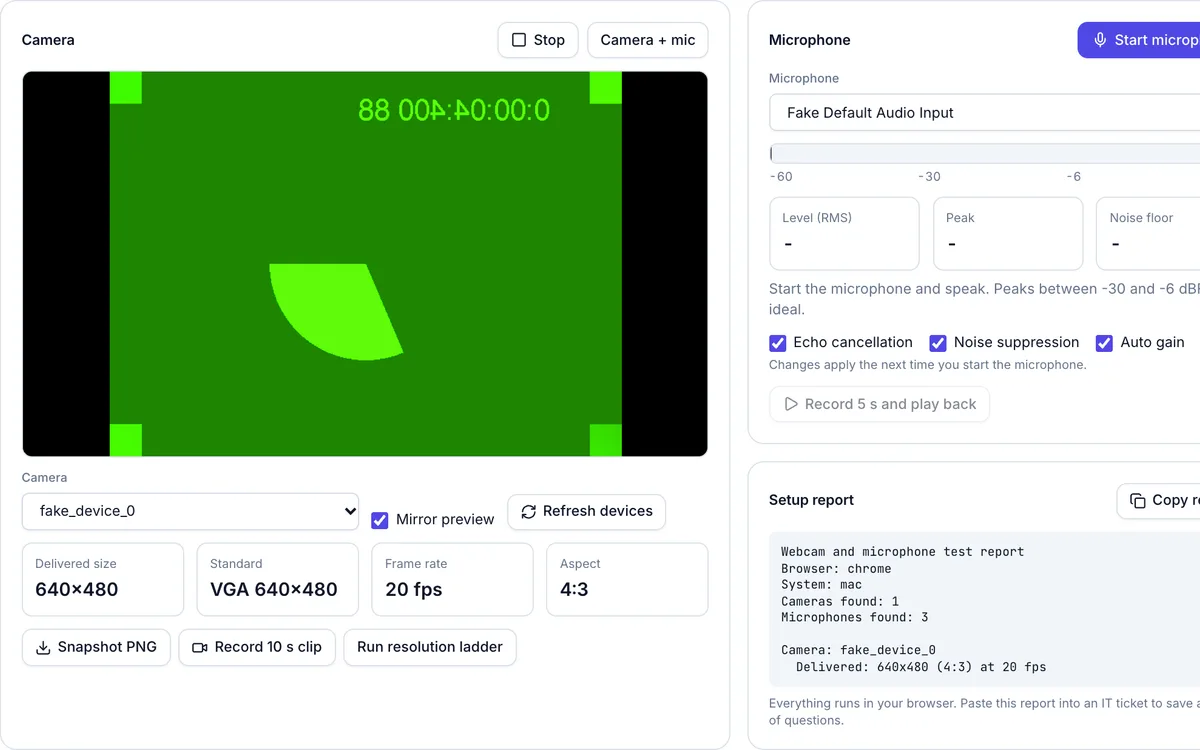
Start the microphone and speak. Peaks between -30 and -6 dBFS are ideal.
Changes apply the next time you start the microphone.
Webcam and microphone test report
Browser: other
System: other
Cameras found: 0
Microphones found: 0
Everything runs in your browser. Paste this report into an IT ticket to save a round of questions.
Need Webcam & Microphone Test as a full mobile or web app? We build it in about a week. Built in about a week, from $99. Send your requirements or SOW; you get a fixed quote and a delivery date.
The webcam & microphone test stays free to use online. If you want the code to run, edit and ship in your own project, get the full source from the DEV3 Marketplace. Instant download, 6 months of support.
Get the full app behind this tool. Buy once, own the source, and try each one live first.
Web Scripts & Software
from $20$29
Web Scripts & Software
from $20$29
Web Scripts & Software Mobile app
from $69$99
Enterprise SaaS Starters
from $69$99
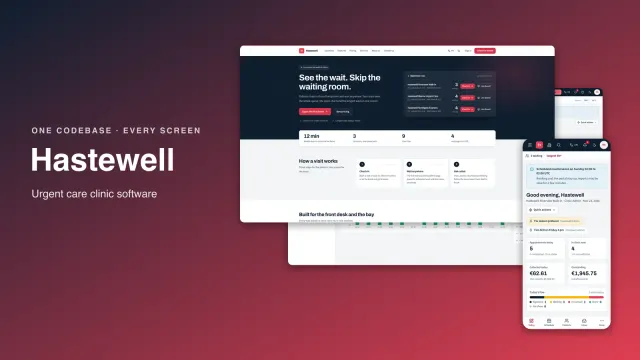
Enterprise SaaS Starters
from $69$99
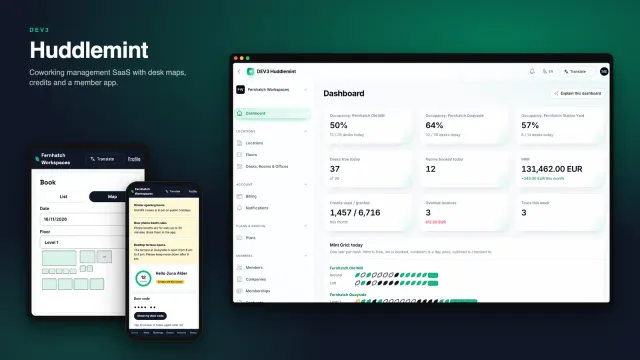
Web Scripts & Software
from $69$99
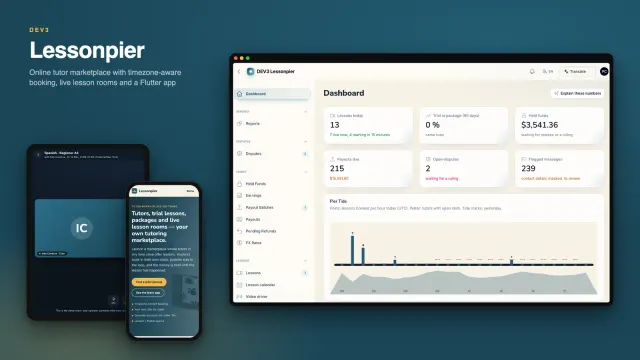
Web Scripts & Software Mobile app
from $69$99
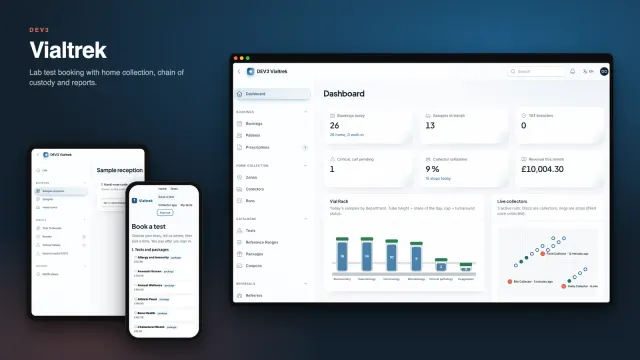
Web Scripts & Software Mobile app
from $69$99
Run this page before a Zoom, Meet or Teams call, an interview or a stream. It shows what the browser really receives from your hardware, so you can fix problems early.
The ladder asks the camera for 320x240 up to 4K in turn and records what it delivers and at what frame rate. If the camera cannot do 1080p, that row shows the nearest smaller mode. This is the fastest way to see whether a new webcam or a USB hub is limiting you.
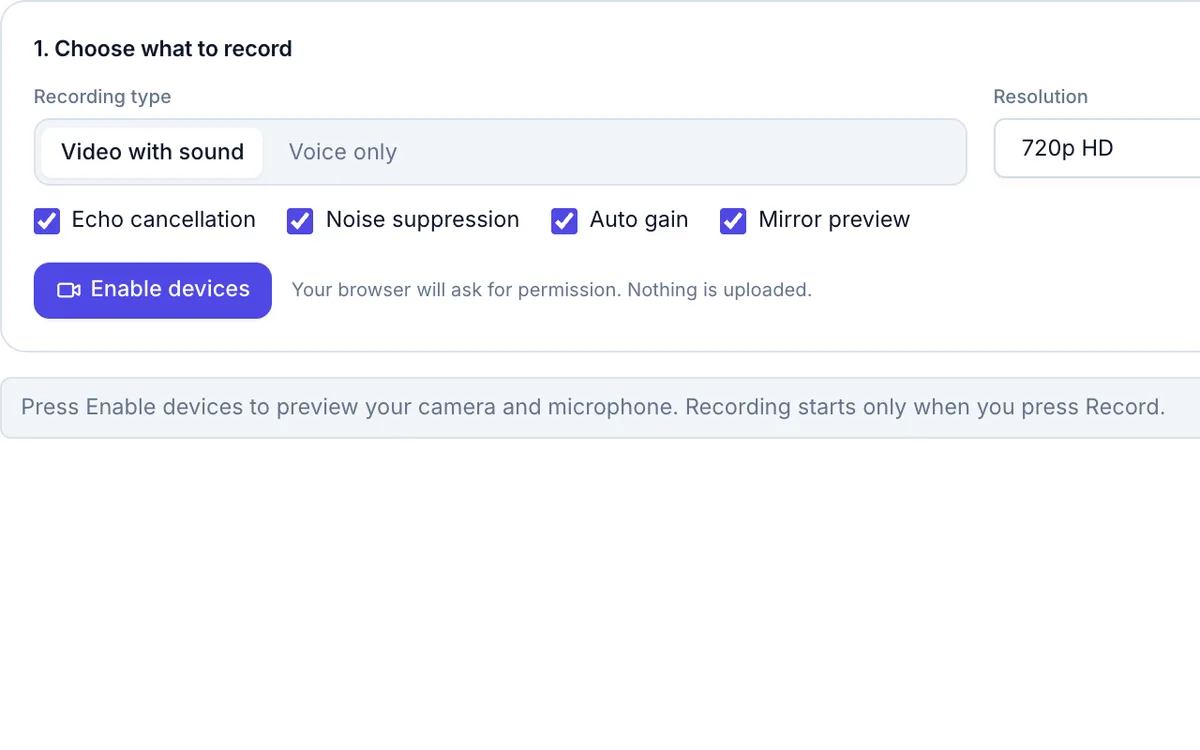
Save a PNG snapshot for a profile picture or a 10 second test clip to check sync and lighting. Files are created in your browser and downloaded only when you click.
The page explains the error: a blocked permission, a device in use by another app, or no device found. It lists the exact steps for your browser and operating system, and a setup report you can copy into an IT ticket.
Nothing leaves your device. Closing the tab stops all streams, and the Stop button releases the camera light immediately.
The most common cause is another app holding the camera (Zoom, Teams, OBS or another tab). Close them and retry. Other causes are a physical privacy shutter, a blocked browser permission, or a wrong camera selected in the picker above.
Check that the right input device is selected, that it is not muted with a hardware switch, and that the system input volume is raised. If the meter stays at the floor, the browser or operating system is blocking the microphone: see the fix steps shown when a permission error happens.
On Windows, Settings > Privacy & security > Camera lists apps that used it recently, and the green light on the camera stays on while it is active. On macOS the menu bar shows a green dot, and Activity Monitor can show the process. Quit the app or restart the browser.
No. The camera and microphone stream is processed only inside your browser tab. The echo test and test clip are kept in memory, played back locally, and only saved if you press the download button.
A browser asks the camera for a size, and the camera answers with the nearest mode it supports. Many built-in laptop cameras top out at 720p, and USB bandwidth, low light or the app in use can lower it. The resolution ladder shows what your camera really delivers.
For calls, leave them on, they remove echo and keep your level steady. For recording music or measuring sound, turn them off, because they colour the signal. Toggle each one and listen to the playback to hear the difference.