"Someone told us our site isn't accessible. Where do we even start?"
Maybe a customer emailed to say they could not use your contact form with a screen reader. Maybe a client contract now asks for WCAG 2.2 AA. Maybe you just looked at an accessibility report and saw a wall of errors with codes like 1.4.3 and 2.4.4. Whatever the trigger, most site owners land in the same place: they know the site has problems, they do not know which ones matter, and they are not sure which fixes they can make themselves.
There is also a shortcut on offer everywhere: a toolbar widget that promises instant compliance. It does not fix the content, and no automated tool can make that promise honestly. This guide shows a practical route instead: scan, sort, fix in the content itself, then check the rest by hand, using DEV3 AI Accessibility Checker & Fixer.
What a good accessibility process looks like
- You know where each problem comes from. A missing alt text in a post is yours to fix. A badly labelled search box in the theme is a theme fix. Treating them the same wastes time.
- Fixes change the real content. The image gets real alt text, the link gets real words, the colour actually changes.
- Every change can be reviewed and undone. Nobody wants an automated tool silently rewriting pages.
- New content stays clean. Editors get warnings while they write, not a report three months later.
- You are honest about the limits. An automated score is a starting point, not proof of conformance.
Step by step: audit and fix your WordPress site
1. Run your first scan
Install the plugin and open DEV3 AI Accessibility → Scan, then click Start scan. It runs in the background and loads each published page as a logged-out visitor would see it, while also checking the post content block by block.
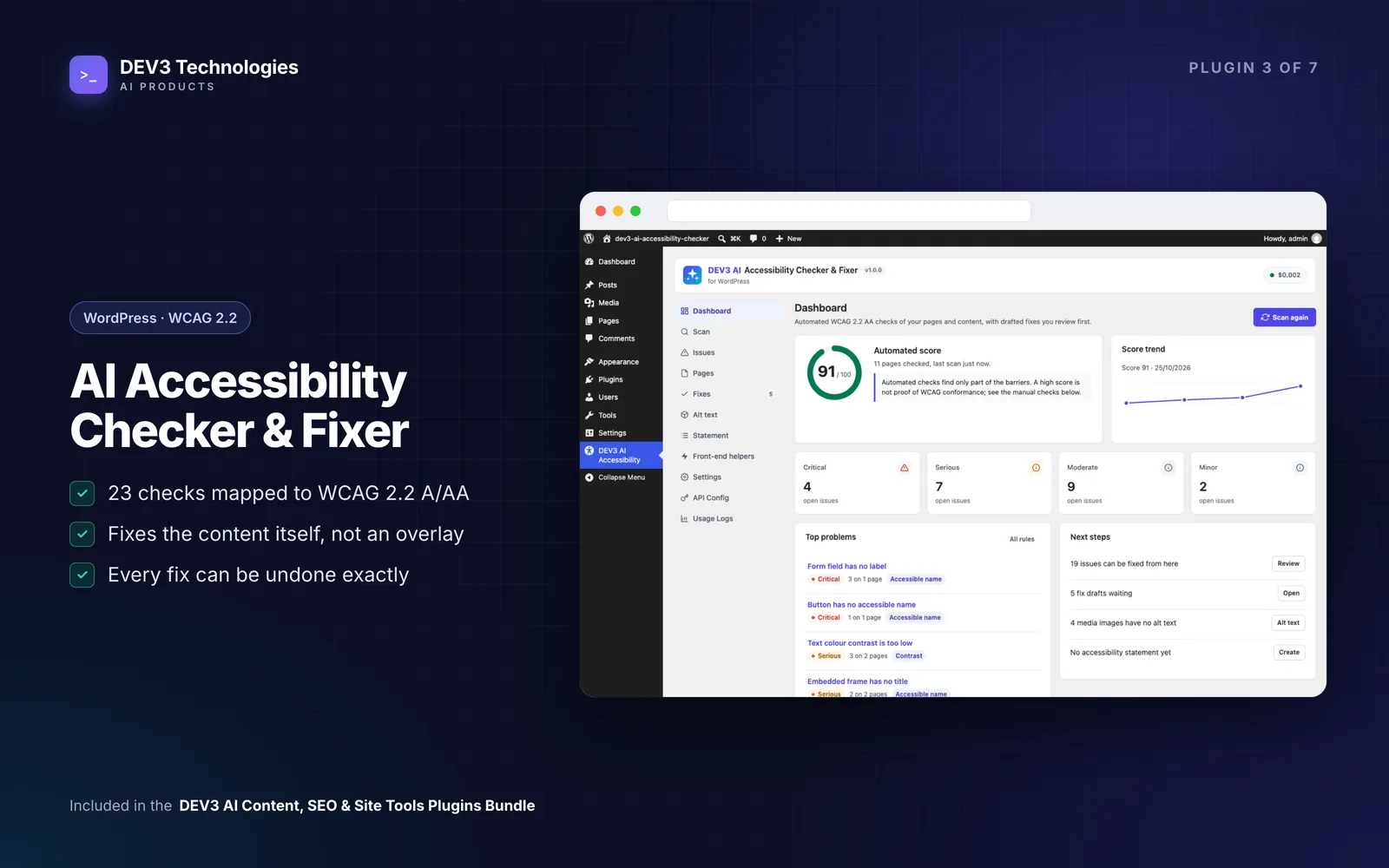
It checks 23 rules mapped to WCAG 2.2 (A/AA) success criteria, including missing or file-name alt text, empty links and buttons, unlabelled form fields, ambiguous link text, skipped heading levels, low colour contrast, untitled iframes, data tables without headers, autoplaying audio, page language, page title, zoom blocking and bypass blocks.
No API key is needed for scanning. Scans never send page content to Google.
2. Read the dashboard the right way
The dashboard shows a score, open issues by severity, the top problems and next steps. The score is labelled "automated checks only" on purpose, and the dashboard lists the manual checks you still need to do. Treat the score as a trend line, not a certificate.
3. Sort issues by where they come from
Open Issues, or group them By rule to fix one kind of problem across the whole site at once. Every issue says where it comes from:
- Post content: fixable inside the plugin.
- A dynamic block or shortcode: needs a change to that block's settings or source.
- Theme or plugins: guidance only. The plugin does not change your theme. Images printed by the theme can still be fixed through their media library alt text.
Click an issue for the explanation, links to the WCAG criterion, the element itself and the fix options. Explain with DEV3 AI gives fix steps tailored to that issue, and Ignore lets you dismiss it with a note.
4. Apply fixes as drafts
Pick a fix and review the draft before it touches the page:
- Alt text: DEV3 AI looks at the image and writes a description, or you use the media title, or mark it decorative. It can also save the alt text to the media library.
- Contrast: the nearest passing text colour, or the nearest passing colour from your theme palette, with a before/after preview.
- Heading order: repairs the outline of the whole post.
- Link text: rewrites "click here" and "read more" with DEV3 AI or from the target page title.
- Accessible names: labels for form fields, names for icon buttons and links, titles for iframes.
Fixes edit only the target markup and keep blocks valid. Every applied fix stores a before/after copy, so Fixes → Applied → Undo restores it exactly, with a warning if the post has changed since.
5. Clear the alt-text backlog
Most older sites have hundreds of images without alt text. Open Alt text to see them all, then use Draft alt text for all missing. It runs as a background job and the drafts land in Fixes → Pending for review. Nothing is applied until you approve it.
6. Keep new content clean
In the block editor, click the accessibility icon in the toolbar. The sidebar checks unsaved content as you write, shows the heading outline, lets you click an issue to select the block and applies fixes as normal, undoable block changes. The pre-publish panel warns about critical and serious issues before anything goes live.
Under Settings, turn on scheduled scans (daily or weekly) and rescan on publish, and switch off any rule that does not apply to your site. Use Pages for a score per page and Rescan now after a round of fixes.
7. Publish an honest accessibility statement
Open Accessibility statement, fill in your details and click Build from my answers. You can Polish with DEV3 AI, then save it as a draft page or show it with the [dev3ax_statement] shortcode. The generator follows the W3C structure and never claims full compliance unless you confirm a manual audit.
Tips and pitfalls
- Do the manual checks. Use the list on the dashboard, and test with a keyboard and a screen reader. Automated rules find only part of the barriers.
- "Saved content only" on some pages? The scanner loads pages through your own server. A firewall, Basic auth or a local setup can block that, so only post content was checked. Hosts can pass credentials with the
dev3ax_scan_request_argsfilter. - Front-end helpers are off by default. The skip link, visible focus outline, underlined content links and "opens in a new tab" hints are optional. Turn on only the ones your theme is missing. Visitors see no plugin branding.
- Contrast fixes change your design. Check the before/after preview with whoever owns the brand colours, and prefer the palette option so the fix stays on-brand.
- Control AI spend. Add a Google Gemini key in API Config only if you want AI alt text, link text and explanations. A monthly budget cap, an AI on/off switch and a usage log are included. Only what a feature needs is sent, such as the image and nearby text for alt text.
Who this is for
- Site owners and marketing teams who need to act on an accessibility complaint or requirement without hiring a developer for every alt text.
- Agencies that maintain client sites and want a repeatable scan, fix and report routine.
- Publishers with large media libraries and years of older posts.
To see how the project came together, read the case study. If your theme or custom blocks are the source of most issues, our web development team can fix them at the template level.
Getting started
DEV3 AI Accessibility Checker & Fixer is part of the DEV3 AI Content, SEO & Site Tools bundle. Install it, run one scan, fix the issues that come from your own content, and use the manual checklist for the rest.