Most WooCommerce stores send abandoned cart emails the same way: a plugin is installed, a default three-email sequence switches on, and nobody looks at it again. Months later, the owner can't answer simple questions. How much revenue did those emails actually bring back? Would those people have bought anyway? Is the 10% code in the first email paying for itself? And what about customers who bought once and never came back?
This guide is about planning the sequence properly: what to capture, when to send, where a coupon belongs, how to bring lapsed customers back, and how to tell real recoveries from noise. We'll use DEV3 AI Abandoned Cart & Win-back Emails for the settings, but the thinking applies to any store.
What a good recovery setup looks like
Before you touch any settings, agree on what "good" means:
- Carts are captured on whichever checkout you use. Classic and block checkout both, plus logged-in customers.
- Consent is handled before the first email, not patched in after a complaint.
- The first reminder is a reminder, not a discount. Coupons come later, and each one is unique and single use.
- Copy sounds like your store. Personalised where it helps, but nothing goes out that you haven't approved.
- Lapsed customers get their own flow, separate from cart recovery.
- Recovered revenue is measured honestly. An order only counts if a reminder was sent or clicked first.
Step 1: Capture carts with the right consent mode
Open DEV3 AI Abandoned Cart → Settings → Capture & consent. The plugin captures carts on the classic checkout (shortly after the shopper types their email), on the block checkout through WooCommerce's Store API, and for logged-in customers.
Pick a consent mode that matches where you sell:
| Mode | What happens |
|---|---|
| Notice (default) | A short note under the email field says the cart is saved for reminders. |
| Opt-in | A checkbox. Nothing personal is stored until it's ticked, and unticking deletes the stored cart. |
| None | No notice, for stores outside GDPR regions. |
SMS always needs its own opt-in, whatever you choose. On the same screen, set Abandoned after (minutes) (default 15), a minimum cart value and any excluded roles. Excluding staff and wholesale roles keeps your own test carts out of the numbers.
Then go to Settings → Sending & timing and set a from name and address customers will recognise. Make sure your site can actually send email. An SMTP plugin is recommended.
Step 2: Plan the cart recovery sequence
Open Sequences. A cart recovery sequence and a win-back sequence are ready, along with six approved templates. Each sequence can have up to 10 steps, and each step has a wait, channel (email or SMS), template, an optional unique coupon and a minimum cart value. Step 1's delay counts from abandonment, and each later step counts from the previous one.
A sensible shape for most stores:
- A plain reminder shortly after abandonment. No coupon. Many shoppers were simply interrupted.
- A helpful follow-up a day or so later. Answer the likely objection: delivery, returns, sizing.
- A final nudge with a coupon, only if the cart is still open. Switch on Unique coupon in this step and set the discount, amount, validity and minimum spend.
Each coupon is created for that cart and step only: single use, individual use, restricted to the shopper's email, with an expiry. Later steps without their own coupon reuse the latest valid one, and the recovery link applies it automatically.
A purchase, an unsubscribe or your own Stop sequence action ends the sequence straight away, so nobody gets "you forgot something" after they've paid.
If you'd rather start from data, Build with DEV3 AI suggests steps with reasons based on your store's recovery numbers. Nothing changes until you apply and save.
Step 3: Write copy that sends safely
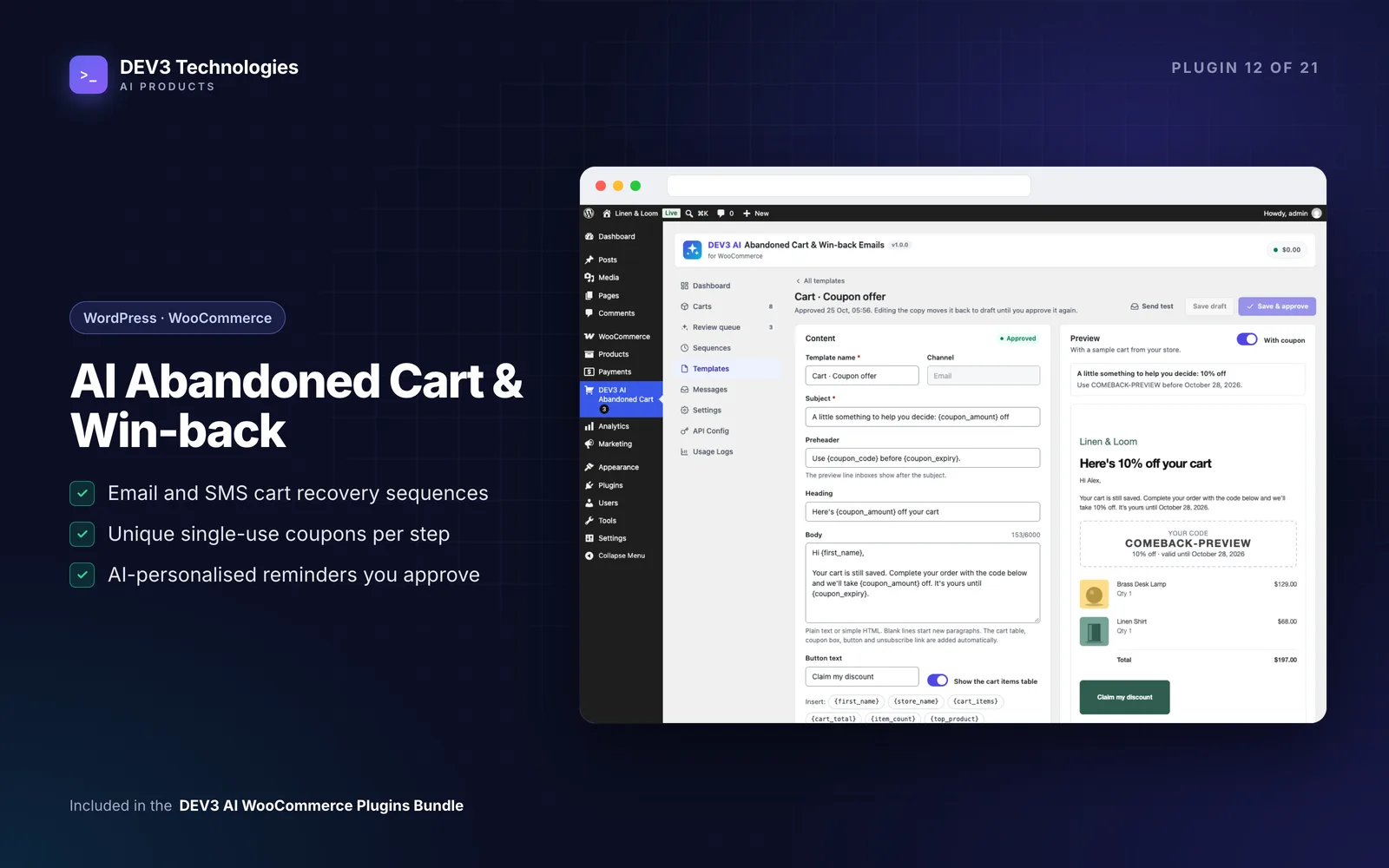
In Templates, each email has a subject, preheader, heading, body and button. The cart table, coupon box, button and unsubscribe footer are added for you, inside your WooCommerce email design. Merge tags such as {first_name}, {cart_items}, {top_product}, {coupon_code} and {recovery_button} fill in the details.
Before you approve a template:
- Check the live Preview (toggle With coupon to see both versions).
- Read the Quality checks panel. It flags empty fields, long subjects, ALL CAPS, "!!!", spam words and missing links.
- Use Send test to get a real email with a sample cart.
- Click Save & approve. Only approved templates send, and editing an approved template moves it back to draft.
Step 4: Add AI personalisation behind a review gate
With a Google Gemini key in API Config, open a template and switch on Personalise each message with DEV3 AI. The scheduler then writes a draft for each shopper ahead of the send time, using only their first name and cart products. Emails and phone numbers are never sent to the AI.
Drafts wait in the Review queue, shown next to the template copy with a word diff. You can approve, edit, regenerate or reject. If a draft isn't reviewed by its send time, the approved template copy goes out on time, or you can choose Hold in Settings → Sending & timing to wait a set number of hours. AI copy only skips review on templates where you switch on Auto-approve AI copy for this template, so leave that off until you trust the drafts.
Step 5: Bring lapsed customers back with win-back
Cart recovery covers people who nearly bought. Win-back covers people who bought once and drifted away. Every hour, customers whose last paid order falls inside your inactivity window are enrolled once into the win-back sequence, unless they've unsubscribed or already have an open cart sequence. Their last order's items are ready to re-order through the recovery link. In opt-in mode, win-back only reaches customers who opted in.
Step 6: Measure what really came back
The Dashboard (7, 30 or 90 days) shows recovered revenue, recovery rate, still-recoverable value, opens, clicks, coupon redemptions, a per-step funnel and the most abandoned products. A cart counts as recovered only when its order reaches processing or completed after a reminder was sent or its link was clicked. Otherwise it's marked bought anyway. That split is the honest answer to "are these emails working?".
Explain my numbers with DEV3 AI gives a read-only summary with suggestions, and Messages shows why any send was skipped or failed.
Tips and pitfalls
- Low-traffic site? The scheduler runs every 5 minutes with WP-Cron, which needs visits to fire. Set up a real cron job for
wp-cron.php, or press Run scheduler now while testing. - Watch the funnel. If almost nobody reaches the coupon step, your early emails are doing the work and you may not need the discount at all.
- Add "Save my cart". The Save my cart block or
[dev3ac_save_cart]shortcode lets browsers email themselves a restore link, and those carts join normal recovery.
Who it's for
Any WooCommerce store with steady traffic and carts left behind, especially those selling in GDPR regions, using the block checkout, or wanting SMS steps through a Twilio-compatible API. The case study covers how capture, sequences and attribution fit together.
Get started
DEV3 AI Abandoned Cart & Win-back Emails is included in the DEV3 AI WooCommerce Plugins Bundle. Start with the default sequences, approve your templates, then add coupons and AI drafts once you can see the funnel. Need help with a larger store setup? Get in touch.