"Shoppers can't find what we sell"
If you run a WooCommerce store with more than a few hundred products, you have probably heard some version of this from a customer: "I searched for a black kids' raincoat and got nothing." The product was there. The search box just couldn't connect "raincoat" to the item you called a "waterproof jacket", or it ignored "under 100", or a typo like "jaket" sent it to a blank page.
Filters have their own problems: basic default widgets, plugins that slow down as the catalogue grows, and filtered pages that spawn thousands of near-duplicate URLs.
This guide shows how to fix both with DEV3 AI Product Filter & Smart Search for WooCommerce: filters that update instantly and stay fast, a search box that understands how people actually type, and filter pages you control for SEO.
What good looks like
A good product discovery setup on WooCommerce:
- Shows the right filters for the right category. Sizes and colours on clothing, material and brand on furniture, not one generic list everywhere.
- Shows honest counts. Shoppers should see how many products each option will give them, and options with nothing behind them should be hidden or greyed out.
- Works on phones. A sidebar that pushes products below the fold is not a mobile experience.
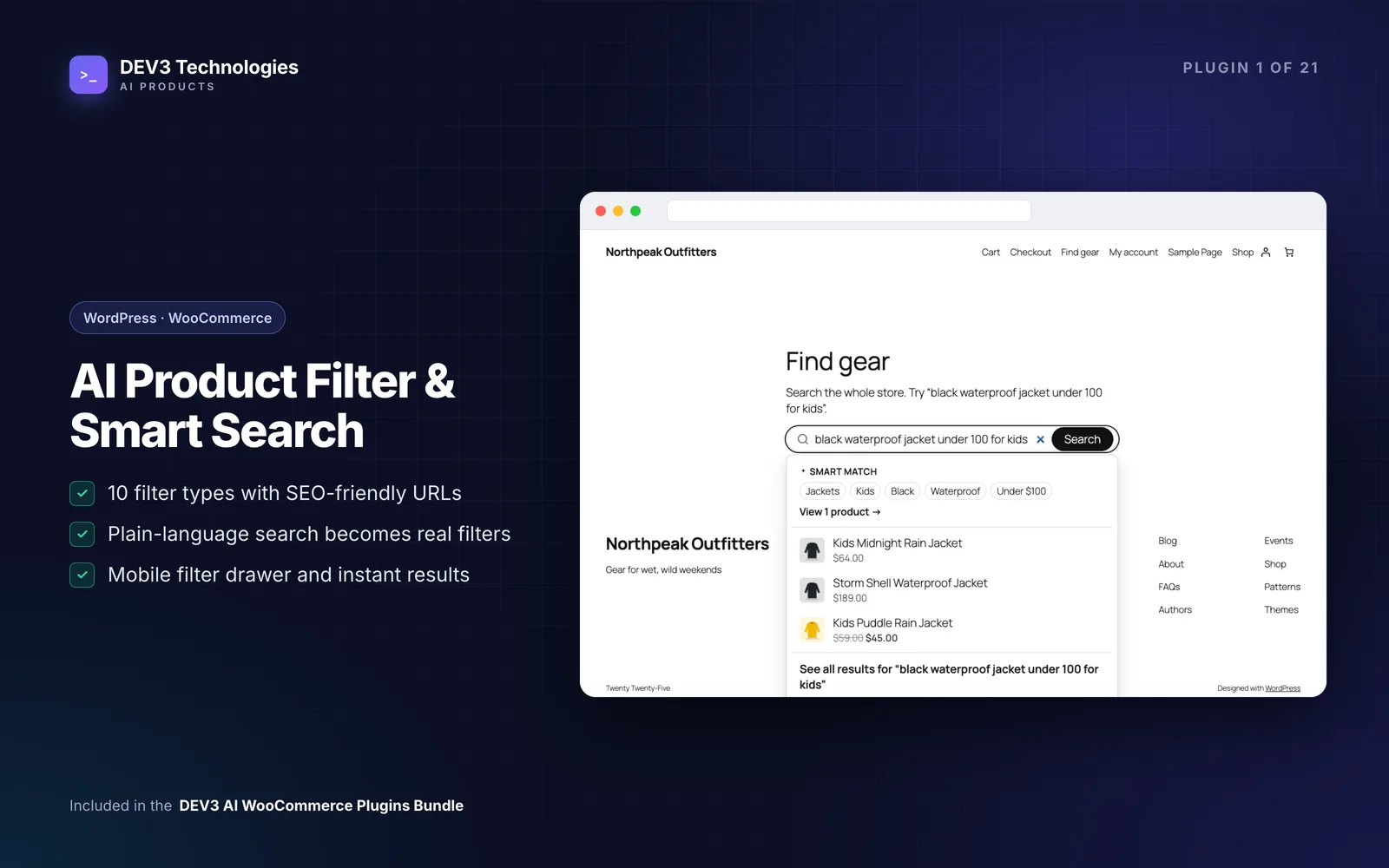
- Understands plain language. "Black waterproof jacket under 100 for kids" should land on a filtered page, not zero results.
- Keeps SEO clean. One canonical URL per filter state, noindex on throwaway combinations, and real landing pages for the combinations you want to rank.
- Works without AI. AI should make things better, not be a single point of failure.
Step-by-step setup
1. Install and let the starter set build
Upload the plugin zip in Plugins → Add New → Upload Plugin and activate it (WooCommerce 8.0 or newer must be active). No licence key or activation is needed. Open DEV3 AI Product Filter & Smart Search in the admin menu.
On activation the plugin creates a starter filter set (category, price, your first attributes, rating and availability) and builds its index in the background. Visit your shop: the filters already appear above the products, and phones get a "Filters" button that opens a drawer.
2. Create filter sets per category
Go to Filters. A filter set is a named list of filters with its own behaviour. For each set you choose:
- Show on: everywhere, or only selected categories and their sub-categories. A category set wins on its categories, so you can keep a general set for the shop and a specific one for, say, Jackets.
- Update mode: Instant updates products on every change; Apply button lets shoppers pick several options and apply once. Apply mode suits large catalogues and shoppers who like to build a full selection.
- Layout: vertical (sidebar style) or a horizontal bar with dropdowns. On phones both become a drawer.
- Counts, hide empty and chips: product counts per option, hiding or greying out empty options, and removable chips for active filters.
Each filter can use a category, tag, brand, attribute, price, rating, stock, sale, custom field or ACF field as its source, with OR/AND logic for multiple values.
If you don't know where to start, open Filters → Build my filters, pick a category, and let DEV3 AI read attribute coverage, value counts, price spread, rating and stock data to propose 4–8 filters with reasons. "Suggest from catalog data" gives a rule-based suggestion without AI.
3. Pick display types that match the data
There are 10 display types. A practical mapping:
- Colour swatches for colours (it can use the colour named in the value, like "navy").
- Labels (buttons) for sizes and short brand names.
- Range slider or min/max inputs for price and numeric fields.
- Images for categories, using category thumbnails.
- Star rating for "4 stars & up".
- Checkboxes with tree view for categories; dropdown or multi-select for long lists such as material.
4. Place the filters
The default is automatic: Settings → Storefront → "Show filters automatically: Above the products", which works with classic templates and the Product Collection block in block themes. If you want them somewhere else, use the "Product Filters (DEV3 AI)" block, classic widget, Elementor or WPBakery element, or the shortcode:
[dev3pf_filters id="1" layout="horizontal" title="Filters"]
5. Add the smart search box
Add the "Smart Product Search" block, widget, Elementor/WPBakery element or [dev3pf_search] shortcode to your header. Shoppers get results while typing, with thumbnails, prices and matching categories, plus keyboard support. Turn on "Use smart search on the WooCommerce search results page" so the full results page uses the same ranking.
Then fill in Synonyms ("sneakers, trainers, running shoes") and typo corrections ("hoddie" → "hoodie"). Synonyms also feed natural-language search, so "children" can map to your "Kids" attribute.
6. Turn on DEV3 AI (optional)
Create a key in Google AI Studio, paste it in API Config, set a monthly budget cap and choose whether storefront AI is allowed. With it on, a query like "black waterproof jacket under 100 for kids" becomes Category, Colour, Feature, Age group and Price filters, checked against your real categories and values. Without a key, the built-in parser still handles prices ("under", "between"), ratings, stock, sale, sizes and every category, attribute and synonym name.
For catalogues where wording varies a lot, Search → Semantic search builds an embedding index of your products in the background, and its matches are merged with keyword results.
7. Build SEO landing pages for the combinations that matter
Filter URLs look like /shop/filter/color/black/. Combinations are noindex,follow with a canonical link to the unfiltered page. When a combination deserves to rank ("black waterproof jackets"), go to SEO pages → New, choose the page and filter values, and write the title, meta description, H1 and intro, or let DEV3 AI draft them. Published landing pages are indexable, listed in the XML sitemap and work with Yoast SEO and Rank Math.
Tips and pitfalls
- Check Insights every week. Insights → No results lists the searches that found nothing. "Suggest fixes with DEV3 AI" proposes a synonym, a typo fix, a missing attribute on near-match products, or tells you the store doesn't sell it. This is the fastest way to learn your customers' vocabulary.
- Products don't refresh when filtering? Your theme probably renders products outside the standard loop. Add its container's CSS selector to Settings → "Extra regions to refresh", or switch the set to Apply mode.
- A sold-out size disappears. That's intentional: "Only in-stock variations count" keeps a variable product out of a size filter while that size is out of stock.
- Missing product? Rebuild the index from the Dashboard. Use "Speed test" there to time filter combinations on your own catalogue.
- Every AI result is a draft. Synonyms, filter suggestions and landing-page copy only save when you accept them. If the budget cap is reached, AI pauses and everything falls back to non-AI behaviour.
Who it's for
Stores with a growing catalogue and real attributes (fashion, sports, home, electronics), stores where search terms don't match product titles, and agencies that need one filter and search tool that works across block themes, classic themes, Elementor and WPBakery. If you want to see how it was engineered, read the case study.
Wrapping up
Better product discovery comes down to sensible filters per category, a search box that speaks your customers' language, and SEO pages you choose deliberately. DEV3 AI Product Filter & Smart Search ships in the DEV3 AI WooCommerce Plugins Bundle, and if you'd rather have us set it up on your store, get in touch.