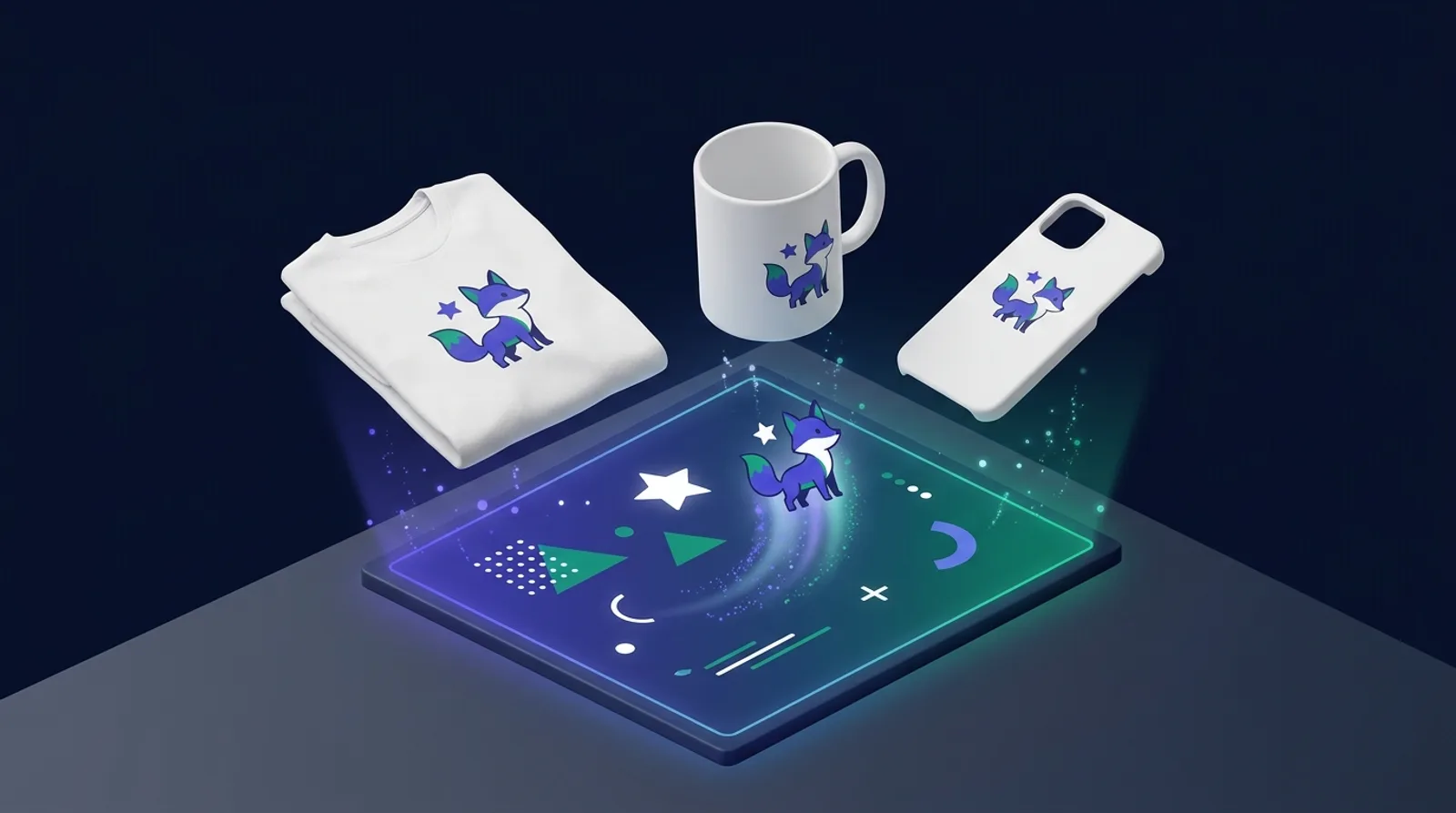
A product designer looks like a front-end feature: a canvas, some text, a photo, an "Add to cart" button. Underneath, it's an API that accepts a large JSON document written by the shopper's browser, stores it, prices it, renders previews from it and, eventually, turns it into a file a printer will put on a real T-shirt. Every one of those steps trusts the document. When we built DEV3 AI Product Designer for WooCommerce, we treated that design JSON the way we'd treat any form a stranger can post: as untrusted input. This post explains the allow-list sanitiser at the centre of the plugin, and the decisions around it that keep prices, images and print files honest.
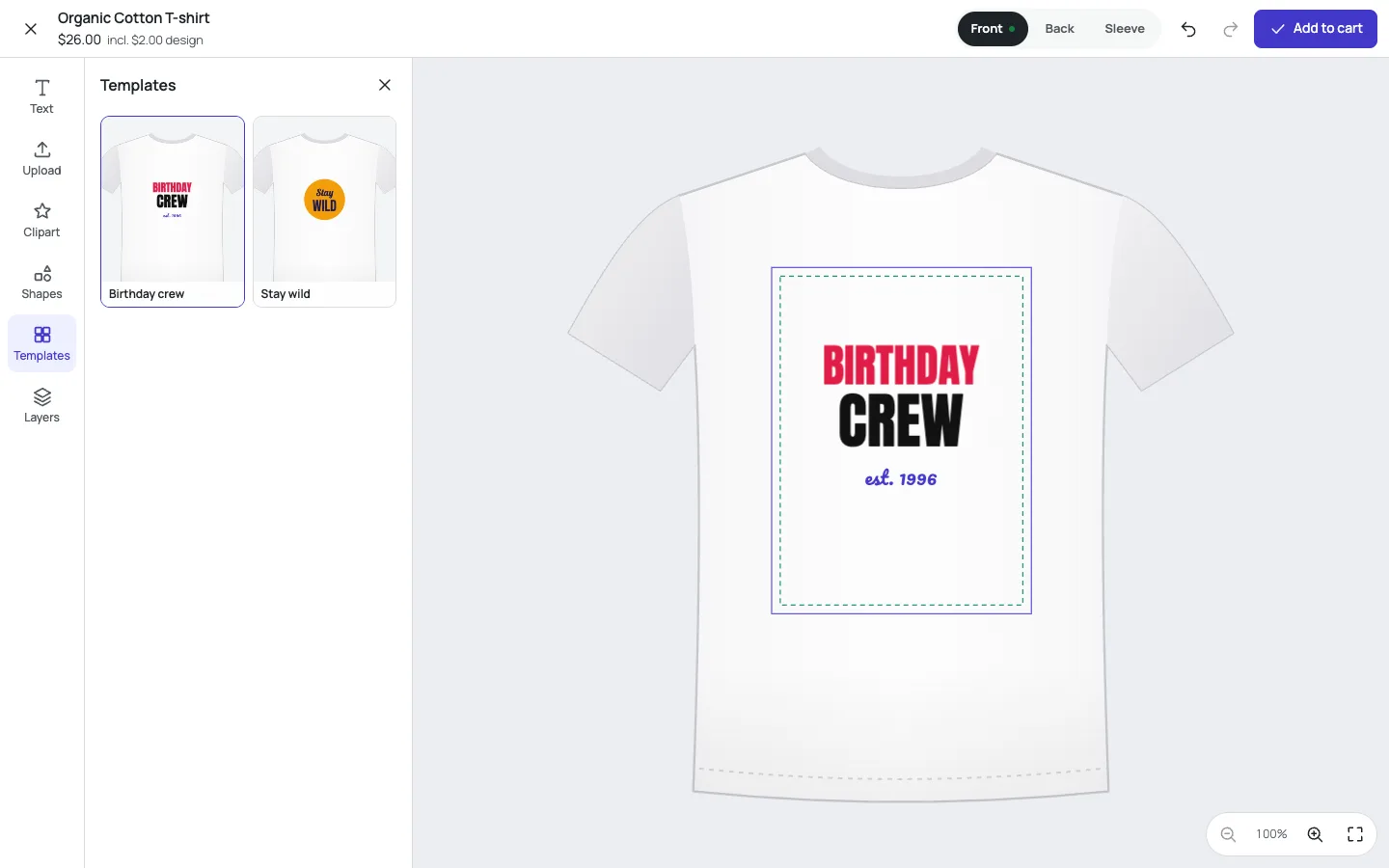
The studio. The price at the top left is a preview; the cart price is computed on the server from the saved design.
What it does and who it's for
DEV3 AI Product Designer adds a full-screen design studio to WooCommerce products, built on Fabric.js. It suits:
- Print-on-demand shops selling T-shirts, hoodies, tote bags, mugs, posters and phone cases.
- Gift and personalisation stores where shoppers add a name, a date or a photo.
- Merch for events and teams, using templates the shop prepares and shoppers adjust.
- Shops whose customers are mostly on phones, with a bottom tool bar, pinch to scale, twist to rotate and pinch-zoom on the canvas.
- Printers who need real files: PDF at the exact physical size with bleed and crop marks, 300 DPI PNG and vector SVG.
The studio, templates, print check and print files all work without AI. With a Google Gemini API key, DEV3 AI adds artwork from a description, slogan ideas, background removal, photo enhancement, a spelling and layout review, and an admin template generator.
How to set it up
- Install the plugin zip from the bundle download and activate it with WooCommerce active.
- Open DEV3 AI Designer → Product types and add a preset (T-shirt, mug, poster, phone case, tote) or create your own: views, mockups and print areas in millimetres, with bleed and safe zone.
- Turn the designer on for products in Products, or in the DEV3 AI Designer tab of the product editor.
- Optional: add templates in Templates and your own fonts and clipart in Fonts & clipart.
- Optional: add a Google Gemini API key in API Config.
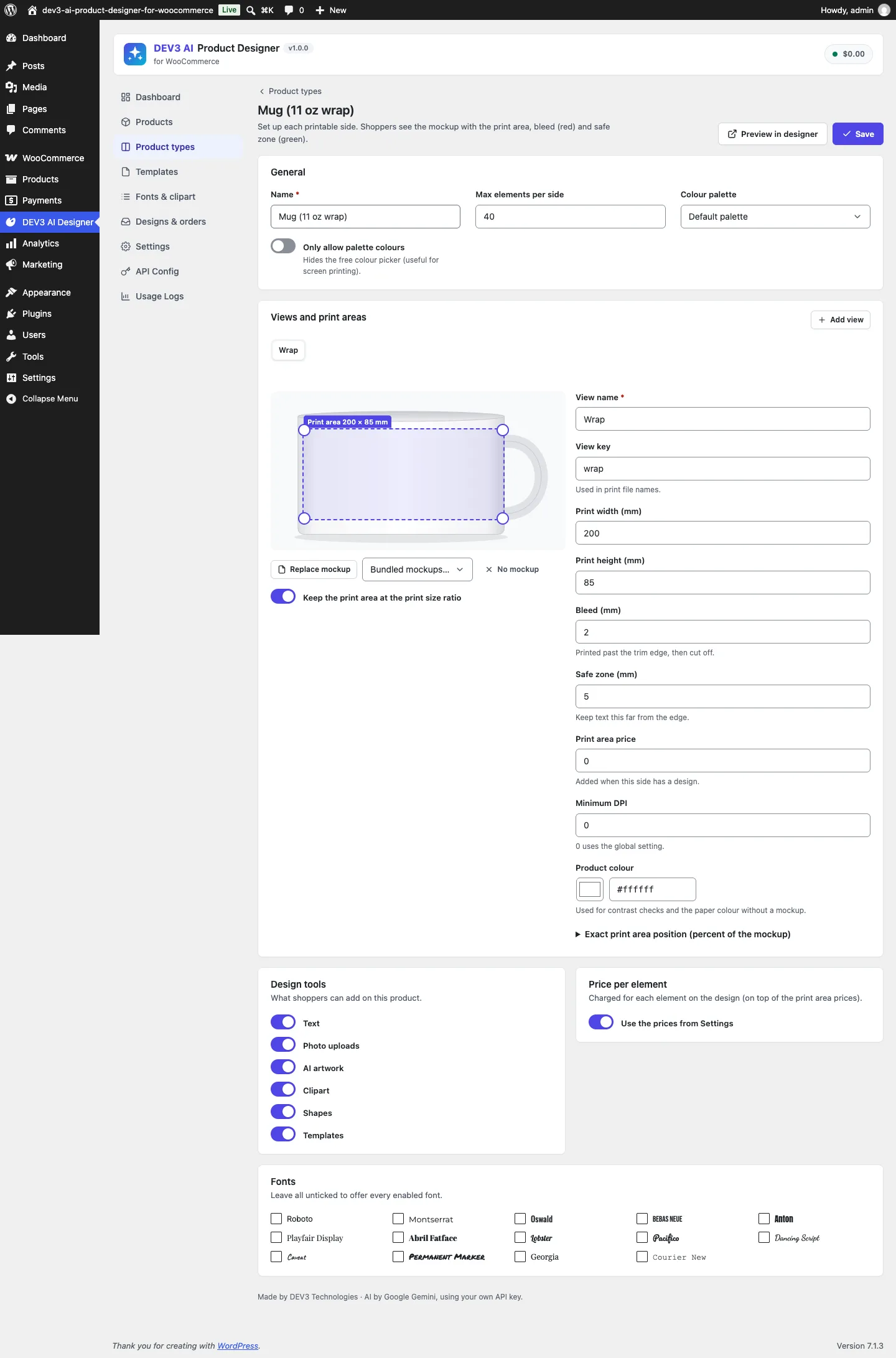
A product type: the print area is drawn on the mockup and sized in millimetres.
How to use it
Shoppers design. On a designable product, the Customize design button opens the studio. Shoppers add text, photos, clipart, shapes or a template on each side, and see the price change as they go. AI art creates artwork from a short description in a chosen style, with a limited number of creations per day.
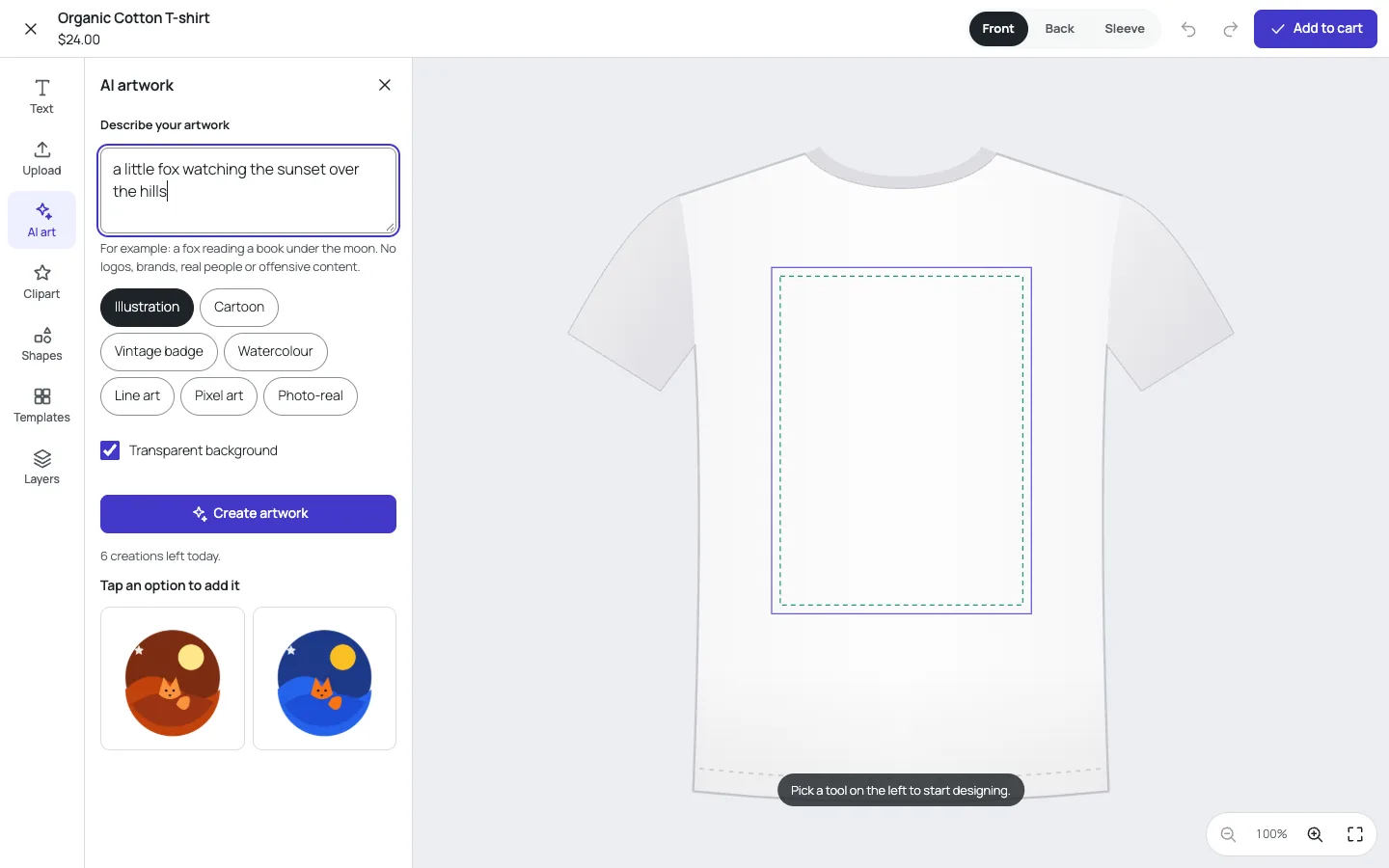
Shoppers describe the artwork and tap an option to add it to the design.
The print check runs before the cart. Low-resolution photos, text close to the edge, elements outside the print area, tiny text, low contrast and very bright RGB colours are flagged with a Show link, and the shopper can keep editing or continue.
On a phone, it's built for thumbs. Tools sit in a bottom bar, panels open as bottom sheets, and two fingers scale and rotate the selected element.
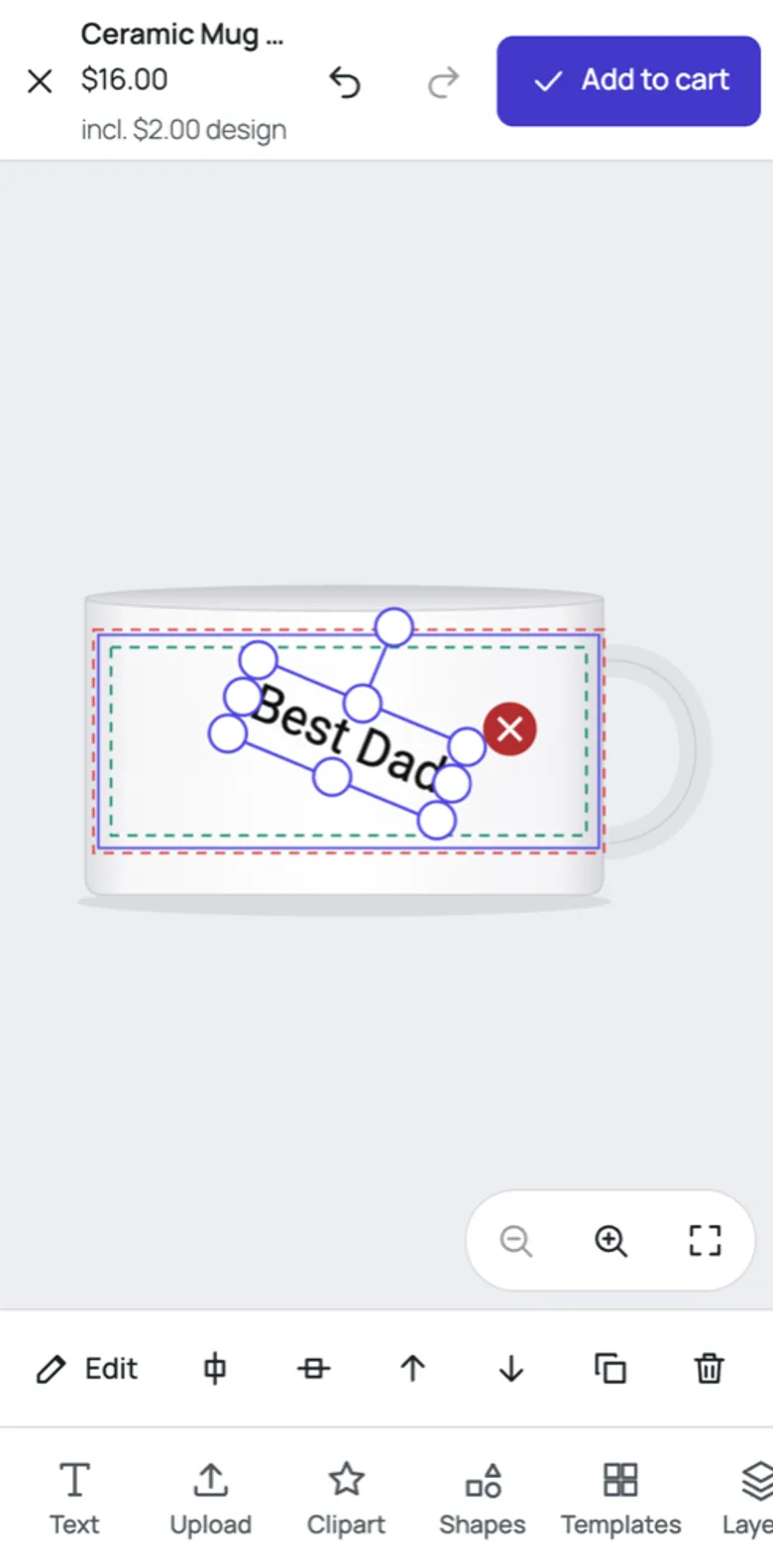
Pinch and twist on a mug wrap.
The shop prints. In Designs & orders, each ordered design shows its previews and print check. Choose the resolution and background, then download PDF, PNG or SVG for each side, or all sides as one PDF, optionally saved with the order.
The threat model
A design reaches the server through a public REST endpoint, because guests can design too. The request body includes the product ID, the design JSON and preview images. What could a hostile or just buggy client put in there?
- Markup in text. A text object whose
textis<script>…</script>. It would be harmless on the canvas, but the same text appears in order summaries, emails and the admin. - Unknown object types and properties. Fabric.js serialises whatever properties an object has. A client can add event-handler-like keys, a
typethe renderer doesn't expect, or colours such asurl(javascript:…). - Images from anywhere. An image object pointing at a remote server (tracking, or content the shop never approved), at a
data:URI the size of a novel, or at another customer's private print file. - Absurd numbers. A
scaleXof 1e9 or afontSizeof 0 to make the renderer or the print export misbehave. - Huge documents. Thousands of objects or a path with a million points, to make the server or the shop owner's browser grind to a halt during export.
- A different price. The browser shows a total; if the server trusted it, a shopper could set their own.
An allow-list, not a deny-list
Engine\Design_Sanitizer takes the opposite approach to filtering out bad things: it builds a new object containing only things it recognises. Its class comment sums it up: allowed Fabric object types and properties only, numbers clamped, text stripped of markup, images limited to this site, view IDs checked against the setup.
public static function object( array $o, array $opts = array(), $depth = 0 ) {
	$type = strtolower( (string) ( $o['type'] ?? '' ) );
	if ( ! in_array( $type, self::TYPES, true ) || $depth > 3 ) {
		return null;
	}
	$out = array( 'type' => self::CANON[ $type ] );
	foreach ( self::NUMBERS as $k => $r ) {
		if ( isset( $o[ $k ] ) && is_numeric( $o[ $k ] ) ) {
			$out[ $k ] = min( $r[1], max( $r[0], (float) $o[ $k ] ) );
		}
	}
	foreach ( self::ENUMS as $k => $allowed ) {
		if ( isset( $o[ $k ] ) && is_string( $o[ $k ] ) && in_array( $o[ $k ], $allowed, true ) ) {
			$out[ $k ] = $o[ $k ];
		}
	}
	foreach ( self::COLORS as $k ) {
		if ( array_key_exists( $k, $o ) ) {
			$c = self::color( $o[ $k ] );
			if ( null !== $c ) {
				$out[ $k ] = $c;
			}
		}
	}
	// …booleans, font weight, shadows, dash arrays, then per-type rules…
}
(condensed from Design_Sanitizer::object)
Some properties of that design:
- Unknown keys disappear by construction.
$outstarts with only a canonical type, and each allowed property is copied in explicitly. Anonclickkey isn't stripped; it's simply never copied. - Every number has a range.
NUMBERSmaps 28 properties to bounds: positions within ±20,000 px, opacity between 0 and 1, skew within ±89 degrees, font size between 0.1 and 5,000. Out-of-range values are clamped, not rejected, so a slightly odd design still saves. - Colours are strict. Only
transparent, 3-, 6- or 8-digit hex, andrgb()/rgba()with plain numbers. Anything else,url(javascript:1)included, is dropped. - Types are canonicalised.
itext,i-textandITextall becomeIText, so the renderer always sees one spelling.
Per-type rules
After the shared properties, each kind of object has its own checks:
- Text has
<and>replaced with look-alike characters and then any tags stripped, is cut to 500 characters, and is dropped if it's only whitespace. The font family must be one of the fonts the shop offers, or it falls back to the first one. - Images must pass
src_ok(), covered below. - Paths are validated command by command: each segment must start with one of the SVG path letters and contain at most seven numbers. A path given as a string must contain only path letters, digits and separators. One bad segment drops the whole path.
- Polygons and polylines keep at most 2,000 points, each with numeric
xandy, and need at least two. - Groups recurse with a depth limit of three and at most 300 children, and an empty group is dropped.
At the design level, a JSON string or array larger than 1.5 MB is rejected with a 413 before parsing, only views that exist in the product type are kept (a ghost view is silently dropped), and each side may have at most the product type's maximum number of elements (40 by default).
The PHPUnit test for all of this feeds in a design containing a script tag in text with an onclick key, a disallowed font, a url(javascript:1) fill and an opacity of 9; an object of type Script; a remote image; a local image; a valid path; a path with an X command; a path string ending in <script>; a group containing a data: image; a whitespace-only text; and a view that doesn't exist. Four objects survive on the front, the text no longer contains <script, and the ghost view is gone.
Images: this site, or nothing
Images are the easiest way to smuggle something in, so they get the strictest rule. src_ok() requires an http(s) URL that Storage::is_local() accepts:
public static function is_local( $url, $ours_only = false ) {
	$up   = wp_upload_dir( null, false );
	$base = $ours_only ? self::base()['url'] : $up['baseurl'];
	$norm = static fn( $u ) => preg_replace( '#^https?:#i', '', (string) $u );
	if ( 0 === strpos( $norm( $url ), $norm( $base ) . '/' ) ) {
		return false === strpos( $url, '..' ) && false === strpos( $url, '/print/' );
	}
	if ( ! $ours_only && 0 === strpos( $norm( $url ), $norm( DEV3PD_URL . 'assets/' ) ) ) {
		return false === strpos( $url, '..' );
	}
	return false;
}
(condensed from Files\Storage::is_local)
The URL must sit under the site's uploads or the plugin's bundled assets, may not contain .., and may never point into the print-file folder. The protocol is ignored when comparing, so a site that serves uploads over both HTTP and HTTPS still works. A filter lets a shop allow a CDN deliberately.
The images that end up in those folders are checked too. Shopper uploads and canvas previews go through inspect_image(), which reads the actual bytes with getimagesizefromstring() and accepts only JPEG, PNG and WebP between 8 and 12,000 pixels on each side. A test writes <?php echo 1; ?> into a file named x.png and gets a 415. Preview images arrive as data: URLs, which must match data:image/(png|jpeg|webp);base64, before decoding, so data:text/html is refused.
Print files that the shop owner exports from the admin are checked by content before they're stored: a PDF must start with %PDF-, a PNG with the PNG signature, and an SVG must contain <svg with no <script and no on…= attributes. They're written to a folder protected from direct access and served through nonce-checked links.
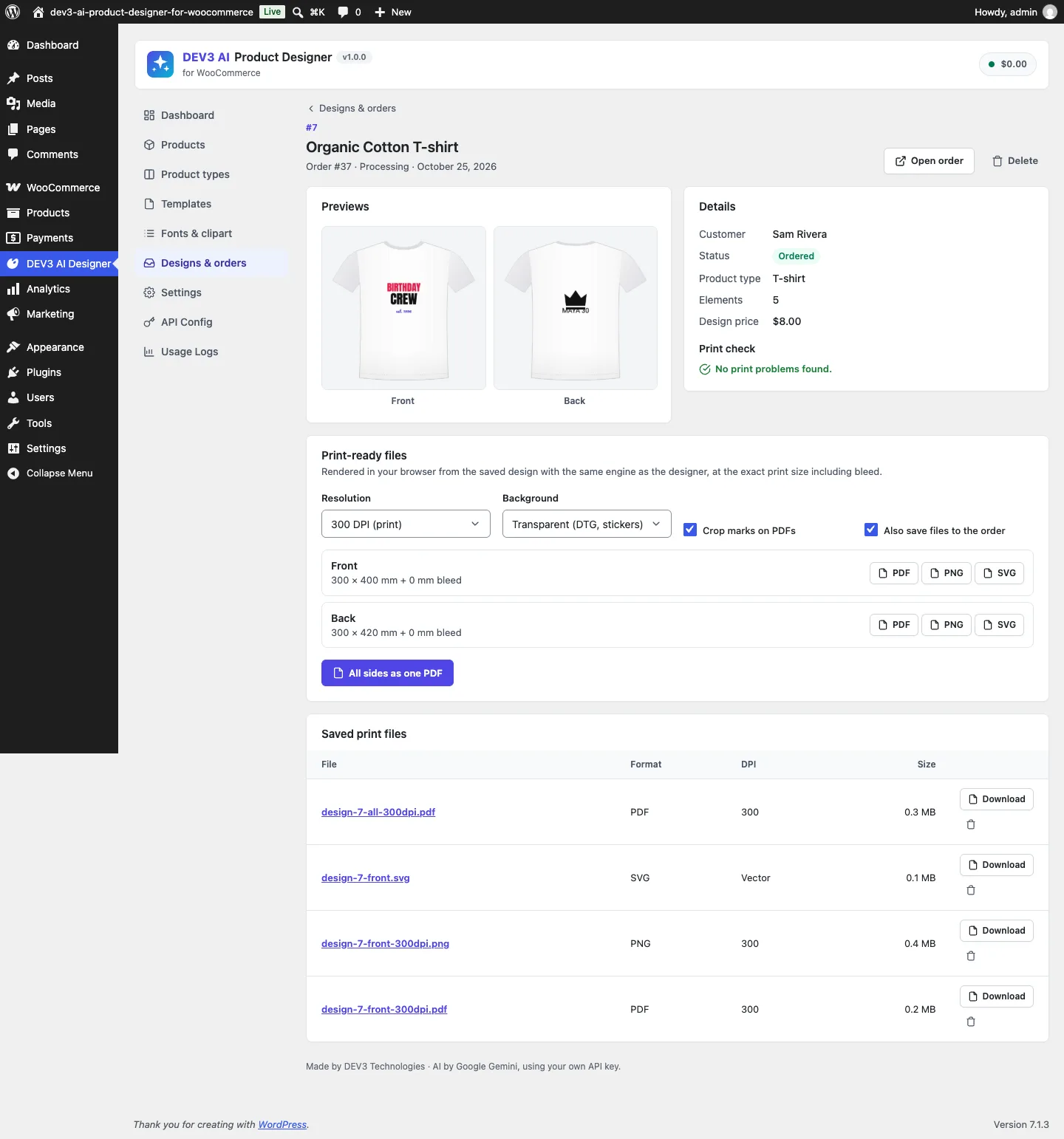
Print-ready files for an ordered T-shirt, rendered from the saved design and stored with the order.
The price comes from the stored design
The studio shows a running total, and it's accurate: the browser and the server use the same pricing rules, checked against 25 shared fixtures. But the browser number is only ever a preview. When a design is saved, the REST controller sanitises it and then prices the result:
$design = Design_Sanitizer::design( $request['data'], $setup, array( 'families' => Library::font_families() ) );
if ( is_wp_error( $design ) ) {
	return $this->respond( $design );
}
$design['product'] = $product_id;
$price             = Config::price( $setup, $product_id, $design );
if ( 0 === $price['elements'] ) {
	return $this->respond( new \WP_Error( 'dev3pd_empty', /* "Your design is empty…" */ ) );
}
(condensed from Public_Controller::save)
In the cart, Cart_Handler::line_price() reloads the design row, checks the cart line's key against the design's key with hash_equals(), and prices it again from the stored data. A cart line can't be pointed at someone else's cheaper design, and a client can't post a price at all.
Access works the same way for guests and customers. A new design gets a 32-character key. Reading or updating it requires the key or the owning account; a wrong key gets a 404 on read and a 403 on update. Saving to "My designs" requires an account. And once a design is on an order, it's immutable: an edit creates a new design, so the printed file always matches what was paid for.
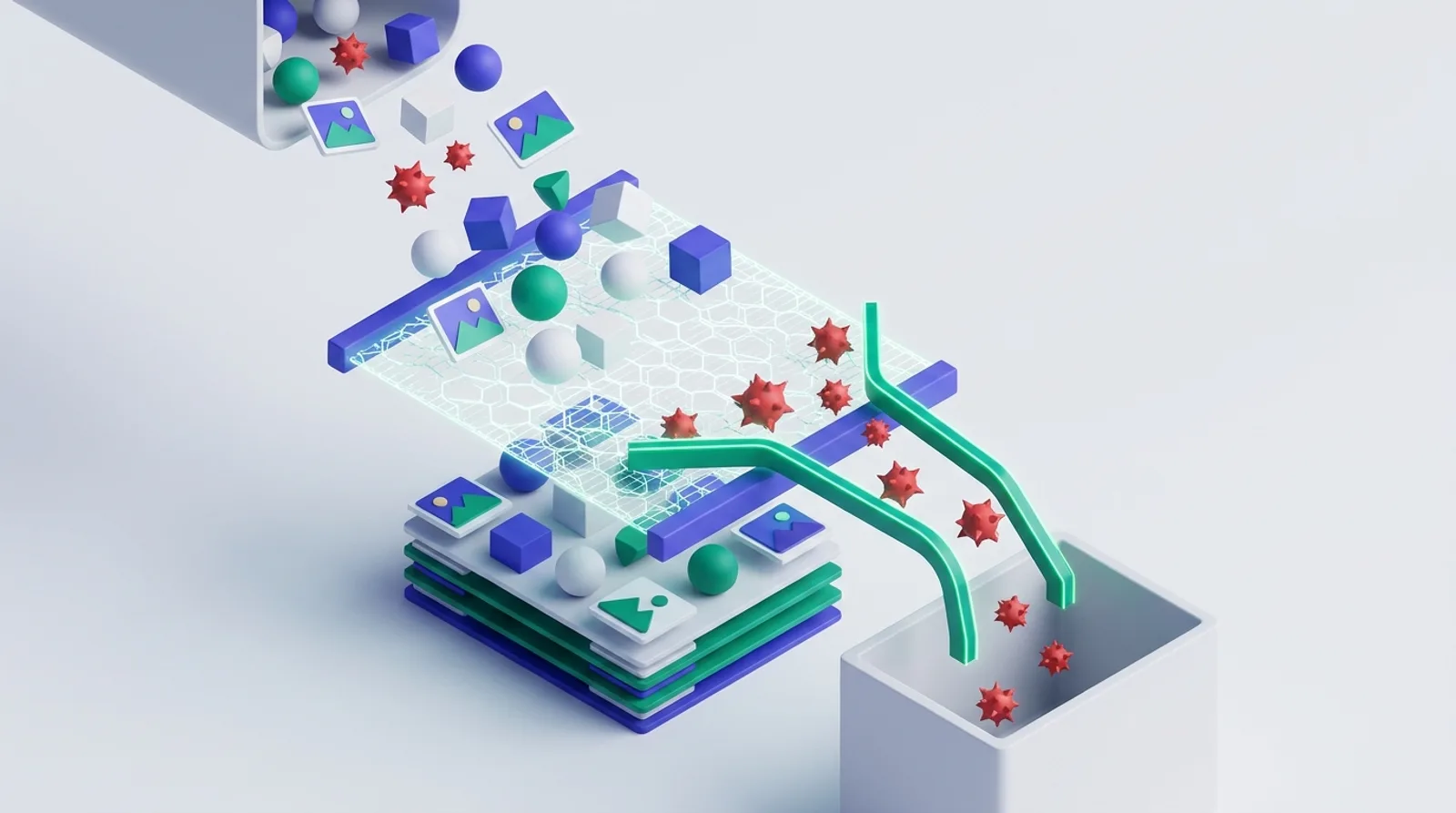
Illustration: only known elements and properties make it through.
AI prompts are input too
The shopper's AI artwork prompt is the other piece of untrusted input. Ai\Safety checks it against a built-in blocklist (adult content, violence, hate, real people, trademarks) plus the store's own terms. Before matching, the prompt is normalised against common tricks, so "n4ked" and "p o r n" are caught, while "trumpet player in Sussex" isn't a false positive. An optional AI moderation step follows, and the image request is sent with strict safety settings. Each session has a daily creation limit, and results are cached. Generated images come back as image bytes, go through the same inspect_image() checks as uploads, and are stored locally, which is what lets them pass src_ok() when they appear in a design.
Trade-offs and gaps
- Clamping can change a design slightly. A value outside its range is pulled to the edge rather than rejected. That's friendlier to real users, at the cost of not telling a buggy client exactly what was wrong.
- New Fabric features need allow-list entries. Upgrading Fabric.js and using a new property means adding it to the sanitiser, or it silently disappears on save. That's the price of an allow-list, and we think it's worth paying.
- Export happens in the admin's browser. Print files are rendered client-side with the same engine as the canvas, then validated on upload. That keeps the server free of a headless browser, but it needs a modern desktop browser for large exports.
- Known gaps. The "Edit design" link appears in the classic cart only, and AI-generated images are about 1024 px, which the print check flags on large print areas. AI features were tested with mocked API responses; a live-key run is still to come.
Conclusion
The safest way to accept a rich document from a browser is to rebuild it from parts you recognise, with ranges on every number, and to derive everything that matters (price, ownership, files) from the rebuilt version on the server. DEV3 AI Product Designer ships in the DEV3 AI WooCommerce Plugins Bundle on the DEV3 marketplace and is being prepared for CodeCanyon. The case study covers the studio, the print pipeline and the AI tools. If you're building a product that accepts complex user content, our web development team can help.