All case studies

DEV3 Technologies · own product

DEV3 AI Product Designer for WooCommerce: a phone-friendly design studio with print-ready 300 DPI files

Our own WooCommerce plugin: a Fabric.js design studio for T-shirts, mugs, posters and phone cases, with AI artwork, a print-quality check and print-ready PDF, PNG and SVG files rendered from a sanitised, server-priced design.

Industry
E-commerce (WooCommerce)

Live project preview

Client systems are private — screenshots shown where permitted.

DEV3 Technologies · own product — screenshots
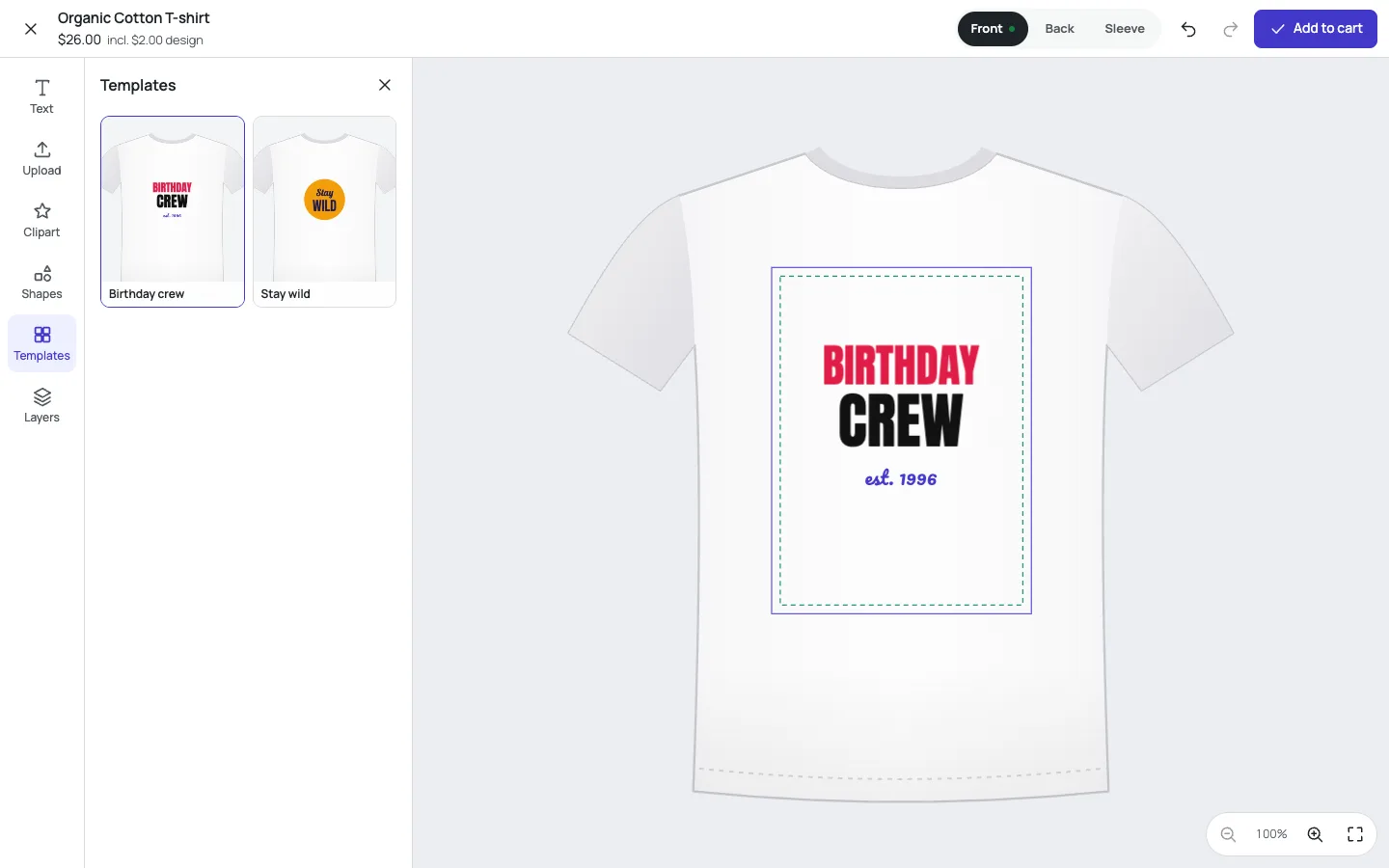
The design studio on a T-shirt mockup: a template on the front, the print area and safe zone, views for front, back and sleeve, and the live price.

The design studio on a T-shirt mockup: a template on the front, the print area and safe zone, views for front, back and sleeve, and the live price.

The challenge

Print-on-demand stores want shoppers to design their own products, but a canvas design is a large JSON document written by the browser. If the server stores and renders it as sent, a shopper can set their own price, inject markup into text, point images at other sites or at private print files, or post a design big enough to stall the server. On top of that, the shop needs files a printer can use at the exact physical size, a design tool that works with fingers on a phone, and AI artwork that can't be talked into printing something the store would never sell.

Our solution

We built DEV3 AI Product Designer as a WooCommerce plugin in PHP, with a full-screen design studio built on Fabric.js and a React admin. The browser draws; the server decides what a design is allowed to contain and what it costs.

Key design decisions

  • An allow-list sanitiser for design JSON. Only 13 Fabric object types and a fixed list of properties survive. Numbers are clamped to ranges, enums and colours are validated, text is stripped of markup, path data is checked command by command, groups are limited in depth, and each side is limited to the product type's element count.
  • Images from this site only. Image sources must be this site's uploads or the plugin's own assets, never remote URLs, data: URIs or the private print folder. Uploads are checked by their bytes, not their names.
  • The server prices the design. The browser total is a preview. The cart price is computed from the stored, sanitised design: element prices, print-area fees and template prices. The design is bound to the cart line by a 32-character key.
  • Print files from the saved design. PDF at the physical size with bleed boxes and optional crop marks, PNG with real 300 DPI metadata and vector SVG, rendered with the same engine as the canvas. Uploaded print files are checked for PDF, PNG or safe SVG content and stored in a protected folder.
  • Ordered designs are immutable. Editing a design that is already on an order creates a new design, so the file that was printed always matches the order.
  • Safe AI artwork. Shopper prompts pass a blocklist normalised against spelling tricks, an optional AI moderation step and strict image safety settings, with per-session daily limits.

Architecture

Product types define views (front, back, sleeve, wrap), mockups, print areas in millimetres, bleed, safe zone, minimum DPI, allowed tools, fonts and palettes. The studio has text with 12 bundled fonts, uploads, clipart, shapes, templates, layers, undo and snapping, and on phones a bottom tool bar with pinch-to-scale and twist-to-rotate. Designs are saved to the shopper's account, carried through the classic and block cart and checkout, and attached to the order with previews. The print-quality check flags low-resolution images, text near the edge, cut-off elements, tiny text, low contrast and bright RGB colours; with the Google Gemini API connected, DEV3 AI adds artwork, slogan ideas, background removal, photo enhancement, a spelling and layout review and an admin template generator. The API client, encrypted key storage and usage logs come from a shared core used across DEV3's plugins.
Results

The plugin is complete. It ships in the DEV3 AI WooCommerce Plugins Bundle on the DEV3 marketplace, alongside 20 other WooCommerce plugins, and is being prepared for CodeCanyon. What was built and verified:

  • 53 PHPUnit tests, including the sanitiser against script tags, unknown types, remote and data: images, bad path commands and oversized designs; upload checks that reject PHP disguised as a PNG; design ownership by key; and server-side pricing
  • 68 Jest tests for the design engine, print file export, the studio UI and the storefront launcher
  • 25 shared pricing fixtures run by both the PHP and the JavaScript price calculation
  • Print-ready PDF, PNG and SVG files produced at 300 DPI for a two-sided T-shirt order and saved with the order
  • AI artwork, slogans, photo tools, the AI review and the template generator tested with mocked API responses; a live-key run is still to come
  • Known gaps: the "Edit design" link is in the classic cart only, and AI-generated images are about 1024 px

Setup guide

No licence key or activation is needed: install the zip and every feature works.

Requirements

  • WordPress 6.0 or newer and PHP 7.4 or newer
  • WooCommerce 8.0 or newer, active (classic and block cart/checkout and HPOS are supported)
  • A modern desktop browser for exporting large print files in the admin
  • Optional: a Google Gemini API key for AI artwork, slogan ideas, AI photo tools, the AI design review and the template generator. Everything else works without one

1. Install the plugin

  1. The plugin ships inside the DEV3 AI WooCommerce Plugins Bundle download. Unzip the bundle and find dev3-ai-woocommerce-plugins-bundle/dev3-ai-product-designer-for-woocommerce/dev3-ai-product-designer-for-woocommerce.zip.
  2. In WordPress, go to Plugins → Add New → Upload Plugin, choose that zip and click Install Now.
  3. Click Activate. DEV3 AI Product Designer for WooCommerce appears in the plugin list and its menu, DEV3 AI Designer, appears in the admin sidebar.

2. Connect Google Gemini (optional)

  1. Create a free API key in Google AI Studio (sign in with a Google account, then Create API key).
  2. Go to DEV3 AI Designer → API Config, paste the key and click Validate & save. The key is stored encrypted (AES-256-GCM) and never sent to the browser.
  3. Optional: pick the models (gemini-2.5-flash is the fast default; an image model is used for AI artwork).

Prefer config files? Add define( 'DEV3PD_GEMINI_API_KEY', 'your-key' ); to wp-config.php instead.

3. First-time setup

  1. Go to DEV3 AI Designer → Product types and add a preset (T-shirt, mug, poster, phone case, tote) or create your own. For each view, set the mockup, the print area, its size in millimetres, bleed, safe zone and minimum DPI.
  2. Choose the tools shoppers get (text, photo uploads, AI artwork, clipart, shapes, templates), the fonts and the colour palette, then click Save and Preview in designer.
  3. In Products, turn the designer on for each product and pick its product type, or use the DEV3 AI Designer tab in the product editor.
  4. In Settings, set the default price per element, whether guests can design, the button label, the minimum print DPI and print file DPI, and the AI artwork limits per shopper per day. Print-area prices are set per view in the product type.
  5. Optional: add templates in Templates and your own fonts and clipart in Fonts & clipart.

Updating

Download the latest bundle, find the new plugin zip at the same path, then upload it in Plugins → Add New → Upload Plugin and choose Replace current with uploaded. Product types, templates and designs are kept.

Uninstalling

Deactivate and delete the plugin from Plugins. Data is removed only if "delete data on uninstall" is turned on in Settings; designs already on orders stay linked to those orders until then.

How to use

Make a product designable

  1. Go to DEV3 AI Designer → Products, find the product and click Configure.
  2. Turn on Enable the designer, choose the Product type, and decide whether a design is required before add to cart. Optionally add a design fee, a starting template and a custom button label.
  3. Click Save. The product page shows a Customize design button.

Create templates

  1. Open Templates, create a template for a product type and design it in the same studio shoppers use. Lock elements shoppers shouldn't move, and set a template price if you like.
  2. With AI connected, use Generate templates with DEV3 AI: describe the occasion and style, and review each draft before it is saved.

What shoppers do

  1. Click Customize design and switch between views (front, back, sleeve) at the top.
  2. Add text, photos, clipart, shapes or a template from the tool bar. With AI on, AI art creates artwork from a description and Slogan ideas (AI) suggests text for an occasion and style.
  3. Click Add to cart. The design check flags print problems first; the shopper can keep editing or continue. Logged-in shoppers can save designs to their account.

Print an order

  1. Open Designs & orders and choose an ordered design to see its previews, details and print check.
  2. Under Print-ready files, choose the resolution (300 DPI for print) and background, tick crop marks and Also save files to the order if you want them stored.
  3. Click PDF, PNG or SVG for each side, or All sides as one PDF. Saved files are listed under Saved print files with a Download link.

Manage fonts, clipart and limits

  1. In Fonts & clipart, upload your own fonts and clipart next to the 12 bundled fonts.
  2. In Settings, adjust upload size, how long unordered designs are kept, and how many AI artwork requests each shopper may make per day. Add your own words to Blocked words for artwork prompts.

Related case studies